| Product Recognition | |
|---|
| Certification Number | ZC12-20010031 |
|---|
| Name | Recessed Door Sensor 7 |
|---|
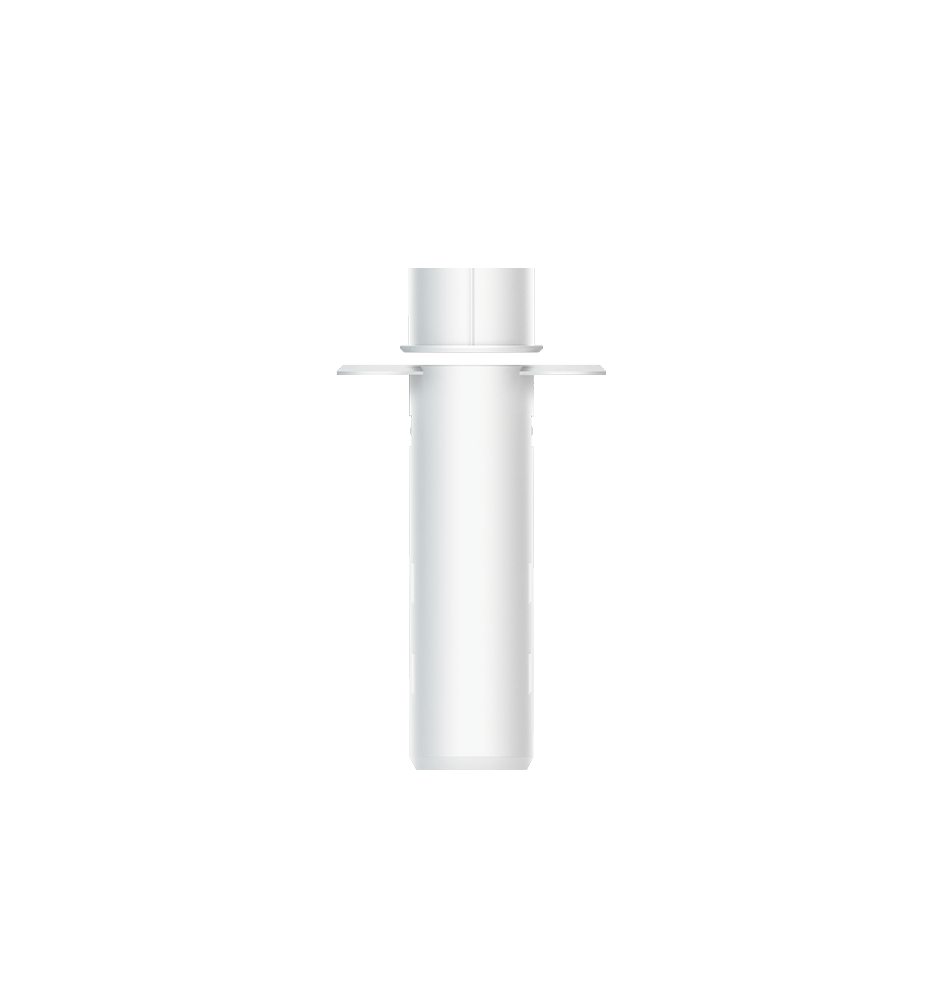
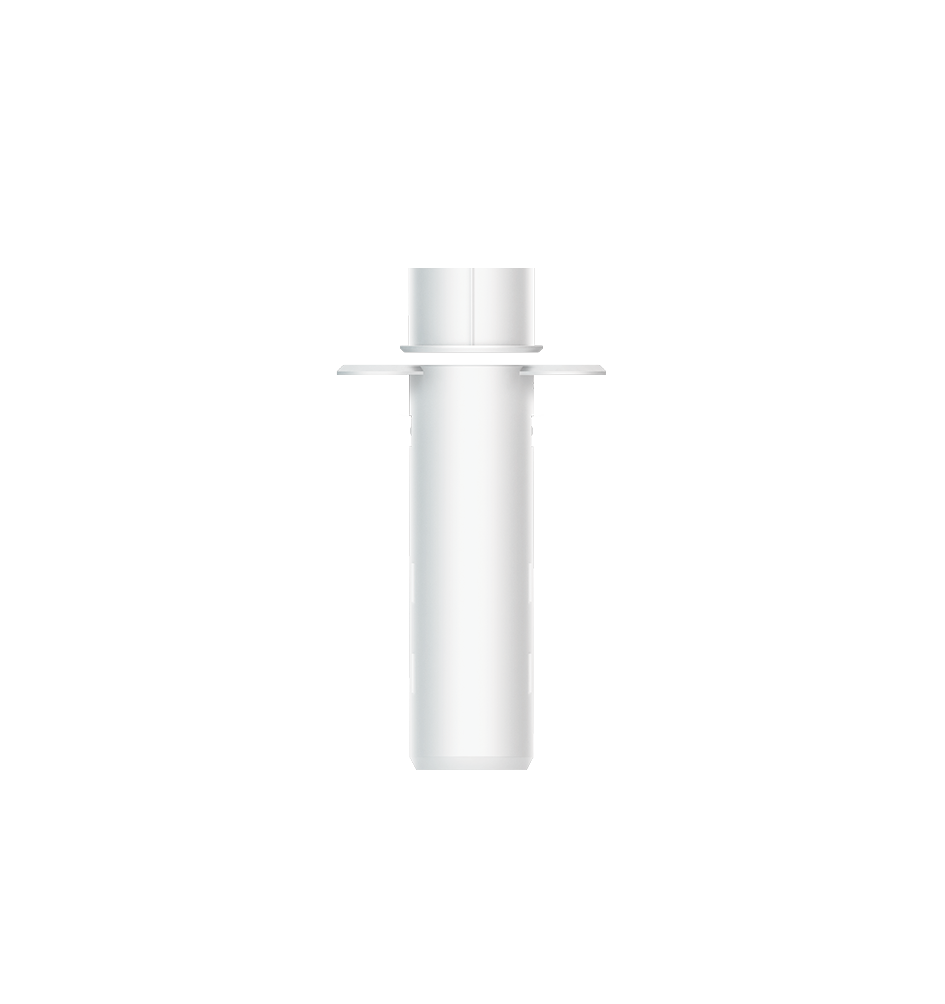
| Short Description | Recessed Door Sensor 7 is a wireless notification sensor product which is embedded inside the wooden door or window. |
|---|
| Long Description | Recessed Door Sensor 7 is a wireless notification sensor product which is embedded inside the wooden door or window.
This product is powered by battery and used for detecting the opening or closing of doors, windows. It can communicate with an associated Z-Wave product, such as Siren, Switch, etc.
This product supports Security 2 Command Class. While a Security S2 enabled Controller is needed in order to fully use the security feature.
This product can be operated in any Z-Wave network with other Z-Wave certified products from other manufacturers. All mains operated nodes within the network will act as repeaters regardless of vendor to increase reliability of the network.
This product supports the Over The Air (OTA) feature for the product's firmware upgrade. |
|---|
| Brand | Aeotec |
|---|
| Product Identifier | ZW187-B |
|---|
| Product Line | Z-Wave Plus v2 Line |
|---|
| OEM Version | HW: 187 FW: 1.04 |
|---|
| Hardware Platform | ZGM130 |
|---|
| Z-Wave Version | 7.12.2 |
|---|
| Library Type | SLAVE_ENHANCED_232 |
|---|
| Device Type | Notification Sensor |
|---|
| Role Type | ROLE_TYPE_SLAVE_SLEEPING_REPORTING |
|---|
| Manufacturer ID | 0x0371 |
|---|
| Product Type ID | 0x0202 |
|---|
| Product ID | 0x00BB |
|---|
| User Icon | 0x0C06 |
|---|
| Installer Icon | 0x0C06 |
|---|
| Frequency Plans | ANZ: 919.80MHz, 921.40MHz |
|---|
| Categories | Sensors, Security Add-Ons |
|---|
| Countries / Regions | Australia |
|---|
| Supported Command Classes | | Identifier | Name | Key | Version |
|---|
| COMMAND_CLASS_CONFIGURATION_V4 | Configuration V4 | 0x70 | 4 | | COMMAND_CLASS_POWERLEVEL | Powerlevel | 0x73 | 1 | | COMMAND_CLASS_MULTI_CHANNEL_ASSOCIATION_V3 | Multi-Channel Association V3 | 0x8E | 3 | | COMMAND_CLASS_INDICATOR_V3 | Indicator V3 | 0x87 | 3 | | COMMAND_CLASS_BATTERY | Battery | 0x80 | 1 | | COMMAND_CLASS_APPLICATION_STATUS | Application Status | 0x22 | 1 | | COMMAND_CLASS_SECURITY | Security S0 | 0x98 | 1 | | COMMAND_CLASS_SENSOR_BINARY_V2 | Sensor Binary V2 | 0x30 | 2 | | COMMAND_CLASS_TRANSPORT_SERVICE_V2 | Transport Service V2 | 0x55 | 2 | | COMMAND_CLASS_WAKE_UP_V2 | Wake Up V2 | 0x84 | 2 | | COMMAND_CLASS_DEVICE_RESET_LOCALLY | Device Reset Locally | 0x5A | 1 | | COMMAND_CLASS_ZWAVEPLUS_INFO_V2 | Z-Wave Plus Info V2 | 0x5E | 2 | | COMMAND_CLASS_ASSOCIATION_V2 | Association V2 | 0x85 | 2 | | COMMAND_CLASS_FIRMWARE_UPDATE_MD_V5 | Firmware Update Meta-Data V5 | 0x7A | 5 | | COMMAND_CLASS_ASSOCIATION_GRP_INFO_V3 | Association Group Information V3 | 0x59 | 3 | | COMMAND_CLASS_NOTIFICATION_V8 | Notification V8 | 0x71 | 8 | | COMMAND_CLASS_SECURITY_2 | Security S2 | 0x9F | 1 | | COMMAND_CLASS_VERSION_V3 | Version V3 | 0x86 | 3 | | COMMAND_CLASS_SUPERVISION | Supervision | 0x6C | 1 | | COMMAND_CLASS_MANUFACTURER_SPECIFIC_V2 | Manufacturer Specific V2 | 0x72 | 2 |
|
|---|
| S2 Classes | S2_UNAUTHENTICATED, S2_AUTHENTICATED |
|---|
| Documents | |
|---|
| Features | | Feature | Values |
|---|
| Battery Quantity | | | Battery Type | | | Color | | | Firmware Updatable | | Value |
|---|
| Updatable by Consumer by RF |
|
|
|---|
| Association Groups | | Group Number | Maximum Nodes Supported | End Point ID | Group Name | Profile | Description |
|---|
| 2 | 5 | 0 | On/Off control (Access) | 0x7106 | Issue Basic Set when Magnet is away or near. (The Basic Set Value is determined by Confiquration Parameter 3) | | 1 | 5 | 0 | Lifeline | 0x0001 | Lifeline group. (1) Device Reset Locally Notification: Issued when Factory Reset is performed. (2) Battery Report: lssued periodically to report the current battery level; lssued when battery becomes low. (3) Sensor Binary Report: Issued when Magnet is away or near. (4) Notification Report (Type=0x06; Event=0x16): Issued when sensor state is changed to be Open Status. (5) Notification Report (Type=0x06; Event=0x17): Issued when sensor state is changed to be Close Status. (6) Notification Report (Type=0x08; Event-0x01): Issued when battery voltage change exceeds 20%. (7) Notification Report (Type=0x09; Event=0x04; Param=0x55): Issued when reset due to Watch-Dog Timeout. |
|
|---|
| Configuration Parameters | | Parameter Number | Name | Description | Format | Size | Min Value | Max Value | Default Value | Parameter Values | Flag Advanced |
|---|
| 1 | Binary Sensor Report | Enable/Disable Binary Sensor Report. Allow for backward compatibility to report Binary if Notification Report cannot be use for status changes. | 2 | 1 | 0 | 1 | 0 |
Warning: Undefined variable $field_object in /nas/content/live/zwaprodcatalog/wp-content/themes/hello-elementor-child/single-z-wave-product.php on line 98
From | To | Description |
|---|
| 0 | 0 | Disable. Sensor Binary Report will NOT be issued via Lifeline when Magnet is away or near. | | 1 | 1 | Enable. Sensor Binary Report will be issued via Lifeline when Magnet is away or near. |
| | | 2 | Sensor Reports | Reverse Sensor Reports (both Sensor Binary Report and Notification Report.) | 2 | 1 | 0 | 1 | 0 | | From | To | Description |
|---|
| 0 | 0 | Open Status when Magnet is away, Close Status when magnet is near. | | 1 | 1 | Close Status when Magnet is away, Open Status when magnet is near. |
| | | 3 | Association Group 2 Settings | Configure the Basic Set value. Determine the Basic Set value to control other Z-Wave devices directly when Magnet is away or near. | 2 | 1 | 0 | 6 | 1 | | From | To | Description |
|---|
| 0 | 0 | Disable completely. | | 1 | 1 | Send Basic Set 0xFF when Magnet is away, and send Basic Set 0x00 when Magnet is near. | | 2 | 2 | Send Basic Set 0x00 when Magnet is away, and send Basic Set 0xFF when Magnet is near. | | 3 | 3 | Only send Basic Set 0xFF when Magnet is away. | | 4 | 4 | Only send Basic Set 0x00 when Magnet is near. | | 5 | 5 | Only send Basic Set 0x00 when Magnet is away. | | 6 | 6 | Only send Basic Set 0xFF when Magnet is near. |
| | | 4 | Application Layer Retry | Configure retry number and wait time. The device supports an application retry mechanism when the application of the device has detected a transmission error when Basic Set, Sensor Binary Report or Notification Report (Access Control) message is sent out but fails to result in an ACK or a Supervision Report. | 2 | 2 | 0 | 1535 | 0 | | From | To | Description |
|---|
| 0 | 1535 | The Byte 1 is used to configure the number of retries. The valid value is 0-5. 0 means disable retry. The Byte 2 is used to confiqure the wait time between retries. The valid value is 0-255. Unit is 100ms. |
| Yes | | 81 | Led Indicator | Control LED Indicator. Determine whether the LED flash or not when sending Basic Set, Sensor Binary Report, Notification Report (Access Control) or Wake Up Notification. | 2 | 1 | 0 | 3 | 3 | | From | To | Description |
|---|
| 0 | 0 | Completely disable LED. | | 1 | 1 | LED quickly flashes only when sending Basic Set, Sensor Binary Report or Notification Report (Access Control). | | 2 | 2 | LED activates only when sending Wake Up Notification. | | 3 | 3 | LED quickly flashes when sending Basic Set, Sensor Binary Report or Notification Report (Access Control), and activates when sending Wake Up Notification. |
| | | 101 | Timed battery report | Set how often battery is reported in minutes. | 2 | 2 | 1 | 14400 | 70 | | From | To | Description |
|---|
| 1 | 14400 | Set how often battery is reported in minutes. |
| |
|
|---|
| Texts | | ID | Description | Value |
|---|
| 8 | Where to find S2 DSK on product | QR/PIN can be found at the bottom of the product. A full DSK string can be found when you open the packaging on the Aeotec Logo Side. Please cut it out of the packaging and write some memo on its backside. Keep it in a safe place. | | 2 | Classic Exclusion | 1. Set your main controller into its 'remove product' mode. Refer to its manual if you are unsure of how to perform.
2. Make sure the product is powered.
3. Single-click the Action Button; its red LED will flash for a few seconds.
4. Confirm the removing result. Successful removing can be confirmed by your controller’s message or the LED status. If the removing is successful, LED will change to the default unpaired state which is slow fade-in fade-out red color. If its LED extinguish without slow fade-in fade-out red color, it indicates the removing is unsuccessful. Repeat the above steps or contact us for further support if needed. | | 4 | Wake-Up Procedure | 1. Make sure the product is powered.
2. Press and hold the Action Button for at least 2s and release when the LED becomes slow pulsing red color, then Wake Up Notification is issued.
3. Wake Up destination is according to the Wake Up Interval Set. It will stay awake for 10 minutes after issuing Wake Up Notification, that is called 10-Minutes Awake Mode, however it will go into sleep immediately if receives Wake Up No More Information by the Wake Up destination. If you want to exit the 10-Minutes Awake Mode manually, please single-click the Action Button, then it will go into sleep immediately and its LED will extinguish.
Note:
There is another way to manually trigger Wake Up, that is repower on, but it’s not recommended for inconvenience. The Wake Up destination is according to the Wake Up Interval Set. The Wake Up period starts when the node issues a Wake Up Notification and it ends either 10 seconds after the last received/transmitted frame or at the reception of a Wake Up No More Information Command by the Wake Up destination. | | 5 | Factory Reset Procedure | If the primary controller is missing or inoperable, you may need to reset the product to factory settings.
1. Make sure the product is powered.
2. Press and hold the Action Button for at least 20s, and release when LED becomes solid red color, then Factory Reset is performed.
3. Wait for the LED indicator to be slow fade-in fade-out red LED color, which indicates the reset operation is successful. Otherwise, please try again. Contact us for further support if needed.
Note:
1. This procedure should only be used when the primary controller is missing or inoperable.
2. Factory Reset will:
(a) Remove the product from Z-Wave network;
(b) Delete the Association setting;
(c) Restore the configuration settings to the default. | | 1 | Classic Inclusion | 1. Press the sensor latch with a slotting screwdriver to remove the lid of the sensor.
2. Squeeze the sides of the sensor casing to alleviate pressure on the chipboard; slide the chipboard out.
3. Remove the Pull Tab to engage the pre-installed battery. The sensor’s LED will fade the color red in and out for a few seconds to indicate that it’s powered on.
4. To add the product to your automation network manually:
(a) Set your main controller into its 'add product' mode. Refer to its manual if you are unsure of how to perform.
(b) Single-click the Action Button; its red LED will flash for a few seconds.
(c) If your controller supports S2 security, and you want to add the product into S2 Authenticated network, please scan the QR code or enter the PIN code (the underlined 5-digits of the DSK) when prompted. [IMPORTANT] QR/PIN can be found at the bottom of the product. A full DSK string can be found when you open the packaging on the Aeotec Logo Side. Please cut it out of the packaging and write some memo on its backside. Keep it in a safe place.
(d) Wait for the adding process to end.
(e) Confirm the adding result. Successful adding can be confirmed by your controller’s message or the LED status. If adding is successful, LED will become solid red color for 10 minutes and then off, or goes into sleep immediately if receiving the Wake Up No More Information from the controller. If its LED goes back to slow fade-in fade-out red color for 10 seconds, it indicates adding is unsuccessful. The product will auto-reset and then activate SmartStart. Repeat the above steps or contact us for further support if needed.
6. Squeeze the sides of the sensor casing lightly again and re-insert the chipboard as it was. Re-attach the lid.
7. Recessed Door Sensor 7 is now a part of your Z-Wave home control system. You can configure it and its automations via your Z-Wave system; please refer to your software's user guide for precise instructions. |
|
|---|
| Supported Notification Types | | Notification Type | Event / State |
|---|
| Access Control | Door state: Window/door is open | | Access Control | Door state: Window/door is closed | | Power Management | Power status: Power has been applied | | System | SW status: System software failure (manufacturer proprietary failure code provided) |
|
|---|
| Supports NWI | Yes |
|---|
| Supports Explorer Frames | Yes |
|---|
| Supports SmartStart | Yes |
|---|