Product Recognition | |
|---|
Certification Number | ZC10-20036881 |
|---|
Name | Heatit Z-Repeater |
|---|
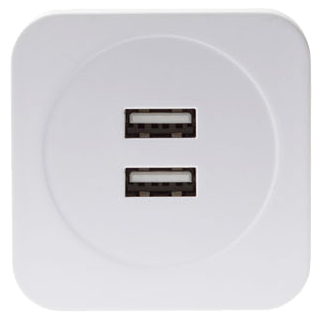
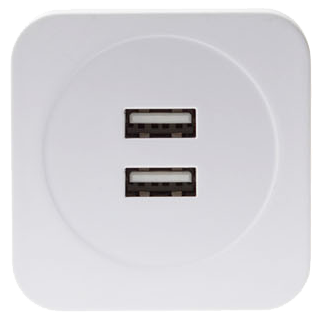
Short Description | The Heatit Z-Repeater Dual USB 2A is a multifunctional AC Z-Wave range extender with two USB power adapters that allow you to charge two devices at the same time. Ideal for extending the Z-Wave signal to areas with blind spots - a solution for anyone experiencing poor wireless connectivity. |
|---|
Long Description | The Heatit Z-Repeater Dual USB 2A is a multifunctional AC Z-Wave range extender with two USB power adapters that allow you to charge two devices at the same time. Ideal for extending the Z-Wave signal to areas with blind spots - a solution for anyone experiencing poor wireless connectivity.
With the rechargeable backup batteries, the device will still be able to operate for up to 6 hours after a power failure. Important battery-operated units such as door locks, smoke detectors and burglary alarms will still work during a blackout. |
|---|
Brand | Heatit controls |
|---|
Product Identifier | 45 126 86 |
|---|
Product Line | Heatit Security |
|---|
OEM Version | HW: 255 FW: 4.01 |
|---|
Hardware Platform | ZM5202 |
|---|
Z-Wave Version | 6.81.06 |
|---|
Library Type | SLAVE_ENHANCED_232 |
|---|
Device Type | Repeater |
|---|
Role Type | ROLE_TYPE_SLAVE_ALWAYS_ON |
|---|
Manufacturer ID | 0x019B |
|---|
Product Type ID | 0x0003 |
|---|
Product ID | 0x3600 |
|---|
User Icon | 0x1B00 |
|---|
Installer Icon | 0x1B00 |
|---|
Frequency Plans | EU: 869.85MHz, 868.40MHz |
|---|
Categories | Network Devices |
|---|
Countries / Regions | European Union |
|---|
Supported Command Classes | Identifier | Name | Key | Version |
|---|
COMMAND_CLASS_FIRMWARE_UPDATE_MD_V4 | Firmware Update Meta-Data V4 | 0x7A | 4 | COMMAND_CLASS_POWERLEVEL | Powerlevel | 0x73 | 1 | COMMAND_CLASS_MULTI_CHANNEL_ASSOCIATION_V3 | Multi-Channel Association V3 | 0x8E | 3 | COMMAND_CLASS_BATTERY | Battery | 0x80 | 1 | COMMAND_CLASS_TRANSPORT_SERVICE_V2 | Transport Service V2 | 0x55 | 2 | COMMAND_CLASS_DEVICE_RESET_LOCALLY | Device Reset Locally | 0x5A | 1 | COMMAND_CLASS_ZWAVEPLUS_INFO_V2 | Z-Wave Plus Info V2 | 0x5E | 2 | COMMAND_CLASS_ASSOCIATION_V2 | Association V2 | 0x85 | 2 | COMMAND_CLASS_ASSOCIATION_GRP_INFO | Association Group Info | 0x59 | 1 | COMMAND_CLASS_NOTIFICATION_V8 | Notification V8 | 0x71 | 8 | COMMAND_CLASS_SECURITY_2 | Security S2 | 0x9F | 1 | COMMAND_CLASS_VERSION_V3 | Version V3 | 0x86 | 3 | COMMAND_CLASS_SUPERVISION | Supervision | 0x6C | 1 | COMMAND_CLASS_MANUFACTURER_SPECIFIC_V2 | Manufacturer Specific V2 | 0x72 | 2 |
|
|---|
S2 Classes | S2_UNAUTHENTICATED |
|---|
Documents | Category | Description | File |
|---|
Manual_Primary_Lang | Product Manual | |
|
|---|
Features | Feature | Values |
|---|
Battery Quantity | | Battery Type | |
|
|---|
Association Groups | Group Number | Maximum Nodes Supported | End Point ID | Group Name | Profile | Description |
|---|
1 | 1 | 0 | Lifeline | 0x0000 | The Router can be set to send reports to associated Z-Wave devices. It supports 1 association groups with 1 node.
Group 1 for “LifeLine”: (maximum node: one)
Battery CC (COMMAND_CLASS_BATTERY)
Notification CC,V8 (COMMAND_CLASS_NOTIFICATION)
Device Reset Locally CC (COMMAND_CLASS_DEVICE_RESET_LOCALLY)
|
|
|---|
Texts | ID | Description | Value |
|---|
8 | Where to find S2 DSK on product | The DSK information is stored in the QR code format that is printed on a label and adhered to the front side of the device, as example shown on the right hand side. | 2 | Classic Exclusion | 1. Put the Z-Wave Gateway or Control Panel into Exclusion mode (please refer to the Z-Wave Gateway or Control Panel manual).
2. Within 1.5 seconds, press the Function Button 3 times and the Router will be removed from the Z-Wave network. | 4 | Wake-Up Procedure | Always On Slave (AOS) | 5 | Factory Reset Procedure | (Only use factory reset when network Control Panel/Gateway is missing or inoperable).
*. Press and hold the Function Button for 10 seconds to factory reset. | 1 | Classic Inclusion | 1. Connect the Router into the power socket to power on.
2. Put the Z-Wave Gateway or Control Panel into Inclusion mode (please refer to the Z-Wave Gateway or Control Panel manual).
3. Within 1.5 seconds, press the Function Button 3 times.
4. Refer to the operation manual of the Z-Wave Gateway or Control Panel to complete the adding process.
5. If the sensor has already been added (included) into another Z-Wave Gateway/Control Panel, or if the sensor is unable to be added into the current Z-Wave Gateway/Control Panel, please exclude it first (see Removing Device) before attempting to include it into the current Z-Wave Gateway/Control Panel. |
|
|---|
Supported Notification Types | Notification Type | Event / State |
|---|
Power Management | Mains status: AC mains disconnected | Power Management | Mains status: AC mains re-connected |
|
|---|
Supports NWI | Yes |
|---|
Supports Explorer Frames | Yes |
|---|
Supports SmartStart | Yes |
|---|
Radio Range Z-Wave (m) | 40 |
|---|