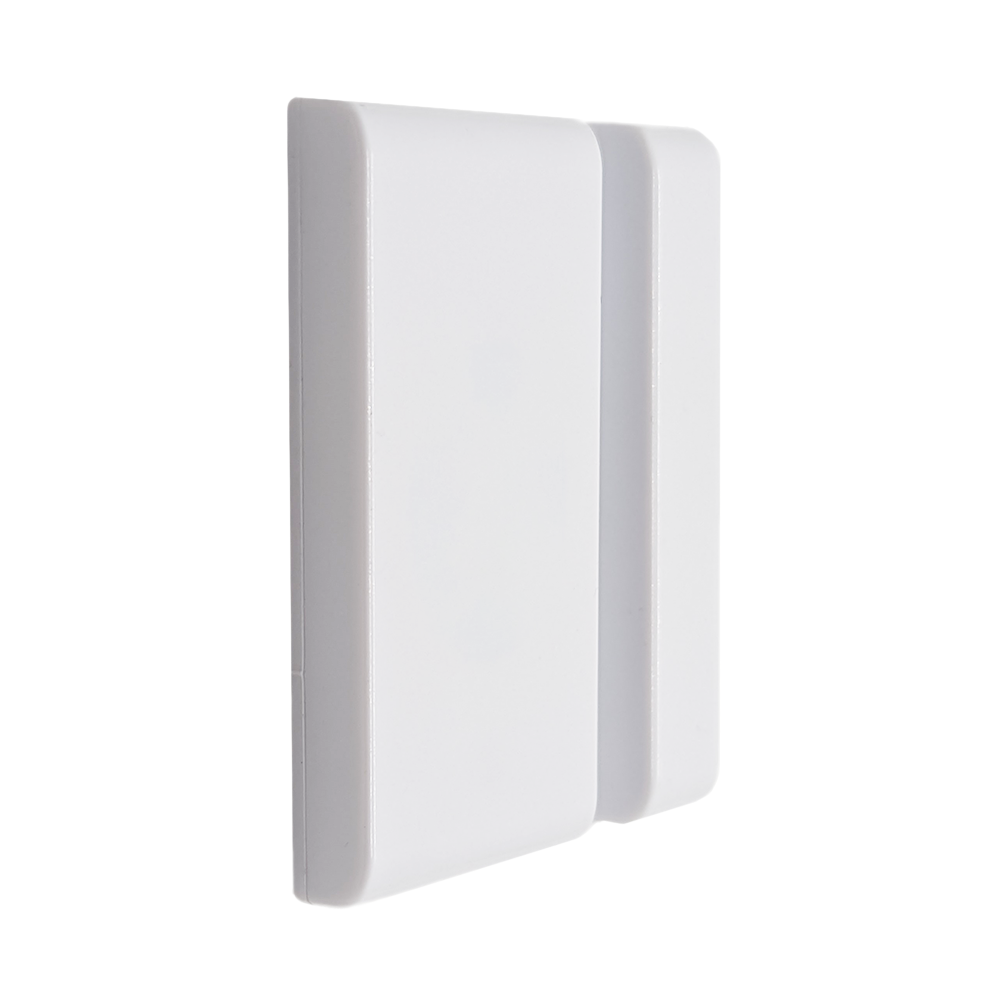
Product Recognition | |
|---|
Certification Number | ZC14-22090131 |
|---|
Name | Ness Z-Wave Reed Switch |
|---|
Short Description | The Ness Z-Wave™ Reed Switch (ZWR) is a miniature battery-powered magnetic reed switch with Z-Wave Plus™ connectivity and hundreds of uses. |
|---|
Long Description | The Ness Z-Wave™ Reed Switch (ZWR) is a miniature battery-powered magnetic reed switch with Z-Wave Plus™ connectivity and hundreds of uses.
ZWR can monitor the status of doors, windows, and other objects with opening parts such as cupboards, drawers, inspection covers, display cases and more.
Being battery-powered, ZWR can be quickly and easily installed into a Z-Wave network at any location within range.
Ness ZWR is a Security Enabled Z-Wave Plus™ V2 empowered wireless control. This product can be operated in any Z-Wave network with other Z-Wave certified devices from other manufacturers with the same regional radio frequency. All mains operated nodes within the network will act as repeaters regardless of vendor to increase network reliability. |
|---|
Brand | Ness |
|---|
Product Identifier | ZA-117011 |
|---|
Product Line | Reed Switch |
|---|
OEM Version | HW: 01 FW: 01.01 |
|---|
Hardware Platform | ZGM130S037HGN2 / ZGM130S037HGN1 |
|---|
Z-Wave Version | 7.16.3 |
|---|
Library Type | END_NODE_ENHANCED_232 |
|---|
Device Type | Notification Sensor DT |
|---|
Role Type | ROLE_TYPE_SLAVE_SLEEPING_REPORTING |
|---|
Manufacturer ID | 0x0189 |
|---|
Product Type ID | 0x0204 |
|---|
Product ID | 0x0F01 |
|---|
User Icon | 0x0C06 |
|---|
Installer Icon | 0x0C06 |
|---|
Frequency Plans | ANZ: 919.80MHz, 921.40MHz |
|---|
Categories | Sensors |
|---|
Countries / Regions | Australia, New Zealand |
|---|
Supported Command Classes | Identifier | Name | Key | Version |
|---|
COMMAND_CLASS_ASSOCIATION_V2 | Association V2 | 0x85 | 2 | COMMAND_CLASS_ASSOCIATION_GRP_INFO_V3 | Association Group Information (AGI) V3 | 0x59 | 3 | COMMAND_CLASS_DEVICE_RESET_LOCALLY | Device Reset Locally | 0x5A | 1 | COMMAND_CLASS_FIRMWARE_UPDATE_MD_V5 | Firmware Update Meta Data V5 | 0x7A | 5 | COMMAND_CLASS_INDICATOR_V3 | Indicator V3 | 0x87 | 3 | COMMAND_CLASS_MANUFACTURER_SPECIFIC_V2 | Manufacturer Specific V2 | 0x72 | 2 | COMMAND_CLASS_MULTI_CHANNEL_ASSOCIATION_V3 | Multi Channel Association V3 | 0x8E | 3 | COMMAND_CLASS_VERSION_V3 | Version V3 | 0x86 | 3 | COMMAND_CLASS_ZWAVEPLUS_INFO_V2 | Z-Wave Plus Info V2 | 0x5E | 2 | COMMAND_CLASS_SECURITY_2 | Security 2 | 0x9F | 1 | COMMAND_CLASS_SUPERVISION | Supervision | 0x6C | 1 | COMMAND_CLASS_TRANSPORT_SERVICE_V2 | Transport Service V2 | 0x55 | 2 | COMMAND_CLASS_POWERLEVEL | Powerlevel | 0x73 | 1 | COMMAND_CLASS_NOTIFICATION_V8 | Notification V8 | 0x71 | 8 | COMMAND_CLASS_WAKE_UP_V2 | Wake Up V2 | 0x84 | 2 | COMMAND_CLASS_BATTERY | Battery | 0x80 | 1 | COMMAND_CLASS_CONFIGURATION_V4 | Configuration V4 | 0x70 | 4 | COMMAND_CLASS_APPLICATION_STATUS | Application Status | 0x22 | 1 | COMMAND_CLASS_SECURITY | Security 0 | 0x98 | 1 |
|
|---|
S2 Classes | S2_AUTHENTICATED, S2_UNAUTHENTICATED |
|---|
Documents | Category | File |
|---|
Manual_English | |
|
|---|
Features | Feature | Values |
|---|
Battery Type | | Color | |
|
|---|
Association Groups | Group Number | Maximum Nodes Supported | End Point ID | Group Name | Profile |
|---|
1 | 5 | 0 | Lifeline | 0x0001 | 2 | 5 | 0 | Basic set | 0x7106 |
|
|---|
Configuration Parameters | Parameter Number | Name | Description | Format | Size | Min Value | Max Value | Default Value |
|---|
1 | BASIC_SET Off Delay | The period of time in seconds to send BASIC SET (0) command to Association Group 2 after BASIC_SET(0xFF) command has reported. Range: 0~3600. Default: 10. value = 0 - disable BASIC SET (0) report | 1 | 2 | 0 | 0 | 0x000A | 2 | BASIC SET ON Value | This parameter sets the value sent by the BASIC SET ON command to Association Group 2. Available Settings: 1 - 99 or 255; 1 - 99 Dim Level (for multilevel Switch); 255 - ON for Binary Switch Device. | 1 | 1 | 0 | 0 | 0xFF | 3 | When To Send BASIC SET ON Command | This parameter is used to select when to Send BASIC SET ON Command. 0 - Not send Basic Set ON Command; 1 - Open, when the sensor and magnet are pulled apart; 2 - Close, When the sensor and magnet are brought together. | 1 | 1 | 0 | 0 | 0x01 | 4 | Low battery setting | Report battery low warning message when battery level reaches this value in percentage. Range: 10~50 (10%~50%) The battery level range: 100% - 3V; 0% - 1.8V | 1 | 1 | 0 | 0 | 0x0A | 5 | Battery Scheduled Report Interval | The battery level scheduled report interval time is based on every 30 minutes per kick. The value N related to the time in minutes is N x 30 minutes. Range: 0~120. Default: 12 (12x30 =360 minutes). Value = 0 - Disable Battery level scheduled report. | 1 | 1 | 0 | 0 | 0x0C | 6 | Reed Sensor Green LED Configuration | This parameter is used to set the Green LED to indicate when the reed sensor detects the MAGNET getting close or moving away or both. Disable the Green LED will save the battery life. 0 - Disable Green LED; 1 - Closing; 2 - Opening; 3 - Opening and Closing. | 1 | 1 | 0 | 0 | 0x01 |
|
|---|
Texts | ID | Description | Value |
|---|
8 | Where to find S2 DSK on product | Page 7
Ness Z-Wave Reed Switch is a SmartStart enabled device allowing it to be added into a Z-Wave network by scanning its Z-Wave QR Code with a controller providing SmartStart inclusion. No further action is required and the SmartStart product will be added automatically within 10 minutes of being switched on in the network vicinity. | 1 | Classic Inclusion | Inclusion
To add the device into the Z-Wave network:
1) Power on device and ensure it has been factory defaulted.
2) Set the primary controller into inclusion mode.
3) Click the Action Button once to enter inclusion mode. Red LED: fast flashing.
Inclusion mode can be cancelled by clicking the Action Button again before the controller starts inclusion mode. Red LED stops flashing.
4) If your Z-Wave controller supports S2 Access encryption and DSK, enter the first 5 digits of the DSK located at bottom of the QR image.
5) If Inclusion is successful:
Red LED stops fast flashing.
Green LED turns on for 2 seconds. | 2 | Classic Exclusion | The Exclusion process is the same as Inclusion however your Z-Wave controller must be in Exclusion mode.
You may need to refer to your Z-Wave gateway/controller’s instructions for removing devices.
Exclusion To remove the device from the Z-Wave network:
1) The device is powered
2) Set the primary controller into Exclusion mode.
3) Click the Action Button once.
4) If Exclusion is successful:
Red LED stops fast flashing.
Green LED turns on for 2 seconds. | 4 | Wake-Up Procedure | 2. Wake-up
To manually wake up the ZWR, press and hold the Action Button for 3 seconds until the Blue LED turns on, then release the button. | 5 | Factory Reset Procedure | 3. Factory Default
To reset Ness ZWR to factory default settings, press and hold the Action Button for at least 20 seconds. Release the button when the Blue LED turns off (20 seconds).
The Green LED will flash once to indicate successful reset.
Releasing the Action Button while the Blue LED is on cancels the reset process. |
|
|---|
Supported Notification Types | Notification Type | Event / State |
|---|
Access Control | Door state: Window/door is open | Access Control | Door state: Window/door is closed |
|
|---|
Supports NWI | Yes |
|---|
Supports Explorer Frames | Yes |
|---|
Supports SmartStart | Yes |
|---|
Radio Range Z-Wave (m) | 40 |
|---|