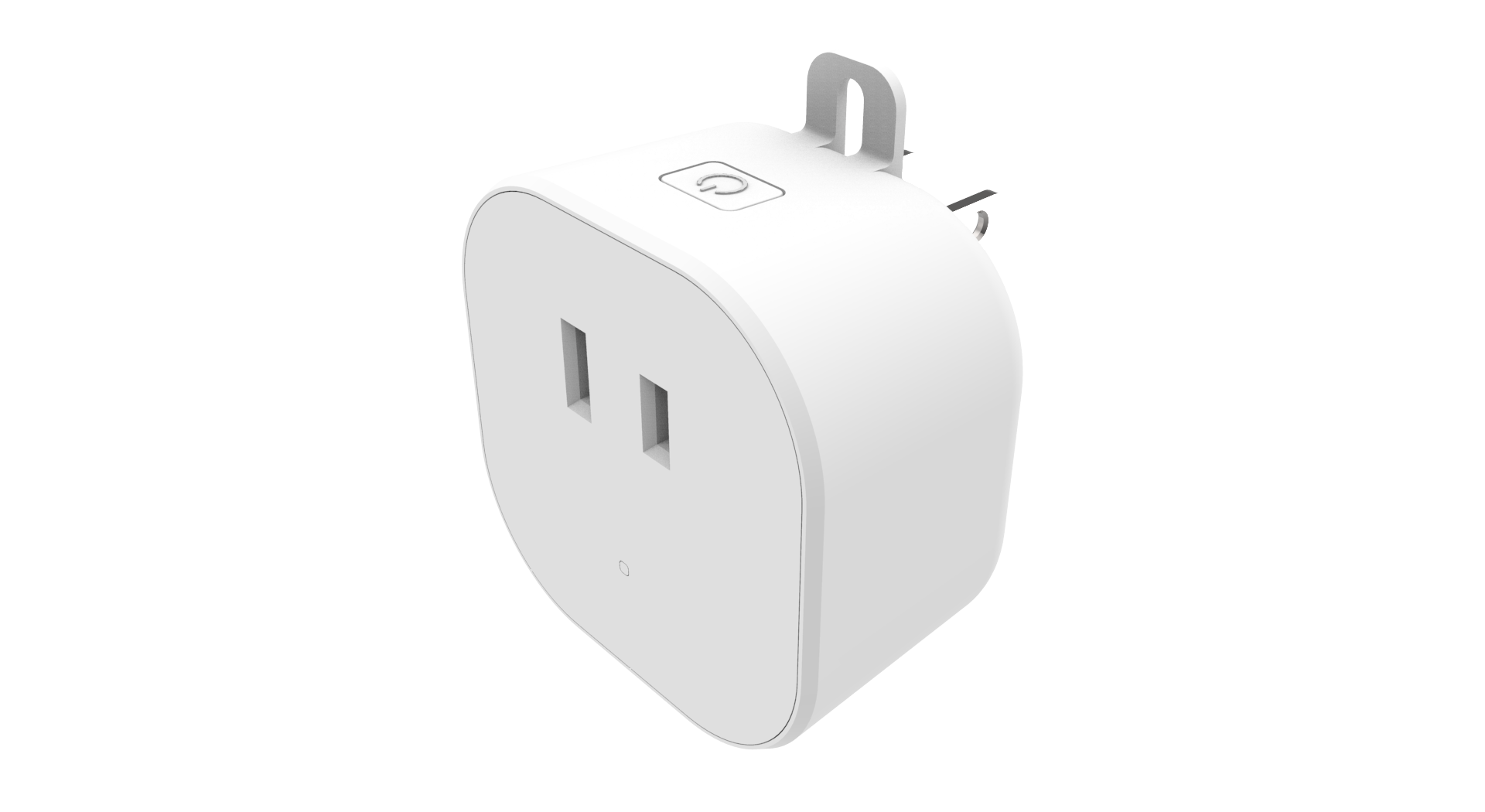
Product Recognition | |
|---|
Certification Number | ZC14-22120180 |
|---|
Name | Smart Plug In Dimmer |
|---|
Short Description | Smart plug in dimmer that works with incandescent and most dimmable fluorescent (CFL), or LED lighting |
|---|
Long Description | - Works with incandescent and most dimmable fluorescent (CFL), or LED lighting
- 800 Series Z-Wave™
- LED to indicate ON/OFF status
- Z-Wave Plus™ Certified with S2 security and SmartStart (QR code with Z-Wave DSK included)
- Safety tab to secure to outlet
- Compact design - does not block the 2nd AC outlet
- Over-The-Air firmware upgrade available, if supported by controller
- Supports Network Wide Inclusion (inclusion through a repeater), if supported by controller.
- Functions as a Z-Wave signal repeater |
|---|
Brand | Johnson Controls |
|---|
Product Identifier | IQ Dimmer |
|---|
Product Line | Plug In |
|---|
OEM Version | HW: 01 FW: 08.06 |
|---|
Hardware Platform | EFR32ZG23A |
|---|
Z-Wave Version | 7.17.2 |
|---|
Library Type | END_NODE_ENHANCED_232 |
|---|
Device Type | Multilevel Switch DT |
|---|
Role Type | ROLE_TYPE_SLAVE_ALWAYS_ON |
|---|
Manufacturer ID | 0x012A |
|---|
Product Type ID | 0x4744 |
|---|
Product ID | 0x3036 |
|---|
User Icon | 0x0600 |
|---|
Installer Icon | 0x0601 |
|---|
Frequency Plans | US: 916.00MHz, 908.40MHz |
|---|
Categories | All Lighting Devices, On/Off Switches/Devices, Dimming Lighting Devices, Lighting Accessories |
|---|
Countries / Regions | United States of America |
|---|
Supported Command Classes | Identifier | Name | Key | Version |
|---|
COMMAND_CLASS_ASSOCIATION_V2 | Association V2 | 0x85 | 2 | COMMAND_CLASS_ASSOCIATION_GRP_INFO_V3 | Association Group Information (AGI) V3 | 0x59 | 3 | COMMAND_CLASS_DEVICE_RESET_LOCALLY | Device Reset Locally | 0x5A | 1 | COMMAND_CLASS_FIRMWARE_UPDATE_MD_V5 | Firmware Update Meta Data V5 | 0x7A | 5 | COMMAND_CLASS_INDICATOR_V3 | Indicator V3 | 0x87 | 3 | COMMAND_CLASS_MANUFACTURER_SPECIFIC_V2 | Manufacturer Specific V2 | 0x72 | 2 | COMMAND_CLASS_MULTI_CHANNEL_ASSOCIATION_V3 | Multi Channel Association V3 | 0x8E | 3 | COMMAND_CLASS_VERSION_V3 | Version V3 | 0x86 | 3 | COMMAND_CLASS_ZWAVEPLUS_INFO_V2 | Z-Wave Plus Info V2 | 0x5E | 2 | COMMAND_CLASS_SECURITY_2 | Security 2 | 0x9F | 1 | COMMAND_CLASS_SUPERVISION | Supervision | 0x6C | 1 | COMMAND_CLASS_TRANSPORT_SERVICE_V2 | Transport Service V2 | 0x55 | 2 | COMMAND_CLASS_POWERLEVEL | Powerlevel | 0x73 | 1 | COMMAND_CLASS_SWITCH_MULTILEVEL_V4 | Multilevel Switch V4 | 0x26 | 4 | COMMAND_CLASS_BASIC_V2 | Basic V2 | 0x20 | 2 | COMMAND_CLASS_CONFIGURATION_V4 | Configuration V4 | 0x70 | 4 |
|
|---|
S2 Classes | S2_AUTHENTICATED |
|---|
Documents | Category | File |
|---|
Manual_English | |
|
|---|
Features | Feature | Values |
|---|
Color | | Electric Load Type | Value |
|---|
Incandescent | LED | Dimmable LED | Dimmable Fluorescent |
| Firmware Updatable | Value |
|---|
Updatable by Consumer by RF |
| Outdoor Use | | Switch Load Capacity Current | | Switch Load Capacity Watts | |
|
|---|
Association Groups | Group Number | Maximum Nodes Supported | End Point ID | Group Name | Profile |
|---|
1 | 5 | 0 | Lifeline | 0x0001 | 2 | 5 | 0 | Group2 On/Off/Dim control | 0x2001 |
|
|---|
Configuration Parameters | Parameter Number | Name | Description | Format | Size | Min Value | Max Value | Default Value |
|---|
3 | LED Mode Indicator | When value = 0, the LED indicator will be OFF when the connected appliance is ON, and the LED indicator will be ON when the connected appliance is OFF. If value = 1, the LED indicator will be OFF when the connected appliance is OFF, and the LED indicator will be ON when the connected appliance is ON. If value = 2, the LED indicator will be always OFF regardless of the load status." | 1 | 1 | 0 | 0 | 0x00 | 11 | Set dimmer ramp rate (remote) | Valid Values: 0-99, 0=No delay (instant ON), 1=1 second | 1 | 1 | 0 | 0 | 0x03 |
|
|---|
Texts | ID | Description | Value |
|---|
8 | Where to find S2 DSK on product | Page 1 | 1 | Classic Inclusion | Add or remove the device into your network by a Z-Wave certified controller. The IQ Dimmer supports the latest S2 security and SmartStart offered by Z-Wave certified controllers. If your controller supports S2 or SmartStart, please refer to the user guide of the controller for detailed instructions on adding or removing devices to/from the network. You should be able to add the IQ Dimmer into your network using the unique QR code or the DSK 5 digit pin located on the product or packaging. In addition, the device can be added or removed using the traditional method for Z-Wave as follows:
1. Place your network controller into inclusion mode by following the controller manufacturer's instructions.
2. When the controller is ready, single click the button on the top of the IQ Dimmer. The controller should indicate that the new device was added successfully.
3. Once the IQ Dimmer has been successfully added to your home network, you can move it to the preferred location in the home. | 2 | Classic Exclusion | Add or remove the device into your network by a Z-Wave certified controller. The IQ Dimmer supports the latest S2 security and SmartStart offered by Z-Wave certified controllers. If your controller supports S2 or SmartStart, please refer to the user guide of the controller for detailed instructions on adding or removing devices to/from the network. You should be able to add the IQ Dimmer into your network using the unique QR code or the DSK 5 digit pin located on the product or packaging. In addition, the device can be added or removed using the traditional method for Z-Wave as follows:
1. Place your network controller into inclusion mode by following the controller manufacturer's instructions.
2. When the controller is ready, single click the button on the top of the IQ Dimmer. The controller should indicate that the new device was added successfully.
3. Once the IQ Dimmer has been successfully added to your home network, you can move it to the preferred location in the home. | 5 | Factory Reset Procedure | If Inclusion still fails after the 2nd attempt, you need to first reset the IQ Dimmer before repeating the above step. The manual reset method is as follows:
1. Unplug the IQ Dimmer from the AC outlet and also unplug the power plug of the appliance from the IQ Dimmer (if plugged in)
2. Press and hold the button on the IQ Dimmer.
3. Plug the IQ Dimmer back into the AC outlet with the button pressed
After 3 seconds, release the button. If you see the LED blink, that means that the PD800 has been reset successfully and you may retry Step 3 above to add the module into your network. Otherwise, please repeat the manual reset procedure. |
|
|---|
Supports NWI | Yes |
|---|
Supports Explorer Frames | Yes |
|---|
Supports SmartStart | Yes |
|---|
Radio Range Z-Wave (m) | 40 |
|---|