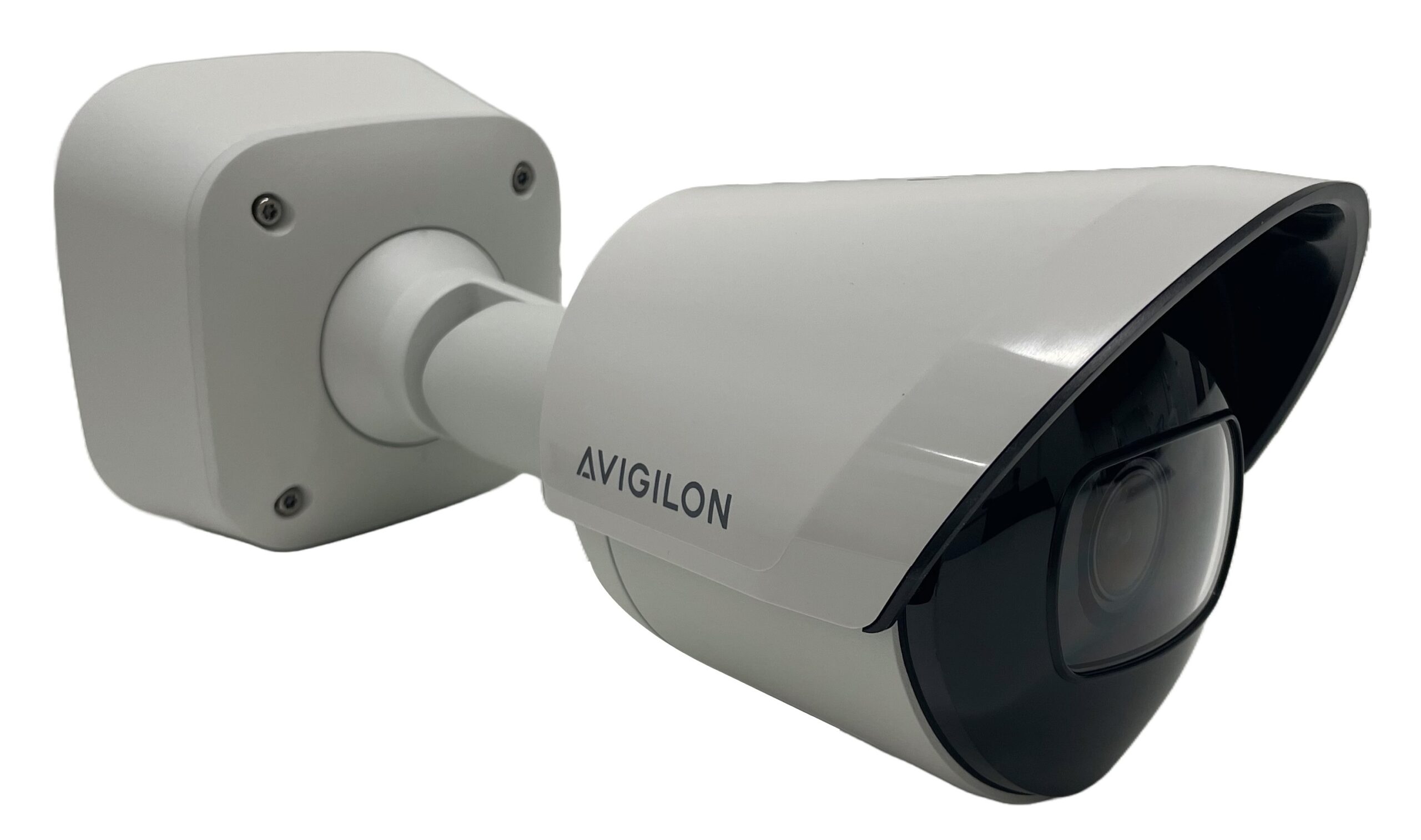
Product Recognition | |
|---|
Certification Number | ZC14-23090338 |
|---|
Name | Security Camera |
|---|
Short Description | Avigilon's Z-Wave™ enabled security cameras allow for a wireless connection to Z-Wave™ sensors. |
|---|
Long Description | Avigilon's Z-Wave™ cameras are part of Avigilon's new flagship fixed camera line. The cameras encompass the latest imaging technology and provide a more powerful analytics edge platform. The Z-Wave™ cameras include a built-in microphone and a Z-Wave™ controller. All Z-Wave™ cameras come with infrared illuminators for night vision. The Z-Wave™ cameras allow operators to connect to wireless Z-Wave™ sensors such as door open/close sensors, motion detectors and panic buttons to provide a comprehensive security solution. |
|---|
Brand | Avigilon |
|---|
Product Identifier | ACBUSRNE |
|---|
Product Line | Security Cameras |
|---|
OEM Version | HW: 01 FW: 07.18:07.18 |
|---|
Hardware Platform | ZGM230SA |
|---|
Z-Wave Version | 7.18.1 |
|---|
Library Type | CONTROLLER_BRIDGE |
|---|
Device Type | Gateway DT |
|---|
Role Type | ROLE_TYPE_CONTROLLER_CENTRAL_STATIC |
|---|
Manufacturer ID | 0x003F |
|---|
Product Type ID | 0x0001 |
|---|
Product ID | 0x0003 |
|---|
User Icon | 0x0500 |
|---|
Installer Icon | 0x0500 |
|---|
Frequency Plans | US: 916.00MHz, 908.40MHz |
|---|
Categories | Gateway Controller, All Controllers, Security Systems |
|---|
Countries / Regions | Canada, United States of America |
|---|
Supported Command Classes | Identifier | Name | Key | Version |
|---|
COMMAND_CLASS_APPLICATION_STATUS | Application Status | 0x22 | 1 | COMMAND_CLASS_ASSOCIATION_V2 | Association V2 | 0x85 | 2 | COMMAND_CLASS_ASSOCIATION_GRP_INFO_V3 | Association Group Information (AGI) V3 | 0x59 | 3 | COMMAND_CLASS_DEVICE_RESET_LOCALLY | Device Reset Locally | 0x5A | 1 | COMMAND_CLASS_FIRMWARE_UPDATE_MD_V8 | Firmware Update Meta Data V8 | 0x7A | 8 | COMMAND_CLASS_INDICATOR_V3 | Indicator V3 | 0x87 | 3 | COMMAND_CLASS_MANUFACTURER_SPECIFIC_V2 | Manufacturer Specific V2 | 0x72 | 2 | COMMAND_CLASS_MULTI_CHANNEL_ASSOCIATION_V3 | Multi Channel Association V3 | 0x8E | 3 | COMMAND_CLASS_TIME | Time | 0x8A | 1 | COMMAND_CLASS_VERSION_V3 | Version V3 | 0x86 | 3 | COMMAND_CLASS_ZWAVEPLUS_INFO_V2 | Z-Wave Plus Info V2 | 0x5E | 2 | COMMAND_CLASS_CRC_16_ENCAP | CRC-16 Encapsulation | 0x56 | 1 | COMMAND_CLASS_MULTI_CMD | Multi Command | 0x8F | 1 | COMMAND_CLASS_SECURITY | Security 0 | 0x98 | 1 | COMMAND_CLASS_SECURITY_2 | Security 2 | 0x9F | 1 | COMMAND_CLASS_SUPERVISION_V2 | Supervision V2 | 0x6C | 2 | COMMAND_CLASS_TRANSPORT_SERVICE_V2 | Transport Service V2 | 0x55 | 2 | COMMAND_CLASS_INCLUSION_CONTROLLER | Inclusion Controller | 0x74 | 1 | COMMAND_CLASS_NETWORK_MANAGEMENT_PROXY_V4 | Network Management Proxy V4 | 0x52 | 4 | COMMAND_CLASS_NETWORK_MANAGEMENT_BASIC_V2 | Network Management Basic Node V2 | 0x4D | 2 | COMMAND_CLASS_NETWORK_MANAGEMENT_INCLUSION_V4 | Network Management Inclusion V4 | 0x34 | 4 | COMMAND_CLASS_NETWORK_MANAGEMENT_INSTALLATION_MAINTENANCE_V4 | Network Management Installation and Maintenance V4 | 0x67 | 4 | COMMAND_CLASS_NODE_PROVISIONING | Node Provisioning | 0x78 | 1 | COMMAND_CLASS_POWERLEVEL | Powerlevel | 0x73 | 1 |
|
|---|
Controlled Command Classes | Identifier | Name | Key | Version |
|---|
COMMAND_CLASS_BASIC_V2 | Basic V2 | 0x20 | 2 | COMMAND_CLASS_CENTRAL_SCENE_V3 | Central Scene V3 | 0x5B | 3 | COMMAND_CLASS_ENTRY_CONTROL | Entry Control | 0x6F | 1 | COMMAND_CLASS_METER_V5 | Meter V5 | 0x32 | 5 | COMMAND_CLASS_SENSOR_MULTILEVEL_V11 | Multilevel Sensor V11 | 0x31 | 11 | COMMAND_CLASS_NOTIFICATION_V8 | Notification V8 | 0x71 | 8 | COMMAND_CLASS_APPLICATION_STATUS | Application Status | 0x22 | 1 | COMMAND_CLASS_ASSOCIATION_V2 | Association V2 | 0x85 | 2 | COMMAND_CLASS_ASSOCIATION_GRP_INFO_V3 | Association Group Information (AGI) V3 | 0x59 | 3 | COMMAND_CLASS_BATTERY_V3 | Battery V3 | 0x80 | 3 | COMMAND_CLASS_DEVICE_RESET_LOCALLY | Device Reset Locally | 0x5A | 1 | COMMAND_CLASS_FIRMWARE_UPDATE_MD_V8 | Firmware Update Meta Data V8 | 0x7A | 8 | COMMAND_CLASS_INDICATOR_V3 | Indicator V3 | 0x87 | 3 | COMMAND_CLASS_MANUFACTURER_SPECIFIC_V2 | Manufacturer Specific V2 | 0x72 | 2 | COMMAND_CLASS_MULTI_CHANNEL_ASSOCIATION_V3 | Multi Channel Association V3 | 0x8E | 3 | COMMAND_CLASS_TIME | Time | 0x8A | 1 | COMMAND_CLASS_VERSION_V3 | Version V3 | 0x86 | 3 | COMMAND_CLASS_WAKE_UP_V3 | Wake Up V3 | 0x84 | 3 | COMMAND_CLASS_ZIP_NAMING | Z/IP Naming and Location | 0x68 | 1 | COMMAND_CLASS_ZWAVEPLUS_INFO_V2 | Z-Wave Plus Info V2 | 0x5E | 2 | COMMAND_CLASS_CRC_16_ENCAP | CRC-16 Encapsulation | 0x56 | 1 | COMMAND_CLASS_MULTI_CHANNEL_V4 | Multi Channel V4 | 0x60 | 4 | COMMAND_CLASS_MULTI_CMD | Multi Command | 0x8F | 1 | COMMAND_CLASS_SECURITY | Security 0 | 0x98 | 1 | COMMAND_CLASS_SECURITY_2 | Security 2 | 0x9F | 1 | COMMAND_CLASS_SUPERVISION_V2 | Supervision V2 | 0x6C | 2 | COMMAND_CLASS_TRANSPORT_SERVICE_V2 | Transport Service V2 | 0x55 | 2 | COMMAND_CLASS_NO_OPERATION | No Operation | 0x00 | 1 | COMMAND_CLASS_POWERLEVEL | Powerlevel | 0x73 | 1 |
|
|---|
S2 Classes | S2_ACCESS_CONTROL, S2_AUTHENTICATED, S2_UNAUTHENTICATED |
|---|
Documents | Category | File |
|---|
Manual_English | |
|
|---|
Features | Feature | Values |
|---|
Color | | Communications Connections | | Communications Protocol | | Firmware Updatable | Value |
|---|
Updatable by Professional/Technician |
| IP (Ingress Protection) Rated | | Outdoor Use | | Z-Wave Scene Type | |
|
|---|
Association Groups | Group Number | Maximum Nodes Supported | End Point ID | Group Name | Profile |
|---|
1 | 1 | 0 | Lifeline | 0x0001 |
|
|---|
Texts | ID | Description | Value |
|---|
23 | Controller Classic Inclusion | Add a Z-Wave Device
Z-Wave must be enabled to add a device.
1. Click Add Node in the Network Management section. The camera will start scanning for Z-Wave devices.
2. Set your Z-Wave device to be added as a node in your network as described in its User Manual.
3. If your Z-Wave device requires a PIN, you will be asked to enter this PIN and click Submit. The device PIN should be included in its packaging. Tip: Typically the device PIN is the first five digits of your Z-Wave device's DSK.
4. Wait for the adding process to complete. Once it has been added, the device will be listed in the Network Management table. Tip: The Network Management table will display information on all of your connected devices, such as the device's Name, Status, Battery %, and Node ID. | 24 | Controller Classic Exclusion | Remove a Z-Wave Device
This is the recommended way to remove a device from your Z-Wave network.
1. Click Remove Node in the Network Management section. The camera will start scanning for Z-Wave devices.
2. Set your Z-Wave device to be excluded from your network as described in its User Manual.
3. Wait for the removal process to complete. Once it has been removed, the device will be removed from the Network Management table. | 11 | Controller SmartStart Inclusion | Using SmartStart
SmartStart enabled devices can be added to the Z-Wave network so that they are automatically added within 10 minutes of powering the device within the network range. To add devices to SmartStart:
1. Enter the device specific key (DSK) into the field and click Add DSK. The Provisioning List below will be updated with the added DSK.
2. Repeat this step for any other devices you want to add.
3. If you need to remove devices from the Provisioning List, select them and click Remove Selected DSKs.
4. Click Apply to save your settings.
5. Install and power the Z-Wave devices and they will be automatically added to the network within 10 minutes. | 25 | Controller Provisioning List | Using SmartStart
SmartStart enabled devices can be added to the Z-Wave network so that they are automatically added within 10 minutes of powering the device within the network range. To add devices to SmartStart:
1. Enter the device specific key (DSK) into the field and click Add DSK. The Provisioning List below will be updated with the added DSK.
2. Repeat this step for any other devices you want to add.
3. If you need to remove devices from the Provisioning List, select them and click Remove Selected DSKs.
4. Click Apply to save your settings.
5. Install and power the Z-Wave devices and they will be automatically added to the network within 10 minutes. | 10 | Controller Replication | Copying network information to another control device is executed as part of the inclusion process. This is also referred to as Replication by some Z-Wave devices. | 5 | Factory Reset Procedure | Reset the Z-Wave Network
If this controller is the primary controller for your network, resetting it will result in the nodes of your network being orphaned and it will be necessary after the reset to exclude and re-include all of the nodes in the network. If this controller is being used as a secondary controller in the network, use this procedure to reset this controller only in the event that the network's primary controller is missing or otherwise inoperable.
Important:
- This process will remove all Z-Wave devices from the camera.
- After resetting the network, you will also need to remove each Z-Wave device or reset it to factory defaults before you can add it back to the network.
- Use this process only when the camera primary controller is missing or faulty.
1. Click Reset Network in the Network Management section. The process will be triggered immediately.
2. All added Z-Wave devices will be removed from the network and the Network Management section will be empty. |
|
|---|
Supports NWI | Yes |
|---|
Supports Explorer Frames | Yes |
|---|
Supports SmartStart | Yes |
|---|
Radio Range Z-Wave (m) | 40 |
|---|