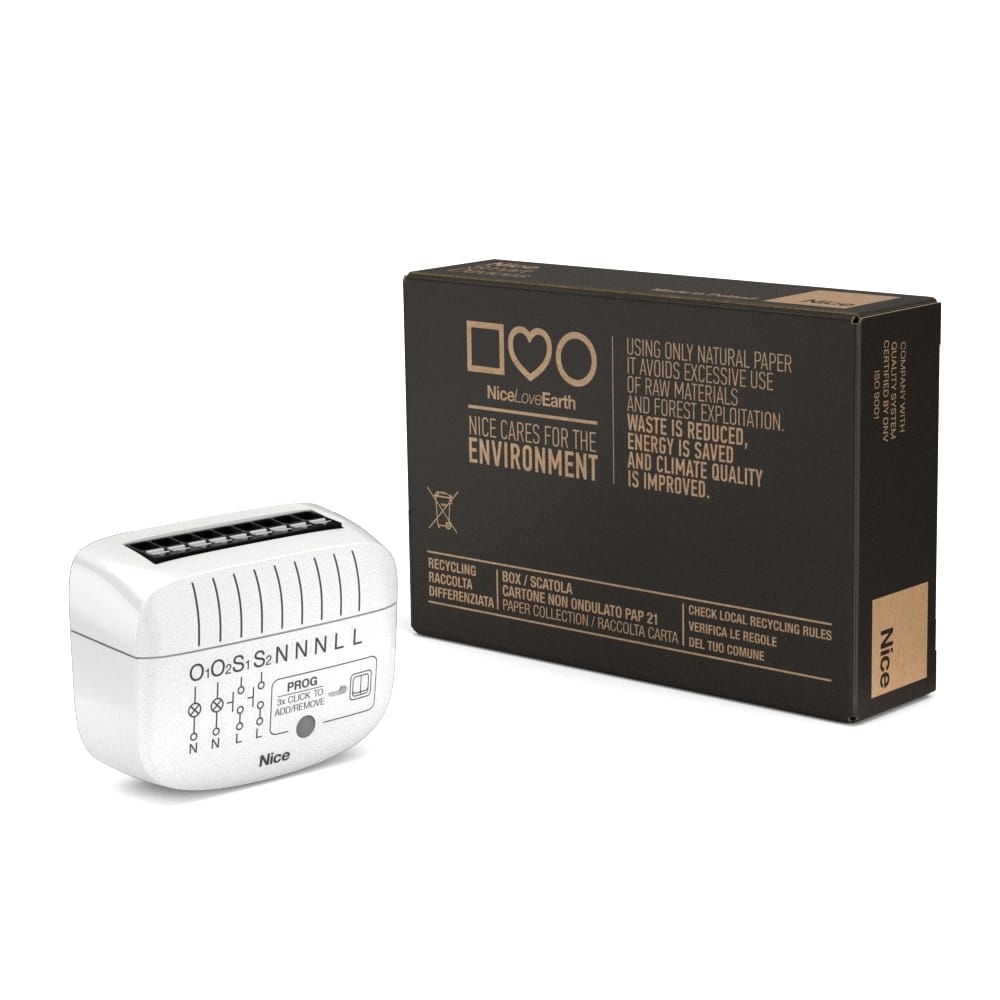
Product Recognition | |
|---|
Certification Number | ZC14-25040517 |
|---|
Name | On/Off Control2 |
|---|
Short Description | On/Off-Control 2 is designed to be installed in standard wall switch boxes or anywhere else where it's necessary to control electric devices. |
|---|
Description | On/Off-Control 2 is designed to be installed in standard wall switch boxes or anywhere else where it's necessary to control electric devices.
On/Off-Control 2 allows to control connected devices either through the Z-Wave® Plus network or a wall switch. The device is connected directly
to the Z-Wave® Plus network and equipped with active power and energy consumption metering functionality.
On/Off-Control 2 monitors load power consumption, loads energy consuption and mains voltage values. |
|---|
Brand | Nice |
|---|
Brand Owner | Nice |
|---|
Identifier | NICE On/Off-Control2 |
|---|
Product Line | On/Off Control |
|---|
OEM Version | HW: 05 FW: 08.00 |
|---|
Hardware Platform | EFR32ZG23B |
|---|
Z-Wave Version | 7.22.2 |
|---|
Library Type | END_NODE_ENHANCED_232 |
|---|
Device Type | Binary Switch DT |
|---|
Role Type | ROLE_TYPE_END_NODE_ALWAYS_ON |
|---|
Manufacturer ID | 0x010F |
|---|
Product Type ID | 0x0205 |
|---|
Product ID | 0x3000 |
|---|
User Icon | 0x0700 |
|---|
Installer Icon | 0x0700 |
|---|
Frequency Plans | ANZ: 919.80MHz, 921.40MHz |
|---|
Categories | On/Off Switches/Devices |
|---|
Countries / Regions | Australia, Brazil, New Zealand |
|---|
Supported Command Classes | Identifier | Name | Key | Version |
|---|
COMMAND_CLASS_BASIC_V2 | Basic V2 | 0x20 | 2 | COMMAND_CLASS_SWITCH_BINARY_V2 | Binary Switch V2 | 0x25 | 2 | COMMAND_CLASS_CENTRAL_SCENE_V3 | Central Scene V3 | 0x5B | 3 | COMMAND_CLASS_CONFIGURATION_V4 | Configuration V4 | 0x70 | 4 | COMMAND_CLASS_METER_V5 | Meter V5 | 0x32 | 5 | COMMAND_CLASS_NOTIFICATION_V8 | Notification V8 | 0x71 | 8 | COMMAND_CLASS_PROTECTION_V2 | Protection V2 | 0x75 | 2 | COMMAND_CLASS_APPLICATION_STATUS | Application Status | 0x22 | 1 | COMMAND_CLASS_ASSOCIATION_V2 | Association V2 | 0x85 | 2 | COMMAND_CLASS_ASSOCIATION_GRP_INFO_V3 | Association Group Information (AGI) V3 | 0x59 | 3 | COMMAND_CLASS_DEVICE_RESET_LOCALLY | Device Reset Locally | 0x5A | 1 | COMMAND_CLASS_FIRMWARE_UPDATE_MD_V5 | Firmware Update Meta Data V5 | 0x7A | 5 | COMMAND_CLASS_INDICATOR_V3 | Indicator V3 | 0x87 | 3 | COMMAND_CLASS_MANUFACTURER_SPECIFIC_V2 | Manufacturer Specific V2 | 0x72 | 2 | COMMAND_CLASS_MULTI_CHANNEL_ASSOCIATION_V3 | Multi Channel Association V3 | 0x8E | 3 | COMMAND_CLASS_VERSION_V3 | Version V3 | 0x86 | 3 | COMMAND_CLASS_ZWAVEPLUS_INFO_V2 | Z-Wave Plus Info V2 | 0x5E | 2 | COMMAND_CLASS_MULTI_CHANNEL_V4 | Multi Channel V4 | 0x60 | 4 | COMMAND_CLASS_SECURITY | Security 0 | 0x98 | 1 | COMMAND_CLASS_SECURITY_2 | Security 2 | 0x9F | 1 | COMMAND_CLASS_SUPERVISION | Supervision | 0x6C | 1 | COMMAND_CLASS_TRANSPORT_SERVICE_V2 | Transport Service V2 | 0x55 | 2 | COMMAND_CLASS_POWERLEVEL | Powerlevel | 0x73 | 1 |
|
|---|
S2 Classes | S2_AUTHENTICATED, S2_UNAUTHENTICATED |
|---|
Documents | Category | File |
|---|
Manual_English | |
|
|---|
Association Groups | Group Number | Maximum Nodes Supported | End Point ID | Group Name | Profile |
|---|
1 | 1 | 0 | Lifeline | 0x0001 | 2 | 5 | 0 | On/Off (1) | 0x2001 | 3 | 5 | 0 | On/Off (2) | 0x2002 | 1 | 0 | 1 | Lifeline | 0x0001 | 2 | 5 | 1 | On/Off (1) | 0x2001 | 1 | 0 | 2 | Lifeline | 0x0001 | 2 | 5 | 2 | On/Off (2) | 0x2002 |
|
|---|
Configuration Parameters | Parameter Number | Name | Description | Format | Size | Min Value | Max Value | Default Value |
|---|
1 | Restore state after power failure | This parameter determines if the device will return to the state prior to the power failure after power is restored. | 1 | 1 | 0 | 0 | 0x01 | 24 | Buttons orientation | This parameter enables changing inputs orientation without the need of changing electrical connections. | 1 | 1 | 0 | 0 | 0x00 | 41 | Second button - scenes sent | This parameter determines which actions result in sending scene IDs assigned to them. | 1 | 1 | 0 | 0 | 0x0F | 154 | First channel - auto off | This parameter allows to set the auto off time for the first channel. For the value 0 the functionality is disabled. | 1 | 2 | 0 | 0 | 0x0000 | 155 | Second channel - auto off | This parameter allows to set the auto off time for the second channel. For the value 0 the functionality is disabled. | 1 | 2 | 0 | 0 | 0x0000 | 200 | Voltage measurement | This parameter allows to set the value by which the mains voltage must change for the device to send the voltage measurement report. For the value 0 the functionality is disabled. | 1 | 1 | 0 | 0 | 0x00 | 201 | Voltage value for notification | This parameter allows to set the value that the mains voltage must exceed for the device to send the voltage notification report. For the value 0 the functionality is disabled. | 1 | 2 | 0 | 0 | 0x0000 | 202 | Outputs mode | This parameters allows you to connect both channels and control them simultaneously. | 1 | 1 | 0 | 0 | 0x00 |
|
|---|
Texts | ID | Description | Value |
|---|
8 | Where to find S2 DSK on product | Scan the DSK QR code or input the underlined 5-digit PIN code (label on the side of the box and on the device). | 1 | Classic Inclusion | Adding (Inclusion) - The Z-Wave device learning mode allows to add the device to the existing Z-Wave network.
6.1 - To add the device to the Z-Wave network manually:
1.
Place On/Off-Control 2 within the direct range of your Z-Wave controller.
2.
Identify the S1 or S2 switch or the PROG button.
3.
Set the main controller in the (security/non-security) add mode (see the controller’s manual).
4.
Press quickly three times one of the S1 or S2 switches or the PROG button.
5.
Wait for the adding process to end.
6.
Successful adding is confirmed by the Z-Wave controller’s message and the green LED diode when adding the device to the non-secure, S0, S2 Unauthenticated mode or magenta LED diode when adding the device to the S2 Authenticated mode. | 2 | Classic Exclusion | 7.1 - To remove the device from the Z-Wave network:
1. Place On/Off-Control 2 within the direct range of your Z-Wave controller.
2. Identify S1 or S2 switch or the PROG button.
3. Set the main controller in the remove mode (see the controller’s manual).
4. Quickly, three times press S1 or S2 switch or the PROG button.
5. Wait for the removing process to end.
6. Successful removing is confirmed by the Z-Wave controller’s message and the red LED diode. | 5 | Factory Reset Procedure | 8.2 - Resetting On/Off-Control 2
1.
Switch off the mains voltage (disable the fuse).
2.
Remove On/Off-Control 2 from the wall switch box.
3.
Switch on the mains voltage.
4.
Press and hold the PROG-button to enter the menu.
5.
Wait for the visual LED indicator to glow yellow.
6. Quickly release and click the PROG-button again.
7. After a few seconds the device is restarted, which is signalled with the red LED indicator color. |
|
|---|
Supported / Controlled Meter Types | Meter Type | Rate Type |
|---|
Electric meter | Import (consumed) |
|
|---|
Supported Notification Types | Notification Type | Event / State |
|---|
Power Management | Voltage drop/drift | Power Management | Over-current status: Over-current detected | Power Management | Over-voltage status: Over-voltage detected | System | HW status: System hardware failure (manufacturer proprietary failure code provided) |
|
|---|
Supports NWI | Yes |
|---|
Supports Explorer Frames | Yes |
|---|
Supports SmartStart | Yes |
|---|
Radio Range Z-Wave (m) | 40 |
|---|