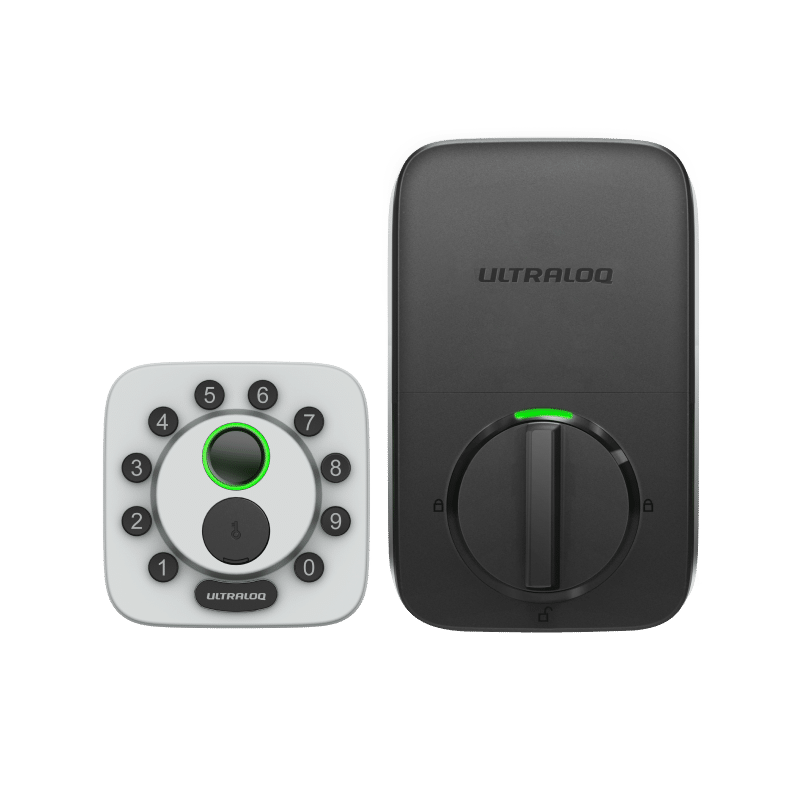
Product Recognition | |
|---|
Certification Number | ZC14-26100644 |
|---|
Name | ULTRALOQ Bolt Z-Wave Fingerprint Smart Lock |
|---|
Short Description | Bolt Z-Wave Fingerprint is a Z-Wave 800 Series smart deadbolt powered by Silicon Labs ZG28, supporting fingerprint User Credentials. |
|---|
Description | Bolt Z-Wave Fingerprint is a Z-Wave 800 Series smart deadbolt powered by the Silicon Labs ZG28 platform. It supports up to 250 PIN user codes and Z-Wave User Credentials, including fingerprint authentication, enabling multiple credential types through compatible Z-Wave controllers. Designed for residential and multifamily deployments, the lock delivers secure biometric access, reliable wireless performance, low power consumption, and seamless interoperability with Z-Wave ecosystems supporting User Credential Command Class. |
|---|
Brand | ULTRALOQ |
|---|
Brand Owner | Xthings Industry LLC |
|---|
Identifier | BOLT-ZWAVE-FP |
|---|
Product Line | ultraloq.com |
|---|
OEM Version | HW: 01 FW: 02.00:03.00 |
|---|
Hardware Platform | EFR32ZG28A |
|---|
Z-Wave Version | 7.24.1 |
|---|
Library Type | END_NODE_ENHANCED_232 |
|---|
Device Type | Lock DT |
|---|
Role Type | ROLE_TYPE_END_NODE_SLEEPING_LISTENING |
|---|
Manufacturer ID | 0x0452 |
|---|
Product Type ID | 0x0004 |
|---|
Product ID | 0x0008 |
|---|
User Icon | 0x0300 |
|---|
Installer Icon | 0x0300 |
|---|
Radio Range Z-Wave (m) | 40 |
|---|
Radio Range Z-Wave LR (m) | 400 |
|---|
Frequency Plans | US: 916.00MHz, 908.40MHz, US_LR: 912.00MHz, 920.00MHz |
|---|
Categories | Locks |
|---|
Countries / Regions | Canada, United States of America |
|---|
Supported Command Classes | Identifier | Name | Key | Version |
|---|
COMMAND_CLASS_ASSOCIATION_V2 | Association V2 | 0x85 | 2 | COMMAND_CLASS_ASSOCIATION_GRP_INFO_V3 | Association Group Information (AGI) V3 | 0x59 | 3 | COMMAND_CLASS_DEVICE_RESET_LOCALLY | Device Reset Locally | 0x5A | 1 | COMMAND_CLASS_FIRMWARE_UPDATE_MD_V5 | Firmware Update Meta Data V5 | 0x7A | 5 | COMMAND_CLASS_INDICATOR_V3 | Indicator V3 | 0x87 | 3 | COMMAND_CLASS_MANUFACTURER_SPECIFIC_V2 | Manufacturer Specific V2 | 0x72 | 2 | COMMAND_CLASS_MULTI_CHANNEL_ASSOCIATION_V3 | Multi Channel Association V3 | 0x8E | 3 | COMMAND_CLASS_VERSION_V3 | Version V3 | 0x86 | 3 | COMMAND_CLASS_ZWAVEPLUS_INFO_V2 | Z-Wave Plus Info V2 | 0x5E | 2 | COMMAND_CLASS_SECURITY_2 | Security 2 | 0x9F | 1 | COMMAND_CLASS_SUPERVISION | Supervision | 0x6C | 1 | COMMAND_CLASS_TRANSPORT_SERVICE_V2 | Transport Service V2 | 0x55 | 2 | COMMAND_CLASS_POWERLEVEL | Powerlevel | 0x73 | 1 | COMMAND_CLASS_DOOR_LOCK_V4 | Door Lock V4 | 0x62 | 4 | COMMAND_CLASS_BASIC_V2 | Basic V2 | 0x20 | 2 | COMMAND_CLASS_SECURITY | Security 0 | 0x98 | 1 | COMMAND_CLASS_BATTERY | Battery | 0x80 | 1 | COMMAND_CLASS_USER_CODE | User Code | 0x63 | 1 | COMMAND_CLASS_USER_CREDENTIAL | User Credential | 0x83 | 1 | COMMAND_CLASS_TIME_V3 | Time V3 | 0x8A | 3 | COMMAND_CLASS_TIME_PARAMETERS | Time Parameters | 0x8B | 1 | COMMAND_CLASS_NOTIFICATION_V8 | Notification V8 | 0x71 | 8 |
|
|---|
S2 Classes | S2_ACCESS_CONTROL |
|---|
Documents | Category | File |
|---|
Manual_English | |
|
|---|
Features | Feature | Values |
|---|
Battery Quantity | | Battery Type | | Color | | Communications Protocol | | Door Lock Type | Value |
|---|
Deadbolt Motor Attachment |
| Firmware Updatable | Value |
|---|
Updatable by Consumer by RF |
| Outdoor Use | |
|
|---|
Association Groups | Group Number | Maximum Nodes Supported | End Point ID | Group Name | Profile |
|---|
1 | 5 | 0 | Lifeline | 0x0001 |
|
|---|
Texts | ID | Description | Value |
|---|
8 | Where to find S2 DSK on product | Refer to Z-Wave DSK Location
1. You can find the QR code on the battery cover of your door lock.
2. You may also find the DSK in the user manual of each product.
Note: Please do not remove or damage them. | 1 | Classic Inclusion | 1. Initiate the process to add the lock to your system at your smart home controller. Refer to
your smart home system instructions for more information.
2. If prompted by your smart home system to add the lock. Hold the "ULTRALOQ" button for 3
seconds, hear 2 beeps and a flashing blue light, internal LED Flashing Green light. The lock
now enters setup mode.
3. Follow the prompts, scan the QR code located on the better cover, or enter the 5-digit PIN
code.
Note: Please complete the preparation within 30 seconds. If you miss it, please press the
ULTRALOQ button again to enter. | 2 | Classic Exclusion | Refer to how to remove the product from the Z-Wave network
1. Enter Exclusion Mode on Your Hub: Follow your smart hub's user guide to activate Z-Wave exclusion mode.
2. Put the Lock in Exclusion Mode: Press and hold the ULTRALOQ button for 3 seconds. You will hear two beeps, see a flashing blue light, and the interinal LED will flash green. The lock is now in exclusion mode. | 5 | Factory Reset Procedure | Product Factory Reset: Please use a Reset Needle to push the Reset Button (located inside the battery compartment) for around 10 seconds until you hear one long beep and two short beeps. Please use this procedure only when the network’s primary controller is missing or otherwise inoperable. |
|
|---|
Supported Notification Types | Notification Type | Event / State |
|---|
Access Control | Manual lock operation | Access Control | Manual unlock operation | Access Control | RF lock operation | Access Control | RF unlock operation | Access Control | Keypad lock operation | Access Control | Keypad unlock operation | Access Control | Auto lock locked operation | Access Control | Lock state: Lock jammed | Access Control | All user codes deleted | Access Control | Single user code deleted | Access Control | New user code added | Access Control | New user code not added due to duplicate code | Access Control | Credential lock/close operation | Access Control | Credential unlock/open operation | Access Control | Keypad state: Keypad temporary disabled | Access Control | Valid credential access denied due to User Active State being set to Occupied Disabled | Access Control | Valid credential access denied due to the User's schedule being inactive | Access Control | User access denied due to not enough credentials entered for the User's Credential Rule | Access Control | Invalid credential used to access the node | Access Control | Non-Access credential entered via local interface | Home Security | Tampering, invalid code | Power Management | Power status: Power has been applied |
|
|---|
Supports NWI | Yes |
|---|
Supports Explorer Frames | Yes |
|---|
Is Flirs | Yes |
|---|
Supports SmartStart | Yes |
|---|