| Product Recognition | |
|---|
| Certification Number | ZC10-16085181 |
|---|
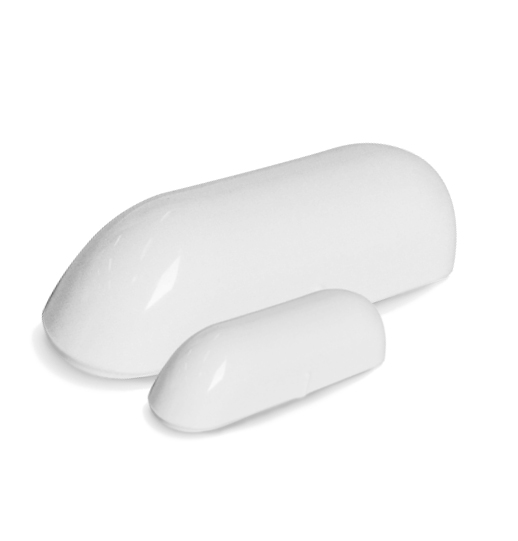
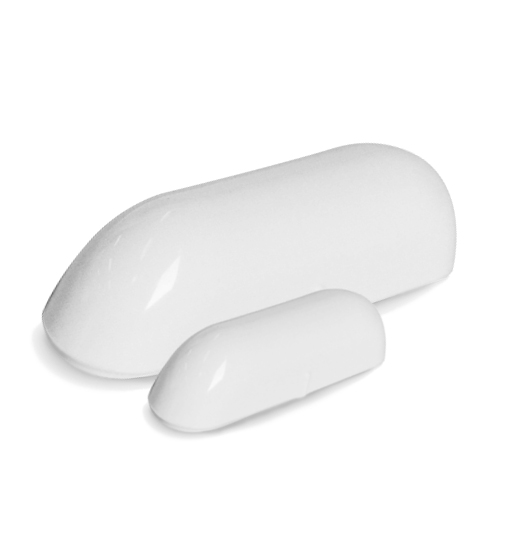
| Name | Zooz Z-Wave Contact Sensor |
|---|
| Short Description | This small and discreet door window sensor is easy to install and quick to join your Z-Wave network. Use it as a simple open / close sensor to notify you of unexpected events or associate the sensor with other Z-Wave devices such as smart lighting to turn lights on when you open the door. |
|---|
| Long Description | PRODUCT FEATURES:
- Reliable open/close detection for doors, windows, cabinets, and drawers
- Wireless notifications and event triggers (when included to a Z-Wave gateway controller)
- Scene inclusion for custom automation scenarios when included to a Z-Wave gateway controller
- Low battery alerts
- Z-Wave Plus with improved 500 chip for faster and safer wireless communication
- Discreet compact design
SPECIFICATIONS
Model Number: ZSE08
Z-Wave Signal Frequency: 908.42 MHz
Power: 1 CR2 battery (included)
Power Consumption: 0.13W
Operating Temperature: 32 – 104 F
Range: Up to 100 feet line of sight
Installation and Use: Indoor only
Dimensions: 2 ¾” x ¾”
Weight: ½ oz |
|---|
| Brand | Zooz |
|---|
| Product Identifier | ZSE08 |
|---|
| OEM Version | HW: 65 FW: 3.61 |
|---|
| Hardware Platform | ZM5202 |
|---|
| Z-Wave Version | 6.51.06 |
|---|
| Library Type | SLAVE_ROUTING |
|---|
| Device Type | Notification Sensor |
|---|
| Role Type | ROLE_TYPE_SLAVE_SLEEPING_REPORTING |
|---|
| Manufacturer ID | 0x027A |
|---|
| Product Type ID | 0x0003 |
|---|
| Product ID | 0x1082 |
|---|
| User Icon | 0x0C06 |
|---|
| Installer Icon | 0x0C06 |
|---|
| Frequency Plans | US: 916.00MHz, 908.40MHz |
|---|
| Categories | Sensors |
|---|
| Countries / Regions | United States of America |
|---|
| Controlled Command Classes | | Identifier | Name | Key | Version |
|---|
| COMMAND_CLASS_BASIC | Basic | 0x20 | 1 |
|
|---|
| Documents | |
|---|
| Features | | Feature | Values |
|---|
| Battery Quantity | | | Battery Type | | | Color | | | Sensors | | Value |
|---|
| Open/Closed (Binary) |
|
|
|---|
| Association Groups | | Group Number | Maximum Nodes Supported | End Point ID | Description |
|---|
| 3 | 5 | 0 | Group 3 for notifications to Z-Wave devices associated in this group. Supported command classes:
NOTIFICATION_REPORT | | 1 | 5 | 0 | Group 1 for lifeline communication of open / closed status to Z-Wave controller. Supported command classes:
NOTIFICATION_REPORT
BATTERY_REPORT
SENSOR_BINARY_REPORT
DEVICE_RESET_LOCALLY_NOTIFICATION | | 2 | 5 | 0 | Group 2 for control command communication to associated Z-Wave devices in the network. Use parameter 1 and parameter 2 to configure this group’s settings. Supported command classes:
BASIC_SET | | 4 | 5 | 0 | Group 4 for notifications to Z-Wave devices associated in this group. Supported command classes:
SENSOR_BINARY_REPORT |
|
|---|
| Configuration Parameters | | Parameter Number | Name | Description | Format | Size | Min Value | Max Value | Default Value | Parameter Values |
|---|
| 1 | Trigger Delay | Set the delay time for turning associated devices OFF based on status change of your Contact Sensor. The number entered as the value corresponds to the number of seconds. So if 0 is entered by default, the Contact Sensor will report status change and trigger an associated device to turn off instantly, without any delay. If you change this setting to 10, the sensor will only trigger the associated device after 10 seconds the status change is reported - if your door or window is closed, the light will not go off for another 10 seconds. | 0 | 2 | 0 | 0 | 0 | | From | To | Description |
|---|
| 0 | 65536 | Seconds to delay associated device to turn off after sensor changes status |
| | 2 | Trigger Action | You can choose if your Contact Sensor turns an associated device on or off when sending the basic set command. Use value 0 to turn the associated device OFF and value 255 to turn it ON. Adjust brightness level for a Z-Wave dimmer (Multilevel switch) by putting in any value between 1 and 99. | 0 | 1 | 0 | 0 | 255 | | From | To | Description |
|---|
| 0 | 0 | Associated device will turn OFF when triggered by the sensor | | 1 | 99 | Brightness level % the associated device will turn ON to when triggered by the sensor | | 255 | 255 | Associated device will turn ON when triggered by the sensor |
|
|
|---|
| Texts | | ID | Description | Value |
|---|
| 2 | Exclusion | 1. Make sure the Contact Sensor is powered on and located within direct range of your Z-Wave gateway controller
2. Put your Z-Wave controller into exclusion mode
3. Press and release the Z-Wave button 3 TIMES quickly. The LED indicator will flash quickly
4. The Contact Sensor should disappear from your controller's device list
If the first attempt is unsuccessful, please repeat the process following all steps carefully. | | 5 | Factory Reset | When your network’s primary controller is missing or otherwise inoperable, you may need to reset the device to factory settings manually. To complete the process, make sure the Contact Sensor is powered on, then PRESS AND HOLD the Z-Wave button for AT LEAST 10 SECONDS until the LED indicator flashes ONCE. Release the button. NOTE: All previously recorded activity and custom settings will be erased from the device’s memory. | | 4 | Device Wake-Up | If you change settings and parameters for the sensor, you may need to wake it up manually for the changes to be recorded. Press and release the Z-Wave button ONCE to wake the device up. The LED indicator will flash ONCE.
The sensor’s wake-up interval is set to 12 hours by default to save battery life. Though not recommended, you can change the wake-up interval using your controller’s advanced settings if available. Minimum value: 300s (5 minutes), maximum value: 16,777,200s (around 194 days). Accepted values need to match minute intervals, so 300, 360, 420, etc. | | 1 | Inclusion | 1. Bring the Contact Sensor within direct range of your controller
2. Carefully remove the cover from your Contact Sensor
3. Remove the plastic pull-tab from the battery slot. The LED indicator will blink slowly
4. Put your Z-Wave controller into inclusion mode
5. Press and release the Z-Wave button on the Contact Sensor 3 TIMES quickly. The LED indicator will flash quickly
6. A new open/close (door/window) sensor will appear on your controller's device list
Troubleshooting Tips
If you are unable to include the Z-Wave Contact Sensor to your controller, please try one of the following:
- Bring the Contact Sensor closer to your Z-Wave controller or use a hand-held secondary controller to perform inclusion
- Once in inclusion mode, press and release the Z-Wave button quickly 6-7 TIMES to ensure the command has gone through
- Put your controller into EXCLUSION mode. Press and release the Z-Wave button quickly 3 TIMES, and then try adding it to your network again |
|
|---|
| Supported Multilevel Sensors | | Multilevel Sensor Type |
|---|
| 0x02 |
|
|---|
| Supports NWI | Yes |
|---|
| Supports Explorer Frames | Yes |
|---|