Product Recognition | |
|---|
Certification Number | ZC12-20070082 |
|---|
Name | 2 Wire Dimmer |
|---|
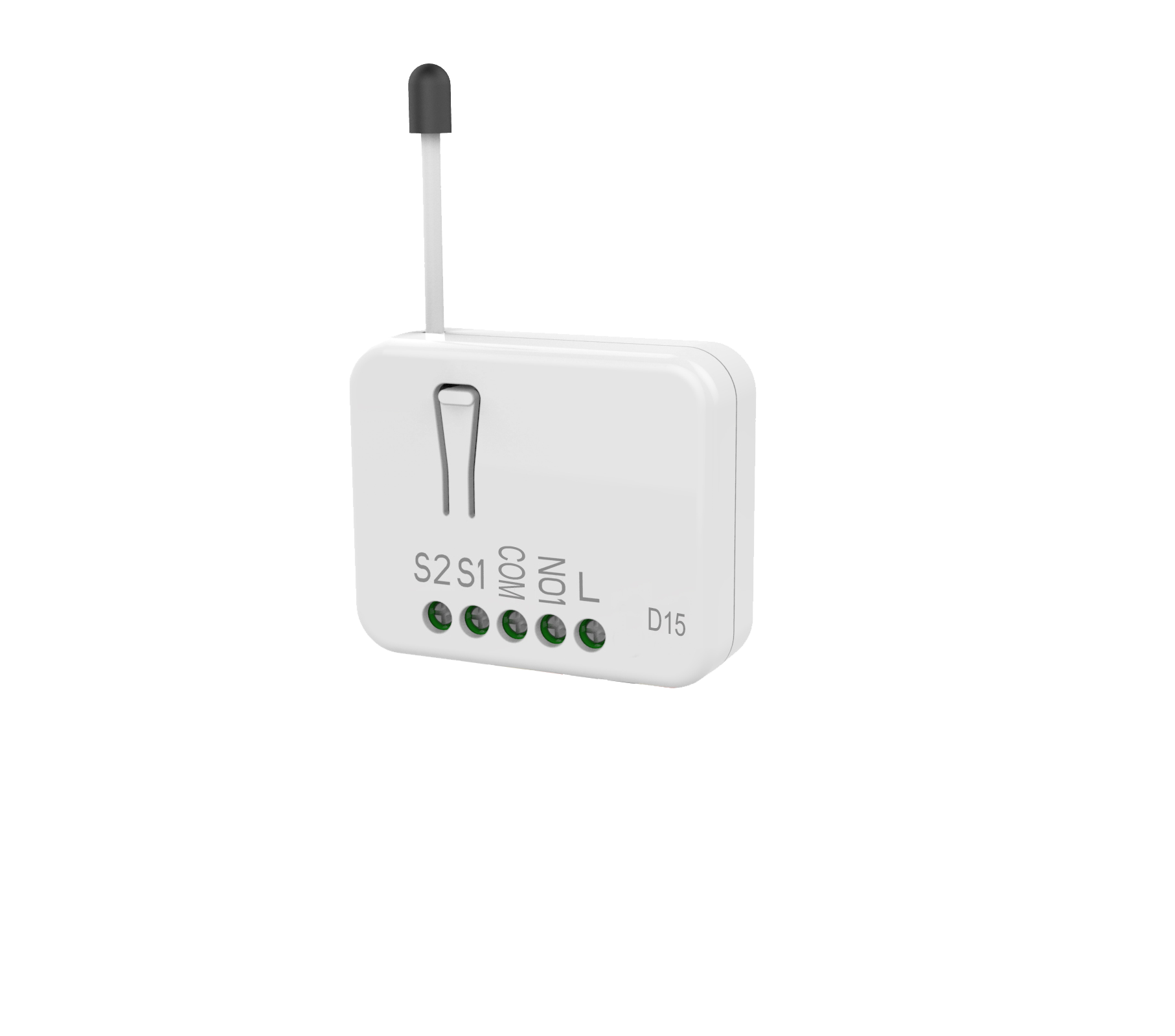
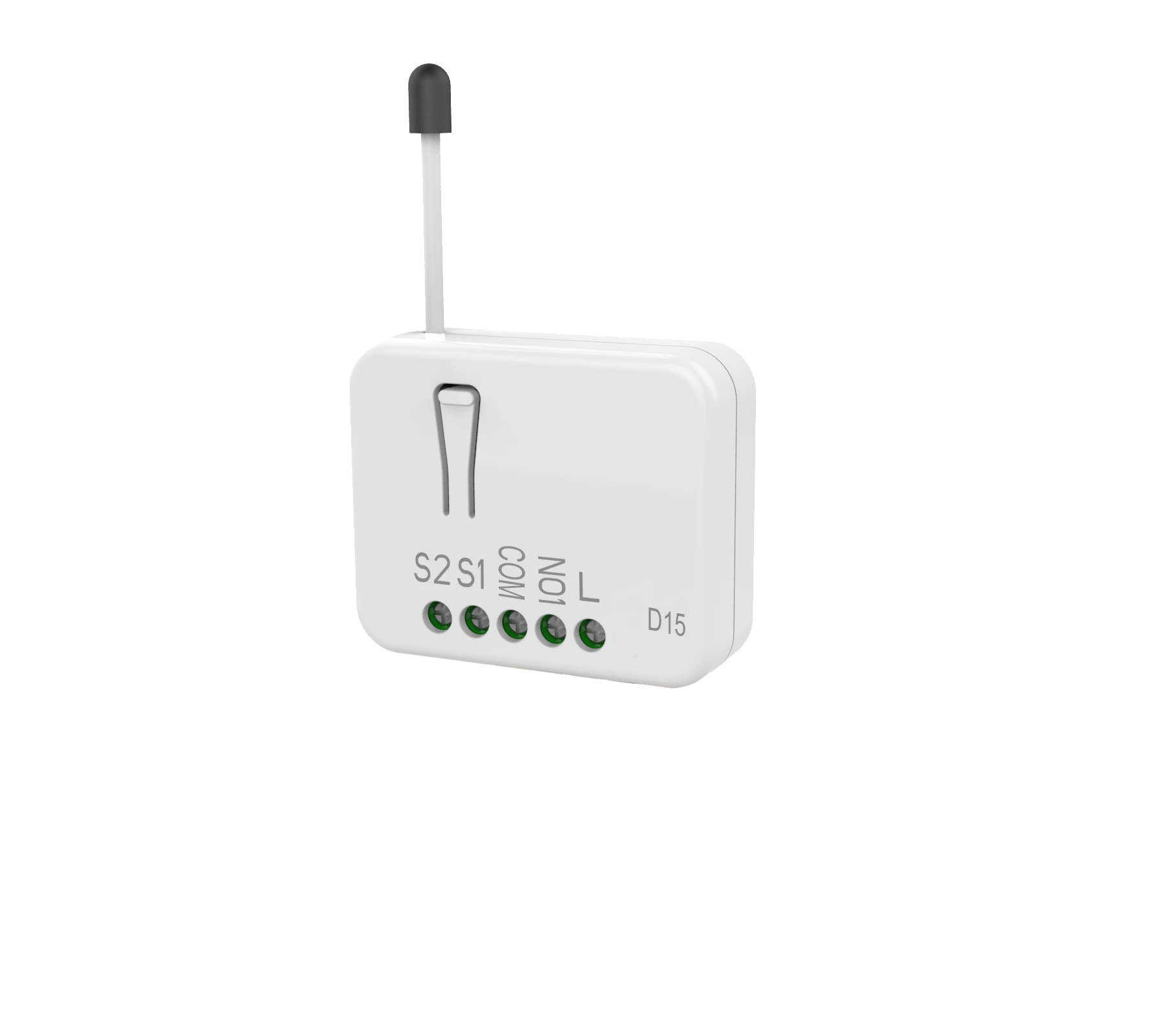
Short Description | PAD15 is a 2 Wire dimmer.
It only needs to connect two wires, single wire (L) and load (NO1). |
|---|
Long Description | The device should only need two wires for dimming, easy to install.
This device is a security enabled Z-Wave Plus product that uses encrypted Z-Wave Plus messages to communicate to other security enabled Z-Wave Plus products. Z-WaveTM enabled devices displaying the Z-WaveTM logo can also be used with this device regardless of the manufacturer, and this device can also be used in other manufacturer’s Z-WaveTM enabled networks.
All mains operated nodes within the network will act as repeaters regardless of vendor to increase reliability of the network.
The product supports an Over the Air (OTA) feature for the products firmware upgrade. |
|---|
Brand | Philio |
|---|
Product Identifier | PAD15 |
|---|
Product Line | Philio Z-wave Products |
|---|
OEM Version | HW: 1 FW: 1.01 |
|---|
Hardware Platform | ZGM130 |
|---|
Library Type | SLAVE_ENHANCED_232 |
|---|
Device Type | Multilevel Switch |
|---|
Role Type | ROLE_TYPE_SLAVE_ALWAYS_ON |
|---|
Manufacturer ID | 0x013C |
|---|
Product Type ID | 0x0005 |
|---|
Product ID | 0x007e |
|---|
User Icon | 0x0600 |
|---|
Installer Icon | 0x0600 |
|---|
Frequency Plans | EU: 869.85MHz, 868.40MHz |
|---|
Categories | All Lighting Devices, Dimming Lighting Devices |
|---|
Countries / Regions | European Union |
|---|
Supported Command Classes | Identifier | Name | Key | Version |
|---|
COMMAND_CLASS_CONFIGURATION_V4 | Configuration V4 | 0x70 | 4 | COMMAND_CLASS_POWERLEVEL | Powerlevel | 0x73 | 1 | COMMAND_CLASS_MULTI_CHANNEL_ASSOCIATION_V3 | Multi-Channel Association V3 | 0x8E | 3 | COMMAND_CLASS_INDICATOR_V3 | Indicator V3 | 0x87 | 3 | COMMAND_CLASS_SECURITY | Security S0 | 0x98 | 1 | COMMAND_CLASS_TRANSPORT_SERVICE_V2 | Transport Service V2 | 0x55 | 2 | COMMAND_CLASS_DEVICE_RESET_LOCALLY | Device Reset Locally | 0x5A | 1 | COMMAND_CLASS_ZWAVEPLUS_INFO_V2 | Z-Wave Plus Info V2 | 0x5E | 2 | COMMAND_CLASS_ASSOCIATION_V2 | Association V2 | 0x85 | 2 | COMMAND_CLASS_FIRMWARE_UPDATE_MD_V5 | Firmware Update Meta-Data V5 | 0x7A | 5 | COMMAND_CLASS_SWITCH_MULTILEVEL_V4 | Switch Multilevel V4 | 0x26 | 4 | COMMAND_CLASS_ASSOCIATION_GRP_INFO_V3 | Association Group Information V3 | 0x59 | 3 | COMMAND_CLASS_NOTIFICATION_V8 | Notification V8 | 0x71 | 8 | COMMAND_CLASS_BASIC_V2 | Basic V2 | 0x20 | 2 | COMMAND_CLASS_SECURITY_2 | Security S2 | 0x9F | 1 | COMMAND_CLASS_VERSION_V3 | Version V3 | 0x86 | 3 | COMMAND_CLASS_SUPERVISION | Supervision | 0x6C | 1 | COMMAND_CLASS_MANUFACTURER_SPECIFIC_V2 | Manufacturer Specific V2 | 0x72 | 2 |
|
|---|
S2 Classes | S2_UNAUTHENTICATED, S2_AUTHENTICATED |
|---|
Documents | Category | Description | File |
|---|
Manual_Primary_Lang | Product Manual | |
|
|---|
Features | Feature | Values |
|---|
Color | | Firmware Updatable | Value |
|---|
Updatable by Consumer by RF |
|
|
|---|
Association Groups | Group Number | Maximum Nodes Supported | End Point ID | Group Name | Profile | Description |
|---|
1 | 5 | 0 | Lifeline | 0x0001 | 1. Grouping 1 Lifeline (Maximum 5 nodes).
2. MULTILEVEL_SWITCH_REPORT
When “on” or “off” state has been changed,
it will send Multilevel Switch Report to the nodes of Grouping 1.
3. NOTIFICATION_REPORT
When overload occurred.
4. DEVICE_RESET_LOCALLY_NOTIFICATION
When PAD15 is reset manually, it will send
DEVICE_RESET_LOCALLY_NOTIFICATION to the nodes of group 1. |
|
|---|
Configuration Parameters | Parameter Number | Name | Description | Format | Size | Min Value | Max Value | Default Value | Parameter Values |
|---|
5 | Minimum level | To set dimming level minimum value. Dimming level will directly go to 0% when dimming value is lower than the setting value. Setting value: Cannot be higher than the Maximum level | 1 | 1 | 0 | 98 | 0 | From | To | Description |
|---|
0 | 98 | 0~98 : 0% ~ 98% |
| 2 | Power-on recovery status set | To set dimmer level when AC power on. Setting value: 0: OFF-0% 1: ON-last level 2: ON-100% | 1 | 1 | 0 | 2 | 0 | From | To | Description |
|---|
2 | 2 | 2: ON-100% | 1 | 1 | 1: ON-last level | 0 | 0 | 0: OFF-0% |
| 6 | Basic duration set | Unit: second To set dimming finished duration time when physical switch used. Ex: When setting is 2, it will take 2 seconds from switch on action to dimming finished. | 1 | 1 | 0 | 127 | 2 | From | To | Description |
|---|
0 | 127 | Unit: second ,0 ~127second |
| 1 | Switch set | To select connected switch function. Setting value: 0: Only S1 is effective 1: Both S1 and S2 are effective. 2: S1 dimmer up S2 dimmer down | 1 | 1 | 0 | 2 | 1 | From | To | Description |
|---|
2 | 2 | 2: S1 dimmer up S2 dimmer down | 1 | 1 | 1: Both S1 and S2 are effective. | 0 | 0 | 0: Only S1 is effective |
| 3 | RF report set | To set if device send Multilevel Switch report to gateway when dimming finished. Setting value: 1: report ON 0: report OFF | 1 | 1 | 0 | 1 | 1 | From | To | Description |
|---|
0 | 0 | 0: report OFF | 1 | 1 | 1: report ON |
| 4 | Maximum level | To set dimming level maximum value. Dimming level will not over the setting value. Setting value: Cannot be lower than the Minimum level | 1 | 1 | 1 | 99 | 99 | From | To | Description |
|---|
1 | 99 | 1~99 : 1% ~ 99% |
|
|
|---|
Texts | ID | Description | Value |
|---|
8 | Where to find S2 DSK on product | 1. The product has a DSK string. Key in the first five digits to initiate the SmartStart process, or scan QR code.
Ex: DSK: 18112-24021- 48001-62259-57092-27453-08187-47408
2. SmartStart enabled products can be added into a Z-Wave™ network by scanning the Z-Wave™ QR Code on the product, with a controller providing SmartStart inclusion. No further action is required and the SmartStart
product will be added automatically to the closest network within 10 minutes of being switched on.
Notice:
The QR Code can be foundon the device PAD15 or in the box. | 1 | Classic Inclusion | Add(Classic Inclusion) :
1. Put your Z-Wave™ controller into inclusion mode by following the instructions provided by the controller
manufacturer.
2. Press the include button three times within 3 seconds to enter inclusion mode. | 2 | Classic Exclusion | Remove (Exclusion)
1. Put your Z-Wave™ controller into exclusion mode by following the instructions provided by the controller
manufacturer.
2. Press the include button three times within 3 seconds to enter
exclusion mode.
3. Node ID will be excluded. | 5 | Factory Reset Procedure | Reset :
1. Press the include button four times within 3 seconds and hold on the button press without releasing.
2. Keep pressing the button for 3 seconds then LED will be off,release the button within 2 seconds.
3. Device has been reset.
※Function Reset : Please use this procedure only when the network
primary controller is missing or otherwise inoperable. |
|
|---|
Supported Notification Types | Notification Type | Event / State |
|---|
Power Management | Over-load status: Over-load detected |
|
|---|
Supports NWI | Yes |
|---|
Supports Explorer Frames | Yes |
|---|
Supports SmartStart | Yes |
|---|
Radio Range Z-Wave (m) | 40 |
|---|