Product Recognition | |
|---|
Certification Number | ZC14-22080130 |
|---|
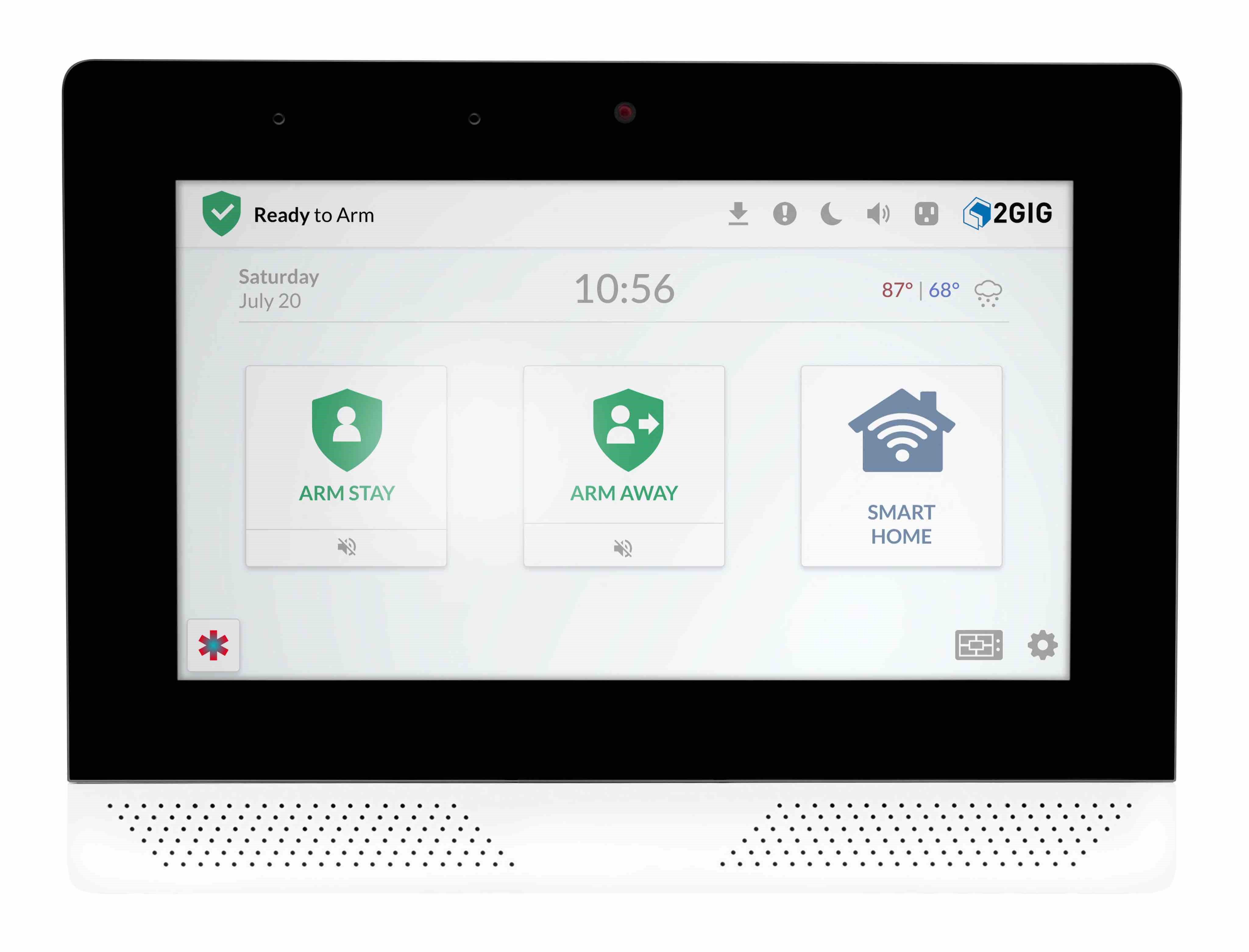
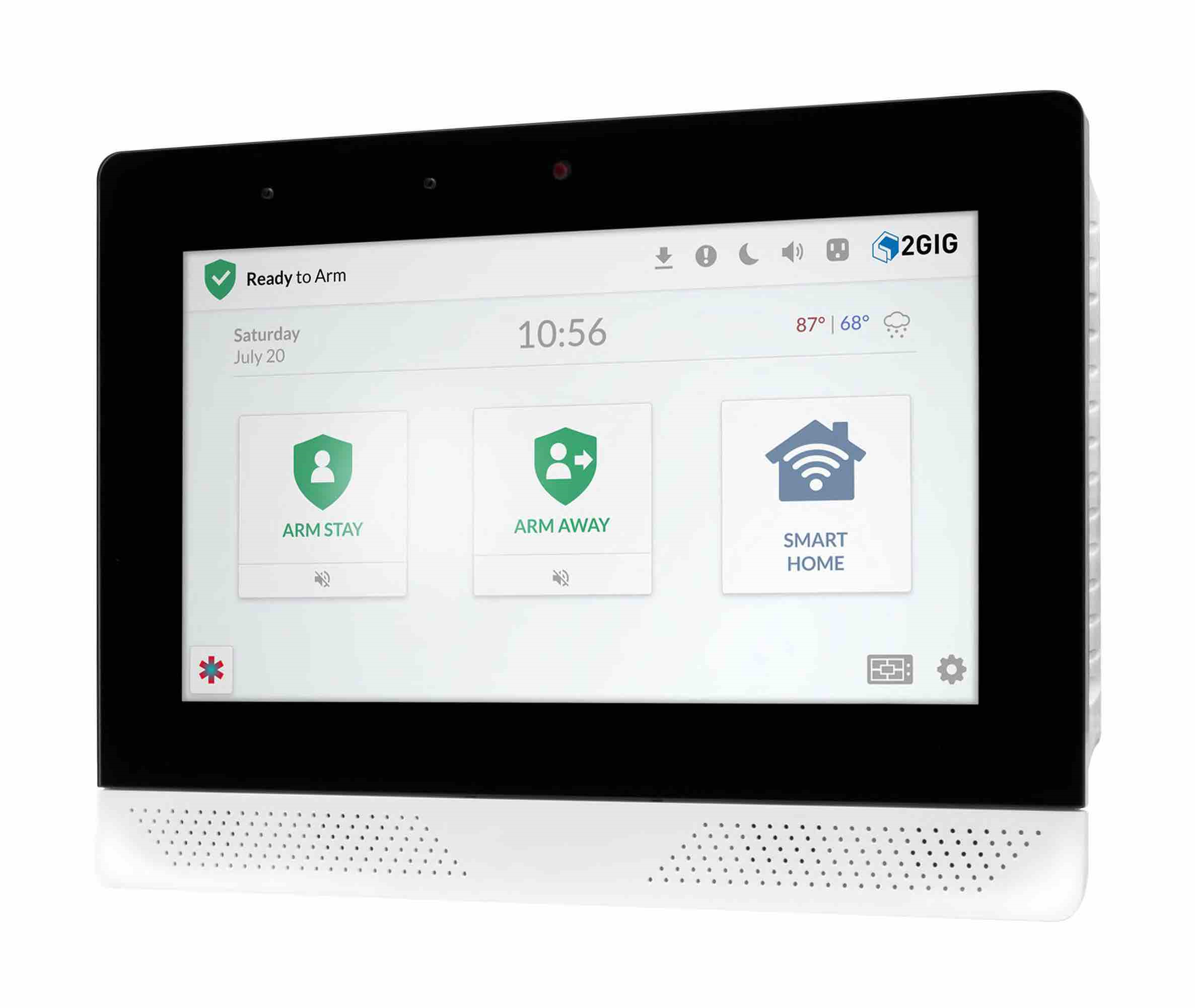
Name | 2GIG EDGE |
|---|
Short Description | Next generation home security panel that also controls home automation devices. |
|---|
Long Description | The 2GIG EDGE Panel is the next generation in security and smart home platform enabling peace of mind, comfort and convenience. Our EDGE processing technology is the difference that enables touchless disarm with facial recognition and analytics within the panel itself – private data stays private for greater peace-of-mind. High resolution touchscreen and intuitive user interface is an elegant command center for a home or a small business keeping loved ones protected and safe.
Key Features:
Hands-Free Convenience: Integrated face recognition and Bluetooth technologies significantly streamline operation – no putting down grocery bags to disarm the system.
Increased Data Privacy: Biometrics information is never transmitted to the cloud. Rather than sending images and private biometric data to the Cloud for processing, 2GIG EDGE panel uses on-the-edge analytics to process and authenticate faces privately and fast.
Encrypted Sensors: Help eliminate system hacks and prevent account take-overs. The panel is backwards compatible with older 2GIG sensors.
Smart Home Capabilities: Ability to customize with controls, rules, scenes, notifications and set up Smart Area zone partitioning. Plus, the 2GIG EDGE panel opens the door to future smart home/ automation up-sell opportunities.
Smart Areas, with easy intuitive partitioning, independently arm/disarm up to 4 separate areas of the house.
Built in glass break. Save on hardware costs by using the panel as a glass break sensor.
Live View Video: Cameras and doorbell cameras work with the EDGE panel, with up to 8 different camera feeds viewable directly from the panel. View 4 camera feeds at a time.
Dual Path Communication: Uses both cellular LTE and Wi-Fi to communicate to the network. If one service goes down, the other is always available. Wi-Fi connection also enables faster updates.
Wi-Fi Access Point, the 2GIG Edge panel becomes a router for networked devices. Connect your doorbells cameras, remote keypads and IP cameras to Edge panel.
Z-Wave Plus® v2 with S2 Certified. |
|---|
Brand | 2GIG |
|---|
Product Identifier | 2GIG-EDG-NA |
|---|
Product Line | Home Security and Automation |
|---|
OEM Version | HW: 26 FW: 07.17:04.26 |
|---|
Hardware Platform | EFR32ZG23B |
|---|
Z-Wave Version | 7.18.1 |
|---|
Library Type | CONTROLLER_BRIDGE |
|---|
Device Type | Generic Controller DT |
|---|
Role Type | ROLE_TYPE_CONTROLLER_CENTRAL_STATIC |
|---|
Manufacturer ID | 0x0094 |
|---|
Product Type ID | 0x0015 |
|---|
Product ID | 0x0115 |
|---|
User Icon | 0x0500 |
|---|
Installer Icon | 0x0500 |
|---|
Frequency Plans | US: 916.00MHz, 908.40MHz |
|---|
Categories | Gateway Controller, All Controllers |
|---|
Countries / Regions | United States of America |
|---|
Supported Command Classes | Identifier | Name | Key | Version |
|---|
COMMAND_CLASS_ASSOCIATION_V2 | Association V2 | 0x85 | 2 | COMMAND_CLASS_ASSOCIATION_GRP_INFO_V3 | Association Group Information (AGI) V3 | 0x59 | 3 | COMMAND_CLASS_DEVICE_RESET_LOCALLY | Device Reset Locally | 0x5A | 1 | COMMAND_CLASS_FIRMWARE_UPDATE_MD_V5 | Firmware Update Meta Data V5 | 0x7A | 5 | COMMAND_CLASS_INDICATOR_V3 | Indicator V3 | 0x87 | 3 | COMMAND_CLASS_MANUFACTURER_SPECIFIC | Manufacturer Specific | 0x72 | 1 | COMMAND_CLASS_MULTI_CHANNEL_ASSOCIATION_V3 | Multi Channel Association V3 | 0x8E | 3 | COMMAND_CLASS_VERSION_V2 | Version V2 | 0x86 | 2 | COMMAND_CLASS_ZWAVEPLUS_INFO_V2 | Z-Wave Plus Info V2 | 0x5E | 2 | COMMAND_CLASS_CRC_16_ENCAP | CRC-16 Encapsulation | 0x56 | 1 | COMMAND_CLASS_MULTI_CMD | Multi Command | 0x8F | 1 | COMMAND_CLASS_SECURITY | Security 0 | 0x98 | 1 | COMMAND_CLASS_SECURITY_2 | Security 2 | 0x9F | 1 | COMMAND_CLASS_TRANSPORT_SERVICE_V2 | Transport Service V2 | 0x55 | 2 | COMMAND_CLASS_INCLUSION_CONTROLLER | Inclusion Controller | 0x74 | 1 | COMMAND_CLASS_POWERLEVEL | Powerlevel | 0x73 | 1 | COMMAND_CLASS_TIME_V2 | Time V2 | 0x8A | 2 | COMMAND_CLASS_APPLICATION_STATUS | Application Status | 0x22 | 1 | COMMAND_CLASS_SUPERVISION_V2 | Supervision V2 | 0x6C | 2 | COMMAND_CLASS_CLOCK | Clock | 0x81 | 1 |
|
|---|
Controlled Command Classes | Identifier | Name | Key | Version |
|---|
COMMAND_CLASS_DEVICE_RESET_LOCALLY | Device Reset Locally | 0x5A | 1 | COMMAND_CLASS_INDICATOR_V3 | Indicator V3 | 0x87 | 3 | COMMAND_CLASS_MANUFACTURER_SPECIFIC | Manufacturer Specific | 0x72 | 1 | COMMAND_CLASS_VERSION_V2 | Version V2 | 0x86 | 2 | COMMAND_CLASS_WAKE_UP_V2 | Wake Up V2 | 0x84 | 2 | COMMAND_CLASS_ZWAVEPLUS_INFO_V2 | Z-Wave Plus Info V2 | 0x5E | 2 | COMMAND_CLASS_CRC_16_ENCAP | CRC-16 Encapsulation | 0x56 | 1 | COMMAND_CLASS_MULTI_CMD | Multi Command | 0x8F | 1 | COMMAND_CLASS_SECURITY | Security 0 | 0x98 | 1 | COMMAND_CLASS_TRANSPORT_SERVICE_V2 | Transport Service V2 | 0x55 | 2 | COMMAND_CLASS_INCLUSION_CONTROLLER | Inclusion Controller | 0x74 | 1 | COMMAND_CLASS_POWERLEVEL | Powerlevel | 0x73 | 1 | COMMAND_CLASS_BASIC | Basic | 0x20 | 1 | COMMAND_CLASS_SWITCH_BINARY_V2 | Binary Switch V2 | 0x25 | 2 |
|
|---|
S2 Classes | S2_ACCESS_CONTROL, S2_AUTHENTICATED, S2_UNAUTHENTICATED |
|---|
Documents | Category | File |
|---|
Manual_English | |
|
|---|
Association Groups | Group Number | Maximum Nodes Supported | End Point ID | Group Name | Profile |
|---|
1 | 56 | 0 | Lifeline | 0x0001 |
|
|---|
Texts | ID | Description | Value |
|---|
8 | Where to find S2 DSK on product | Alarm.com Supplemental Z-Wave Documentation, Section 2.2.2 | 23 | Controller Classic Inclusion | To add a device to the network using no security, S0 security, or S2 unauthenticated security, follow these steps:
1. Log into the Partner Portal at https://alarmadmin.alarm.com/default.aspx and select a customer.
2. Navigate to the “Equipment” page.
3. Click the “Z-Wave Devices” tab.
4. Under the “Manage Devices” header, click “Add a Z-Wave Device.”
5. Wait for the bolded message “Checking for new devices on the network.” The Alarm.com Z-Wave device’s DSK is also displayed with the first five digits bolded.
6. Trigger a device to add it to the network.
7. When a device is added successfully, it will show up on this screen following a 30 second delay.
8. Continue triggering devices. You may add many devices to the network without reentering Add Mode. | 24 | Controller Classic Exclusion | 2.3.1 Removing Communicating Devices
This process leverages Network Wide Exclusion. For SmartStart devices, it is recommended to remove the node from the Provisioning List before removing it from the network, otherwise it may be added back to the network using SmartStart. See Access and edit the Alarm.com device’s SmartStart and S2 provisioning list to remove the node from the Provisioning List. To remove devices from the network, follow these steps:
1. Log into the Partner Portal at https://alarmadmin.alarm.com/default.aspx and select a customer.
2. Navigate to the “Equipment” page.
3. Click the “Z-Wave Devices” tab.
4. Under the “Manage Devices” header, click “Delete a Z-Wave Device.”
5. Wait for the bolded message “Checking for deleted devices on the network.”
6. Trigger a device to remove it from the network.
7. When a device is deleted successfully and its network information is erased, it will show up on this screen following a 30 second delay.
8. Continue triggering devices. You may delete many devices to the network without reentering Delete Mode. | 11 | Controller SmartStart Inclusion | Option 1: Alarm.com Partner Portal
1. Log into the Partner Portal at https://alarmadmin.alarm.com/default.aspx and select a customer.
2. Navigate to the “Equipment” page.
3. Click the “Z-Wave Devices” tab.
4. Under the “Manage Devices” header, click “Manage S2 & SmartStart Keys.” Alternatively, you can go directly to the URL https://alarmadmin.alarm.com/Support/ManageDeviceKeys.aspx
5. Click “Add Device Key”
6. You have two options for adding info for the device you want to add:
a. Input the full DSK of the device you want to add, and optionally name it.
b. Click the “USB Barcode Scanner” button, then use a standard USB barcode scanner to scan the SmartStart QR code of the device. You may also paste in the text from a QR code.
7. You may optionally add a name for this device as well.
8. Click the “Add Device” button.
9. Power up the new device in range of the Alarm.com device. It will automatically be added to the Alarm.com device’s network, and will show up on the Z-Wave equipment page at https://alarmadmin.alarm.com/Support/DeviceAutomation.aspx
Option 2: Alarm.com MobileTech App
1. Download the Alarm.com MobileTech app from the app store on your device, then log in using your Partner Portal credentials.
2. Select a customer
3. Tap on the “Equipment” button
4. Tap the “Z-Wave Devices” header
5. Expand the “Z-Wave Actions” drawer at the top of the screen
6. Tap the “Manage Device Keys” button
7. Expand the “Add a Device Key” section
8. Optional: Add a device name
9. Enter the full DSK of the device, or alternatively tap the barcode icon at the right-hand side of the input field to scan the QR code of the SmartStart device you want to add
10. Click the blue “Add” button
11. Power up the new device in range of the Alarm.com device. It will automatically be added to the Alarm.com device’s network, and will show up on the Z-Wave equipment page at https://alarmadmin.alarm.com/Support/DeviceAutomation.aspx | 25 | Controller Provisioning List | Customers can see SmartStart and S2 devices that are primed for inclusion by doing the following steps:
1. Log into the Partner Portal at https://alarmadmin.alarm.com/default.aspx and select a customer.
2. Navigate to the “Equipment” page.
3. Click the “Z-Wave Devices” tab.
4. Under the “Manage Devices” header, click “Manage S2 & SmartStart Keys.” Alternatively, you can go directly to the URL https://alarmadmin.alarm.com/Support/ManageDeviceKeys.aspx
From that page it’s possible to either “Edit” or “Delete” keys by clicking the relevant links to the right of devices. | 3 | Controller Learn Mode | This process will clear all nodes from the Alarm.com Z-Wave device’s network, change the Alarm.com Z-Wave device’s home ID, and reset all Z-Wave settings to their default values. To perform a Z-Wave reset, follow these steps:
1. Log into the Partner Portal at https://alarmadmin.alarm.com/default.aspx and select a customer.
2. Navigate to the “Equipment” page.
3. Click the “Z-Wave Devices” tab.
4. Under the “Advanced Z-Wave Commands” header, click “Remove All Z-Wave Devices.”
5. Allow 3 minutes for the associated commands to go through and for the Alarm.com Z-Wave device to act on them.
If this controller is the primary controller for your network, resetting it will result in the nodes in your network being orphaned and it will be necessary after the reset to exclude and re-include all the nodes in the network. If this controller is being used as a secondary controller in the network, use this procedure to reset this controller only if the network primary controller is missing or otherwise inoperable. | 10 | Controller Replication | When learning in the Alarm.com Z-Wave device into a primary controller, network information such as node list and routing information is copied from the primary controller to the Alarm.com Z-Wave device. This process is also called Controller Replication. This is not required unless there are multiple controllers in the network. This may be performed after the Alarm.com Z-Wave device has learned into a network to copy newer network information from the primary controller to the Alarm.com Z-Wave device.
To learn the Alarm.com Z-Wave device into another Z-Wave network, follow these steps:
1. Log into the Partner Portal at https://alarmadmin.alarm.com/default.aspx and select a customer.
2. Navigate to the “Equipment” page.
3. Click the “Z-Wave Devices” tab.
4. If there are any nodes currently in the Alarm.com Z-Wave device’s network, remove them by following the instructions at Removing devices from the Alarm.com Z-Wave device’s Z-Wave network.
5. Start add mode on the primary Z-Wave controller.
6. Under the “Manage Devices” header, click “Add Replicate Z-Wave.” The DSK will be displayed with the first five digits bolded.
7. When the Alarm.com Z-Wave device learns into another network successfully, that network’s information will show up on the screen. This information may be delayed up to two minutes as the Alarm.com Z-Wave device queries the nodes. All Z-Wave network information will be copied from the primary controller to the Alarm.com Z-Wave device | 5 | Factory Reset Procedure | This process will clear all nodes from the Alarm.com Z-Wave device’s network, change the Alarm.com Z-Wave device’s home ID, and reset all Z-Wave settings to their default values. To perform a Z-Wave reset, follow these steps:
1. Log into the Partner Portal at https://alarmadmin.alarm.com/default.aspx and select a customer.
2. Navigate to the “Equipment” page.
3. Click the “Z-Wave Devices” tab.
4. Under the “Advanced Z-Wave Commands” header, click “Remove All Z-Wave Devices.”
5. Allow 3 minutes for the associated commands to go through and for the Alarm.com Z-Wave device to act on them.
If this controller is the primary controller for your network, resetting it will result in the nodes in your network being orphaned and it will be necessary after the reset to exclude and re-include all the nodes in the network. If this controller is being used as a secondary controller in the network, use this procedure to reset this controller only if the network primary controller is missing or otherwise inoperable. |
|
|---|
Supports NWI | Yes |
|---|
Supports Explorer Frames | Yes |
|---|
Supports SmartStart | Yes |
|---|
Radio Range Z-Wave (m) | 40 |
|---|