Product Recognition | |
|---|
Certification Number | ZC10-18106254 |
|---|
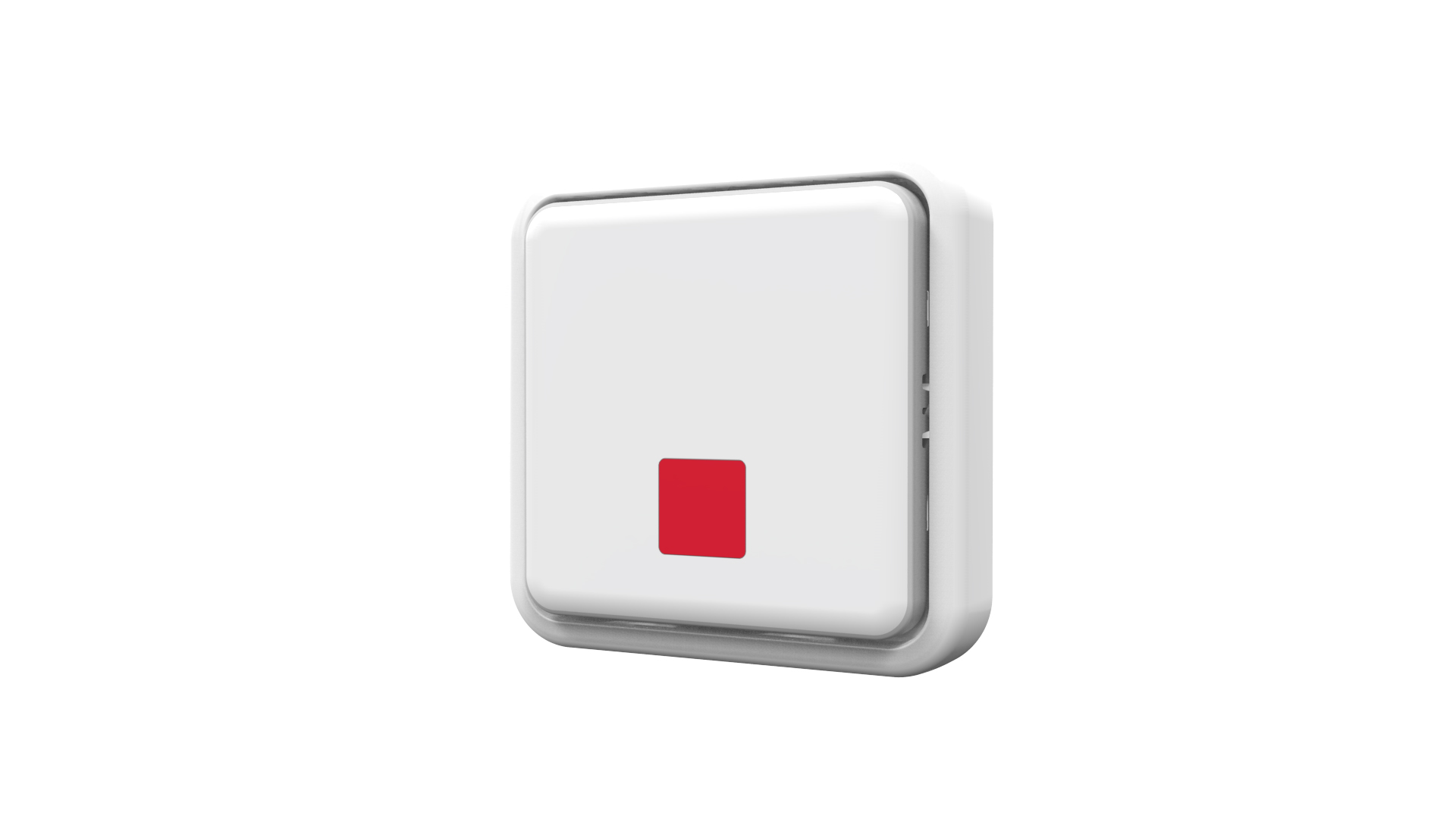
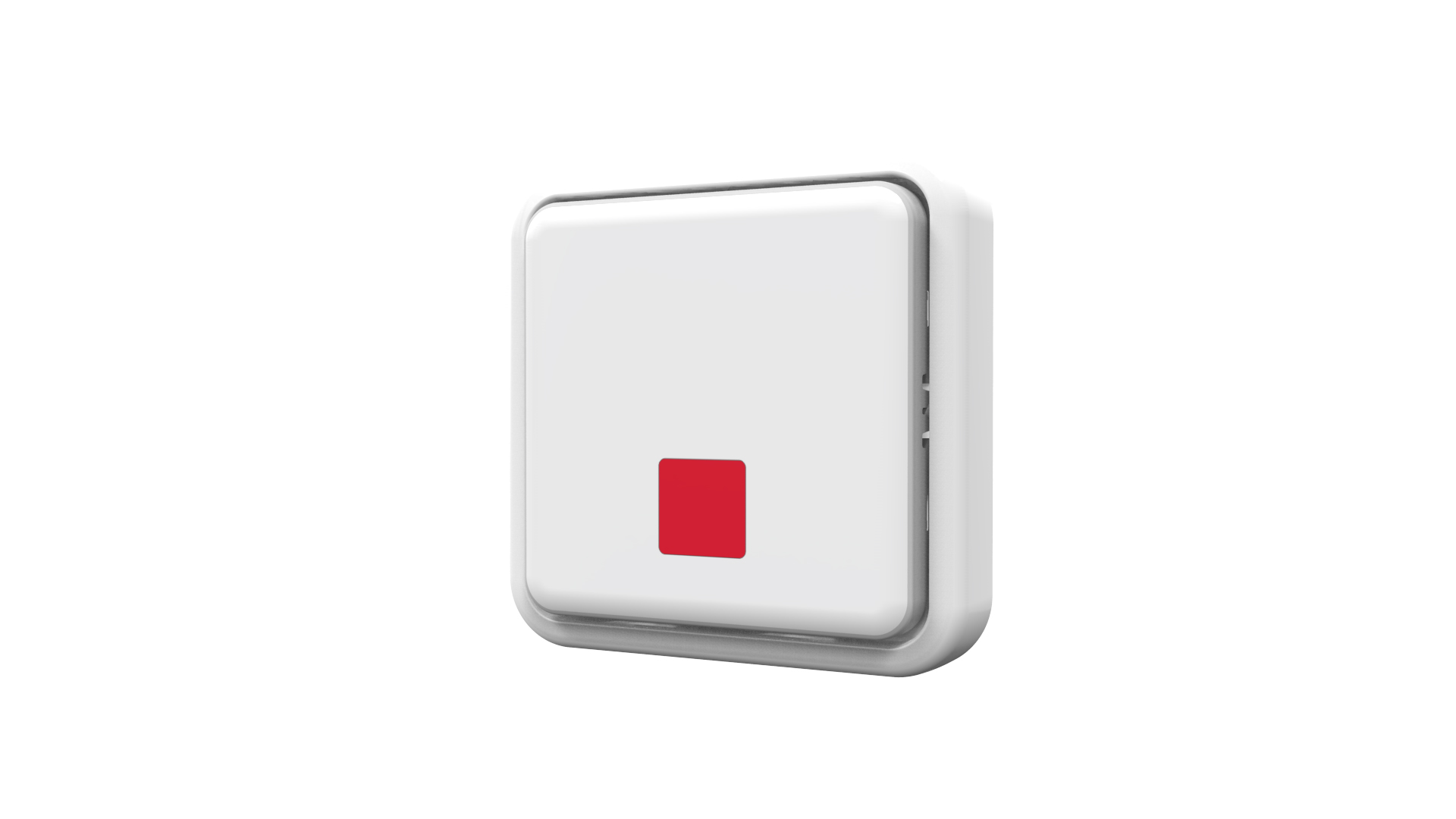
Name | Alert Button |
|---|
Short Description | AXIS T8343-EUR Alert Button is a wireless push button which relays events such as notification messages, illumination and much more. |
|---|
Long Description | AXIS T8343-EUR Alert Button is a wireless push button which relays events such as notification messages, illumination and much more. With its support for wireless input/output connectivity, the alert button can communicate wirelessly with AXIS M5065 PTZ Network camera or other connected Z-Wave Plus® controllers, creating a small security solution with less cabling. Thanks to its integrated wireless I/O connectivity, AXIS T8343-EUR enables flexible installation as the relay can easily be moved and adapted to your needs. |
|---|
Brand | Axis Communications |
|---|
Product Identifier | T8343-EUR |
|---|
OEM Version | HW: 1 FW: 1.01:00.01 |
|---|
Hardware Platform | SD3502 |
|---|
Z-Wave Version | 6.71.01 |
|---|
Library Type | SLAVE_ENHANCED_232 |
|---|
Device Type | Notification Sensor |
|---|
Role Type | ROLE_TYPE_SLAVE_SLEEPING_REPORTING |
|---|
Manufacturer ID | 0x0364 |
|---|
Product Type ID | 0x0005 |
|---|
Product ID | 0x0001 |
|---|
User Icon | 0x0C0C |
|---|
Installer Icon | 0x0C0C |
|---|
Frequency Plans | EU: 869.85MHz, 868.40MHz |
|---|
Categories | Sensors |
|---|
Countries / Regions | European Union |
|---|
Supported Command Classes | Identifier | Name | Key | Version |
|---|
COMMAND_CLASS_FIRMWARE_UPDATE_MD_V4 | Firmware Update Meta-Data V4 | 0x7A | 4 | COMMAND_CLASS_POWERLEVEL | Powerlevel | 0x73 | 1 | COMMAND_CLASS_BATTERY | Battery | 0x80 | 1 | COMMAND_CLASS_SECURITY | Security S0 | 0x98 | 1 | COMMAND_CLASS_TRANSPORT_SERVICE_V2 | Transport Service V2 | 0x55 | 2 | COMMAND_CLASS_VERSION_V2 | Version V2 | 0x86 | 2 | COMMAND_CLASS_WAKE_UP_V2 | Wake Up V2 | 0x84 | 2 | COMMAND_CLASS_DEVICE_RESET_LOCALLY | Device Reset Locally | 0x5A | 1 | COMMAND_CLASS_ZWAVEPLUS_INFO_V2 | Z-Wave Plus Info V2 | 0x5E | 2 | COMMAND_CLASS_ASSOCIATION_V2 | Association V2 | 0x85 | 2 | COMMAND_CLASS_ASSOCIATION_GRP_INFO | Association Group Info | 0x59 | 1 | COMMAND_CLASS_SECURITY_2 | Security S2 | 0x9F | 1 | COMMAND_CLASS_SUPERVISION | Supervision | 0x6C | 1 | COMMAND_CLASS_MANUFACTURER_SPECIFIC_V2 | Manufacturer Specific V2 | 0x72 | 2 | COMMAND_CLASS_NOTIFICATION_V4 | Notification V4 | 0x71 | 4 |
|
|---|
Controlled Command Classes | Identifier | Name | Key | Version |
|---|
COMMAND_CLASS_BASIC | Basic | 0x20 | 1 |
|
|---|
S2 Classes | S2_UNAUTHENTICATED, S2_AUTHENTICATED |
|---|
Documents | Category | Description | File |
|---|
Manual_Primary_Lang | Product or Owner's Manual | |
|
|---|
Features | Feature | Values |
|---|
Color | | Firmware Updatable | Value |
|---|
Updatable by Consumer via Internet |
| Battery Quantity | | Battery Type | | Supported Notification Types | |
|
|---|
Association Groups | Group Number | Maximum Nodes Supported | End Point ID | Description |
|---|
1 | 1 | 0 | Association with 1 node. | 2 | 4 | 0 | Association with 4 nodes. |
|
|---|
Texts | ID | Description | Value |
|---|
4 | Device Wake-Up | After the detector has been included into a Z-Wave network it will go to sleep, but it will send a wake-up notification command to
the controller periodically at a preset period . The detector will stay awake for at least 10 seconds and then go back to sleep to
conserve battery life. | 5 | Factory Reset | 1. Press the link button 3 times within 1.5 seconds to put the device into exclusion mode.
2. Within 1 second of step 1, press the link button again and hold for 5 seconds.
3. Node ID is excluded. The device reverts to factory default state.
(This procedure should only be used when the controller is
inoperable.) | 2 | Exclusion | Manual exclusion
1. Detach the front cover.
2. Press the link button 3 times within 1.5 seconds to put the unit into learning (inclusion/exclusion) mode.
3. The exclusion process should be completed when the LED stops blinking.
4. Refit the front cover. | 1 | Inclusion | Auto inclusion
1. Carefully remove the front cover by pulling the bottom of the front cover.
2. Put a Z-Wave controller into inclusion mode.
3. Insert 2 AAA-batteries (1,5V) into the battery compartment with the correct polarity. The LED on the device should turn ON
4. Enter PIN number into the Z-Wave controller. The PIN number can be found on the device. See where in the installation
guide.
5. The inclusion process should be completed when the LED stops blinking
6. Perform test before you refit the battery cover. See How to test the Z-Wave Device.
Manual inclusion
1. Carefully remove the front cover by pulling the bottom of the front cover. There is a link button which is used to put the
device in learning mode (inclusion/exclusion).
2. Press the link button 3 times within 1.5 seconds to put the unit into learning (inclusion/exclusion) mode.
3. Enter PIN number into the Z-Wave controller. The PIN number can be found on the device. See where in the installation
guide.
4. The inclusion process should be completed when the LED stops blinking
5. Perform test before you refit the battery cover. |
|
|---|
Supported Notification Types | Notification Type | Event / State |
|---|
Appliance | (Refer to parameters): State idle |
|
|---|
Supports NWI | Yes |
|---|
Supports Explorer Frames | Yes |
|---|
Radio Range Z-Wave (m) | 40 |
|---|