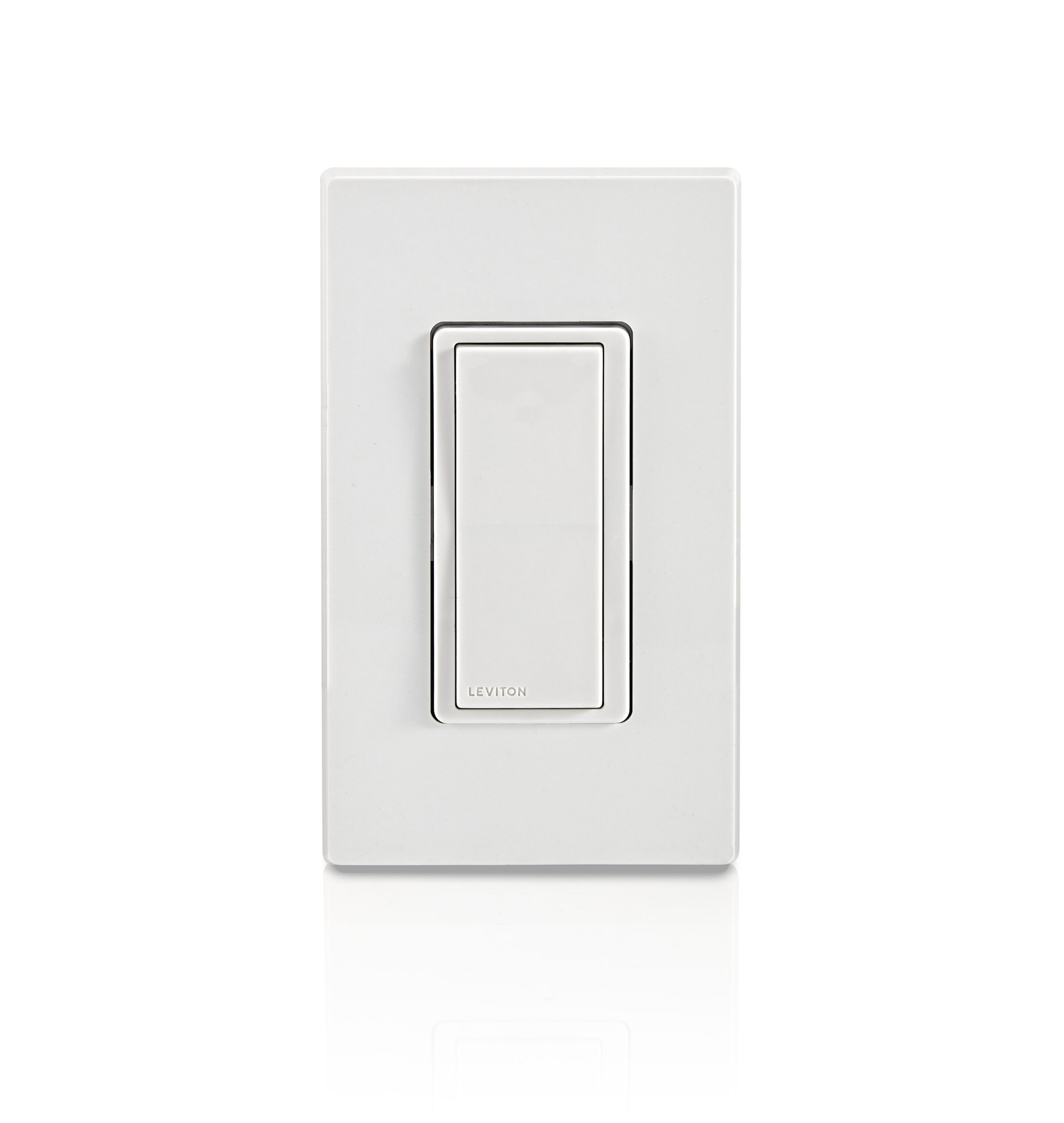
Product Recognition | |
|---|
Certification Number | ZC14-23070303 |
|---|
Name | Decora Smart Z-Wave™ 800 Series Switch |
|---|
Short Description | Leviton's Decora Smart Z-Wave™ 800 Series Switch offers the latest in Z-Wave™ technology with on/off control of general purpose loads up to 15A including LED/CFL, Incandescent, and 3/4HP Motor. |
|---|
Long Description | The Leviton Decora Smart Z-Wave™ 800 Series Switch is designed for use with modern Z-Wave™ hubs and makes it easier than ever to control your lights how you want. The Switch is compatible with any Z-Wave enabled network, regardless of the manufacturer, and can also be used with other devices displaying the Z-Wave logo. As well, this device can act as a repeater to increase the reliability of the Z-Wave network. The Decora Smart Z-Wave 800 Series Switch looks right at home with your other Decora® in-wall devices and features intuitive on/off control. Add the Switch to your Z-Wave hub of choice to enable app commands, scheduling, and voice control of connected lighting. |
|---|
Brand | Leviton |
|---|
Product Identifier | ZW15S |
|---|
Product Line | Decora Smart Z-Wave™ |
|---|
OEM Version | HW: 01 FW: 01.00:02.01 |
|---|
Hardware Platform | ZGM230SA |
|---|
Z-Wave Version | 7.18.3 |
|---|
Library Type | END_NODE_ENHANCED_232 |
|---|
Device Type | Binary Switch DT |
|---|
Role Type | ROLE_TYPE_END_NODE_ALWAYS_ON |
|---|
Manufacturer ID | 0x001D |
|---|
Product Type ID | 0x0042 |
|---|
Product ID | 0x0002 |
|---|
User Icon | 0x0700 |
|---|
Installer Icon | 0x1D01 |
|---|
Frequency Plans | US: 916.00MHz, 908.40MHz |
|---|
Categories | All Lighting Devices, On/Off Switches/Devices, Motor Control, Lighting Accessories |
|---|
Countries / Regions | Canada, Mexico, United States of America |
|---|
Supported Command Classes | Identifier | Name | Key | Version |
|---|
COMMAND_CLASS_ASSOCIATION_V2 | Association V2 | 0x85 | 2 | COMMAND_CLASS_ASSOCIATION_GRP_INFO_V3 | Association Group Information (AGI) V3 | 0x59 | 3 | COMMAND_CLASS_DEVICE_RESET_LOCALLY | Device Reset Locally | 0x5A | 1 | COMMAND_CLASS_FIRMWARE_UPDATE_MD_V5 | Firmware Update Meta Data V5 | 0x7A | 5 | COMMAND_CLASS_INDICATOR_V3 | Indicator V3 | 0x87 | 3 | COMMAND_CLASS_MANUFACTURER_SPECIFIC_V2 | Manufacturer Specific V2 | 0x72 | 2 | COMMAND_CLASS_MULTI_CHANNEL_ASSOCIATION_V3 | Multi Channel Association V3 | 0x8E | 3 | COMMAND_CLASS_VERSION_V3 | Version V3 | 0x86 | 3 | COMMAND_CLASS_ZWAVEPLUS_INFO_V2 | Z-Wave Plus Info V2 | 0x5E | 2 | COMMAND_CLASS_SECURITY_2 | Security 2 | 0x9F | 1 | COMMAND_CLASS_SUPERVISION | Supervision | 0x6C | 1 | COMMAND_CLASS_TRANSPORT_SERVICE_V2 | Transport Service V2 | 0x55 | 2 | COMMAND_CLASS_POWERLEVEL | Powerlevel | 0x73 | 1 | COMMAND_CLASS_SWITCH_BINARY_V2 | Binary Switch V2 | 0x25 | 2 | COMMAND_CLASS_BASIC_V2 | Basic V2 | 0x20 | 2 | COMMAND_CLASS_CONFIGURATION_V4 | Configuration V4 | 0x70 | 4 | COMMAND_CLASS_SCENE_ACTIVATION | Scene Activation | 0x2B | 1 | COMMAND_CLASS_SCENE_ACTUATOR_CONF | Scene Actuator Configuration | 0x2C | 1 |
|
|---|
S2 Classes | S2_AUTHENTICATED, S2_UNAUTHENTICATED |
|---|
Documents | Category | File |
|---|
Manual_English | |
|
|---|
Features | Feature | Values |
|---|
Electric Load Type | Value |
|---|
Incandescent | Fluorescent | MLV (Magnetic) | ELV (Electronic) | LED | Inductive (e.g. Motor) |
| Firmware Updatable | Value |
|---|
Updatable by Consumer by RF |
| Neutral Wire Required | | Switch Load Capacity Watts | Value |
|---|
1500W Incandescent / Halogen |
| Switch Type | Value |
|---|
Decorator Paddle Push with Indicator |
| Z-Wave Scene Type | | Switch Load Capacity Current | Value |
|---|
15A General Use, 5A LED/CFL/Electronic Ballast, 15A Magnetic Ballast |
|
|
|---|
Association Groups | Group Number | Maximum Nodes Supported | End Point ID | Group Name | Profile |
|---|
1 | 5 | 0 | Lifeline | 0x0001 | 2 | 5 | 0 | Binary switch set | 0x2001 | 3 | 5 | 0 | Basic set | 0x2001 |
|
|---|
Configuration Parameters | Parameter Number | Name | Description | Format | Size | Min Value | Max Value | Default Value |
|---|
7 | Status LED Configuration | 0: always off, 254: Status LED ON when load is ON, 255: Status LED ON when load is OFF (locator mode) | 0 | 4 | 0 | 0 | 0x000000FF |
|
|---|
Texts | ID | Description | Value |
|---|
8 | Where to find S2 DSK on product | SmartStart enabled devices can be added to a Z-Wave network by scanning the Z-Wave QR code on the top of the device, on the strap, or on the back of the unit box with a compatible Z-Wave controller that supports SmartStart inclusion. The device should be added automatically within 10 minutes of being switched on and in the network vicinity.
The QR code label with DSK is located on the top of the device. If required, the PIN code is underlined on the label. The PIN code is also located on the front strap. | 1 | Classic Inclusion | For older controllers, Classic Inclusion is supported.
Depending on the age of the controller it may need to be 3 to 35 feet from the device when including.
1. Enter setup mode (see page 10).
2. Follow the Z-Wave controller instructions to enter inclusion mode.
3. Tap the top rocker 1 time, the Status LED will quickly flash GREEN.
4. The Z-Wave controller will confirm successful inclusion to the Z-Wave network. | 2 | Classic Exclusion | The Exclusion command found in the Z-Wave controller is used as a best practice for removing devices from a Z-Wave network.
1. Enter setup mode (see page 10).
2. Follow the Z-Wave controller instructions to enter exclusion mode.
3. Tap the top rocker 1 time, the Status LED will quickly flash GREEN.
4. The Z-Wave controller will confirm successful exclusion from the Z-Wave network. | 5 | Factory Reset Procedure | When removing a Z-Wave device from the network, it is best practice to use the exclusion process. In situations where a device needs to be returned to factory default settings, follow the steps below. Please use this procedure only when the network primary controller is missing or otherwise inoperable.
1. Hold the top rocker for 14 seconds: After the first 7 seconds, the Status LED will turn AMBER. Continue holding until the Status LED flashes RED/AMBER then release.
2. The device will reset. | 6 | Other Special Features | Status LED
Follow the below steps to change the functionality of the
Status LED.
Status LED ON when load is ON:
1. Enter setup mode (see page 10).
2. Tap the top rocker 4 times. The Status LED will quickly flash GREEN/AMBER.
3. Tap the top rocker 1 time. The Status LED will flash GREEN 4 times to confirm the selection.
Status LED ON when load is OFF (default)
1. Enter setup mode (see page 10).
2. Tap the top rocker 4 times. The Status LED will quickly flash GREEN/AMBER.
3. Tap the top rocker 2 times. The Status LED will flash AMBER 4 times to confirm the selection.
Status LED OFF:
1. Enter setup mode (see page 10).
2. Tap the top rocker 4 times. The Status LED will quickly flash GREEN/AMBER.
3. Tap the top rocker 3 times. The Status LED will flash RED 4 times to confirm the selection. |
|
|---|
Supports NWI | Yes |
|---|
Supports Explorer Frames | Yes |
|---|
Supports SmartStart | Yes |
|---|
Radio Range Z-Wave (m) | 40 |
|---|