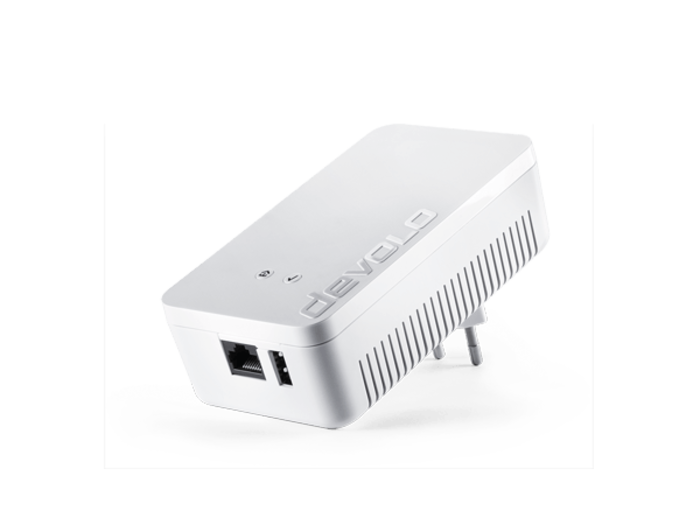
Product Recognition | |
|---|
Certification Number | ZC10-17095765 |
|---|
Name | devolo Home Control Central Unit |
|---|
Short Description | The devolo Home Control Central Unit is the centrepiece of your smart home. It discreetly ensures that all components of your smart home work with each other without a hitch. |
|---|
Long Description | The devolo Home Control Central Unit is the centrepiece of your smart home. It discreetly ensures that all components of your smart home work with each other without a hitch. The innovative and future-proofed Z-Wave® wireless technology comes in handy here; as your devolo Home Control is fully functional on its own in the house, you will never need to worry about losing the Internet connection. Also, additional devolo Home Control components and even components from third-party suppliers can be added at any time. That's how your smart home can grow, individually based on your ideas and needs. Operation works easily by using the free app for smartphones, tablets and computers. Control light, room temperature and much more in interaction with additional components.
Highlights:
- The easiest smart home solution from the global market leader in Powerline
- Greater comfort and convenience, more security, lower energy consumption.
- The devolo Home Control convenience promise – a smart home in 20 minutes:
- 1. Quick DIY installation
- 2. Simple set-up
- 3. Intuitive operation
- Developed and tested in Germany
- Secure, stable and reliable using the Z-Wave® wireless standard
- Open and future-proofed standard (already over 1000 various Z-Wave® components available globally)
- 3-year manufacturer’s warranty |
|---|
Brand | devolo |
|---|
Product Identifier | MT2600 (EU-Plug) / MT2601 (UK-Plug) |
|---|
OEM Version | HW: 0 FW: 4.54:01.00 |
|---|
Hardware Platform | ZM5202 |
|---|
Z-Wave Version | 6.51.10 |
|---|
Library Type | CONTROLLER_STATIC |
|---|
Device Type | Central Controller |
|---|
Role Type | ROLE_TYPE_CONTROLLER_CENTRAL_STATIC |
|---|
Manufacturer ID | 0x0175 |
|---|
Product Type ID | 0x0000 |
|---|
Product ID | 0x0001 |
|---|
User Icon | 0x0100 |
|---|
Installer Icon | 0x0100 |
|---|
Frequency Plans | EU: 869.85MHz, 868.40MHz |
|---|
Categories | All Controllers, Gateway Controller |
|---|
Countries / Regions | European Union |
|---|
Supported Command Classes | Identifier | Name | Key | Version |
|---|
COMMAND_CLASS_POWERLEVEL | Powerlevel | 0x73 | 1 | COMMAND_CLASS_APPLICATION_STATUS | Application Status | 0x22 | 1 | COMMAND_CLASS_CRC_16_ENCAP | CRC16 Encapsulation | 0x56 | 1 | COMMAND_CLASS_SECURITY | Security S0 | 0x98 | 1 | COMMAND_CLASS_VERSION_V2 | Version V2 | 0x86 | 2 | COMMAND_CLASS_DEVICE_RESET_LOCALLY | Device Reset Locally | 0x5A | 1 | COMMAND_CLASS_ZWAVEPLUS_INFO_V2 | Z-Wave Plus Info V2 | 0x5E | 2 | COMMAND_CLASS_ASSOCIATION_V2 | Association V2 | 0x85 | 2 | COMMAND_CLASS_ASSOCIATION_GRP_INFO | Association Group Info | 0x59 | 1 | COMMAND_CLASS_MANUFACTURER_SPECIFIC | Manufacturer Specific | 0x72 | 1 | COMMAND_CLASS_MANUFACTURER_SPECIFIC_V2 | Manufacturer Specific V2 | 0x72 | 2 |
|
|---|
Controlled Command Classes | Identifier | Name | Key | Version |
|---|
COMMAND_CLASS_SENSOR_BINARY | Sensor Binary | 0x30 | 1 | COMMAND_CLASS_SWITCH_MULTILEVEL | Switch Multilevel | 0x26 | 1 | COMMAND_CLASS_SENSOR_MULTILEVEL_V5 | Sensor Multilevel V5 | 0x31 | 5 | COMMAND_CLASS_PROTECTION_V2 | Protection V2 | 0x75 | 2 | COMMAND_CLASS_MULTI_CHANNEL_ASSOCIATION_V3 | Multi-Channel Association V3 | 0x8E | 3 | COMMAND_CLASS_BATTERY | Battery | 0x80 | 1 | COMMAND_CLASS_SWITCH_BINARY | Switch Binary | 0x25 | 1 | COMMAND_CLASS_BASIC | Basic | 0x20 | 1 | COMMAND_CLASS_CRC_16_ENCAP | CRC16 Encapsulation | 0x56 | 1 | COMMAND_CLASS_SECURITY | Security S0 | 0x98 | 1 | COMMAND_CLASS_THERMOSTAT_SETPOINT_V2 | Thermostat Setpoint V2 | 0x43 | 2 | COMMAND_CLASS_VERSION_V2 | Version V2 | 0x86 | 2 | COMMAND_CLASS_WAKE_UP_V2 | Wake Up V2 | 0x84 | 2 | COMMAND_CLASS_ZWAVEPLUS_INFO_V2 | Z-Wave Plus Info V2 | 0x5E | 2 | COMMAND_CLASS_ASSOCIATION_V2 | Association V2 | 0x85 | 2 | COMMAND_CLASS_ASSOCIATION_GRP_INFO | Association Group Info | 0x59 | 1 | COMMAND_CLASS_MULTI_CHANNEL_V4 | Multi-Channel V4 | 0x60 | 4 | COMMAND_CLASS_SCENE_ACTIVATION | Scene Activation | 0x2B | 1 | COMMAND_CLASS_CONFIGURATION_V2 | Configuration V2 | 0x70 | 2 | COMMAND_CLASS_FIRMWARE_UPDATE_MD_V2 | Firmware Update Meta-Data V2 | 0x7A | 2 | COMMAND_CLASS_MANUFACTURER_SPECIFIC_V2 | Manufacturer Specific V2 | 0x72 | 2 | COMMAND_CLASS_NOTIFICATION_V4 | Notification V4 | 0x71 | 4 | COMMAND_CLASS_METER_V4 | Meter V4 | 0x32 | 4 |
|
|---|
Documents | Category | Description | File |
|---|
Manual_Primary_Lang | Product or Owner's Manual | |
|
|---|
Features | Feature | Values |
|---|
Firmware Updatable | Value |
|---|
Updatable by Consumer via Internet |
| Supported Notification Types | Value |
|---|
Smoke Alarm | Water Alarm | Access Control | Home Security | Emergency Alarm | Siren |
| Gateway Has Preferred Partners | | Sensors | Value |
|---|
Air Temperature | Luminance | Humidity | Power | Barometric Pressure | Dew Point |
| Color | | Communications Connections | Value |
|---|
Ethernet (Wired) | USB (Universal Serial Bus) |
| Communications Protocol | |
|
|---|
Association Groups | Group Number | Maximum Nodes Supported | End Point ID | Description |
|---|
1 | 1 | 0 | Z-Wave Plus Lifeline |
|
|---|
Texts | ID | Description | Value |
|---|
24 | Controller Exclusion | To remove a non-working device, follow these steps:
- If it is a battery powered device: Start the device removal process. Do not follow the steps, but wait till the timer runs out. The device will be automatically removed.
- For 230V AC devices: Pull the device out of the mains. The device will be shown offline after five to fifteen minutes.
If the device is displayed as offline:
1. In the Home Control Portal, select the device that is displayed as offline.
2. Click the gear icon and select the rubbish bin icon.
3. In the window that appears, select Force remove to remove the device. | 23 | Controller Inclusion | In order to include a Z-Wave Plus device with the Home Control Central Unit securely:
1. On the Devices tab, click/touch the Plus icon.
2. Under Other devices, select the Z-Wave device setting.
3. In the next step, select secure inclusion? for a secure connection between the device and Central Unit.
4. Click/touch Next.
5. Assign a suitable icon to the device by clicking/tapping it.
6. Assign a meaningful name under the name of the device.
The newly added Z-Wave Plus device appears in the device overview, where it can, like all devices, be used with scenes, rules and schedules.
In order to include a Z-Wave Plus compatible central unit from a third-party supplier to the Home Control Central Unit:
1. On the Devices tab, click/touch the Plus icon.
2. Under Other devices, select the Z-Wave controller setting.
3. Send a Node Information Frame (NIF) on the Z-Wave-compatible control unit in order to include the control unit with the devolo Home Control Central Unit. The specific process that needs to be followed to do so can be found in the instructions of the respective device manufacturer, usually called ""leran mode"".
4. Click/touch Next.
5. Assign a suitable icon to the device by clicking/tapping it.
6. Assign a meaningful name under the name of the device. | 3 | Learn Mode (adding another controller) | In order to include the Home Control Central Unit to a Z-Wave Plus compatible central unit from a third-party supplier:
Note: This is only available if no Z-Wave devices are included to the Central Unit!
1. Use the edit-button of your Home Control Central Unit on the selection page.
2. Bring the other controller into the “learn mode”. To do so please refer to the specific manual provided by the other controller’s manufacturer.
3. Press the “Learn mode” button on the settings page of your devolo Home Control Central Unit. The unit then sends a Node Information Frame (NIF) and will be included into the other controller, as long as it is in “learn mode”.
4. If the inclusion timed out or was unsuccessful, please refer to the other contoller’s manual. | 5 | Factory Reset | To reset a Z-Wave Plus compatible device to factory settings using the Home Control Central Unit:
1. Start the inclusion process of the Z-Wave Plus compatible device.
2. Wait, till timeout is reached and no device for inclusion was found.
3. Select Reset device to reset the device to factory settings.
4. Perform the reset procedure on the device as described in the manual of the device.
Your Z-Wave Plus compatible device has been reset to factory settings.
Note: If this controller is the primary controller for your network, resetting it will result in the nodes in your network being orphaned and it will be necessary after the reset to exclude and re-include all of the nodes in the network. If this controller is being used as a secondary controller in the network, use this procedure to reset this controller only in the event that the network primary controller is missing or otherwise inoperable. |
|
|---|
Supports NWI | Yes |
|---|
Supports Explorer Frames | Yes |
|---|