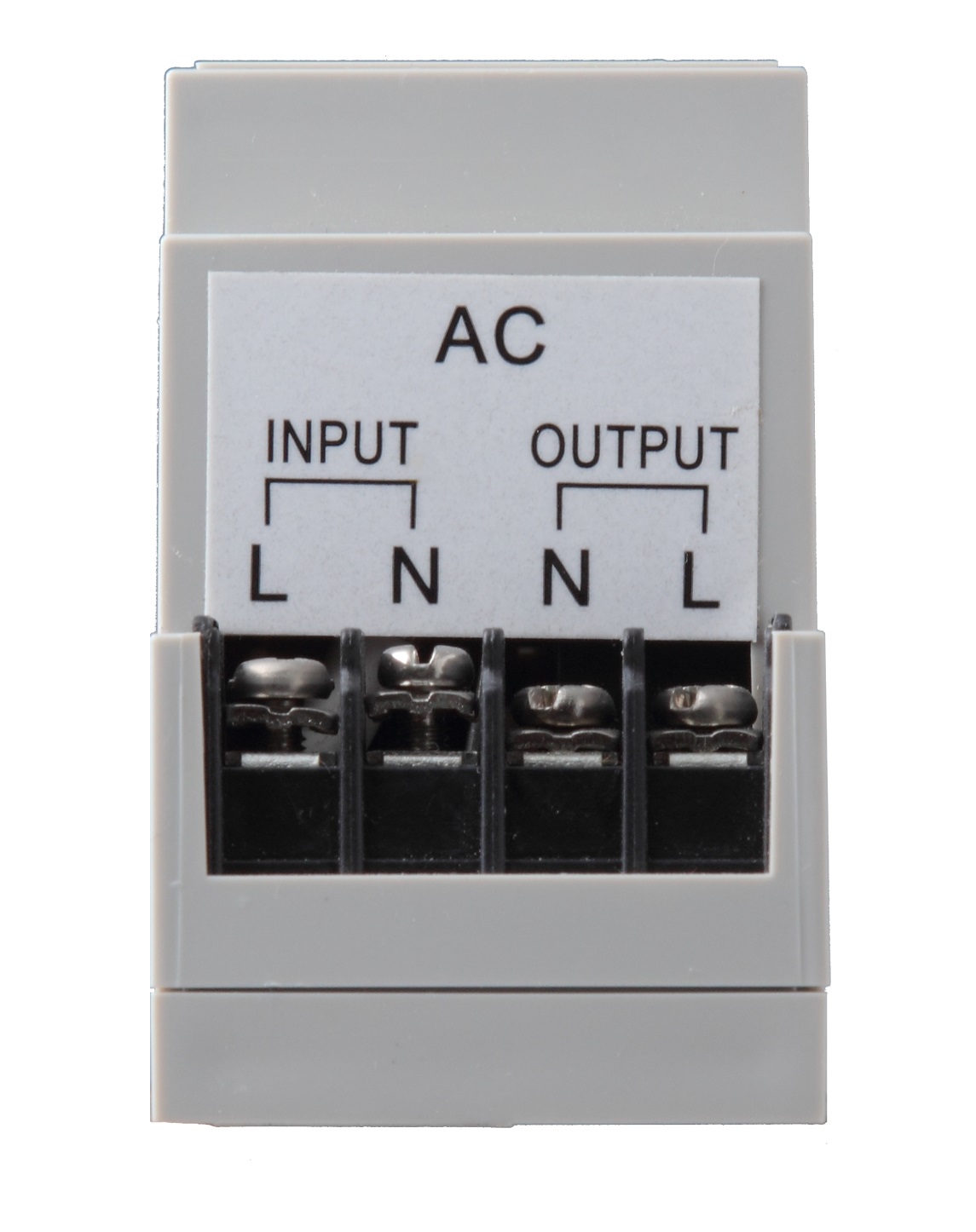
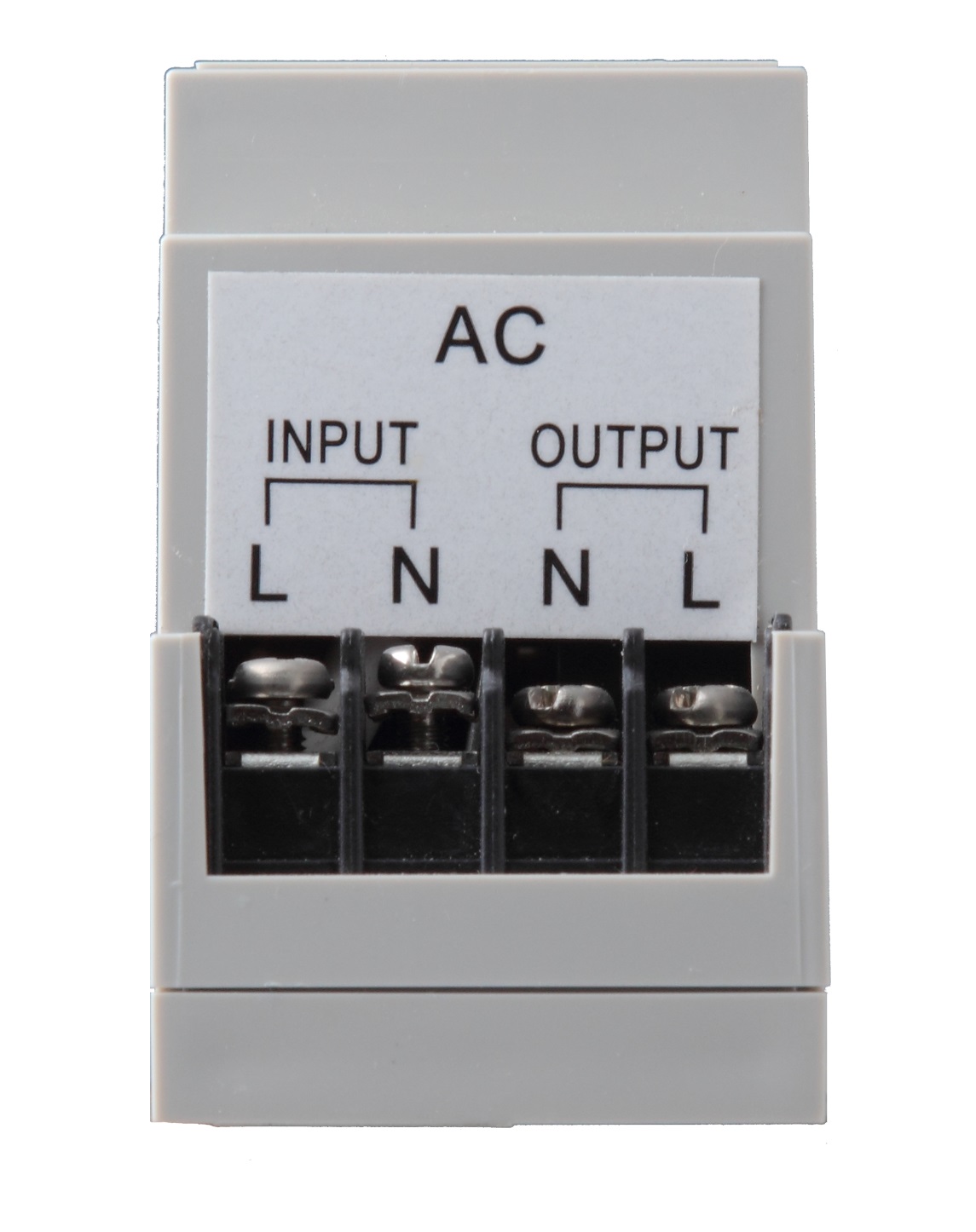
Product Recognition | |
|---|
Certification Number | ZC10-20036894 |
|---|
Name | DIN Rail Power Switch Meter |
|---|
Short Description | The Power Switch is capable of receiving wireless signals from the coordinator in the Z-Wave network to toggle On/Off of appliances that are attached to it. |
|---|
Long Description | The Power Switch Meter can further measure power consumption in kWh and W of attached device and report the values to the Z-Wave network regularly to notify the user. The power consumption can also be transmitted simply with a button press. |
|---|
Brand | Climax Technology |
|---|
Product Identifier | PSM-DIN2-ZW |
|---|
Product Line | Z-Wave Accessories |
|---|
OEM Version | HW: 255 FW: 4.01 |
|---|
Hardware Platform | ZM5202 |
|---|
Z-Wave Version | 6.81.06 |
|---|
Library Type | SLAVE_ENHANCED_232 |
|---|
Device Type | Sub Energy Meter |
|---|
Role Type | ROLE_TYPE_SLAVE_ALWAYS_ON |
|---|
Manufacturer ID | 0x018E |
|---|
Product Type ID | 0x0004 |
|---|
Product ID | 0x0003 |
|---|
User Icon | 0x1000 |
|---|
Installer Icon | 0x1000 |
|---|
Frequency Plans | EU: 869.85MHz, 868.40MHz |
|---|
Categories | All Lighting Devices, On/Off Switches/Devices |
|---|
Countries / Regions | European Union |
|---|
Supported Command Classes | Identifier | Name | Key | Version |
|---|
COMMAND_CLASS_FIRMWARE_UPDATE_MD_V4 | Firmware Update Meta-Data V4 | 0x7A | 4 | COMMAND_CLASS_POWERLEVEL | Powerlevel | 0x73 | 1 | COMMAND_CLASS_MULTI_CHANNEL_ASSOCIATION_V3 | Multi-Channel Association V3 | 0x8E | 3 | COMMAND_CLASS_SWITCH_BINARY | Switch Binary | 0x25 | 1 | COMMAND_CLASS_BASIC | Basic | 0x20 | 1 | COMMAND_CLASS_CRC_16_ENCAP | CRC16 Encapsulation | 0x56 | 1 | COMMAND_CLASS_TRANSPORT_SERVICE_V2 | Transport Service V2 | 0x55 | 2 | COMMAND_CLASS_DEVICE_RESET_LOCALLY | Device Reset Locally | 0x5A | 1 | COMMAND_CLASS_ZWAVEPLUS_INFO_V2 | Z-Wave Plus Info V2 | 0x5E | 2 | COMMAND_CLASS_ASSOCIATION_V2 | Association V2 | 0x85 | 2 | COMMAND_CLASS_ASSOCIATION_GRP_INFO | Association Group Info | 0x59 | 1 | COMMAND_CLASS_SECURITY_2 | Security S2 | 0x9F | 1 | COMMAND_CLASS_VERSION_V3 | Version V3 | 0x86 | 3 | COMMAND_CLASS_SUPERVISION | Supervision | 0x6C | 1 | COMMAND_CLASS_MANUFACTURER_SPECIFIC_V2 | Manufacturer Specific V2 | 0x72 | 2 | COMMAND_CLASS_METER_V2 | Meter V2 | 0x32 | 2 |
|
|---|
S2 Classes | S2_UNAUTHENTICATED |
|---|
Documents | Category | Description | File |
|---|
Manual_Primary_Lang | Product Manual | |
|
|---|
Features | Feature | Values |
|---|
Firmware Updatable | Value |
|---|
Updatable by Consumer by RF |
| Switch Type | |
|
|---|
Association Groups | Group Number | Maximum Nodes Supported | End Point ID | Group Name | Profile | Description |
|---|
1 | 5 | 0 | Lifeline | 0x0000 | The Switch can be set to send reports to associated Z-Wave devices. It supports one association group with five node support for Grouping 1 (Lifeline). For grouping 1, the Switch will report its latest status to Z-Wave Gateway/Panel. |
|
|---|
Texts | ID | Description | Value |
|---|
8 | Where to find S2 DSK on product | The DSK information is stored in the QR code format that is printed on a label and adhered to the front side of the device, as example shown on the right hand side. | 1 | Classic Inclusion | 1. Connect the external power supply to the input connector and external devices to the output connector.
2. Put the Z-Wave Gateway or Control Panel into Inclusion mode (please refer to the Z-Wave Gateway or Control Panel manual).
3. Within 1.5 seconds, press the Function Button 3 times.
4. Refer to the operation manual of the Z-Wave Gateway or Control panel to complete the adding process.
5. If the device has already been added (included) into another Z-Wave Gateway/Control Panel, or if the device is unable to be added into the current Z-Wave Gateway/Control Panel, please exclude it first (see Removing Device) before attempting to include it into the current Z-Wave Gateway/Control Panel. | 2 | Classic Exclusion | 1. Put the Z-Wave Gateway or Control Panel into Exclusion mode (please refer to the Z-Wave Gateway or Control panel manual).
2. Within 1.5 seconds, press the Function Button 3 times and the device will be removed from the Z-Wave network. | 5 | Factory Reset Procedure | (Only use factory reset when network Control Panel/Gateway is missing or inoperable).
#. Press and hold the Function Button of the device for 10 seconds to factory reset. | 6 | Other Special Features | 1. Regardless of whether power consumption increases or not, the Power Switch Meter will report its status every 10 minutes or every time when the Function Button is pressed and reset the timer.
2. When the Function Button is pressed, the Power Switch Meter will send Meter data.
3. When the power consumed changes by +/- 2W, Power Switch Meter will transmit a signal to Z-Wave Gateway/Panel.
4. When the power consumed changes by +0.1 kWh, Power Switch Meter will transmit a signal to Z-Wave Gateway/Panel. |
|
|---|
Supported / Controlled Meter Types | Meter Type | Rate Type | Description |
|---|
Electric meter | Import | Electric Meter Consumption |
|
|---|
Supports NWI | Yes |
|---|
Supports Explorer Frames | Yes |
|---|
Supports SmartStart | Yes |
|---|
Radio Range Z-Wave (m) | 40 |
|---|