Product Recognition | |
|---|
Certification Number | ZC10-20056919 |
|---|
Name | eZLO Atom OEM |
|---|
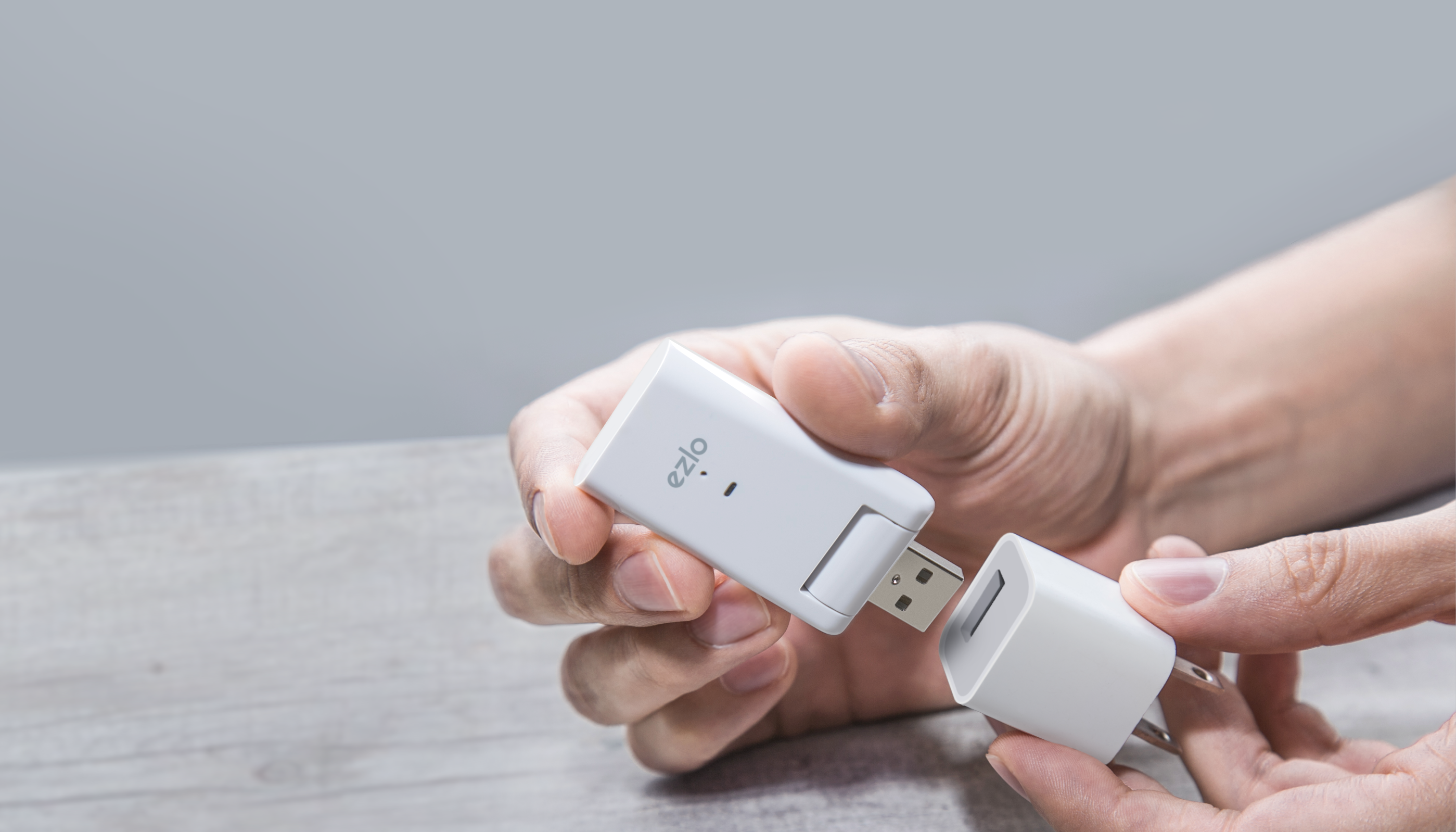
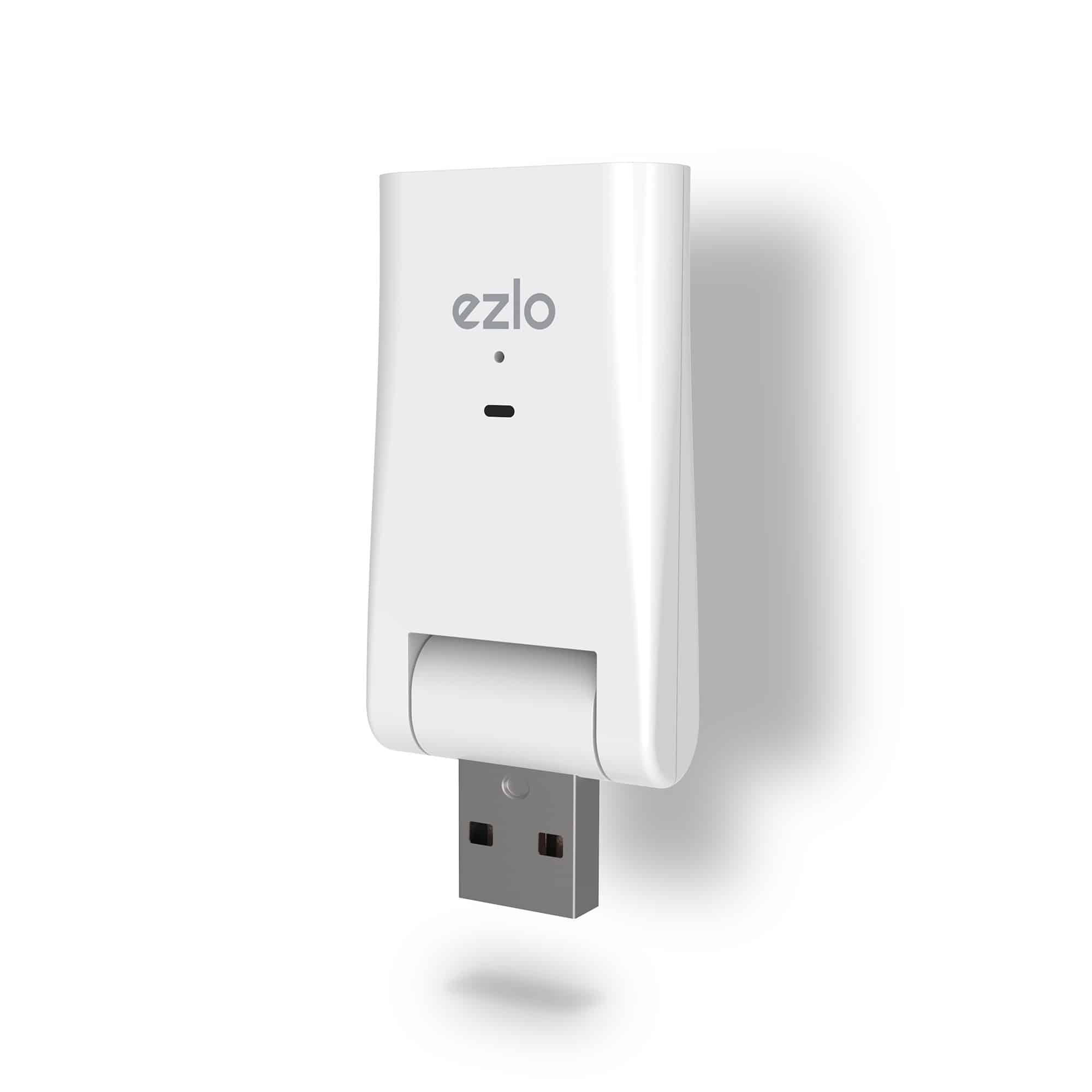
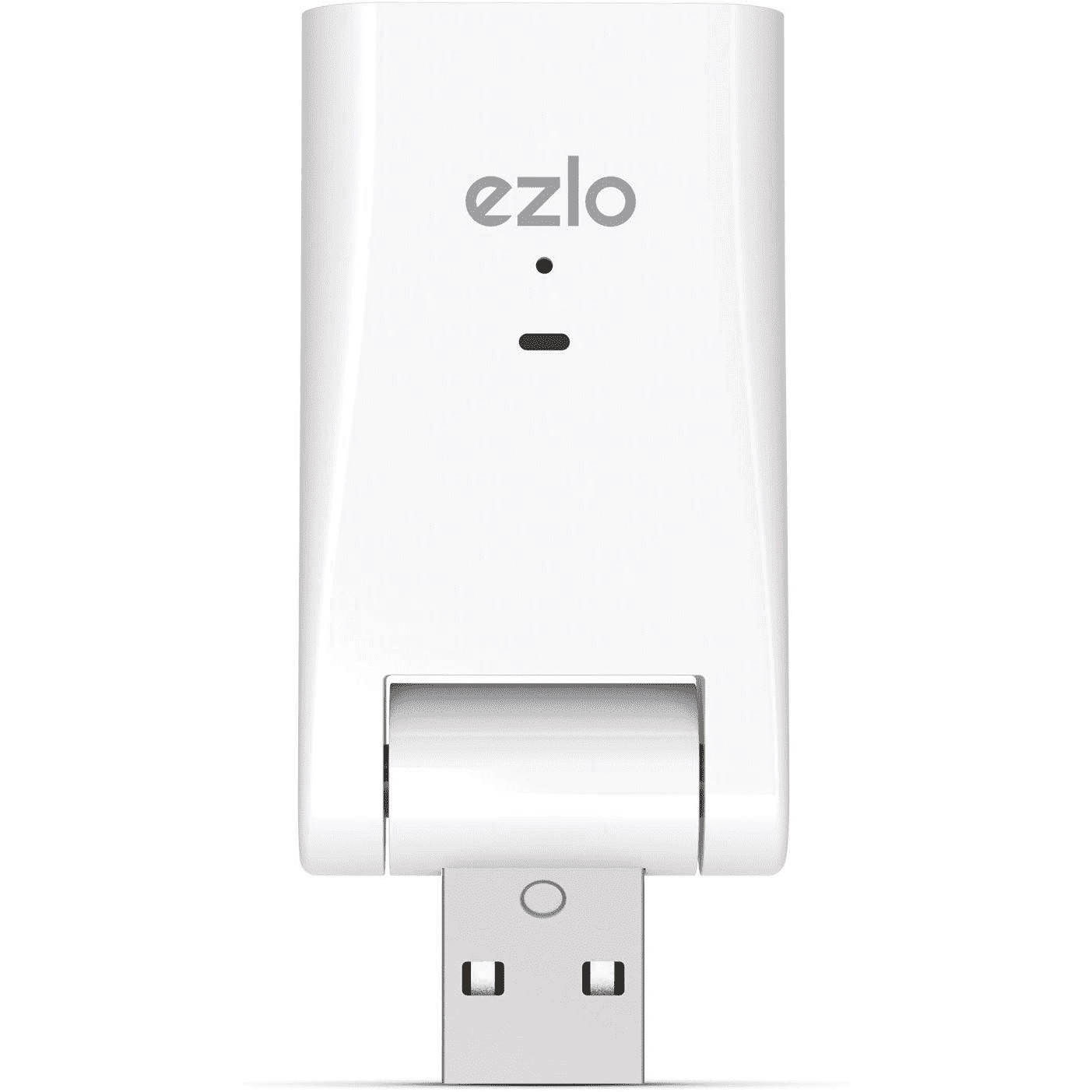
Short Description | The world’s smallest smart home hub, the Ezlo Atom combines powerful scene creation and voice control capabilities with a familiar form factor that makes home automation feel accessible to everyone. |
|---|
Long Description | The world’s smallest smart home hub, the Ezlo Atom combines powerful scene creation and voice control capabilities with a familiar form factor that makes home automation feel accessible to everyone.
With no wires and no hassle for setup, users can simply plug in the Ezlo Atom, pair devices using the application, and start a smart home system with lights, sensors, thermostats, door locks, and more. The Atom works with Amazon’s Alexa and Google Assistant, and is also compatible with Siri Shortcuts. Users can even send commands between these assistants from a single app using the Ezlo VOI feature.
It’s small size, portability, and affordable price make the Atom ideal for renters and apartment dwellers, or for homeowners looking to embrace the benefits of home control for the first time.
Plus, the application features an intuitive interface, powerful scene creation tools, a customizable dashboard, and more to personalize the user experience.
Taken together, these features make Atom an ideal way to introduce home control to a broader audience, and finally deliver on the promise of mass market home automation. |
|---|
Brand | eZLO |
|---|
Product Identifier | eZLO Atom-US-OEM |
|---|
Product Line | eZLO Atom Controller/Hub |
|---|
OEM Version | HW: 2 FW: 6.01:03.45 |
|---|
Hardware Platform | ZM5101 |
|---|
Z-Wave Version | 6.81.01 |
|---|
Library Type | CONTROLLER_STATIC |
|---|
Device Type | Central Controller |
|---|
Role Type | ROLE_TYPE_CONTROLLER_CENTRAL_STATIC |
|---|
Manufacturer ID | 0x025B |
|---|
Product Type ID | 0x0002 |
|---|
Product ID | 0x0001 |
|---|
User Icon | 0x0100 |
|---|
Installer Icon | 0x0100 |
|---|
Frequency Plans | US: 916.00MHz, 908.40MHz |
|---|
Categories | All Controllers, Computer Controller Interfaces |
|---|
Countries / Regions | United States of America |
|---|
Supported Command Classes | Identifier | Name | Key | Version |
|---|
COMMAND_CLASS_POWERLEVEL | Powerlevel | 0x73 | 1 | COMMAND_CLASS_INCLUSION_CONTROLLER | Inclusion Controller | 0x74 | 1 | COMMAND_CLASS_CRC_16_ENCAP | CRC16 Encapsulation | 0x56 | 1 | COMMAND_CLASS_SECURITY | Security S0 | 0x98 | 1 | COMMAND_CLASS_TRANSPORT_SERVICE_V2 | Transport Service V2 | 0x55 | 2 | COMMAND_CLASS_VERSION_V2 | Version V2 | 0x86 | 2 | COMMAND_CLASS_DEVICE_RESET_LOCALLY | Device Reset Locally | 0x5A | 1 | COMMAND_CLASS_ZWAVEPLUS_INFO_V2 | Z-Wave Plus Info V2 | 0x5E | 2 | COMMAND_CLASS_ASSOCIATION_V2 | Association V2 | 0x85 | 2 | COMMAND_CLASS_ASSOCIATION_GRP_INFO | Association Group Info | 0x59 | 1 | COMMAND_CLASS_SECURITY_2 | Security S2 | 0x9F | 1 | COMMAND_CLASS_MANUFACTURER_SPECIFIC | Manufacturer Specific | 0x72 | 1 | COMMAND_CLASS_SUPERVISION | Supervision | 0x6C | 1 |
|
|---|
Controlled Command Classes | Identifier | Name | Key | Version |
|---|
COMMAND_CLASS_SWITCH_MULTILEVEL | Switch Multilevel | 0x26 | 1 | COMMAND_CLASS_SWITCH_BINARY_V2 | Switch Binary V2 | 0x25 | 2 | COMMAND_CLASS_THERMOSTAT_FAN_MODE_V4 | Thermostat Fan Mode V4 | 0x44 | 4 | COMMAND_CLASS_DOOR_LOCK_V4 | Door Lock V4 | | 0 | COMMAND_CLASS_USER_CODE_V2 | User Code V2 | | 0 | COMMAND_CLASS_MULTI_CHANNEL_ASSOCIATION_V3 | Multi-Channel Association V3 | 0x8E | 3 | COMMAND_CLASS_BASIC | Basic | 0x20 | 1 | COMMAND_CLASS_CRC_16_ENCAP | CRC16 Encapsulation | 0x56 | 1 | COMMAND_CLASS_SECURITY | Security S0 | 0x98 | 1 | COMMAND_CLASS_THERMOSTAT_MODE_V3 | Thermostat Mode V3 | 0x40 | 3 | COMMAND_CLASS_THERMOSTAT_SETPOINT_V3 | Thermostat Setpoint V3 | 0x43 | 3 | COMMAND_CLASS_WAKE_UP_V2 | Wake Up V2 | 0x84 | 2 | COMMAND_CLASS_BARRIER_OPERATOR | Barrier Operator | 0x66 | 1 | COMMAND_CLASS_ASSOCIATION_V2 | Association V2 | 0x85 | 2 | COMMAND_CLASS_METER_V3 | Meter V3 | 0x32 | 3 | COMMAND_CLASS_ASSOCIATION_GRP_INFO | Association Group Info | 0x59 | 1 | COMMAND_CLASS_MULTI_CHANNEL_V4 | Multi-Channel V4 | 0x60 | 4 | COMMAND_CLASS_SECURITY_2 | Security S2 | 0x9F | 1 |
|
|---|
S2 Classes | S2_UNAUTHENTICATED, S2_AUTHENTICATED, S2_ACCESS_CONTROL |
|---|
Documents | Category | Description | File |
|---|
Manual_Primary_Lang | Product Manual | |
|
|---|
Features | Feature | Values |
|---|
Firmware Updatable | Value |
|---|
Updatable by Manufacturer |
|
|
|---|
Association Groups | Group Number | Maximum Nodes Supported | End Point ID | Group Name | Profile | Description |
|---|
1 | 1 | 0 | Lifeline | 0x0000 | Association CC class is not supported, it only controlled. |
|
|---|
Texts | ID | Description | Value |
|---|
3 | Controller Learn Mode | LearnMode is not supported in this version | 8 | Where to find S2 DSK on product | The QR code version of the DSK may be found on the back of the product as well as on the packaging. | 24 | Controller Classic Exclusion | Generic Z-Wave Remove
1. The unit can be taken to exclusion by going to the device which is going to be excluded, then tap on the trash can icon.
2. Select UNPAIR, which will set the controller into exclusion mode, you will see a message at the top of the screen which says: Remove device now…
3. Follow the instructions to exclude the device, after this process, the device will be removed from
the z-wave network and from the UI. | 10 | Controller Replication | Generic Z-Wave Add | 5 | Factory Reset Procedure | Press and hold Button for More than 10 seconds. LED will start flashing | 6 | Other Special Features | Wi-Fi Reset
Soft Reset | 23 | Controller Classic Inclusion | Generic Z-Wave Add
1. Open the mobile app, and tap on the three-line icon in the top right corner to open the left-hand-side menu, then select Devices.
2. On the device screen, tap on Add Device
3. Look for the device you want to pair, once you find it select it from the list. If your device is in the list, you will get a dedicated Device Pairing wizard, which will walk you through the procedure step by step.
4. The controller it’s set into inclusion mode and the message: Add new devices now… will appear at the top. The controller sets a 60-second countdown timer, during which it will keep scanning for devices.
5. Follow the inclusion steps to pair the device. Once your device is detected, you'll get a
confirmation pop-up message on the screen, and then you can go on to assign a name and a
room for the device. You can tap on I'm Done Adding Devices to then wrap up the process,
after which point you will see your device in the Devices screen. |
|
|---|
Supported / Controlled Meter Types | Meter Type | Rate Type | Description |
|---|
Electric meter | Import | Electric Meter Consumption |
|
|---|
Supports NWI | Yes |
|---|
Supports Explorer Frames | Yes |
|---|
Radio Range Z-Wave (m) | 40 |
|---|