Product Recognition | |
|---|
Certification Number | ZC12-21090316 |
|---|
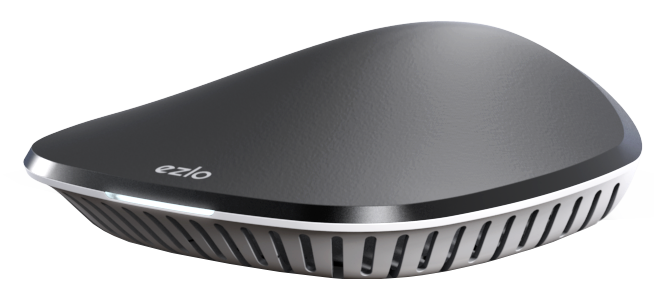
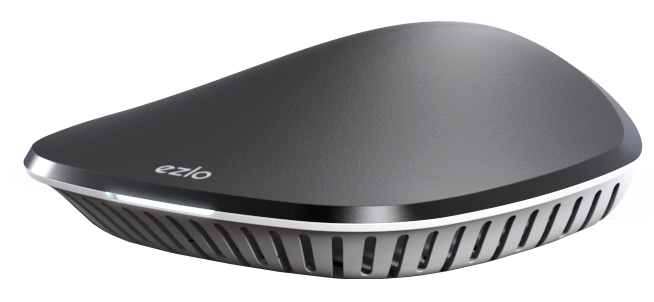
Name | Ezlo Plus |
|---|
Short Description | Bring all of your automation devices and virtual assistants within a single network with a smart home automation hub that communicates with, and coordinates, all your Z-Wave™ devices. |
|---|
Long Description | Bring all of your automation devices and virtual assistants within a single network with the Ezlo Plus hub. Handles all communication and coordination between your Z-Wave™ devices. Experience faster communication, more reliable performance, and increased efficiency and versatility within your smart home network. The Ezlo Plus supports universal voice control through the Ezlo VOI platform, a powerful, patent-pending platform that consolidates control of all of your automated devices associated with Amazon Alexa, Siri, and Google Assistant.
Features:
- Enables control of, or scene creation for, over 27,000 devices including lights, thermostats, door locks, sensors, and more, from multiple manufacturers
- Features Z-Wave™ SmartStart technology for faster device pairing, with S2 framework for enhanced security
- Uses local control for ultra-fast, “off the cloud” responsiveness
- Supports VistaCam indoor, outdoor, and doorbell cameras
- 7 days/week, 18 hrs/day tech support
Specifications:
- Z-Wave Plus™ (700 Series), Wi-Fi: 802.11 a/b/g/n/ac; 2.4 and 5GHz
- Hardware
Processor: 800MHz, Quad-Core Cortex-A7 ARM CPU
RAM: DDR3 512MB
Flash Memory: EMMC 4GB
- Dimensions:
(HxWxD) 4.17in(106mm) x 4.12in(104.66mm) x 1.45in(36.95mm)
- Power Supply:
Input: AC 100-240VAC, 50-60Hz
Output: DC 5V/2A
- Connectors:
1 USB Port 2.0, USB host
1 WAN Port 10/100 Ethernet |
|---|
Brand | eZLO |
|---|
Product Identifier | EzloPlus-US |
|---|
Product Line | Ezlo Plus |
|---|
OEM Version | HW: 1 FW: 7.15:02.00 |
|---|
Hardware Platform | EFR32Z |
|---|
Z-Wave Version | 7.15.1 |
|---|
Library Type | CONTROLLER_BRIDGE |
|---|
Device Type | Gateway |
|---|
Role Type | ROLE_TYPE_CONTROLLER_CENTRAL_STATIC |
|---|
Manufacturer ID | 0x025B |
|---|
Product Type ID | 0x0004 |
|---|
Product ID | 0x0001 |
|---|
User Icon | 0x0500 |
|---|
Installer Icon | 0x0500 |
|---|
Frequency Plans | US: 916.00MHz, 908.40MHz |
|---|
Categories | All Controllers, Gateway Controller |
|---|
Countries / Regions | United States of America |
|---|
Supported Command Classes | Identifier | Name | Key | Version |
|---|
COMMAND_CLASS_NODE_PROVISIONING | Node Provisioning | 0x78 | 1 | COMMAND_CLASS_POWERLEVEL | Powerlevel | 0x73 | 1 | COMMAND_CLASS_INCLUSION_CONTROLLER | Inclusion Controller | 0x74 | 1 | COMMAND_CLASS_MULTI_CHANNEL_ASSOCIATION_V3 | Multi-Channel Association V3 | 0x8E | 3 | COMMAND_CLASS_INDICATOR_V3 | Indicator V3 | 0x87 | 3 | COMMAND_CLASS_CRC_16_ENCAP | CRC16 Encapsulation | 0x56 | 1 | COMMAND_CLASS_SECURITY | Security S0 | 0x98 | 1 | COMMAND_CLASS_TIME_V2 | Time V2 | 0x8A | 2 | COMMAND_CLASS_TRANSPORT_SERVICE_V2 | Transport Service V2 | 0x55 | 2 | COMMAND_CLASS_VERSION_V2 | Version V2 | 0x86 | 2 | COMMAND_CLASS_DEVICE_RESET_LOCALLY | Device Reset Locally | 0x5A | 1 | COMMAND_CLASS_ZWAVEPLUS_INFO_V2 | Z-Wave Plus Info V2 | 0x5E | 2 | COMMAND_CLASS_ASSOCIATION_V2 | Association V2 | 0x85 | 2 | COMMAND_CLASS_FIRMWARE_UPDATE_MD_V5 | Firmware Update Meta-Data V5 | 0x7A | 5 | COMMAND_CLASS_ASSOCIATION_GRP_INFO_V3 | Association Group Information V3 | 0x59 | 3 | COMMAND_CLASS_NETWORK_MANAGEMENT_INCLUSION_V3 | Network Management Inclusion V3 | 0x34 | 3 | COMMAND_CLASS_SECURITY_2 | Security S2 | 0x9F | 1 | COMMAND_CLASS_MANUFACTURER_SPECIFIC | Manufacturer Specific | 0x72 | 1 | COMMAND_CLASS_SUPERVISION | Supervision | 0x6C | 1 | COMMAND_CLASS_MULTI_CMD | Multi-Command | 0x8F | 1 |
|
|---|
Controlled Command Classes | Identifier | Name | Key | Version |
|---|
COMMAND_CLASS_CONFIGURATION_V4 | Configuration V4 | 0x70 | 4 | COMMAND_CLASS_SWITCH_BINARY_V2 | Switch Binary V2 | 0x25 | 2 | COMMAND_CLASS_THERMOSTAT_OPERATING_STATE_V2 | Thermostat Operating State V2 | 0x42 | 2 | COMMAND_CLASS_SWITCH_COLOR_V3 | Switch Color V3 | 0x33 | 3 | COMMAND_CLASS_THERMOSTAT_FAN_MODE_V5 | COMMAND_CLASS_THERMOSTAT_FAN_MODE_V5 | | 0 | COMMAND_CLASS_DOOR_LOCK_V4 | Door Lock V4 | | 0 | COMMAND_CLASS_USER_CODE_V2 | User Code V2 | | 0 | COMMAND_CLASS_MULTI_CHANNEL_ASSOCIATION_V3 | Multi-Channel Association V3 | 0x8E | 3 | COMMAND_CLASS_INDICATOR_V3 | Indicator V3 | 0x87 | 3 | COMMAND_CLASS_CLOCK | Clock | 0x81 | 1 | COMMAND_CLASS_BATTERY | Battery | 0x80 | 1 | COMMAND_CLASS_SILENCE_ALARM | Silence Alarm | 0x9D | 1 | COMMAND_CLASS_THERMOSTAT_SETBACK | Thermostat Setback | 0x47 | 1 | COMMAND_CLASS_CRC_16_ENCAP | CRC16 Encapsulation | 0x56 | 1 | COMMAND_CLASS_SECURITY | Security S0 | 0x98 | 1 | COMMAND_CLASS_SOUND_SWITCH_V2 | Sound Switch V2 | | 0 | COMMAND_CLASS_THERMOSTAT_FAN_STATE_V2 | Thermostat Fan State V2 | 0x45 | 2 | COMMAND_CLASS_THERMOSTAT_MODE_V3 | Thermostat Mode V3 | 0x40 | 3 | COMMAND_CLASS_THERMOSTAT_SETPOINT_V3 | Thermostat Setpoint V3 | 0x43 | 3 | COMMAND_CLASS_VERSION_V2 | Version V2 | 0x86 | 2 | COMMAND_CLASS_WAKE_UP_V2 | Wake Up V2 | 0x84 | 2 | COMMAND_CLASS_ZWAVEPLUS_INFO_V2 | Z-Wave Plus Info V2 | 0x5E | 2 | COMMAND_CLASS_BARRIER_OPERATOR | Barrier Operator | 0x66 | 1 | COMMAND_CLASS_ASSOCIATION_V2 | Association V2 | 0x85 | 2 | COMMAND_CLASS_FIRMWARE_UPDATE_MD_V5 | Firmware Update Meta-Data V5 | 0x7A | 5 | COMMAND_CLASS_MULTI_CHANNEL_V4 | Multi-Channel V4 | 0x60 | 4 | COMMAND_CLASS_SWITCH_MULTILEVEL_V4 | Switch Multilevel V4 | 0x26 | 4 | COMMAND_CLASS_ASSOCIATION_GRP_INFO_V3 | Association Group Information V3 | 0x59 | 3 | COMMAND_CLASS_NOTIFICATION_V8 | Notification V8 | 0x71 | 8 | COMMAND_CLASS_BASIC_V2 | Basic V2 | 0x20 | 2 | COMMAND_CLASS_SECURITY_2 | Security S2 | 0x9F | 1 | COMMAND_CLASS_METER_V5 | Meter V5 | 0x32 | 5 | COMMAND_CLASS_SENSOR_MULTILEVEL_V11 | Sensor Multilevel V11 | 0x31 | 11 | COMMAND_CLASS_CENTRAL_SCENE_V3 | Central Scene V3 | 0x5B | 3 | COMMAND_CLASS_SCENE_ACTIVATION | Scene Activation | 0x2B | 1 | COMMAND_CLASS_SCHEDULE_ENTRY_LOCK_V3 | Schedule Entry Lock V3 | 0x4E | 3 |
|
|---|
S2 Classes | S2_UNAUTHENTICATED, S2_AUTHENTICATED, S2_ACCESS_CONTROL |
|---|
Documents | Category | Description | File |
|---|
Manual_Primary_Lang | Product Manual | |
|
|---|
Features | |
|---|
Association Groups | Group Number | Maximum Nodes Supported | End Point ID | Group Name | Profile | Description |
|---|
1 | 232 | 0 | Lifeline | 0x0001 | (Lifeline) Is used for sending Device Reset Locally and Device Reset Locally Notification |
|
|---|
Texts | ID | Description | Value |
|---|
8 | Where to find S2 DSK on product | The Z-Wave S2 DSK PIN 5 digits are located on the bottom of the Ezlo Plus.
You can also find the full DSK on the package box. | 23 | Controller Classic Inclusion | The Classic Inclusion process can be started via UI. From your Dashboard, go to Devices > tap on the + in the top right corner and select or search the name or type of device that you wish to pair with Ezlo Plus. To add a generic Z-Wave device, select the Generic Z-Wave device from the device categories. To add the device with your Ezlo Plus, if the device requires assembly read the manual, follow the assembly instructions there, power the device, and click Next. Once the blue message at the top of the page says Add new device now, follow the process as described in the user manual. To finish, choose a name for the new device, add the device to favorites (optional), edit the name, assign it to a room, and click I’m done adding devices | 3 | Controller Learn Mode | Go to the Settings from the side menu. From the Settings, tap on Learning Mode. To add this hub as a secondary controller, tap on Enable Learning mode Once you press Enable Learning mode, you will see the Learning mode process is started. It may take a few minutes | 10 | Controller Replication | Once the inclusion is successfully finished you can start the Controller Replication process. Tap on the Start discovery button. The discovery process has been started and you can see how many devices are discovered in the Z-Wave network. Discovered devices will appear on the list of discovered devices. You can rename the discovered devices and assign them to a room. If you don’t want to rename or assign to a room, just tap the Finish button. | 5 | Factory Reset Procedure | Find the "Reset" button on the controller near the Ethernet cable connector. Push and hold the RESET button for at least 5 sec (on Ezlo Plus LED starts blinking RED), After that your Ezlo controller will be reset to factory defaults. Reset to Factory Settings remove all the information about added devices and reset Z-Wave chip (new Home ID, new S0/S2 keys, remove all Z-Wave nodes), scenes created, House modes settings, etc. The process is irreversible | 9 | Capability Rediscovery | Go to the Devices screen and tap on the > button to see the device options and tap on the Z-Wave settings option On General settings, select Rediscover device and tap on it. On the rediscovery device screen tap on the Rediscover button. The rediscovery process will start | 24 | Controller Classic Exclusion | The Exclusion process can be started via UI.
From the list of devices, tap on the selected device and go to that device's settings. On the device settings screen press "Delete device". Select "Unpair" if your device is still connected to your network. "Unpair" will redirect you through the excluding wizard of the device. You need to have physical access to the device as well.
For the devices that have a button, it usually involves pressing that button a number of times.
Check the device manufacturer manual as well. | 11 | Controller SmartStart Inclusion | With Smart Start, you can add Z-Wave devices automatically by scanning their QR codes.From your Dashboard, go to Devices > tap on the + in the top right corner.Select the Z-Wave Smart Start entry. Tap on the Arrow next to the text.On the box of your device, you should find a QR code, usually labeled with a Smart Start title. When you select "Z-Wave Smart Start" in the iOS app, the camera of your phone will be turned on to scan the QR-code. Once a QR code has been scanned the adding process starts. The device is added to the system and you will see a Set Up Device screen. To continue, choose a name for the new device, edit the name, assign it to a room, and click Continue The device is added to the system and you will see a Set Up Device screen. To continue, choose a name for the new device, edit the name, assign it to a room, and click Continue Select the inclusion type - Smart Start. Tap on the Continue button. In the next step, you will see the confirmation screen that your device is ready. Just turn on your device and it will be added automatically. You can check the Smart Start device state in Settings Turn on your device. You will get a push notification New device is available. Tap on the notification and the VeraMobile app is opened to the list of Smart Start devices. | 25 | Controller Provisioning List | From your Dashboard navigate to Settings> SmartStart Devices screen with a SmartStart Provisioning List.
Tap on the Info button and see the device details on an additional screen. On this screen, you can change the device name, the encryption connection, and the inclusion type. |
|
|---|
Supported / Controlled Meter Types | Meter Type | Rate Type | Description |
|---|
Electric meter | Import | Electric Meter Consumption | Electric meter | Export | Electric Meter Production | Gas meter | Import | Gas Meter Consumption | Gas meter | Export | Gas Meter Production | Water meter | Import | Water Meter Consumption | Water meter | Export | Water Meter Production | Heating meter | Import | Heating Meter Consumption | Heating meter | Export | Heating Meter Production | Cooling meter | Import | Cooling Meter Consumption | Cooling meter | Export | Cooling Meter Production |
|
|---|
Supports NWI | Yes |
|---|
Supports Explorer Frames | Yes |
|---|
Supports SmartStart | Yes |
|---|
Radio Range Z-Wave (m) | 40 |
|---|