Product Recognition | |
|---|
Certification Number | ZC12-21090306 |
|---|
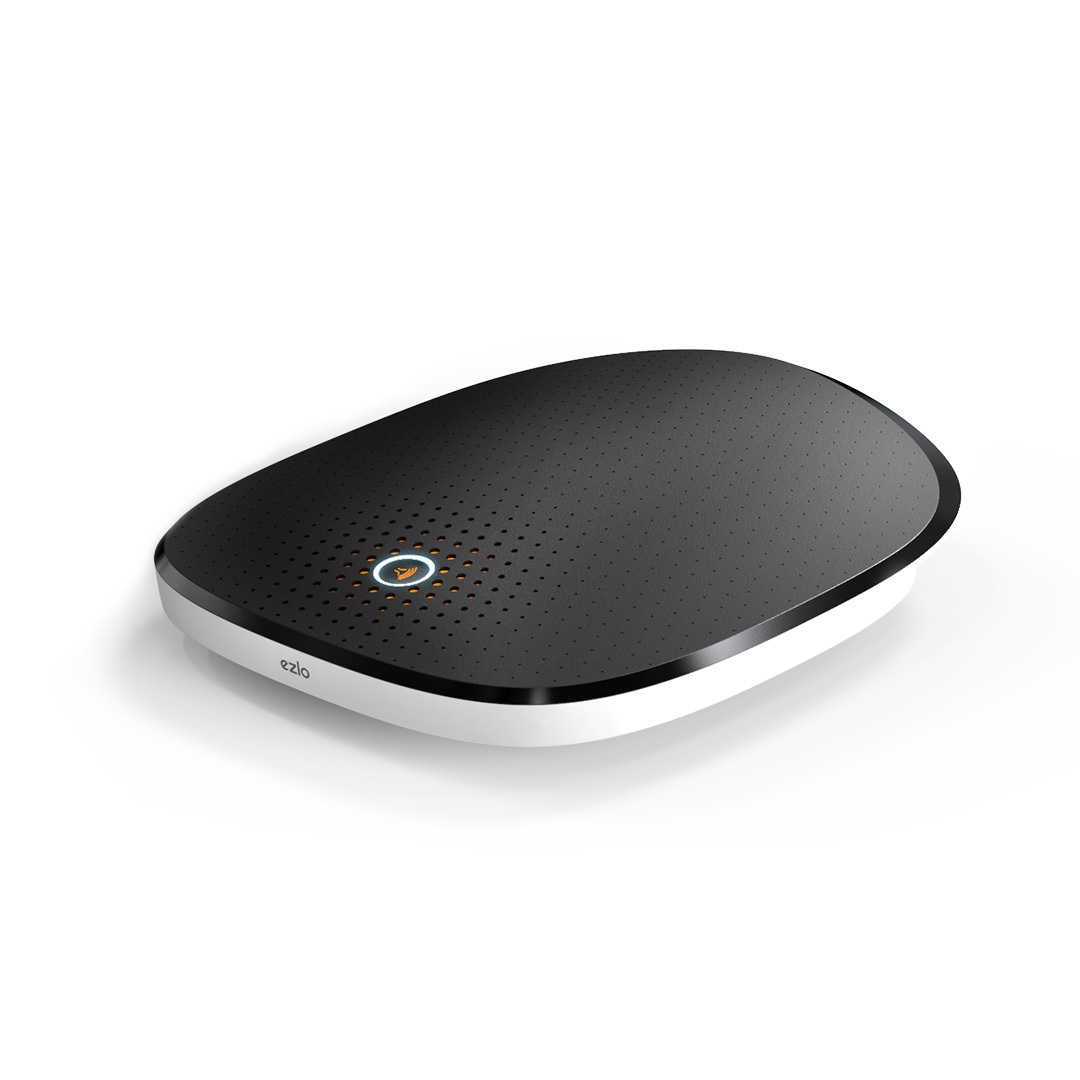
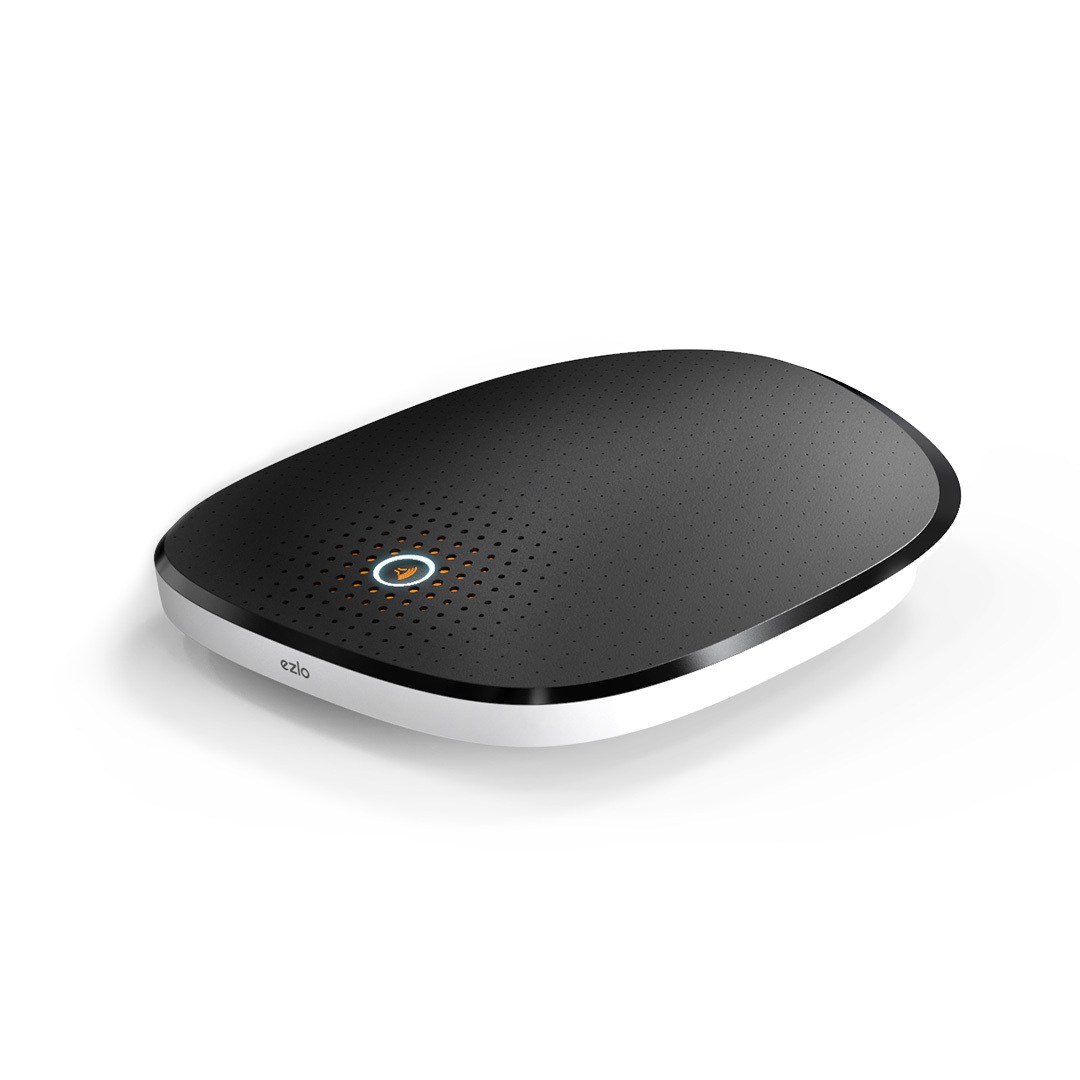
Name | Ezlo Secure |
|---|
Short Description | Ezlo Secure is a feature-rich control hub that keeps users in control of their home from anywhere, at any time. It offers control for Z-Wave™ devices |
|---|
Long Description | An always-on solution that works even in the event of a power or internet outage, the Ezlo Secure (model E550) is a feature-rich control hub that keeps users in control of their home from anywhere, at any time. It offers control for Z-Wave™ devices. It features local control for fast responsiveness, and through the Vera app gives customers remote access, personalized notifications, and scene creation ability
A multi-radio platform support the latest technology from Z-Wave
Wireless: Z-Wave 700, RF 345/433MHz, Wi-Fi
CPU: 1 GHz, Quad-Core Cortex-A7 ARM
Memory: 16GB Flash, 512MB RAM
Wi-Fi: 2.4/5 GHz 802.11 b/g/n/ac
Connectors: 1 USB Port 2.0, USB host,1 WAN Port 10/100 Ethernet
Dimensions: 7.65 x 6.48 x 1.8 in (177.8 x 152.4 x 25.4 mm)
4G backup: Internal
Battery backup: Internal
Speaker: Internal |
|---|
Brand | eZLO |
|---|
Product Identifier | EzloSecure-US |
|---|
Product Line | Ezlo Secure |
|---|
OEM Version | HW: 1 FW: 7.15:02.00 |
|---|
Hardware Platform | EFR32Z |
|---|
Z-Wave Version | 7.15.1 |
|---|
Library Type | CONTROLLER_BRIDGE |
|---|
Device Type | Gateway |
|---|
Role Type | ROLE_TYPE_CONTROLLER_CENTRAL_STATIC |
|---|
Manufacturer ID | 0x025B |
|---|
Product Type ID | 0x0005 |
|---|
Product ID | 0x0001 |
|---|
User Icon | 0x0500 |
|---|
Installer Icon | 0x0500 |
|---|
Frequency Plans | US: 916.00MHz, 908.40MHz |
|---|
Categories | All Controllers, Gateway Controller |
|---|
Countries / Regions | United States of America |
|---|
Supported Command Classes | Identifier | Name | Key | Version |
|---|
COMMAND_CLASS_NODE_PROVISIONING | Node Provisioning | 0x78 | 1 | COMMAND_CLASS_POWERLEVEL | Powerlevel | 0x73 | 1 | COMMAND_CLASS_INCLUSION_CONTROLLER | Inclusion Controller | 0x74 | 1 | COMMAND_CLASS_MULTI_CHANNEL_ASSOCIATION_V3 | Multi-Channel Association V3 | 0x8E | 3 | COMMAND_CLASS_INDICATOR_V3 | Indicator V3 | 0x87 | 3 | COMMAND_CLASS_CRC_16_ENCAP | CRC16 Encapsulation | 0x56 | 1 | COMMAND_CLASS_SECURITY | Security S0 | 0x98 | 1 | COMMAND_CLASS_TIME_V2 | Time V2 | 0x8A | 2 | COMMAND_CLASS_TRANSPORT_SERVICE_V2 | Transport Service V2 | 0x55 | 2 | COMMAND_CLASS_VERSION_V2 | Version V2 | 0x86 | 2 | COMMAND_CLASS_DEVICE_RESET_LOCALLY | Device Reset Locally | 0x5A | 1 | COMMAND_CLASS_ZWAVEPLUS_INFO_V2 | Z-Wave Plus Info V2 | 0x5E | 2 | COMMAND_CLASS_ASSOCIATION_V2 | Association V2 | 0x85 | 2 | COMMAND_CLASS_FIRMWARE_UPDATE_MD_V5 | Firmware Update Meta-Data V5 | 0x7A | 5 | COMMAND_CLASS_ASSOCIATION_GRP_INFO_V3 | Association Group Information V3 | 0x59 | 3 | COMMAND_CLASS_NETWORK_MANAGEMENT_INCLUSION_V3 | Network Management Inclusion V3 | 0x34 | 3 | COMMAND_CLASS_SECURITY_2 | Security S2 | 0x9F | 1 | COMMAND_CLASS_MANUFACTURER_SPECIFIC | Manufacturer Specific | 0x72 | 1 | COMMAND_CLASS_SUPERVISION | Supervision | 0x6C | 1 | COMMAND_CLASS_MULTI_CMD | Multi-Command | 0x8F | 1 |
|
|---|
Controlled Command Classes | Identifier | Name | Key | Version |
|---|
COMMAND_CLASS_CONFIGURATION_V4 | Configuration V4 | 0x70 | 4 | COMMAND_CLASS_SWITCH_BINARY_V2 | Switch Binary V2 | 0x25 | 2 | COMMAND_CLASS_THERMOSTAT_OPERATING_STATE_V2 | Thermostat Operating State V2 | 0x42 | 2 | COMMAND_CLASS_SWITCH_COLOR_V3 | Switch Color V3 | 0x33 | 3 | COMMAND_CLASS_THERMOSTAT_FAN_MODE_V5 | COMMAND_CLASS_THERMOSTAT_FAN_MODE_V5 | | 0 | COMMAND_CLASS_DOOR_LOCK_V4 | Door Lock V4 | | 0 | COMMAND_CLASS_USER_CODE_V2 | User Code V2 | | 0 | COMMAND_CLASS_MULTI_CHANNEL_ASSOCIATION_V3 | Multi-Channel Association V3 | 0x8E | 3 | COMMAND_CLASS_INDICATOR_V3 | Indicator V3 | 0x87 | 3 | COMMAND_CLASS_CLOCK | Clock | 0x81 | 1 | COMMAND_CLASS_BATTERY | Battery | 0x80 | 1 | COMMAND_CLASS_SILENCE_ALARM | Silence Alarm | 0x9D | 1 | COMMAND_CLASS_THERMOSTAT_SETBACK | Thermostat Setback | 0x47 | 1 | COMMAND_CLASS_CRC_16_ENCAP | CRC16 Encapsulation | 0x56 | 1 | COMMAND_CLASS_SECURITY | Security S0 | 0x98 | 1 | COMMAND_CLASS_SOUND_SWITCH_V2 | Sound Switch V2 | | 0 | COMMAND_CLASS_THERMOSTAT_FAN_STATE_V2 | Thermostat Fan State V2 | 0x45 | 2 | COMMAND_CLASS_THERMOSTAT_MODE_V3 | Thermostat Mode V3 | 0x40 | 3 | COMMAND_CLASS_THERMOSTAT_SETPOINT_V3 | Thermostat Setpoint V3 | 0x43 | 3 | COMMAND_CLASS_VERSION_V2 | Version V2 | 0x86 | 2 | COMMAND_CLASS_WAKE_UP_V2 | Wake Up V2 | 0x84 | 2 | COMMAND_CLASS_ZWAVEPLUS_INFO_V2 | Z-Wave Plus Info V2 | 0x5E | 2 | COMMAND_CLASS_BARRIER_OPERATOR | Barrier Operator | 0x66 | 1 | COMMAND_CLASS_ASSOCIATION_V2 | Association V2 | 0x85 | 2 | COMMAND_CLASS_FIRMWARE_UPDATE_MD_V5 | Firmware Update Meta-Data V5 | 0x7A | 5 | COMMAND_CLASS_MULTI_CHANNEL_V4 | Multi-Channel V4 | 0x60 | 4 | COMMAND_CLASS_SWITCH_MULTILEVEL_V4 | Switch Multilevel V4 | 0x26 | 4 | COMMAND_CLASS_ASSOCIATION_GRP_INFO_V3 | Association Group Information V3 | 0x59 | 3 | COMMAND_CLASS_NOTIFICATION_V8 | Notification V8 | 0x71 | 8 | COMMAND_CLASS_BASIC_V2 | Basic V2 | 0x20 | 2 | COMMAND_CLASS_SECURITY_2 | Security S2 | 0x9F | 1 | COMMAND_CLASS_METER_V5 | Meter V5 | 0x32 | 5 | COMMAND_CLASS_SENSOR_MULTILEVEL_V11 | Sensor Multilevel V11 | 0x31 | 11 | COMMAND_CLASS_CENTRAL_SCENE_V3 | Central Scene V3 | 0x5B | 3 | COMMAND_CLASS_SCENE_ACTIVATION | Scene Activation | 0x2B | 1 | COMMAND_CLASS_SCHEDULE_ENTRY_LOCK_V3 | Schedule Entry Lock V3 | 0x4E | 3 |
|
|---|
S2 Classes | S2_UNAUTHENTICATED, S2_AUTHENTICATED, S2_ACCESS_CONTROL |
|---|
Documents | Category | Description | File |
|---|
Manual_Primary_Lang | Ezlo Secure User Manual | |
|
|---|
Features | |
|---|
Association Groups | Group Number | Maximum Nodes Supported | End Point ID | Group Name | Profile | Description |
|---|
1 | 232 | 0 | Lifeline | 0x0001 | Lifeline on Association Group 1 |
|
|---|
Texts | ID | Description | Value |
|---|
8 | Where to find S2 DSK on product | The full DSK can be found on the Ezlo Secure product packaging.
The first 5 DSK digits (PIN) is placed on the bottom of the Ezlo Secure product | 23 | Controller Classic Inclusion | The Classic Inclusion process can be started via UI.
From your Dashboard, go to Devices > tap on the + in the top right corner and select or
search the name or type of device that you wish to pair with Ezlo Secure.
To add a generic Z-Wave device, select the Generic Z-Wave device from the device
categories.
To add the device with your Ezlo Secure, if the device requires assembly read the
manual, follow the assembly instructions there, power the device, and click Next.
Once the blue message at the top of the page says Add new device now, follow the
process as described in the user manual.
To finish, choose a name for the new device, add the device to favorites (optional), edit
the name, assign it to a room, and click I’m done adding devices | 24 | Controller Classic Exclusion | The Exclusion process can be started via UI.
From the list of devices, tap on the selected device and go to that device's settings
On the device settings page press delete device
Select unpair if your device is still connected to your network, and delete if the device is
no longer connected.
Unpair will redirect you through the excluding wizard of the device. You need to
have physical access to the device as well | 3 | Controller Learn Mode | Go to the Settings from the side menu.
From the Settings, tap on Learning Mode.
To add this hub as a secondary controller, tap on Enable Learning
mode
Once you press Enable Learning mode, you will see the Learning mode
process is started. It may take a few minutes | 10 | Controller Replication | Once the inclusion is successfully finished you can start the Controller
Replication process.
Tap on the Start discovery button.
The discovery process has been started and you can see how many
devices are discovered in the Z-Wave network.
Discovered devices will appear on the list of discovered devices. You
can rename the discovered devices and assign them to a room. If you
don’t want to rename or assign to a room, just tap the Finish button. | 25 | Controller Provisioning List | Navigate to Start Devices screen with a list of devices
Tap on the Info button and see the device details in an additional screen.
On this screen you can change the device name, the encryption connection,
and the inclusion type. To change the encryption connection, tap on the >
button. | 5 | Factory Reset Procedure | Find the "Reset" button on the controller near the Ethernet cable connector.
Push and hold the RESET button for at least 5 sec (on Ezlo Secure LED starts blinking RED), After that your Ezlo controller will be reset to factory defaults.
Reset to Factory Settings remove all the information about added devices
and reset ZWave chip (new Home ID, new S0/S2 keys, remove all Z-Wave
nodes), scenes created, House modes settings, etc. The process is
irreversible. | 9 | Capability Rediscovery | Go to the Devices screen and tap on the > button to see the device options and tap on
the Z-Wave settings option
On General settings, select Rediscover device and tap on it.
On the rediscovery device screen tap on the Rediscover button. The rediscovery
process will start | 11 | Controller SmartStart Inclusion | With Smart Start, you can add Z-Wave devices automatically by scanning their QR codes.
From your Dashboard, go to Devices > tap on the + in the top right corner.
Select the Z-Wave Smart Start entry. Tap on the Arrow next to the text.
On the box of your device, you should find a QR code, usually labeled with a Smart Start
title. When you select "Z-Wave Smart Start" in the iOS app, the camera of your phone
will be turned on to scan the QR-code. Once a QR code has been scanned the adding
process starts.
The device is added to the system and you will see a Set Up Device screen. To continue,
choose a name for the new device, edit the name, assign it to a room, and click
Continue
The device is added to the system and you will see a Set Up Device screen. To continue,
choose a name for the new device, edit the name, assign it to a room, and click
Continue
Select the inclusion type - Smart Start. Tap on the Continue button.
In the next step, you will see the confirmation screen that your device is ready.
Just turn on your device and it will be added automatically. You can check the Smart
Start device state in Settings
Turn on your device. You will get a push notification New device is available.
Tap on the notification and the VeraMobile app is opened to the list of Smart Start
devices. |
|
|---|
Supported / Controlled Meter Types | Meter Type | Rate Type | Description |
|---|
Electric meter | Import | Electric Meter Consumption | Electric meter | Export | Electric Meter Production | Gas meter | Import | Gas Meter Consumption | Gas meter | Export | Gas Meter Production | Water meter | Import | Water Meter Consumption | Water meter | Export | Water Meter Production | Heating meter | Import | Heating Meter Consumption | Heating meter | Export | Heating Meter Production | Cooling meter | Import | Cooling Meter Consumption | Cooling meter | Export | Cooling Meter Production |
|
|---|
Supports NWI | Yes |
|---|
Supports Explorer Frames | Yes |
|---|
Supports SmartStart | Yes |
|---|
Radio Range Z-Wave (m) | 40 |
|---|