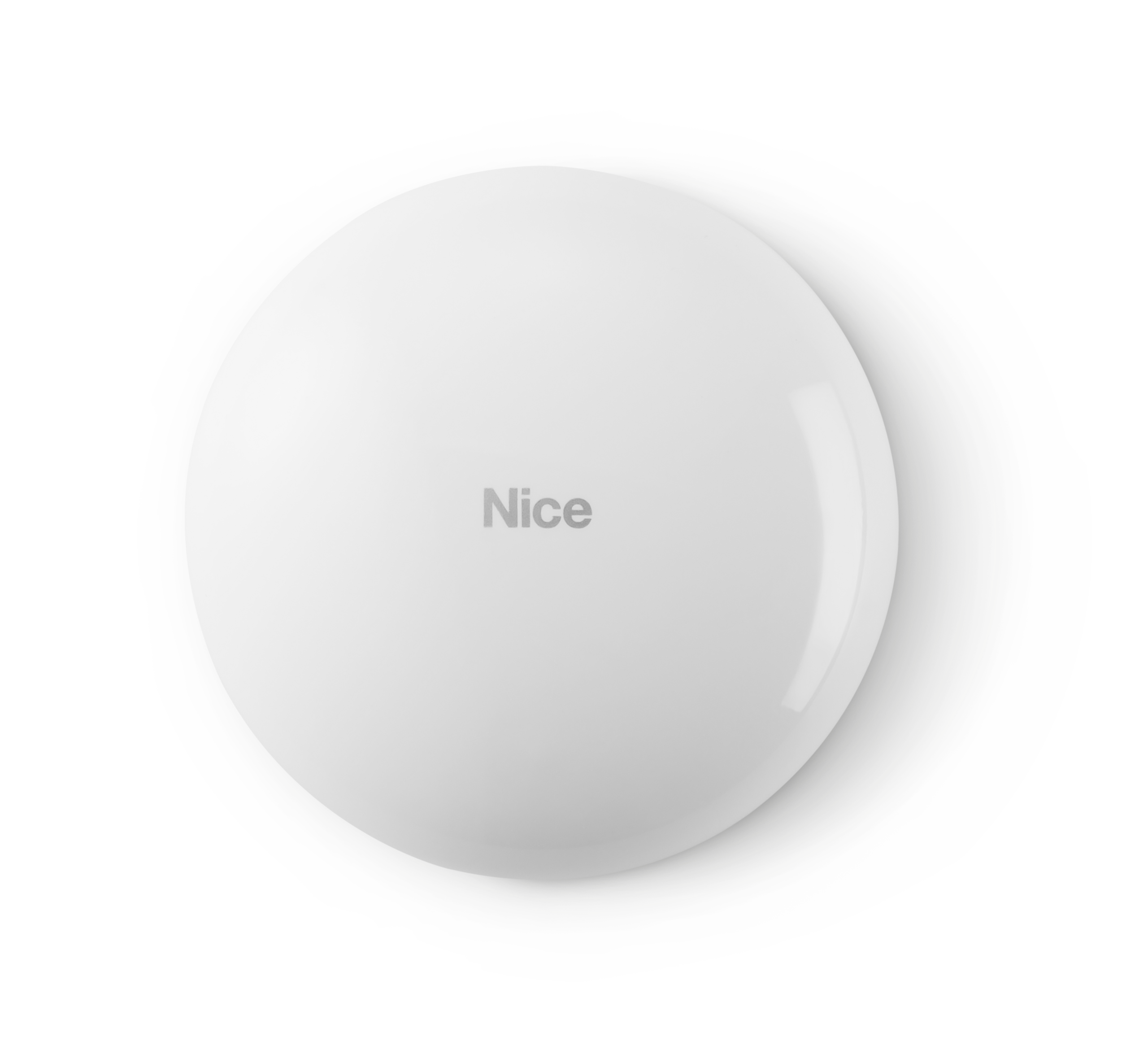
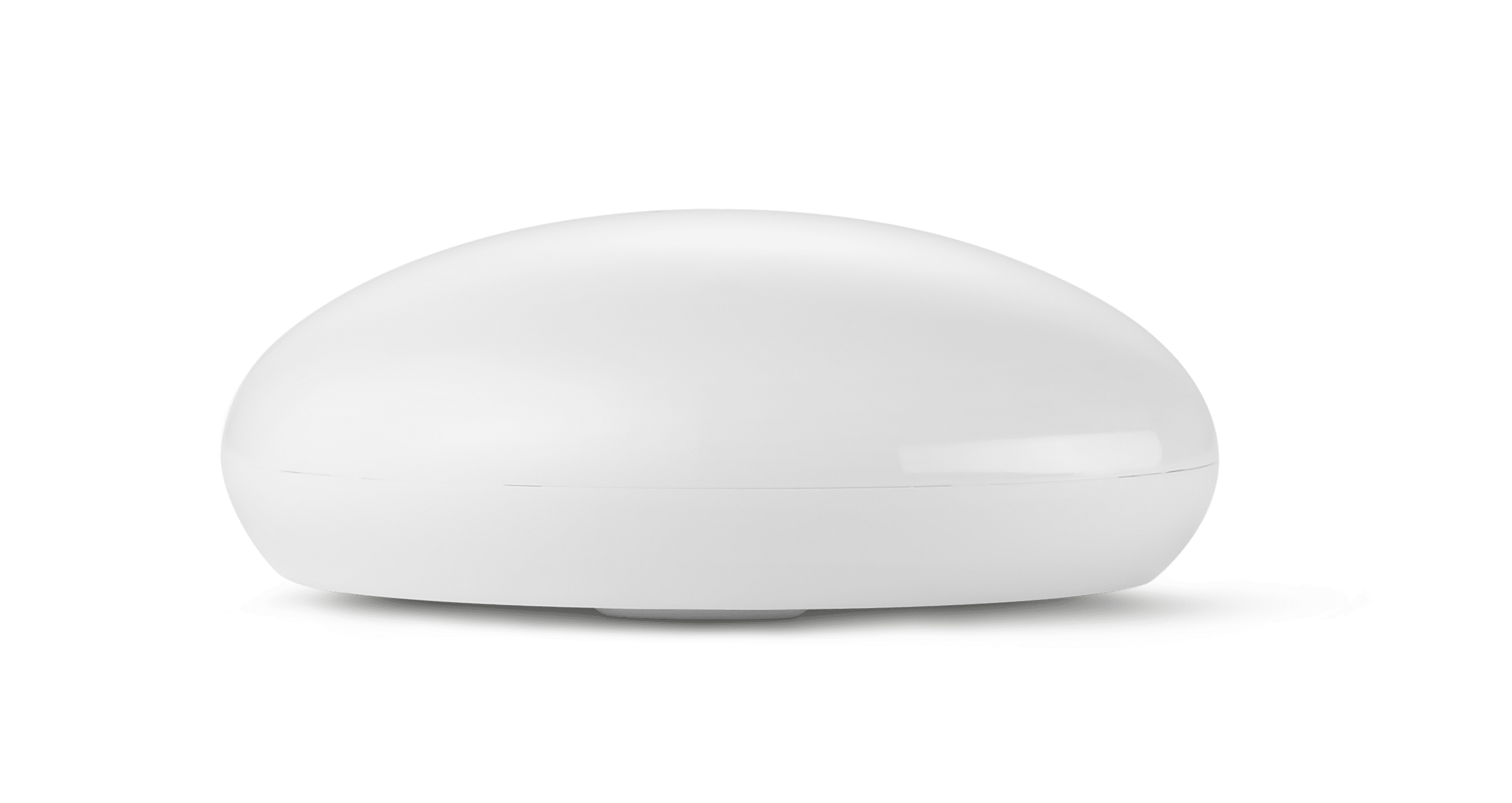
Product Recognition | |
|---|
Certification Number | ZC10-25050003 |
|---|
Name | Flood-Control |
|---|
Short Description | This device can detect flood events and notify the controller and association groups about them. |
|---|
Description | Flood-Control is a universal, Z-Wave Plus® compatible flood and temperature sensor. The device can be powered using the battery, 12/24V DC power supply, or both. A flood alarm is sent to the Z-Wave® network devices or additionally to any external system through opening an NC contact using the external power supply.
The device has built in temperature sensor that allows to monitor ambient temperature. Flood-Control is designed to be placed on the floor or mounted on a wall (in this case Flood-Control probes should be extended using addition wire). The device has a built-in visual LED indicator and an acoustic alarm.
In addition, the sensor is equipped with a tilt sensor reporting tilt or movement to the main controller e.g. when someone has taken the Sensor from its original location.
Flood-Control is sink-proof, which means it drifts on the water surface and keeps on sending alarm signal in case of substantial inundation of
water |
|---|
Brand | Nice |
|---|
Brand Owner | Nice |
|---|
Identifier | FGFS-101 |
|---|
Product Line | Nice Flood-Control |
|---|
OEM Version | HW: 01 FW: 03.04:03.04 |
|---|
Hardware Platform | ZM5202AU-CME3 |
|---|
Z-Wave Version | 6.51.07 |
|---|
Library Type | END_NODE_ENHANCED_232 |
|---|
Device Type | Sensor - Notification |
|---|
Role Type | ROLE_TYPE_SLAVE_ALWAYS_ON, ROLE_TYPE_SLAVE_SLEEPING_REPORTING |
|---|
Manufacturer ID | 0x010F |
|---|
Product Type ID | 0x0B01 |
|---|
Product ID | 0x2003 |
|---|
User Icon | 0x0C05 |
|---|
Installer Icon | 0x0C05 |
|---|
Radio Range Z-Wave (m) | 40 |
|---|
Frequency Plans | US: 916.00MHz, 908.40MHz |
|---|
Categories | Sensors |
|---|
Countries / Regions | Canada, Mexico, United States of America |
|---|
Supported Command Classes | Identifier | Name | Key | Version |
|---|
COMMAND_CLASS_SENSOR_ALARM | Alarm Sensor | 0x9C | 1 | COMMAND_CLASS_BASIC | Basic | 0x20 | 1 | COMMAND_CLASS_CONFIGURATION | Configuration | 0x70 | 1 | COMMAND_CLASS_SENSOR_MULTILEVEL_V5 | Multilevel Sensor V5 | 0x31 | 5 | COMMAND_CLASS_NOTIFICATION_V5 | Notification V5 | 0x71 | 5 | COMMAND_CLASS_APPLICATION_STATUS | Application Status | 0x22 | 1 | COMMAND_CLASS_ASSOCIATION_V2 | Association V2 | 0x85 | 2 | COMMAND_CLASS_ASSOCIATION_GRP_INFO | Association Group Information (AGI) | 0x59 | 1 | COMMAND_CLASS_BATTERY | Battery | 0x80 | 1 | COMMAND_CLASS_DEVICE_RESET_LOCALLY | Device Reset Locally | 0x5A | 1 | COMMAND_CLASS_FIRMWARE_UPDATE_MD_V3 | Firmware Update Meta Data V3 | 0x7A | 3 | COMMAND_CLASS_MANUFACTURER_SPECIFIC_V2 | Manufacturer Specific V2 | 0x72 | 2 | COMMAND_CLASS_MULTI_CHANNEL_ASSOCIATION_V2 | Multi Channel Association V2 | 0x8E | 2 | COMMAND_CLASS_VERSION_V2 | Version V2 | 0x86 | 2 | COMMAND_CLASS_WAKE_UP_V2 | Wake Up V2 | 0x84 | 2 | COMMAND_CLASS_ZWAVEPLUS_INFO_V2 | Z-Wave Plus Info V2 | 0x5E | 2 | COMMAND_CLASS_CRC_16_ENCAP | CRC-16 Encapsulation | 0x56 | 1 | COMMAND_CLASS_SECURITY | Security 0 | 0x98 | 1 | COMMAND_CLASS_POWERLEVEL | Powerlevel | 0x73 | 1 |
|
|---|
Controlled Command Classes | Identifier | Name | Key | Version |
|---|
COMMAND_CLASS_BASIC | Basic | 0x20 | 1 | COMMAND_CLASS_MULTI_CHANNEL_V4 | Multi Channel V4 | 0x60 | 4 |
|
|---|
Documents | Category | Description | File |
|---|
Manual_English | Z-Wave trademark corrections. | |
|
|---|
Texts | ID | Description | Value |
|---|
1 | Classic Inclusion | To add the device to the Z-Wave network manually:
1. Open the cover.
2. Place the Sensor within the direct range of your Z-Wave controller.
3. Set the main controller in (security/non-security) add mode (see the controller’s manual).
4. Quickly, three times press the TMP button.
5. Wait for the adding process to end.
6. Successful adding will be confirmed by the Z-Wave controller’s message. | 2 | Classic Exclusion | To remove the device from the Z-Wave network:
1. Open the cover.
2. Place the Sensor within the direct range of your Z-Wave controller.
3. Set the main controller into remove mode (see the controller’s manual).
4. Quickly, three times press the TMP button.
5. Wait for the removing process to end.
6. Successful removing will be confirmed by the Z-Wave controller’s message.
Note. Removing the device from the Z-Wave network restores all the default parameters of the device. | 4 | Wake-Up Procedure | When in battery mode the Flood-Control needs to be woken up to receive information about the new configuration from the controller, like parameters and associations.
To wake up the sensor manually, click the TMP button located inside the housing.
The device will also wake up and update its data upon startup when added in battery mode. | 5 | Factory Reset Procedure | Reset procedure allows to restore the device back to its factory settings, which means all information about the Z-Wave controller and user configuration will be deleted.
1. Make sure the sensor is powered.
2. Press and hold the TMP button.
3. Wait for the visual LED indicator to glow yellow (4th position of the MENU).
4. Release the TMP button.
5. Click the TMP button once to confirm selection.
6.After few seconds the device will restart with factory settings, which is signalled with the red visual indicator colour and an acoustic signal. |
|
|---|
Supports NWI | Yes |
|---|
Supports Explorer Frames | Yes |
|---|