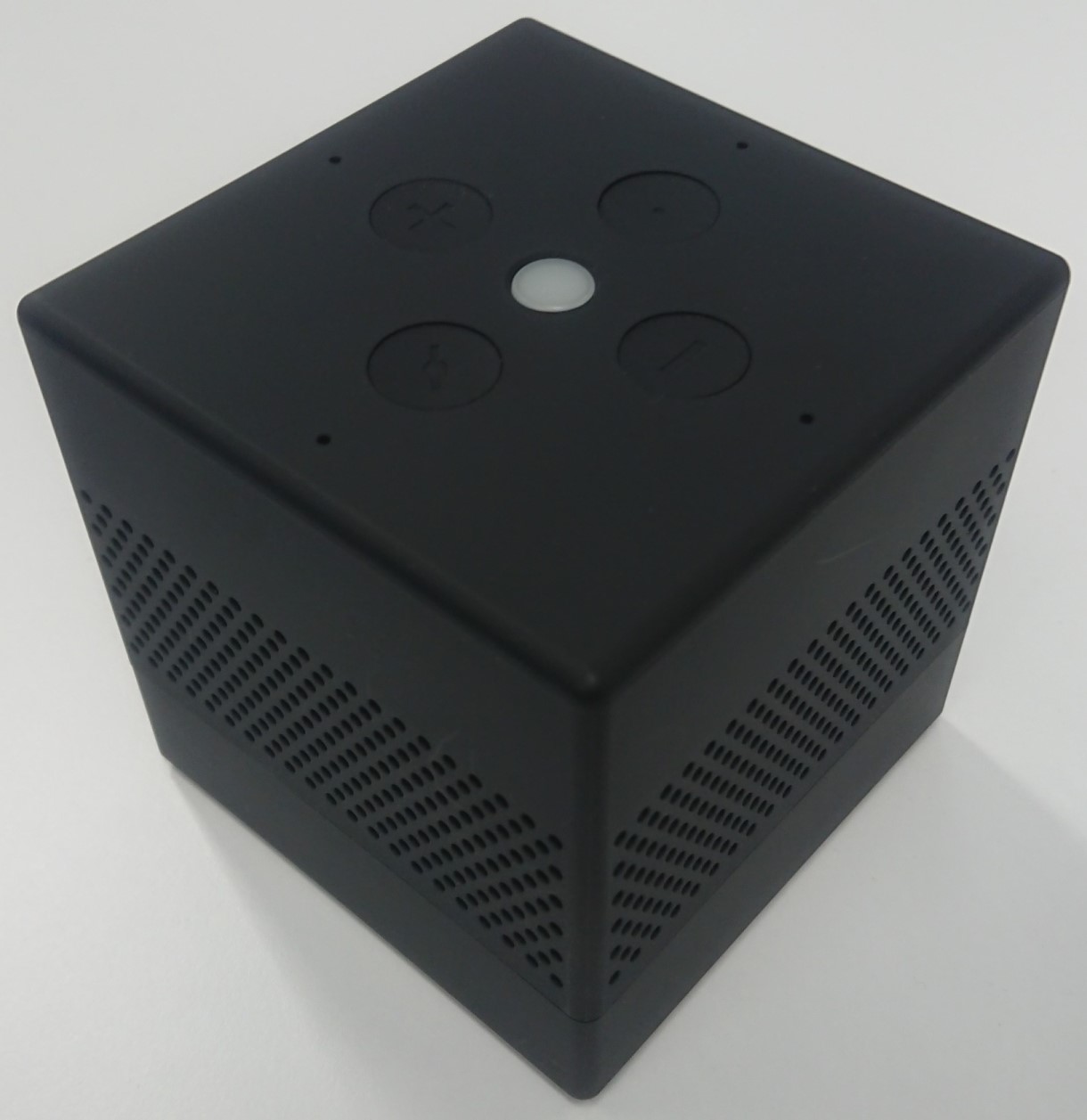
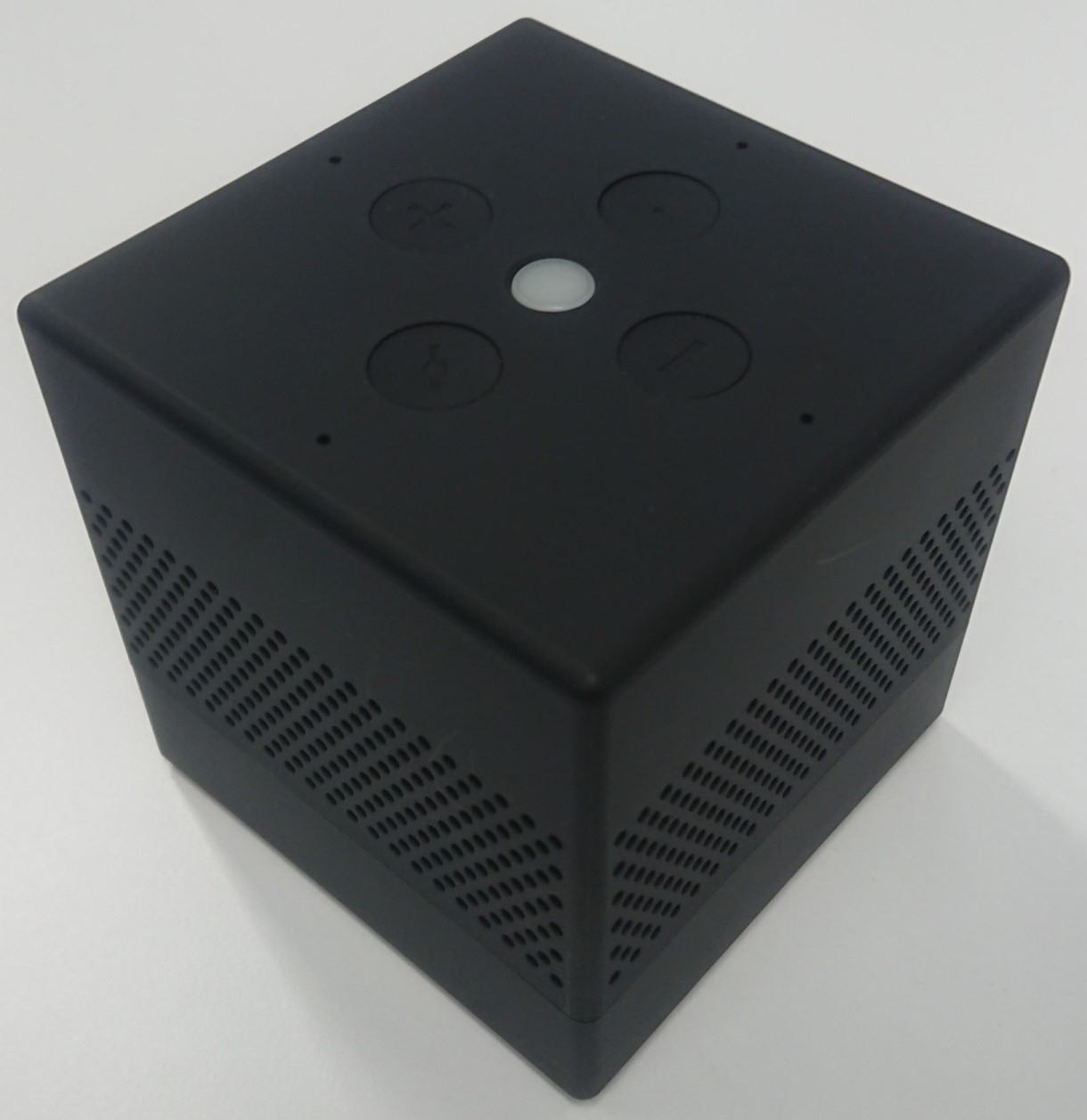
8 | Where to find S2 DSK on product | When tapping the Setting button, a Settings dialog will be displayed.
Select an item to be set. When tapping an item, a dialog will be displayed.
・GW DSK
Show Gateway DSK(QR CODE) |
3 | Controller Learn Mode | To add an IoT gateway into another Z-Wave™ network as a secondary controller or inclusion controller, press “Learn Mode Classic” or “Learn Mode NWI” in the Settings dialog. A gateway Operation dialog will appear and will be displayed during the Learn Mode.
To abort the Learn Mode, press “ABORT”. When the Learn Mode has been stopped, the gateway operation dialog will automatically disappear. |
24 | Controller Classic Exclusion | To remove a device from the Z-Wave™ network, press the “Exclusion” button in the Android Controller Application. This will put the gateway into Exclusion Mode. A gateway operation dialog will appear in the
Android Controller Application. The gateway operation dialog will be displayed during the Exclusion Mode.
To abort the Exclusion, press the “Abort” button in the gateway operation dialog, or wait for one minute and the Exclusion Mode will automatically stop. When the Exclusion Mode has stopped, the gateway operation dialog will automatically disappear. |
10 | Controller Replication | In the event that the gateway is already the controller of the Z-Wave™ network, put the gateway into Inclusion Mode, and put another controller into the Learn Mode. The Replication will begin and network information will be sent to another controller. In the event that the gateway is integrated into an existing Z-Wave™ network, put the gateway into Learn Mode, and put the existing controller into Inclusion Mode. The Replication will begin and network information will be received from the existing controller. |
25 | Controller Provisioning List | Display the registered provisioning list (DSK and inclusion status).
Press an item in the list to delete it. |
5 | Factory Reset Procedure | Press “RESET” in the Factory Default Reset dialog. This will reset the Z-Wave™ chip, and the gateway will show “DEVICE RESET LOCALLY NOTIFICATION” after the restart.
If this controller is the primary controller for your network, resetting it will result in the nodes in your network becoming orphaned, and it will be necessary after the reset to exclude and re-include all of the nodes in the network. If this controller is being used as a secondary controller in the network, use this procedure to reset this controller only in the event that the network primary controller is missing or otherwise inoperable. |
11 | Controller SmartStart Inclusion | This product supports SmartStart integration and can be included in the network by scanning the QR code or entering the PIN.
Display the registered provisioning list (DSK and inclusion status).
Press “Add” to display the camera screen.
As the camera starts, hold it over the QR code.
Register the DSK when you correctly hold the camera over a QR code on the product label. |
23 | Controller Classic Inclusion | To add a device to the Z-Wave™ network, press the “Inclusion” button in the Android Controller Application. This will put the gateway into Inclusion Mode. Then a gateway operation dialog will appear in the Android Controller Application. The gateway operation dialog will be displayed during the Inclusion Mode.
To stop the Inclusion Mode, press the “Abort” button in the gateway operation dialog, or wait for one minute and the Inclusion Mode will automatically stop. When the Inclusion Mode has stopped, the gateway operation dialog will automatically disappear. |