Product Recognition | |
|---|
Certification Number | ZC10-18106265 |
|---|
Name | GigaSPIRE MAX |
|---|
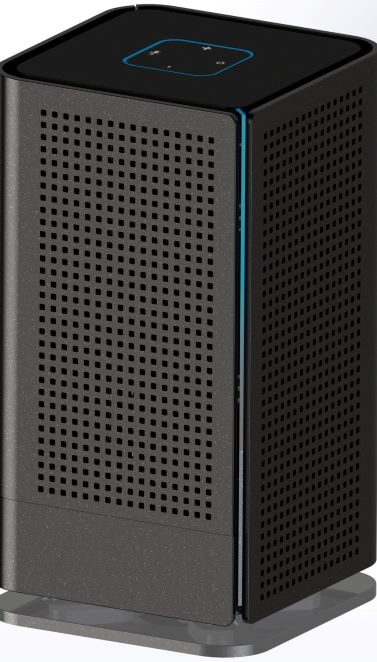
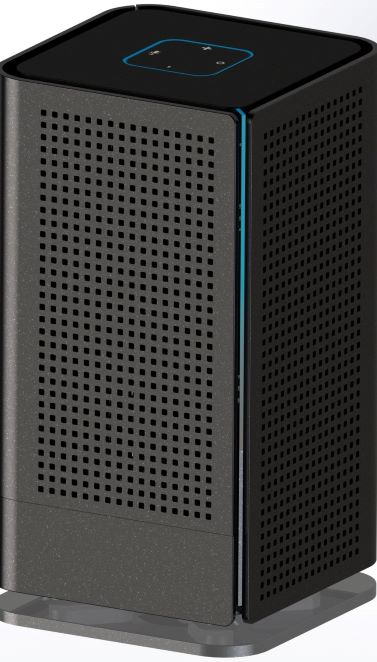
Short Description | GigaSPIRE MAX provides Wi-Fi, IoT and voice recognition technology. For IoT, it offers Wi-Fi, BT/BLE, Z-Wave. |
|---|
Long Description | GigaSPIRE MAX provides Wi-Fi, IoT and voice recognition technology. For IoT, it offers Wi-Fi, BT/BLE, Z-Wave. Leveraging the latest generation of Wi-Fi, it has 12x12 11ax with full MU-MIMO, OFDMA and BSS Coloring. Voice recognition includes Amazon Alexa. GigaSPIRE MAX is industry's only fully integrated advanced voice recognition, IoT and Wi-Fi gateway |
|---|
Brand | Calix Inc. |
|---|
Product Identifier | GS2026E |
|---|
OEM Version | HW: 10 FW: 6.01:01.81:01.00:01.00 |
|---|
Hardware Platform | ZM5101 |
|---|
Z-Wave Version | 6.81.01 |
|---|
Library Type | CONTROLLER_BRIDGE |
|---|
Device Type | Central Controller |
|---|
Role Type | ROLE_TYPE_CONTROLLER_CENTRAL_STATIC |
|---|
Manufacturer ID | 0x0398 |
|---|
Product Type ID | 0x4753 |
|---|
Product ID | 0x07EA |
|---|
User Icon | 0x0100 |
|---|
Installer Icon | 0x0100 |
|---|
Frequency Plans | US: 916.00MHz, 908.40MHz |
|---|
Categories | All Controllers, Gateway Controller, Network Devices |
|---|
Countries / Regions | United States of America |
|---|
Supported Command Classes | Identifier | Name | Key | Version |
|---|
COMMAND_CLASS_POWERLEVEL | Powerlevel | 0x73 | 1 | COMMAND_CLASS_INCLUSION_CONTROLLER | Inclusion Controller | 0x74 | 1 | COMMAND_CLASS_ZIP_V4 | Z/IP V4 | | 0 | COMMAND_CLASS_CRC_16_ENCAP | CRC16 Encapsulation | 0x56 | 1 | COMMAND_CLASS_SECURITY | Security S0 | 0x98 | 1 | COMMAND_CLASS_TRANSPORT_SERVICE_V2 | Transport Service V2 | 0x55 | 2 | COMMAND_CLASS_VERSION_V2 | Version V2 | 0x86 | 2 | COMMAND_CLASS_DEVICE_RESET_LOCALLY | Device Reset Locally | 0x5A | 1 | COMMAND_CLASS_ZWAVEPLUS_INFO_V2 | Z-Wave Plus Info V2 | 0x5E | 2 | COMMAND_CLASS_ASSOCIATION_V2 | Association V2 | 0x85 | 2 | COMMAND_CLASS_ASSOCIATION_GRP_INFO_V3 | Association Group Information V3 | 0x59 | 3 | COMMAND_CLASS_SECURITY_2 | Security S2 | 0x9F | 1 | COMMAND_CLASS_SUPERVISION | Supervision | 0x6C | 1 | COMMAND_CLASS_MANUFACTURER_SPECIFIC_V2 | Manufacturer Specific V2 | 0x72 | 2 |
|
|---|
Controlled Command Classes | Identifier | Name | Key | Version |
|---|
COMMAND_CLASS_SWITCH_MULTILEVEL | Switch Multilevel | 0x26 | 1 | COMMAND_CLASS_MULTI_CHANNEL_ASSOCIATION_V3 | Multi-Channel Association V3 | 0x8E | 3 | COMMAND_CLASS_BASIC | Basic | 0x20 | 1 | COMMAND_CLASS_CRC_16_ENCAP | CRC16 Encapsulation | 0x56 | 1 | COMMAND_CLASS_SECURITY | Security S0 | 0x98 | 1 | COMMAND_CLASS_VERSION_V2 | Version V2 | 0x86 | 2 | COMMAND_CLASS_WAKE_UP_V2 | Wake Up V2 | 0x84 | 2 | COMMAND_CLASS_DEVICE_RESET_LOCALLY | Device Reset Locally | 0x5A | 1 | COMMAND_CLASS_ZWAVEPLUS_INFO_V2 | Z-Wave Plus Info V2 | 0x5E | 2 | COMMAND_CLASS_ASSOCIATION_V2 | Association V2 | 0x85 | 2 | COMMAND_CLASS_MULTI_CHANNEL_V4 | Multi-Channel V4 | 0x60 | 4 | COMMAND_CLASS_ASSOCIATION_GRP_INFO_V3 | Association Group Information V3 | 0x59 | 3 | COMMAND_CLASS_SECURITY_2 | Security S2 | 0x9F | 1 | COMMAND_CLASS_MANUFACTURER_SPECIFIC_V2 | Manufacturer Specific V2 | 0x72 | 2 |
|
|---|
S2 Classes | S2_UNAUTHENTICATED, S2_AUTHENTICATED, S2_ACCESS_CONTROL |
|---|
Documents | Category | Description | File |
|---|
Manual_Primary_Lang | Product or Owner's Manual | |
|
|---|
Features | Feature | Values |
|---|
Color | | Gateway Has Preferred Partners | |
|
|---|
Association Groups | Group Number | Maximum Nodes Supported | End Point ID | Description |
|---|
1 | 5 | 0 | Z-Wave Plus Lifeline; A Notification frame is sent to the nodes in this association group when a Lifeline event occurs. Notification event clear signal when the Lifeline event is no longer detected. |
|
|---|
Texts | ID | Description | Value |
|---|
23 | Controller Inclusion | 1. Download Calix Smart Home app from Android or Apple iOS store
2. Open up the smart home app
3. Click on the drop down menu
4. Select Smart Home Agent
5. Select the particular node where you want to install the smart home hub
6. Click OK
7. Plug in the Z-Wave IoT device and turn it on.
8. Click on IOT Device to add a Z-Wave compatible device
9. Click on Add Device
10. Click on Z-Wave
11. Put the Z-Wave device in pairing mode and click on Continue
12. GigaSPIRE searches for devices in pairing mode and pairs them automatically
13. Z-Wave IoT device is now ready for usage | 24 | Controller Exclusion | 1. Open up the Calix smart home app
2. Click on the drop down menu
3. Click on IOT Device
4. Click on Remove Device
5. Select device listed
6. Device is removed. | 5 | Factory Reset | 1. Go to the back of the GigaSPIRE unit
2. Locate the ""reset"" pin hole
3. Take a paper clip and push into the pin hole and hold it for 10 seconds.
4. The unit will reset to factory default.
If this controller is the primary controller for your network, resetting it will result in the nodes in your network being orphaned and it will be necessary after the reset to exclude and re-include all of the nodes in the network. If this controller is being used as a secondary controller in the network, use this procedure to reset this controller only in the event that the network primary controller is missing or otherwise inoperable. | 3 | Learn Mode (adding another controller) | 1. Open the App and click Dashboard menu, then click the smart home device menu.
2. Click the + menu
3. It goes to the Learn Mode menu.
4. Enter the DSK/PIN if primary controller asks for the DSK.
5. DSK: 03706-09608-25620-61321-61741-62290-29984-03204 |
|
|---|
Supports NWI | Yes |
|---|
Supports Explorer Frames | Yes |
|---|
Radio Range Z-Wave (m) | 40 |
|---|