Product Recognition | |
|---|
Certification Number | ZC14-23010186 |
|---|
Name | Heatit Z-HAN |
|---|
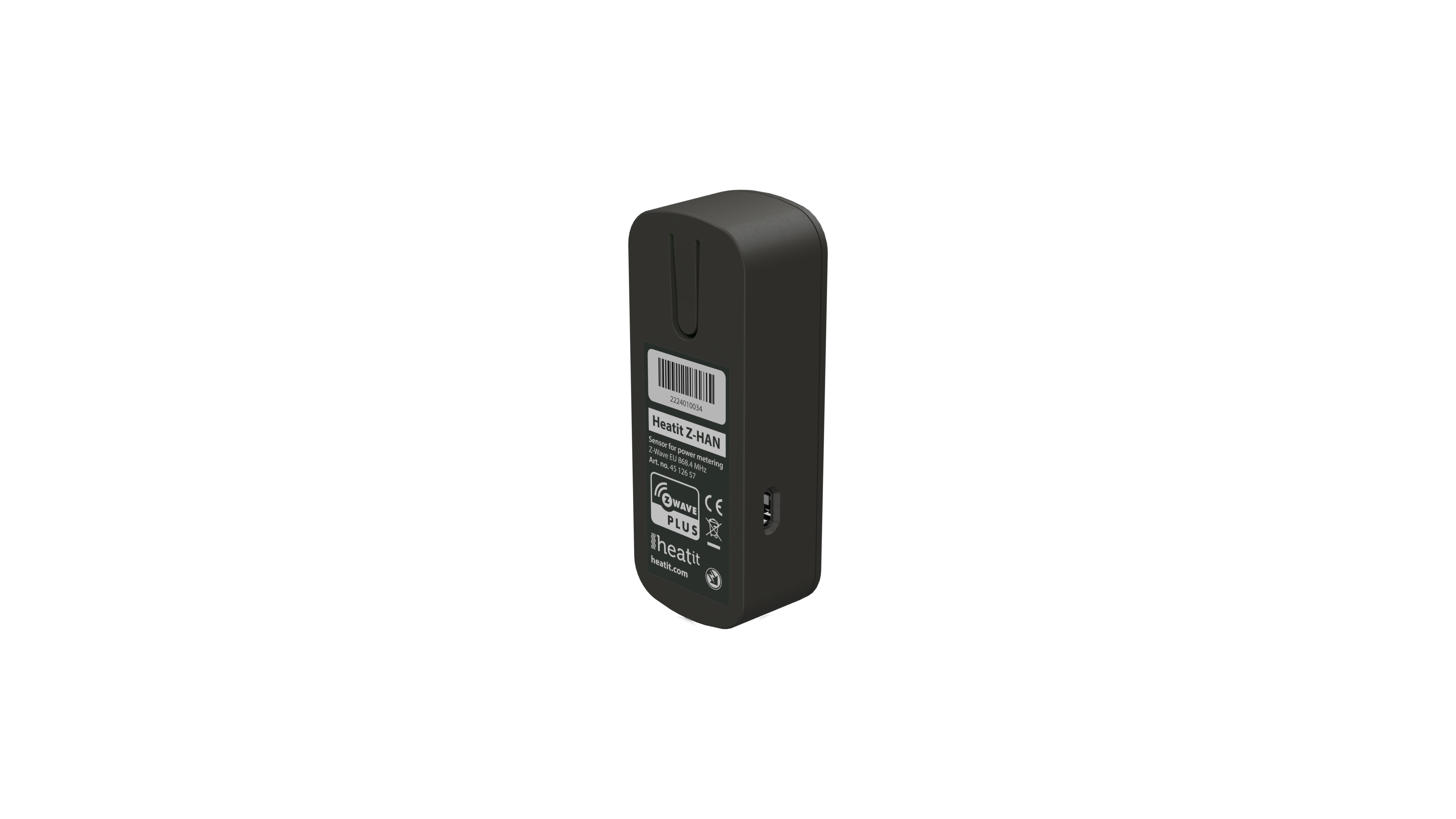
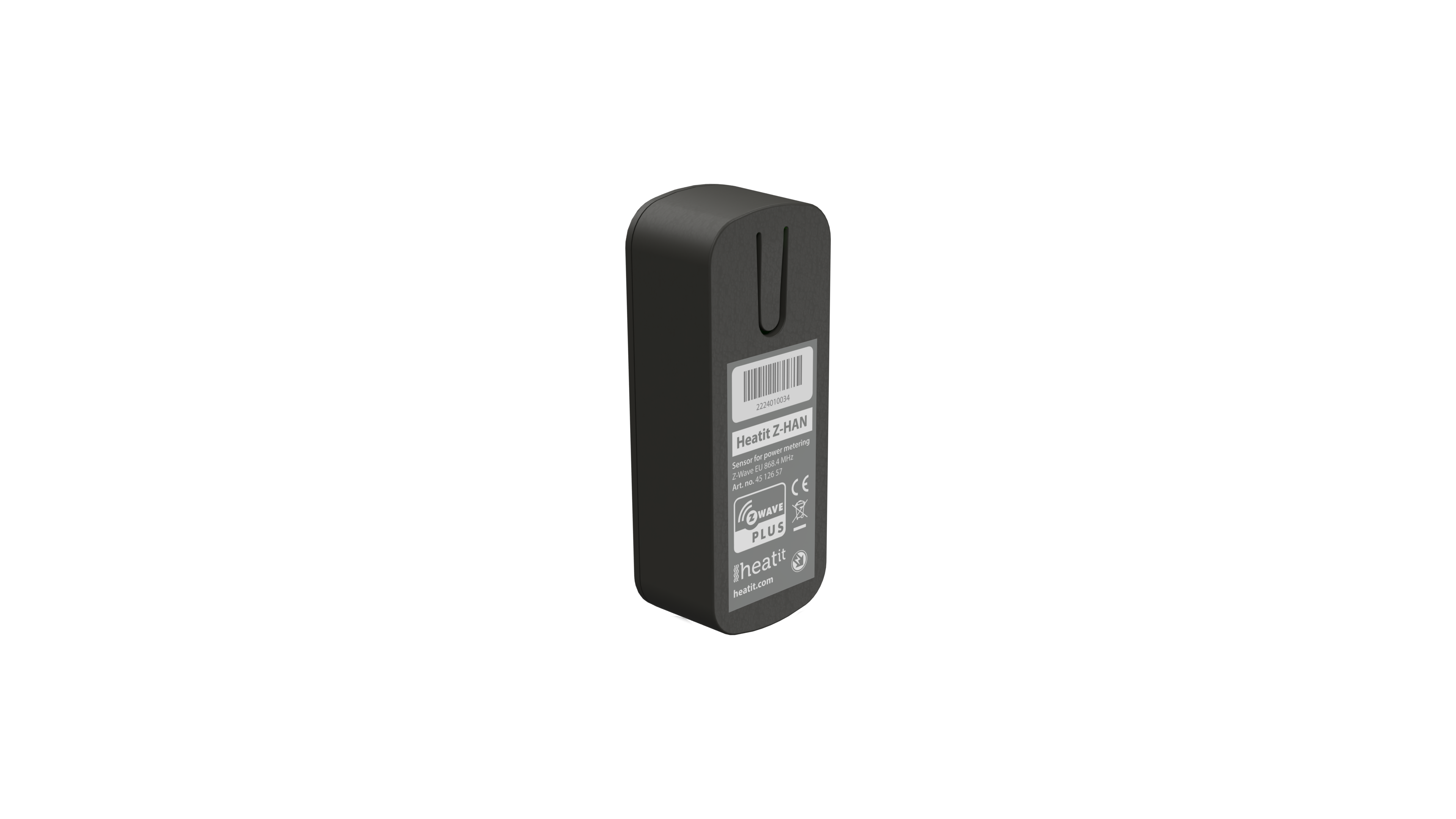
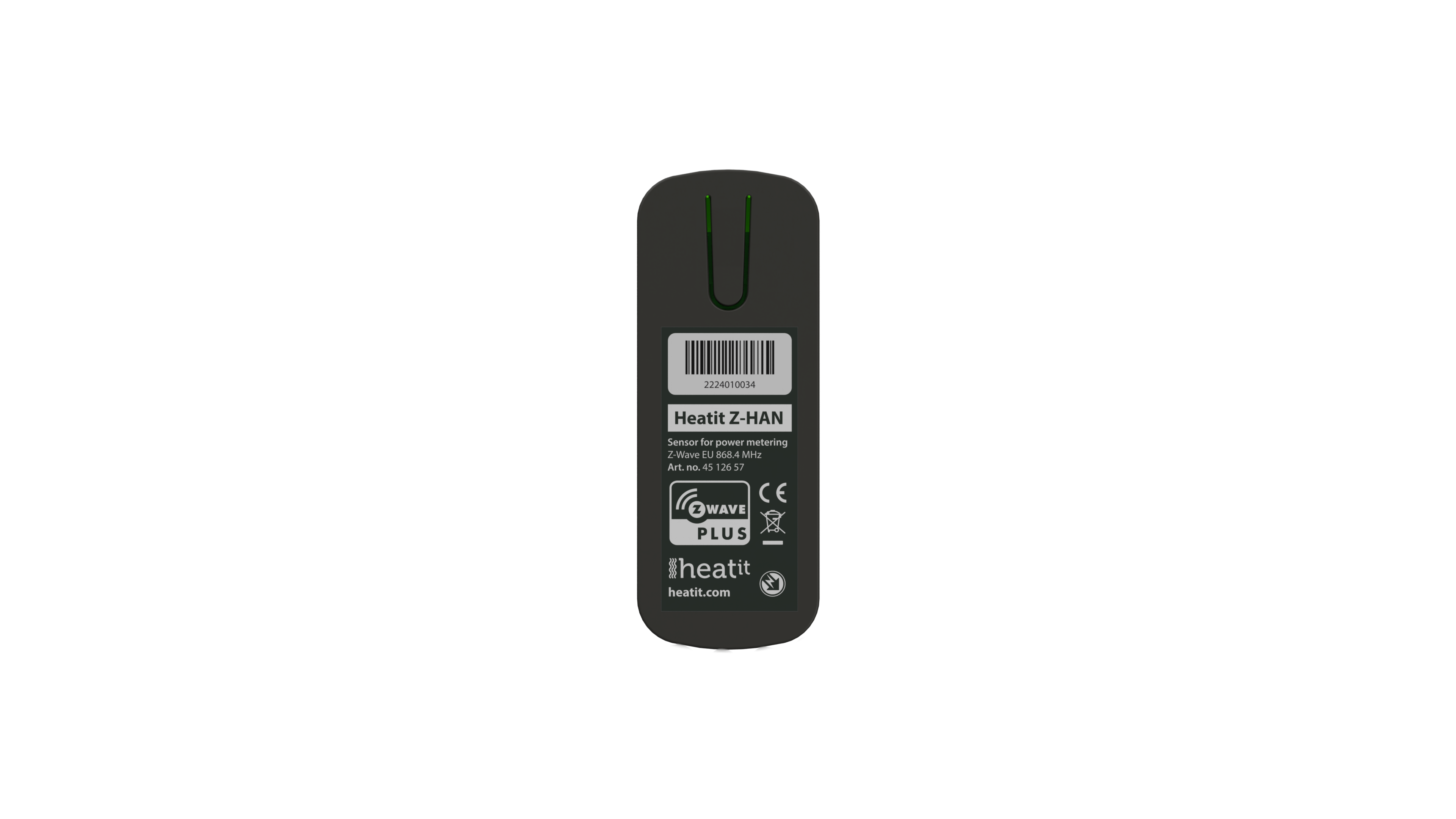
Short Description | Heatit Z-HAN is a Z-Wave™ HAN sensor for AMS meters (Smart meters). The Heatit Z-HAN works with Norwegian AMS meters.
Heatit Z-HAN is equipped with an RJ45 port for connection to the AMS meter. The Heatit Z-HAN can be powered through the RJ45 port by most AMS meters, but it also has a 5V micro USB port for external power supply. |
|---|
Long Description | Heatit Z-HAN is a Z-Wave™ HAN sensor for AMS meters (Smart meters). The Heatit Z-HAN works with Norwegian AMS meters.
Heatit Z-HAN is equipped with an RJ45 port for connection to the AMS meter. The Heatit Z-HAN can be powered through the RJ45 port by most AMS meters, but it also has a 5V micro USB port for external power supply. |
|---|
Brand | Heatit |
|---|
Product Identifier | Z-HAN |
|---|
Product Line | Sensor |
|---|
OEM Version | HW: 01 FW: 01.00 |
|---|
Hardware Platform | ZGM130S037HGN2 / ZGM130S037HGN1 |
|---|
Z-Wave Version | 7.18.2 |
|---|
Library Type | END_NODE_ENHANCED_232 |
|---|
Device Type | Meter Sensor DT |
|---|
Role Type | ROLE_TYPE_SLAVE_ALWAYS_ON |
|---|
Manufacturer ID | 0x019B |
|---|
Product Type ID | 0x0004 |
|---|
Product ID | 0x6601 |
|---|
User Icon | 0x1700 |
|---|
Installer Icon | 0x1700 |
|---|
Frequency Plans | EU: 869.85MHz, 868.40MHz |
|---|
Categories | Sensors, Energy Meters |
|---|
Countries / Regions | European Union |
|---|
Supported Command Classes | Identifier | Name | Key | Version |
|---|
COMMAND_CLASS_ASSOCIATION_V2 | Association V2 | 0x85 | 2 | COMMAND_CLASS_ASSOCIATION_GRP_INFO_V3 | Association Group Information (AGI) V3 | 0x59 | 3 | COMMAND_CLASS_DEVICE_RESET_LOCALLY | Device Reset Locally | 0x5A | 1 | COMMAND_CLASS_FIRMWARE_UPDATE_MD_V5 | Firmware Update Meta Data V5 | 0x7A | 5 | COMMAND_CLASS_INDICATOR_V3 | Indicator V3 | 0x87 | 3 | COMMAND_CLASS_MANUFACTURER_SPECIFIC_V2 | Manufacturer Specific V2 | 0x72 | 2 | COMMAND_CLASS_MULTI_CHANNEL_ASSOCIATION_V3 | Multi Channel Association V3 | 0x8E | 3 | COMMAND_CLASS_VERSION_V3 | Version V3 | 0x86 | 3 | COMMAND_CLASS_ZWAVEPLUS_INFO_V2 | Z-Wave Plus Info V2 | 0x5E | 2 | COMMAND_CLASS_SECURITY_2 | Security 2 | 0x9F | 1 | COMMAND_CLASS_SUPERVISION | Supervision | 0x6C | 1 | COMMAND_CLASS_TRANSPORT_SERVICE_V2 | Transport Service V2 | 0x55 | 2 | COMMAND_CLASS_POWERLEVEL | Powerlevel | 0x73 | 1 | COMMAND_CLASS_METER_V5 | Meter V5 | 0x32 | 5 | COMMAND_CLASS_CONFIGURATION_V4 | Configuration V4 | 0x70 | 4 | COMMAND_CLASS_SENSOR_MULTILEVEL_V11 | Multilevel Sensor V11 | 0x31 | 11 | COMMAND_CLASS_SECURITY | Security 0 | 0x98 | 1 |
|
|---|
S2 Classes | S2_AUTHENTICATED, S2_UNAUTHENTICATED |
|---|
Documents | Category | File |
|---|
Manual_English | |
|
|---|
Features | Feature | Values |
|---|
Color | | Firmware Updatable | Value |
|---|
Updatable by Consumer by RF |
| IP (Ingress Protection) Rated | |
|
|---|
Association Groups | Group Number | Maximum Nodes Supported | End Point ID | Group Name | Profile |
|---|
1 | 5 | 0 | Lifeline | 0x0001 | 2 | 5 | 0 | Meter Report | 0x3201 |
|
|---|
Configuration Parameters | Parameter Number | Name | Description | Format | Size | Min Value | Max Value | Default Value | Read-only |
|---|
1 | Meter report hysteresis for W | Set the Meter report hysteresis for Watts | 1 | 4 | 0 | 0 | 0x000000C8 | | 2 | Meter report hysteresis for V | Set the Meter report hysteresis for Volts | 1 | 2 | 0 | 0 | 0x0005 | | 3 | Meter report hysteresis for A | Set the Meter report hysteresis for Amps | 1 | 2 | 0 | 0 | 0x0014 | | 4 | Report interval for W | Set the wattage report interval | 1 | 2 | 0 | 0 | 0x000A | | 5 | Meter report interval for V and A | Set the meter report interval | 1 | 2 | 0 | 0 | 0x012C | | 6 | Temperature report interval | Set the Temperature report interval | 1 | 2 | 0 | 0 | 0x012C | | 7 | Temperature report hysteresis | Set the Temperature report hysteresis | 1 | 1 | 0 | 0 | 0x0A | | 8 | Sensor calibration | Manually calibrate the sensor ±6°C | 0 | 1 | 0 | 0 | 0x00 | | 9 | Serial | First half of the meter point serial number | 1 | 4 | 0 | 0 | 0x00000000 | Yes | 10 | Number | Last half of the meter point serial number | 1 | 4 | 0 | 0 | 0x00000000 | Yes |
|
|---|
Texts | ID | Description | Value |
|---|
8 | Where to find S2 DSK on product | Paragraph 9.
The QR-Code is needed when including a device using S2 security or SmartStart. The DSK can be found in the QR-Code and is located;
• On the product.
• On the Quick Guide.
• On the gift box. | 1 | Classic Inclusion | The primary controller/gateway has a mode for adding devices. Please refer to your primary controller manual on how to set the primary controller in add mode. The device may only be added in the network if the primary controller is in add mode.
We recommend adding the device within a 2m range from the gateway.
Method 1: Standard (Manual)
Add mode is indicated on the device by a blinking green LED. It indicates this for 90 seconds until a timeout occurs, or until the module has been added to/removed from the network.
To start the configuration process, press the reset button 3 times in rapid succession. The LED will light up in green for 3 seconds if adding is successful. The device is now ready for use with default settings. | 2 | Classic Exclusion | The primary controller/gateway has a mode for removing devices. Please refer to your primary controller manual on how to set the primary controller in remove mode. The device may only be removed from the network if the primary controller is in remove mode. When the device is removed from the network, it will NOT revert to factory settings.
We recommend removing the device within a 2m range from the gateway.
Standard (Manual)
Remove mode is indicated on the device by a blinking green LED. It indicates this for 90 seconds until a timeout occurs, or until the module has been removed from the network.
To start the configuration process, press the reset button 3 times in rapid succession. The LED will light up in green for 3 seconds if removing is successful. The device is now ready for use with default settings. | 5 | Factory Reset Procedure | Press and hold the reset button. After 3 seconds the LED will start to blink in green. After 20 seconds the LED will shine solid green for 3 seconds. You may now release the button.
Please use this procedure only when the network primary controller is missing or otherwise inoperable. | 6 | Other Special Features | The device connects to your Smart AMS meter through the HAN port and reports your home electricity consumption to your Z-Wave compatible smart home. |
|
|---|
Supported / Controlled Meter Types | Meter Type | Rate Type |
|---|
Electric meter | Import (consumed) |
|
|---|
Supported Multilevel Sensors | Multilevel Sensor Type |
|---|
Air temperature |
|
|---|
Supports NWI | Yes |
|---|
Supports Explorer Frames | Yes |
|---|
Supports SmartStart | Yes |
|---|
Radio Range Z-Wave (m) | 40 |
|---|