Product Recognition | |
|---|
Certification Number | ZC10-20036898 |
|---|
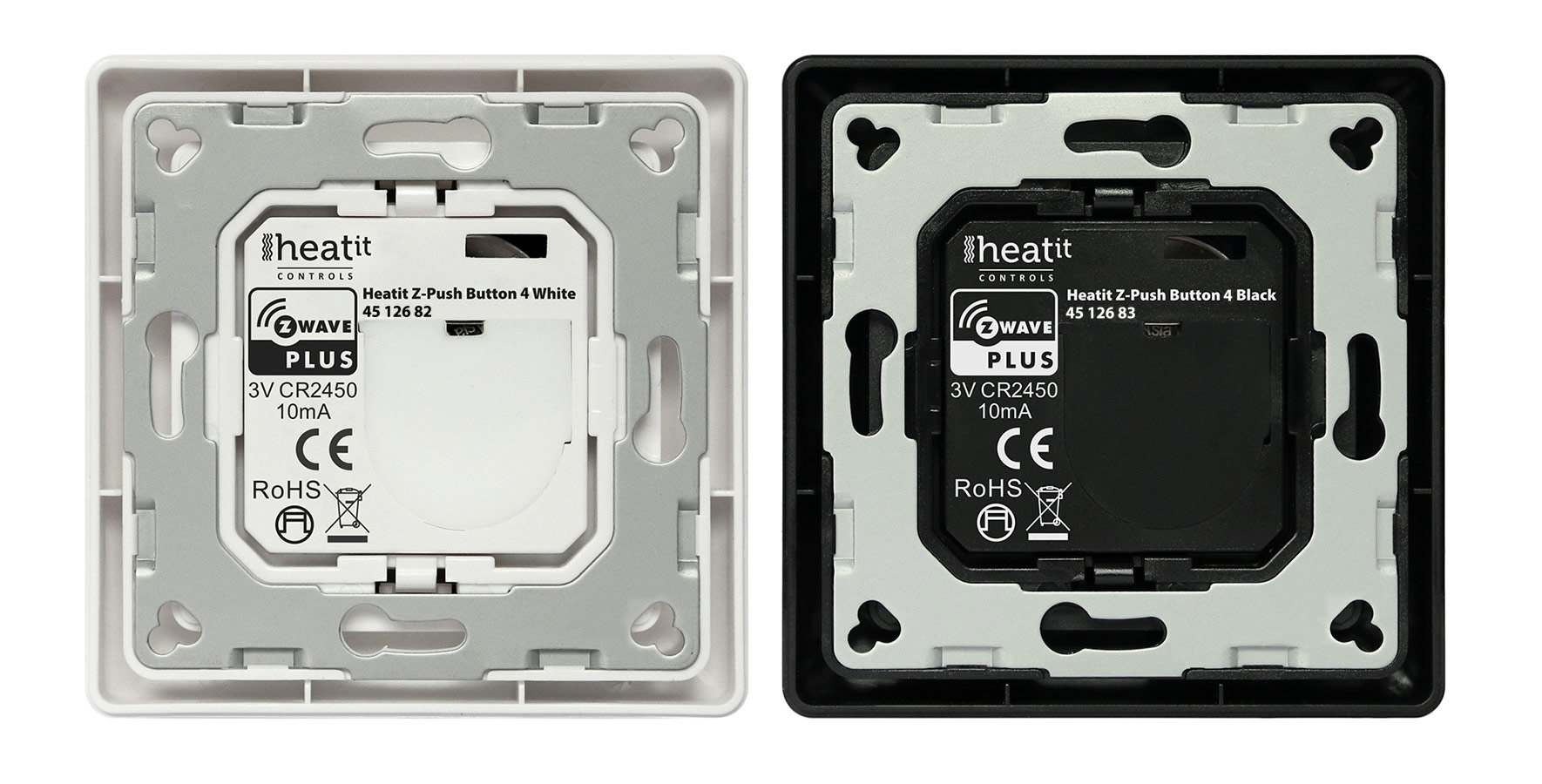
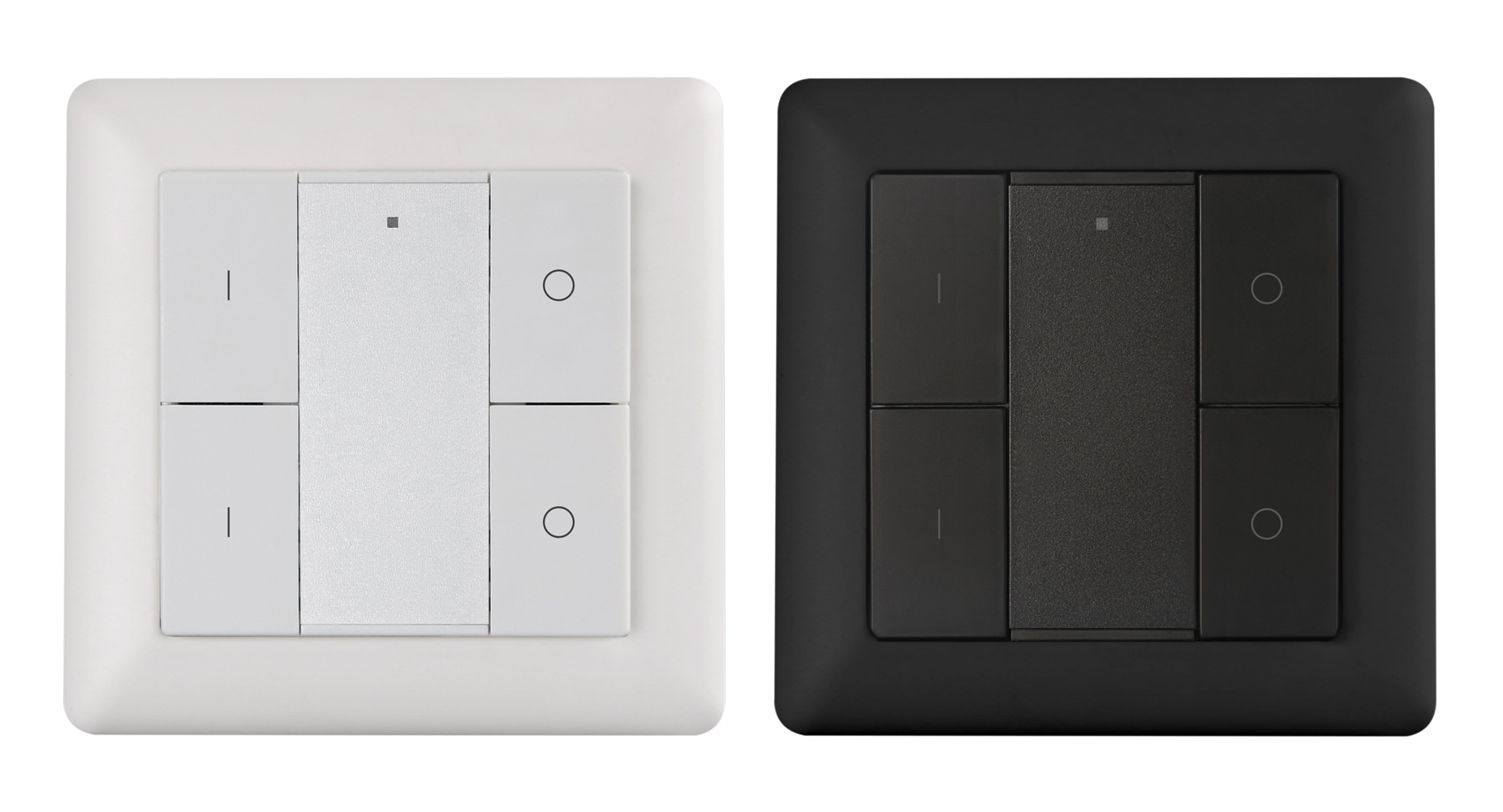
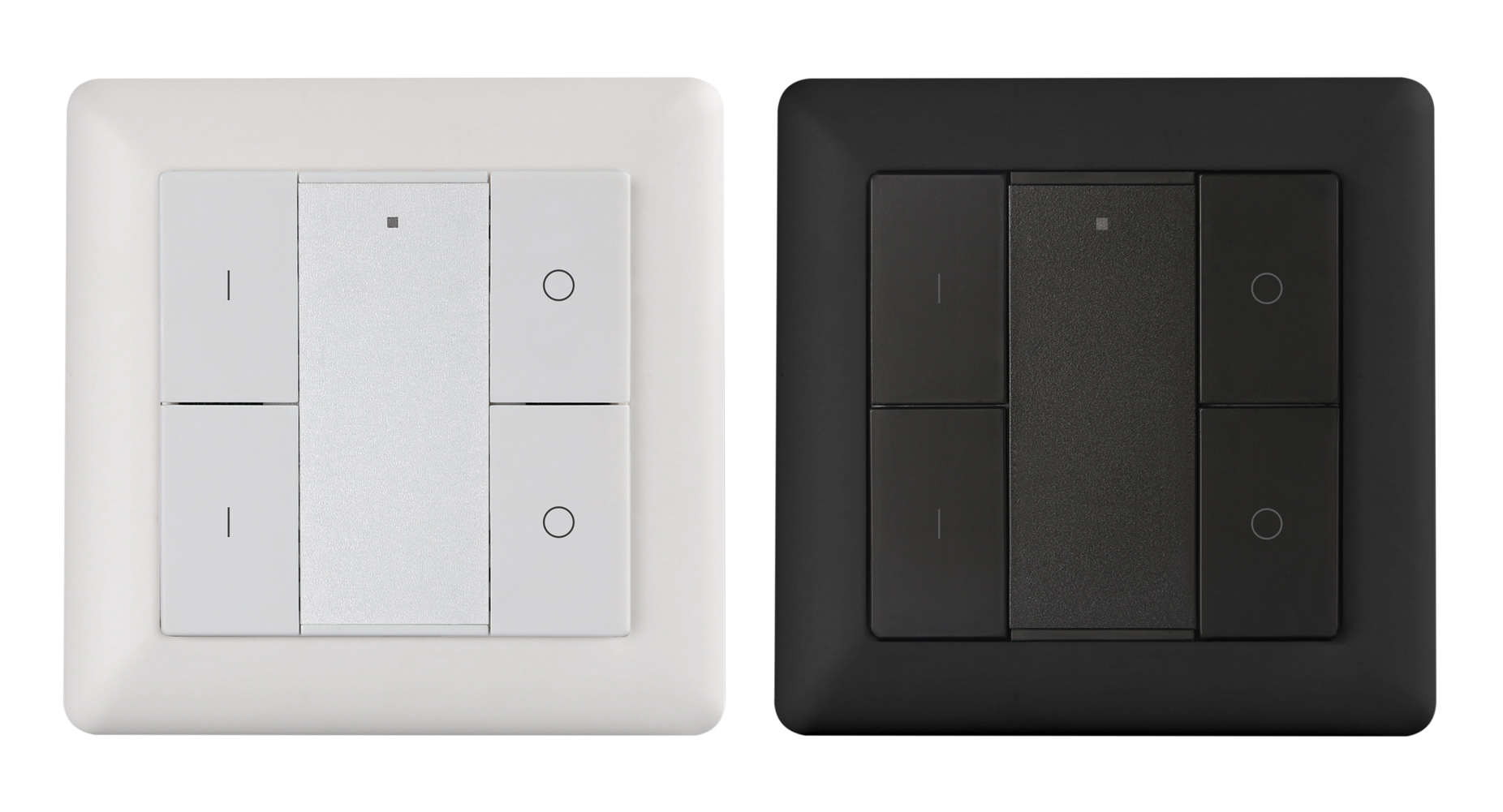
Name | Heatit Z-Push Button 4 |
|---|
Short Description | The Heatit Push Button is a Z-Wave device that can both control
other Z-Wave devices and activate scenes in Gateways.
Although it is controlling other devices, the device cannot act
as Z-Wave network controller (primary or secondary) and will
always need a Z-Wave network controller to be added into a
Z-Wave network. |
|---|
Long Description | The Heatit Push Button is a Z-Wave device that can both control
other Z-Wave devices and activate scenes in Gateways.
Although it is controlling other devices, the device cannot act
as Z-Wave network controller (primary or secondary) and will
always need a Z-Wave network controller to be added into a
Z-Wave network.
The remote control has following functions:
1. Control of groups of other Z-Wave devices using ON, OFF and
Dim commands.
2. Activation of scenes in Gateway mode. |
|---|
Brand | Heatit controls |
|---|
Product Identifier | Heatit Z-Push Button 4 |
|---|
Product Line | Heatit Z-Push Button |
|---|
OEM Version | HW: 1 FW: 1.26 |
|---|
Hardware Platform | ZM5101 |
|---|
Z-Wave Version | 6.71.03 |
|---|
Library Type | SLAVE_ENHANCED_232 |
|---|
Device Type | Wall Controller |
|---|
Role Type | ROLE_TYPE_SLAVE_PORTABLE |
|---|
Manufacturer ID | 0x019B |
|---|
Product Type ID | 0x0300 |
|---|
Product ID | 0xa305 |
|---|
User Icon | 0x1600 |
|---|
Installer Icon | 0x1600 |
|---|
Frequency Plans | EU: 869.85MHz, 868.40MHz |
|---|
Categories | All Lighting Devices, All Controllers, Handheld Controller, Lighting Accessories |
|---|
Countries / Regions | European Union |
|---|
Supported Command Classes | Identifier | Name | Key | Version |
|---|
COMMAND_CLASS_FIRMWARE_UPDATE_MD_V4 | Firmware Update Meta-Data V4 | 0x7A | 4 | COMMAND_CLASS_POWERLEVEL | Powerlevel | 0x73 | 1 | COMMAND_CLASS_MULTI_CHANNEL_ASSOCIATION_V3 | Multi-Channel Association V3 | 0x8E | 3 | COMMAND_CLASS_BATTERY | Battery | 0x80 | 1 | COMMAND_CLASS_CONFIGURATION | Configuration | 0x70 | 1 | COMMAND_CLASS_SECURITY | Security S0 | 0x98 | 1 | COMMAND_CLASS_TRANSPORT_SERVICE_V2 | Transport Service V2 | 0x55 | 2 | COMMAND_CLASS_VERSION_V2 | Version V2 | 0x86 | 2 | COMMAND_CLASS_WAKE_UP_V2 | Wake Up V2 | 0x84 | 2 | COMMAND_CLASS_DEVICE_RESET_LOCALLY | Device Reset Locally | 0x5A | 1 | COMMAND_CLASS_ZWAVEPLUS_INFO_V2 | Z-Wave Plus Info V2 | 0x5E | 2 | COMMAND_CLASS_ASSOCIATION_V2 | Association V2 | 0x85 | 2 | COMMAND_CLASS_ASSOCIATION_GRP_INFO | Association Group Info | 0x59 | 1 | COMMAND_CLASS_SECURITY_2 | Security S2 | 0x9F | 1 | COMMAND_CLASS_CENTRAL_SCENE_V3 | Central Scene V3 | 0x5B | 3 | COMMAND_CLASS_SUPERVISION | Supervision | 0x6C | 1 | COMMAND_CLASS_MANUFACTURER_SPECIFIC_V2 | Manufacturer Specific V2 | 0x72 | 2 |
|
|---|
Controlled Command Classes | Identifier | Name | Key | Version |
|---|
COMMAND_CLASS_BASIC | Basic | 0x20 | 1 | COMMAND_CLASS_SWITCH_MULTILEVEL_V4 | Switch Multilevel V4 | 0x26 | 4 |
|
|---|
S2 Classes | S2_UNAUTHENTICATED |
|---|
Documents | Category | Description | File |
|---|
Manual_Primary_Lang | Product Manual | |
|
|---|
Features | Feature | Values |
|---|
Z-Wave Scene Type | | Firmware Updatable | Value |
|---|
Updatable by Consumer by RF |
|
|
|---|
Association Groups | Group Number | Maximum Nodes Supported | End Point ID | Group Name | Description |
|---|
1 | 5 | 0 | Lifeline | 1. Send Command Class ”Device Reset Locally Noti�cation V1” to
associated devices of this group to report factory reset information when factory reset the Push Button.
2. When Push Button battery power value changes, send Command Class
”Battery Report V1” to associated devices of this group to report power value information.
3. Push once or press and hold any button to send scene activation
command to the associated devices of this group using Command Class
“Central Scene Noti�cation V3” | 3 | 5 | 0 | Launch 2 | Push I-/O-button of Group 3 onceto
send ON/OFF command to associated
devices of this group using
Command Class ”Basic Set V2”.
Press and hold down I-/O-button
of Group 3 to send light intensity
increase/decrease command to
associated devices of this group using
Command Class ”Multilevel V4”. | 2 | 5 | 0 | Launch 1 | Push I-/O-button of Group 2 once to send ON/OFF command to associated devices of this group using Command Class ”Basic Set V2”.
Press and hold down I-/O-button of Group 2 to send light intensity
increase/decrease command to associated devices of this group using
Command Class ”Multilevel V4”. |
|
|---|
Configuration Parameters | Parameter Number | Name | Description | Format | Size | Min Value | Max Value | Default Value | Parameter Values |
|---|
1 | factory reset | Value=0x55AA, other values are invalid, factory reset the Remote Control | 0 | 2 | 21930 | 21930 | 21930 | From | To | Description |
|---|
21930 | 21930 | factory reset |
|
|
|---|
Texts | ID | Description | Value |
|---|
23 | Controller Inclusion | Step 1. Make sure the remote control does not belong to any Z-Wave network, short press any button, if LED indicator does not turn on, the remote control does not belong to any network, then continue step 2,if LED indicator turns on, it means the remote control has already been included to a network, please first set the remote control to exclusion mode (refer to the part Exclusion"" of this manual),then continue step 2.
Step 2. Set primary controller/gateway into inclusion mode (Please refer to your primary controllers manual on how to turn your controller into inclusion).
Step 3. Press and hold down both buttons I and O of Group 2 over 3 seconds, LED indicator turns on, the remote control will be set to inclusion mode, and waiting to be included, after 10s LED indicator blinks 6 times
quickly to indicate successful inclusion. The remote control is a sleepy device, after inclusion it will not enter into sleepy mode immediately, and will continue activation status for 30s and wait data interaction from the gateway, the LED indicator will stay solid on, please be patient to wait LED indicator to turn off. | 24 | Controller Exclusion | There are two exclusion methods:
Method 1: Exclusion from the primary controller/gateway as follows:
1. Set the primary controller/gateway into exclusion mode (Please refer to your primary controllers manual on how to set your controller into exclusion).
2. Press and hold down both buttons I and O of Group 2 over 3 seconds, LED indicator turns on, the remote control will be set to exclusion mode, and waiting to be excluded, after 7s LED indicator blinks 4 times quickly to indicate successful exclusion. | 5 | Factory Reset Procedure | Press and hold down both buttons I and O of Group 2 for a minimum of 10 seconds until the LED indicator turns on and then blinks 4 times quickly to indicate successful factory reset.
Please use this procedure only when the network primary controller is missing or otherwise inoperable. | 1 | Classic Inclusion | Step 1. Make sure the device does not belong to any Z-Wave network by pressing any button once. If the LED indicator does not turn on, the Push Button does not belong to any network,and you may continue to step 2. If the LED indicator turns on, it means that the Push Button has already been added to a network. You must then run the removal process (see ”Removing from a Z-Wave network” in this guide) before moving
on to step 2.
Step 2. Set primary controller/gateway to adding mode (Please refer to your primary controller manual on how to set your controller to adding mode).
Step 3. Press and hold down both buttons I and O of Group 2 for 3 seconds. The LED indicator turns on, the Push Button will be set to adding mode, and stand by to be added to the network.
After 10s the LED indicator blinks 6 times quickly to indicate that the addition has been successful.
The Heatit Push Button is a sleeping device. After adding it to the network, it will not enter into sleep mode immediately, but will maintain activation status for 30s while completing the addition process. The LED indicator will stay on for this time, so please be patient and wait for the LED indicator to turn off. | 2 | Classic Exclusion | There are two removing methods:
Method 1: Removing from the primary controller/gateway:
1. Set the primary controller/gateway to removing mode.
(Please refer to your primary controller manual on how to set your controller to removing mode).
2. Press and hold down both buttons I and O of Group 2 for 3 seconds, LED indicator turns on, the Push Button will be set to removing mode, and stand by to be removed. After 7s the LED indicator blinks 4 times quickly to indicate successful removal.
Method 2: A factory reset of the Push Button will force the Push Button to be removed from a network. (Please refer to the part “Factory Reset” of this manual).
Note: Factory reset is not recommended for removing devices.
Please use this procedure only if the primary controller/gateway is missing or otherwise inoperable. | 4 | Wake-Up Procedure | press and hold down both the I- and O-buttons of Group 2 for 1 second to activate the Push Button for 7s. |
|
|---|
Supports NWI | Yes |
|---|
Supports Explorer Frames | Yes |
|---|
Radio Range Z-Wave (m) | 40 |
|---|