Product Recognition | |
|---|
Certification Number | ZC10-19096764 |
|---|
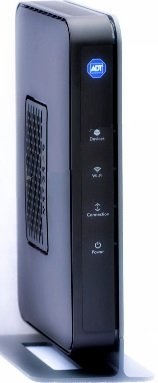
Name | Home Automation and Control Unit |
|---|
Short Description | The Home Automation and Control Unit is a Security Gateway providing connectivity to WiFI and ZWave Plus devices. |
|---|
Long Description | The Home Security Gateway is an
innovative services gateway providing connectivity
to security systems, Wi-Fi devices (including
cameras and touch screens) and Z-Wave® devices
(including sensors, lighting controls, thermostats,
door locks, etc.). |
|---|
Brand | ADT |
|---|
Product Identifier | PGZNG1-2ADNAS |
|---|
Product Line | ADT Pulse |
|---|
OEM Version | HW: 5 FW: 5.34:03.00 |
|---|
Hardware Platform | ZM5202 |
|---|
Z-Wave Version | 6.71.03 |
|---|
Library Type | CONTROLLER_STATIC |
|---|
Device Type | Gateway |
|---|
Role Type | ROLE_TYPE_CONTROLLER_CENTRAL_STATIC |
|---|
Manufacturer ID | 0x040b |
|---|
Product Type ID | 0x0001 |
|---|
Product ID | 0x0001 |
|---|
User Icon | 0x0100 |
|---|
Installer Icon | 0x0100 |
|---|
Frequency Plans | US: 916.00MHz, 908.40MHz |
|---|
Categories | All Controllers, Gateway Controller |
|---|
Countries / Regions | United States of America |
|---|
Supported Command Classes | Identifier | Name | Key | Version |
|---|
COMMAND_CLASS_POWERLEVEL | Powerlevel | 0x73 | 1 | COMMAND_CLASS_INCLUSION_CONTROLLER | Inclusion Controller | 0x74 | 1 | COMMAND_CLASS_APPLICATION_STATUS | Application Status | 0x22 | 1 | COMMAND_CLASS_CRC_16_ENCAP | CRC16 Encapsulation | 0x56 | 1 | COMMAND_CLASS_SECURITY | Security S0 | 0x98 | 1 | COMMAND_CLASS_TRANSPORT_SERVICE_V2 | Transport Service V2 | 0x55 | 2 | COMMAND_CLASS_VERSION_V2 | Version V2 | 0x86 | 2 | COMMAND_CLASS_DEVICE_RESET_LOCALLY | Device Reset Locally | 0x5A | 1 | COMMAND_CLASS_ZWAVEPLUS_INFO_V2 | Z-Wave Plus Info V2 | 0x5E | 2 | COMMAND_CLASS_ASSOCIATION_V2 | Association V2 | 0x85 | 2 | COMMAND_CLASS_ASSOCIATION_GRP_INFO | Association Group Info | 0x59 | 1 | COMMAND_CLASS_SECURITY_2 | Security S2 | 0x9F | 1 | COMMAND_CLASS_MANUFACTURER_SPECIFIC | Manufacturer Specific | 0x72 | 1 | COMMAND_CLASS_SUPERVISION | Supervision | 0x6C | 1 |
|
|---|
Controlled Command Classes | Identifier | Name | Key | Version |
|---|
COMMAND_CLASS_SWITCH_MULTILEVEL | Switch Multilevel | 0x26 | 1 | COMMAND_CLASS_SOUND_SWITCH | Sound Switch | 0x79 | 1 | COMMAND_CLASS_DOOR_LOCK | Door Lock | 0x62 | 1 | COMMAND_CLASS_NO_OPERATION | No Operation | 0x00 | 1 | COMMAND_CLASS_THERMOSTAT_FAN_MODE | Thermostat Fan Mode | 0x44 | 1 | COMMAND_CLASS_MULTI_CHANNEL_ASSOCIATION_V3 | Multi-Channel Association V3 | 0x8E | 3 | COMMAND_CLASS_CONTROLLER_REPLICATION | Controller Replication | 0x21 | 1 | COMMAND_CLASS_BATTERY | Battery | 0x80 | 1 | COMMAND_CLASS_THERMOSTAT_OPERATING_STATE | Thermostat Operating State | 0x42 | 1 | COMMAND_CLASS_THERMOSTAT_MODE | Thermostat Mode | 0x40 | 1 | COMMAND_CLASS_THERMOSTAT_FAN_STATE | Thermostat Fan State | 0x45 | 1 | COMMAND_CLASS_SENSOR_MULTILEVEL | Sensor Multilevel | 0x31 | 1 | COMMAND_CLASS_SWITCH_BINARY | Switch Binary | 0x25 | 1 | COMMAND_CLASS_BASIC | Basic | 0x20 | 1 | COMMAND_CLASS_CRC_16_ENCAP | CRC16 Encapsulation | 0x56 | 1 | COMMAND_CLASS_SECURITY | Security S0 | 0x98 | 1 | COMMAND_CLASS_NOTIFICATION_V3 | Notification V3 | 0x71 | 3 | COMMAND_CLASS_VERSION_V2 | Version V2 | 0x86 | 2 | COMMAND_CLASS_WAKE_UP_V2 | Wake Up V2 | 0x84 | 2 | COMMAND_CLASS_BARRIER_OPERATOR | Barrier Operator | 0x66 | 1 | COMMAND_CLASS_ASSOCIATION_V2 | Association V2 | 0x85 | 2 | COMMAND_CLASS_ASSOCIATION_GRP_INFO | Association Group Info | 0x59 | 1 | COMMAND_CLASS_MULTI_CHANNEL_V4 | Multi-Channel V4 | 0x60 | 4 | COMMAND_CLASS_THERMOSTAT_SETPOINT | Thermostat Setpoint | 0x43 | 1 | COMMAND_CLASS_METER | Meter | 0x32 | 1 | COMMAND_CLASS_SECURITY_2 | Security S2 | 0x9F | 1 | COMMAND_CLASS_MANUFACTURER_SPECIFIC | Manufacturer Specific | 0x72 | 1 | COMMAND_CLASS_SUPERVISION | Supervision | 0x6C | 1 |
|
|---|
S2 Classes | S2_UNAUTHENTICATED, S2_AUTHENTICATED, S2_ACCESS_CONTROL |
|---|
Documents | Category | Description | File |
|---|
Manual_Primary_Lang | Product Manual | |
|
|---|
Features | |
|---|
Association Groups | Group Number | Maximum Nodes Supported | End Point ID | Group Name | Description |
|---|
1 | 1 | 0 | Lifeline | Z-Wave Plus Lifeline |
|
|---|
Texts | ID | Description | Value |
|---|
23 | Controller Inclusion | Whether you can add devices to your site depends on the type of system and service you have as well as whether you are the site owner. If you are authorized to add devices, a Manage Devices button appears on the Web Portal's System tab.
If the Manage Devices button does appear on the System tab, use the following procedure to add devices.
To add a device to the site:
Log in to the Web Portal.
Click the System tab, if it is not already displayed.
Click Manage Devices.
Click the type of device you want to install and follow the on-screen instructions. | 24 | Controller Exclusion | If you are authorized to reset a Z-Wave device, a Manage Devices button appears on the System tab. (Resetting or deleting a Z-Wave device both result in removing the Z-Wave device from the site.)
To delete or reset a Z-Wave device:
Click the System tab, if it is not already displayed.
Click Manage Devices.
The Manage Devices page appears.
Click Switches, Doors, Thermostats, Others.
The Z-Wave Devices page appears.
Click Reset.
The Reset Z-Wave Devices page appears.
Quickly press the ""include"" button on the device that you want to reset.
A message informs you that the device was successfully reset, and, in addition, the Z-Wave device is removed from the site. Once reset, you can add the Z-Wave device again to the same site or add it to another site. | 5 | Factory Reset Procedure | To reset the device, press and hold the reset button on the back of the unit for about 15 seconds. The unit will then restart.
Note: If this controller is the primary controller for your network, resetting it will result in the nodes in your network being orphaned and it will be necessary after the reset to remove and re-add all of the nodes in the network. If this controller is being used as a secondary controller in the network, use this
Copyright © 2014-2018 ICN Acquisition, LLC. All rights reserved.
procedure to reset this controller only in the event that the network primary controller is missing or otherwise inoperable. | 8 | Where to find S2 DSK on product | This product has a permanent waiver so that DSK is not required. | 2 | Classic Exclusion | To remove a Z-Wave device, click on the device in the Z-Wave Devices list to open the Z-Wave Device Details screen. Click the Remove button. | 1 | Classic Inclusion | To add a Z-Wave Device:
1. Click Pulse Devices, and then click Switches, Door Locks, Thermostats, Others.
The Z-Wave Devices list screen appears.
2. Click Add.
3. Click the Z-Wave device’s “include” button. If you are adding a Z-Wave device with S2 security to an in-home gateway model number PGZNG1 v2, a dialog will prompt you for the 5-digit DSK (Device Specific Key).
4. Follow the instructions on the dialog:
a. Locate the 5-digit DSK on the Z-Wave device.
b. Enter the 5-digit DSK.
c. For assistance in locating the DSK, click the information (i) icon on the dialog.
d.Press Continue.
5. Click on the newly added Z-Wave device list item.
6. In the Name field, enter a name for the Z-Wave device, and then click Save. |
|
|---|
Supported / Controlled Meter Types | Meter Type | Rate Type | Description |
|---|
Electric meter | Import | Electric Meter Consumption |
|
|---|
Supports NWI | Yes |
|---|
Supports Explorer Frames | Yes |
|---|