Product Recognition | |
|---|
Certification Number | ZC10-19096756 |
|---|
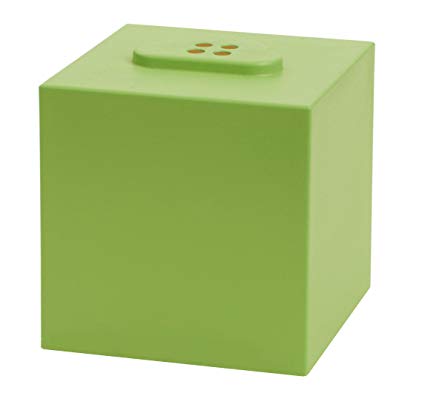
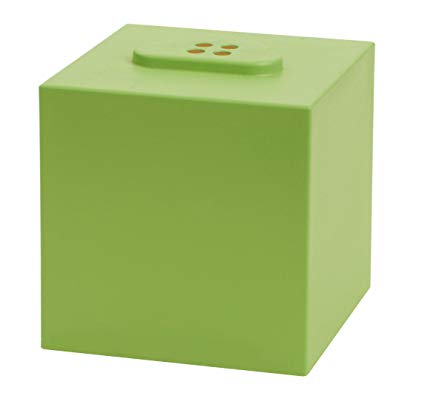
Name | homee Z-Wave Cube Green |
|---|
Short Description | The Z-Wave Cube is a modular addition to the homee base cube - the "Brain Cube" |
|---|
Long Description | With Z-Wave Cube as a supplement to your Brain Cube you can control hundreds of smart home devices which use Z-Wave technology.
You could use Z-Wave Cube to control your blinds and roller shutters by making them smart with the Fibaro Roller Shutter2 insert switch. You can define times when heating should be tuned to any chosen comfort temperature, saving you money on heating - this is no problem with the Danfoss LC-13 radiator thermostat. Via our homeegrams, radiator thermostats can automatically be switched off once a window is opened, helping you to prevent energy waste. If security is your concern, you can add devices such as smoke detectors to your home, which alert you via push notification of fire or smoke, while also opening the blinds and turning on lights in order to create escape routes.
Once you leave your apartment, you can enable homeegrams alerting you if one of your door, window or motion sensors detect an unexpected event during your absence. Additionally, you could fire off an alarm siren like the Aeotec Siren. |
|---|
Brand | homee |
|---|
Product Identifier | ESTMK-Z-Wave |
|---|
Product Line | homee |
|---|
OEM Version | HW: 2 FW: 6.01:02.81:01.00:01.00 |
|---|
Hardware Platform | ZM5202 |
|---|
Z-Wave Version | 6.81.01 |
|---|
Library Type | CONTROLLER_BRIDGE |
|---|
Device Type | Gateway |
|---|
Role Type | ROLE_TYPE_CONTROLLER_CENTRAL_STATIC |
|---|
Manufacturer ID | 0x0349 |
|---|
Product Type ID | 0x0013 |
|---|
Product ID | 0x3900 |
|---|
User Icon | 0x0500 |
|---|
Installer Icon | 0x0500 |
|---|
Frequency Plans | EU: 869.85MHz, 868.40MHz |
|---|
Categories | All Controllers, Gateway Controller, Computer Controller Interfaces |
|---|
Countries / Regions | European Union |
|---|
Supported Command Classes | Identifier | Name | Key | Version |
|---|
COMMAND_CLASS_POWERLEVEL | Powerlevel | 0x73 | 1 | COMMAND_CLASS_NETWORK_MANAGEMENT_INSTALLATION_MAINTENANCE | Network Management Installation and Maintenance | 0x67 | 1 | COMMAND_CLASS_INCLUSION_CONTROLLER | Inclusion Controller | 0x74 | 1 | COMMAND_CLASS_APPLICATION_STATUS | Application Status | 0x22 | 1 | COMMAND_CLASS_CRC_16_ENCAP | CRC16 Encapsulation | 0x56 | 1 | COMMAND_CLASS_SECURITY | Security S0 | 0x98 | 1 | COMMAND_CLASS_TRANSPORT_SERVICE_V2 | Transport Service V2 | 0x55 | 2 | COMMAND_CLASS_VERSION_V2 | Version V2 | 0x86 | 2 | COMMAND_CLASS_DEVICE_RESET_LOCALLY | Device Reset Locally | 0x5A | 1 | COMMAND_CLASS_ZWAVEPLUS_INFO_V2 | Z-Wave Plus Info V2 | 0x5E | 2 | COMMAND_CLASS_ASSOCIATION_V2 | Association V2 | 0x85 | 2 | COMMAND_CLASS_ASSOCIATION_GRP_INFO_V3 | Association Group Information V3 | 0x59 | 3 | COMMAND_CLASS_NETWORK_MANAGEMENT_INCLUSION_VERSION_3 | Network Management Inclusion V3 | 0x34 | 0 | COMMAND_CLASS_MAILBOX | Mailbox | 0x69 | 1 | COMMAND_CLASS_NETWORK_MANAGEMENT_PROXY_V2 | Network Management Proxy V2 | 0x52 | 2 | COMMAND_CLASS_SECURITY_2 | Security S2 | 0x9F | 1 | COMMAND_CLASS_NETWORK_MANAGEMENT_BASIC_V2 | Network Management Basic V2 | 0x4D | 2 | COMMAND_CLASS_SUPERVISION | Supervision | 0x6C | 1 | COMMAND_CLASS_MANUFACTURER_SPECIFIC_V2 | Manufacturer Specific V2 | 0x72 | 2 | COMMAND_CLASS_MULTI_CMD | Multi-Command | 0x8F | 1 |
|
|---|
Controlled Command Classes | Identifier | Name | Key | Version |
|---|
COMMAND_CLASS_CONFIGURATION_V4 | Configuration V4 | 0x70 | 4 | COMMAND_CLASS_SENSOR_ALARM | Sensor Alarm | 0x9C | 1 | COMMAND_CLASS_SWITCH_BINARY_V2 | Switch Binary V2 | 0x25 | 2 | COMMAND_CLASS_NO_OPERATION | No Operation | 0x00 | 1 | COMMAND_CLASS_ZIP_V3 | Z/IP V3 | 0x23 | 3 | COMMAND_CLASS_SWITCH_COLOR_V3 | Switch Color V3 | 0x33 | 3 | COMMAND_CLASS_ZIP_PORTAL | Z/IP Portal | 0x61 | 1 | COMMAND_CLASS_NETWORK_MANAGEMENT_INSTALLATION_MAINTENANCE | Network Management Installation and Maintenance | 0x67 | 1 | COMMAND_CLASS_PROTECTION_V2 | Protection V2 | 0x75 | 2 | COMMAND_CLASS_MULTI_CHANNEL_ASSOCIATION_V3 | Multi-Channel Association V3 | 0x8E | 3 | COMMAND_CLASS_BATTERY | Battery | 0x80 | 1 | COMMAND_CLASS_BASIC | Basic | 0x20 | 1 | COMMAND_CLASS_CRC_16_ENCAP | CRC16 Encapsulation | 0x56 | 1 | COMMAND_CLASS_SECURITY | Security S0 | 0x98 | 1 | COMMAND_CLASS_SENSOR_BINARY_V2 | Sensor Binary V2 | 0x30 | 2 | COMMAND_CLASS_THERMOSTAT_MODE_V3 | Thermostat Mode V3 | 0x40 | 3 | COMMAND_CLASS_THERMOSTAT_SETPOINT_V3 | Thermostat Setpoint V3 | 0x43 | 3 | COMMAND_CLASS_WAKE_UP_V2 | Wake Up V2 | 0x84 | 2 | COMMAND_CLASS_ASSOCIATION_V2 | Association V2 | 0x85 | 2 | COMMAND_CLASS_METER_V3 | Meter V3 | 0x32 | 3 | COMMAND_CLASS_MULTI_CHANNEL_V4 | Multi-Channel V4 | 0x60 | 4 | COMMAND_CLASS_SWITCH_MULTILEVEL_V4 | Switch Multilevel V4 | 0x26 | 4 | COMMAND_CLASS_NETWORK_MANAGEMENT_INCLUSION_VERSION_3 | Network Management Inclusion V3 | 0x34 | 0 | COMMAND_CLASS_NETWORK_MANAGEMENT_PROXY_V2 | Network Management Proxy V2 | 0x52 | 2 | COMMAND_CLASS_NOTIFICATION_V8 | Notification V8 | 0x71 | 8 | COMMAND_CLASS_SECURITY_2 | Security S2 | 0x9F | 1 | COMMAND_CLASS_DOOR_LOCK_V3 | Door Lock V3 | 0x62 | 3 | COMMAND_CLASS_NETWORK_MANAGEMENT_BASIC_V2 | Network Management Basic V2 | 0x4D | 2 | COMMAND_CLASS_CENTRAL_SCENE_V3 | Central Scene V3 | 0x5B | 3 | COMMAND_CLASS_MANUFACTURER_SPECIFIC_V2 | Manufacturer Specific V2 | 0x72 | 2 |
|
|---|
S2 Classes | S2_UNAUTHENTICATED, S2_AUTHENTICATED, S2_ACCESS_CONTROL |
|---|
Documents | Category | Description | File |
|---|
Manual_Primary_Lang | Product Manual | | Manual_English | Product Manual in English | |
|
|---|
Features | Feature | Values |
|---|
Gateway Has Preferred Partners | | Sensors | Value |
|---|
Motion/No Motion (Binary) | Air Temperature | Moisture | Humidity | Power | Rain Rate | Voltage | Current | Loudness | Carbon Dioxide |
| Supported Meter Type | | Supported Notification Types | Value |
|---|
Smoke Alarm | CO2 Alarm | Power Management | Emergency Alarm | Siren |
| Communications Protocol | Value |
|---|
Manufacturer Proprietary Protocol |
| Communications Connections | Value |
|---|
USB (Universal Serial Bus) |
| Firmware Updatable | Value |
|---|
Updatable by Manufacturer |
|
|
|---|
Association Groups | Group Number | Maximum Nodes Supported | End Point ID | Group Name | Description |
|---|
1 | 1 | 0 | Lifeline | homee supports the association group 1 (Lifeline). A maximum number of 1 node can be added to this association group. The only event sent to this group is the device reset locally notification. |
|
|---|
Texts | ID | Description | Value |
|---|
3 | Learn Mode (adding another controller) | (1) Open the tab [Devices] in the homee app and press the plus icon [+] on the top right side. In order to add a Z-Wave device select the purple button and press [START] on the next screen.
(2) A Countdown of 60 seconds begins. Within these 60 seconds, the device you wish to add need to be set in
learn mode. Please refer to the documentation of the individual product on how to do this.
(3) Once homee recognizes a product in learn mode the countdown stops and [initializing] is shown instead. The product you wish to add and homee are now exchanging some information, this may take a short while. After successful completion of this process the screen shows [success!].
(4) Finally you can choose an individual name for the device as well as an icon and a group. This makes it easier do manage your devices later on. | 23 | Controller Inclusion | NOTE:❗ You can only add homee to another gateway if there are currently no devices associated with homee.
(1) To add the homee Z-Wave Cube to another gateway, go to the general homee settings. They are reachable via your homee’s icon in the top left corner and a subsequent press on the gear icon on the top right corner. Under the section [Cubes] > [Z-Wave] you can find all settings related to the Z-Wave cube. A tap on [Activate learn mode], reveals the DSK security code which is needed by the other gateway to successfully add homee.
(2) The UI of the other gateway informs you about the success of the operation.) | 24 | Controller Exclusion | To remove homee from the other gateway the process is identical to the adding. | 1 | Classic Inclusion | Open the tab [Devices] in the homee app and press the plus icon [+] on the top right side. In order to add a Z-Wave device select the purple button and press [START] on the next screen. | 2 | Classic Exclusion | If you don’t want to continue using a certain device it needs to be removed from homee. To do this go to the settings of the device you wish to remove by tapping on the pencil icon in the devices detail screen.
The button to remove the device is on the bottom of the screen. You have 60 seconds to activate the learn mode on the device you wish to remove after confirmation of the removal. Doing this will remove the device from the Z-Wave network and reset it to its factory default settings. | 8 | Where to find S2 DSK on product | The process is nearly identical to the one adding a non-secure product. Instead of directly starting the learn mode you have to enter the DSK first. You can do this by scanning the QR code or manual entry. To scan the code you can press [Scan DSK] in the add device screen. The camera activates and you can hold it over the code. Alternatively you can enter the DSK manually in the same screen. Confirm the code by pressing [Continue].
NOTE: The only way to see the DSK is via our app. The connection between our app and our gateway is a secure websocket connection. The DSK is not pyhsically printed on the casing or packaging. | 5 | Factory Reset Procedure | NOTE:❗If the Z-Wave cube is reset to factory defaults, all connected Z-Wave devices will be removed and the cube gets a new Home ID. If homee is the primary controller for your network, resetting it will result in the nodes in your network being orphaned and it will be necessary after the reset to exclude and re-include all of the nodes in the network. If this controller is being used as a secondary controller in the network, use this procedure to reset this controller only in the event that the network primary controller is missing or otherwise inoperable.
NOTE:❗❗ This process does NOT reset the connected devices itself. They need to be reset manually following the manufacturers manual.
To reset the Z-Wave Cube to its factory defaults you need to open the general homee settings. They are reachable via your homee’s icon in the top left corner and a subsequent press on the gear icon on the top right corner. Under the section [Cubes] > [Z-Wave] you can find all settings related to the Z-Wave cube. The menu entry [Reset Cube] resets the Z-Wave Cube back to its factory defaults after additional confirmation. |
|
|---|
Supported / Controlled Meter Types | Meter Type | Rate Type | Description |
|---|
Electric meter | Import | Electric Meter Consumption | Electric meter | Export | Electric Meter Production | Heating meter | Import | Heating Meter Consumption | Heating meter | Export | Heating Meter Production |
|
|---|
Supports NWI | Yes |
|---|
Supports Explorer Frames | Yes |
|---|
Radio Range Z-Wave (m) | 40 |
|---|