Product Recognition | |
|---|
Certification Number | ZC12-22050338 |
|---|
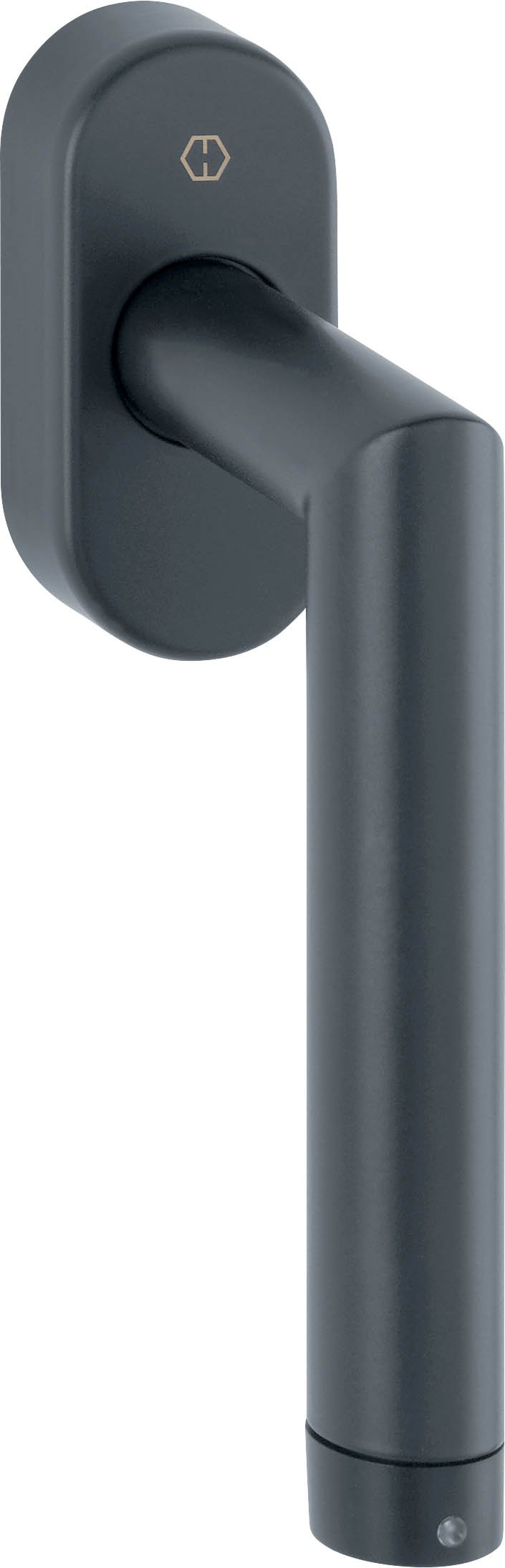
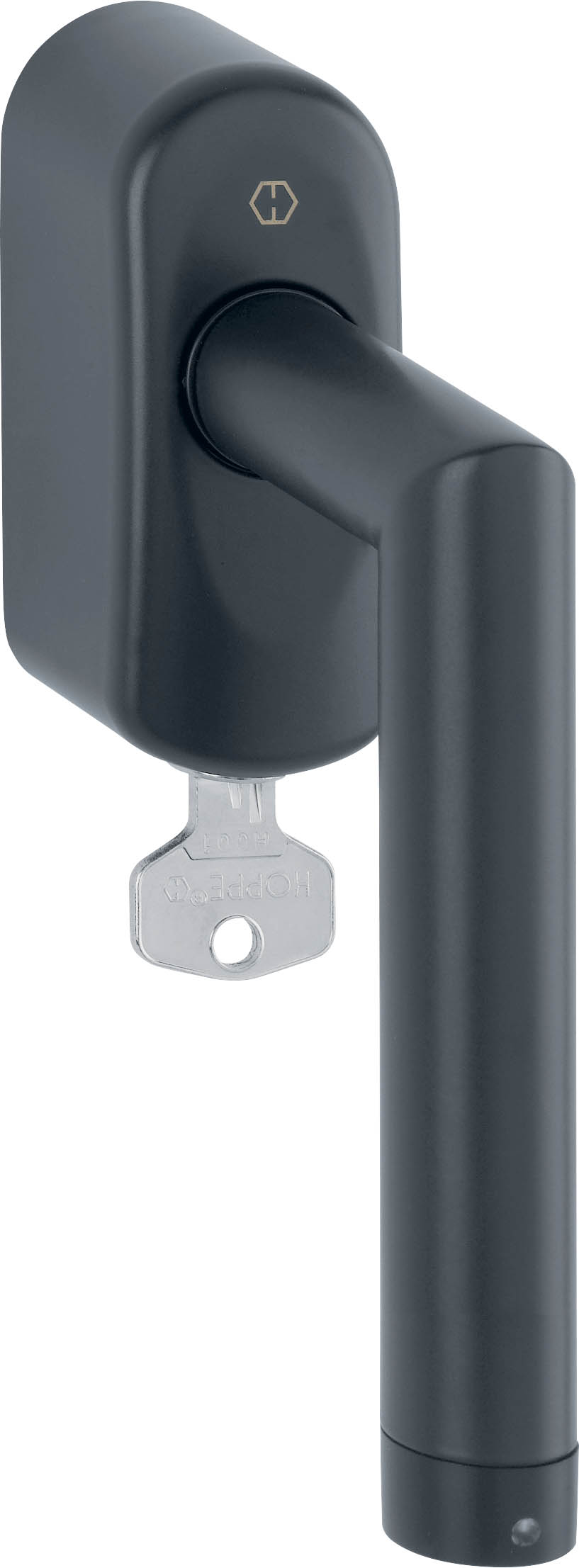
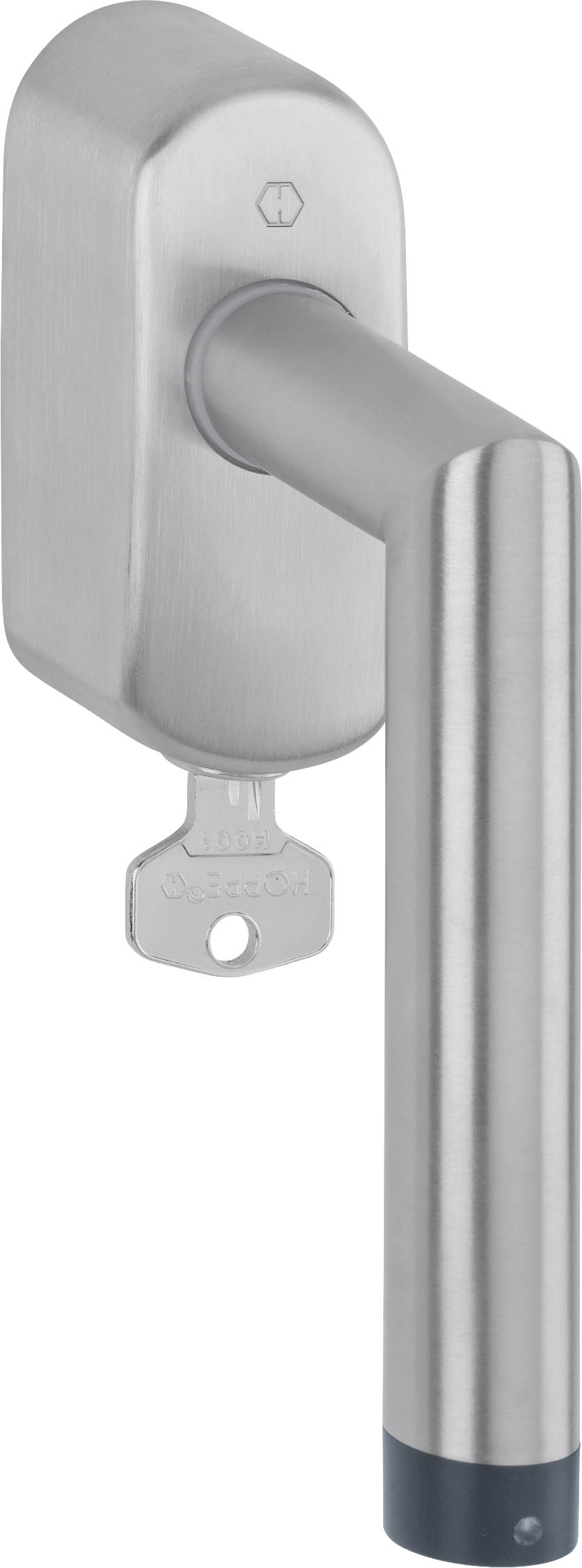
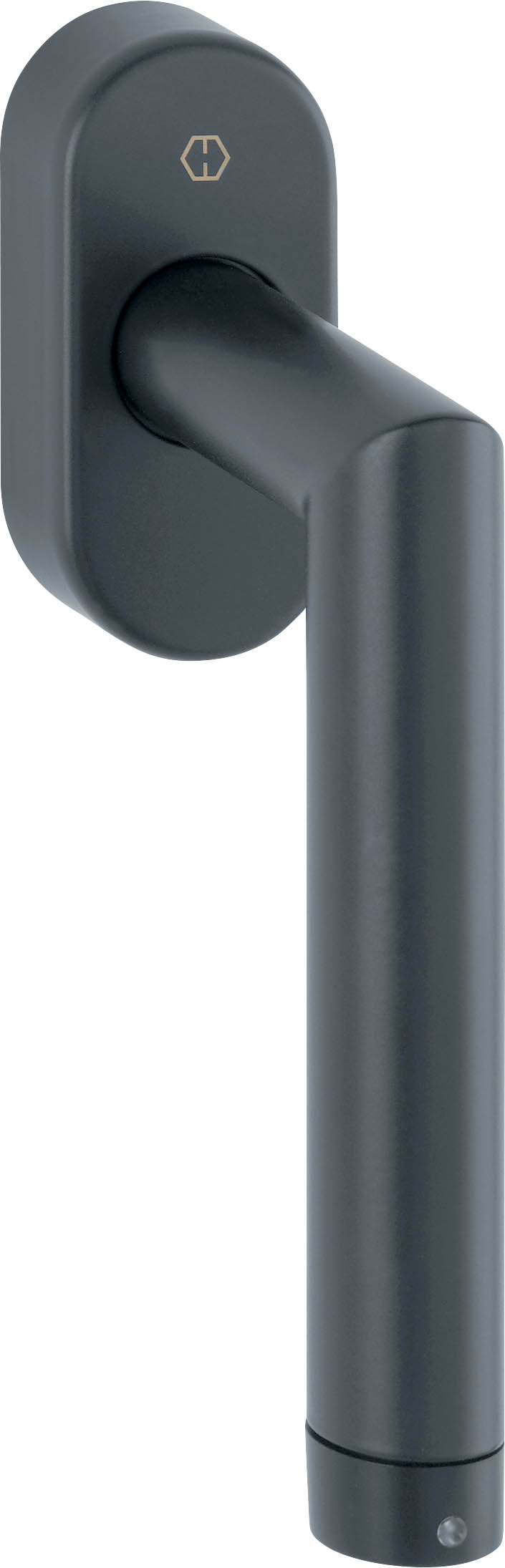
Name | HOPPE eHandle ConnectSense |
|---|
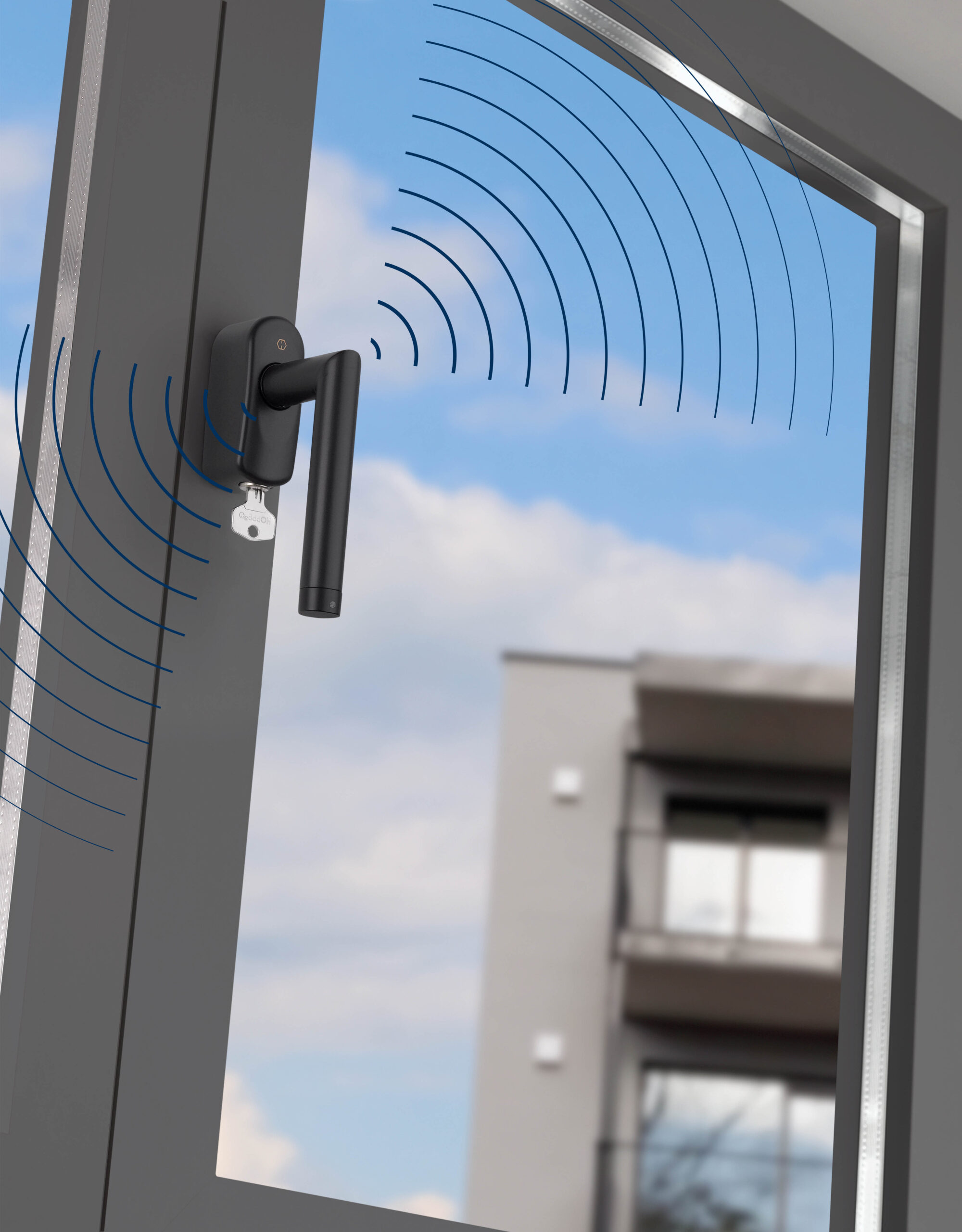
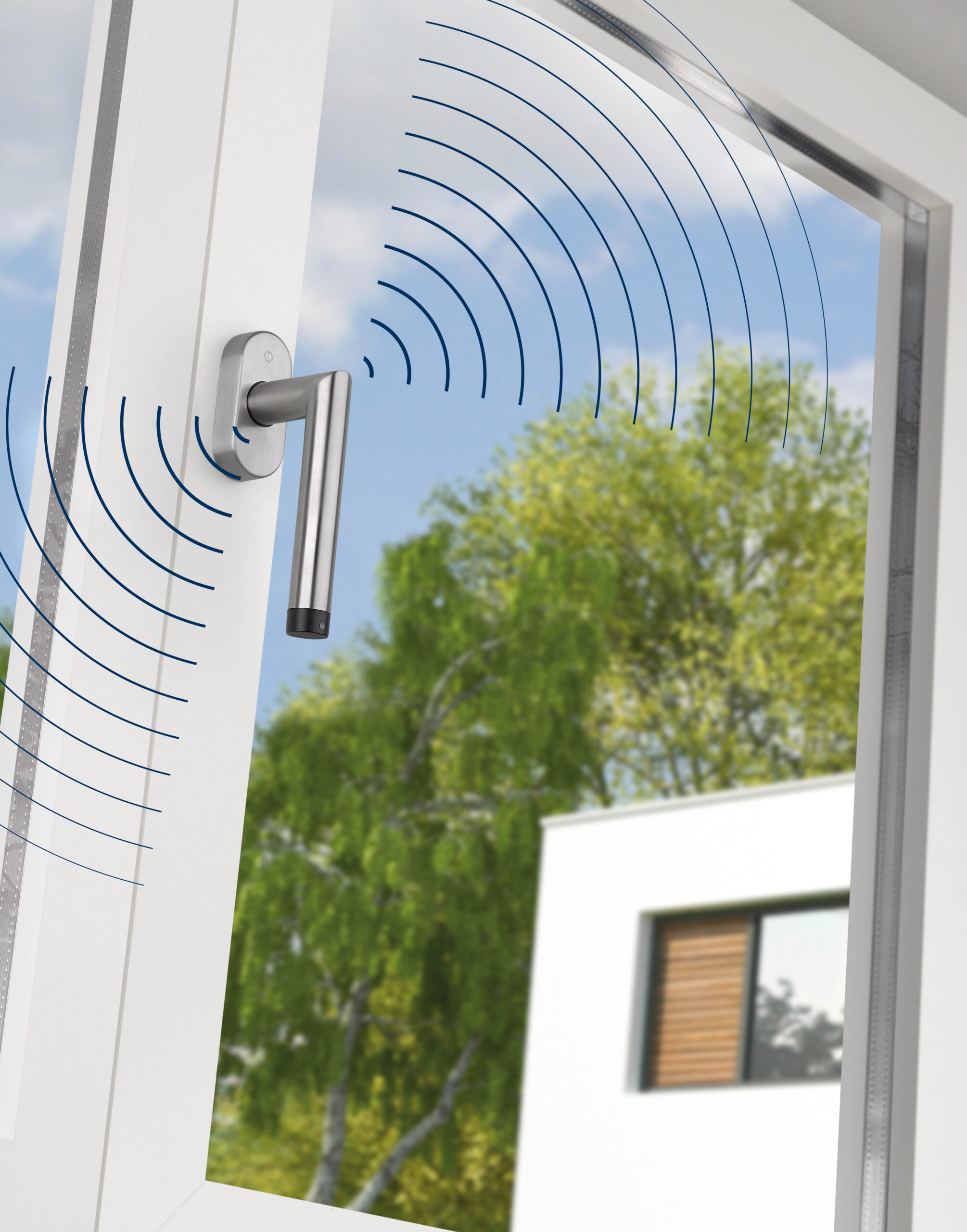
Short Description | The eHandle ConnectSense communicates via the Z-Wave protocol. The following information is sent to the Smart Home central control unit:• Window handle positions - Closed - Opened - Tiltedand additionally • Window positions - Closed - Opened• Burglary attempt (with window closed only)• Battery status |
|---|
Long Description | The eHandle ConnectSense for windows is a smart home component intended to transmit the position of the window and the handle (closed (0°), open (90°) or tilted (180°). When closed, the eHandle Connect Sense for windows is also able to detect common burglary attempts like drilling or prying a window open. In addition, the state of the battery is transmitted to the smart home central control unit.This product can be operated in any Z-Wave network with other Z-Wave certified devices from other manufacturers. All mains operated devices within the network can act as repeaters regardless of manufacturer to increase reliability and range of the network. |
|---|
Brand | HOPPE |
|---|
Product Identifier | E0400Z-EF |
|---|
Product Line | Smart Window Handle |
|---|
OEM Version | HW: 1 FW: 8.20 |
|---|
Hardware Platform | ZGM130 |
|---|
Z-Wave Version | 7.15.4 |
|---|
Library Type | SLAVE_ENHANCED_232 |
|---|
Device Type | Notification Sensor |
|---|
Role Type | ROLE_TYPE_SLAVE_SLEEPING_REPORTING |
|---|
Manufacturer ID | 0x0313 |
|---|
Product Type ID | 0x0701 |
|---|
Product ID | 0x0002 |
|---|
User Icon | 0x0C07 |
|---|
Installer Icon | 0x0C07 |
|---|
Frequency Plans | EU: 869.85MHz, 868.40MHz |
|---|
Categories | Sensors, Security Add-Ons |
|---|
Countries / Regions | European Union |
|---|
Supported Command Classes | Identifier | Name | Key | Version |
|---|
COMMAND_CLASS_CONFIGURATION_V4 | Configuration V4 | 0x70 | 4 | COMMAND_CLASS_POWERLEVEL | Powerlevel | 0x73 | 1 | COMMAND_CLASS_ASSOCIATION_GRP_INFO_V3 | Association Group Information (AGI) V3 | 0x59 | 3 | COMMAND_CLASS_INDICATOR_V3 | Indicator V3 | 0x87 | 3 | COMMAND_CLASS_BATTERY | Battery | 0x80 | 1 | COMMAND_CLASS_FIRMWARE_UPDATE_MD_V5 | Firmware Update Meta Data V5 | 0x7A | 5 | COMMAND_CLASS_MULTI_CHANNEL_ASSOCIATION_V3 | Multi Channel Association V3 | 0x8E | 3 | COMMAND_CLASS_SECURITY_2 | Security 2 | 0x9F | 1 | COMMAND_CLASS_SECURITY | Security 0 | 0x98 | 1 | COMMAND_CLASS_TRANSPORT_SERVICE_V2 | Transport Service V2 | 0x55 | 2 | COMMAND_CLASS_WAKE_UP_V2 | Wake Up V2 | 0x84 | 2 | COMMAND_CLASS_DEVICE_RESET_LOCALLY | Device Reset Locally | 0x5A | 1 | COMMAND_CLASS_ZWAVEPLUS_INFO_V2 | Z-Wave Plus Info V2 | 0x5E | 2 | COMMAND_CLASS_ASSOCIATION_V2 | Association V2 | 0x85 | 2 | COMMAND_CLASS_SENSOR_BINARY_V2 | Binary Sensor V2 | 0x30 | 2 | COMMAND_CLASS_NOTIFICATION_V8 | Notification V8 | 0x71 | 8 | COMMAND_CLASS_VERSION_V3 | Version V3 | 0x86 | 3 | COMMAND_CLASS_SUPERVISION | Supervision | 0x6C | 1 | COMMAND_CLASS_MANUFACTURER_SPECIFIC_V2 | Manufacturer Specific V2 | 0x72 | 2 |
|
|---|
S2 Classes | S2_UNAUTHENTICATED, S2_AUTHENTICATED |
|---|
Documents | Category | File | Description |
|---|
Image_Product_Supplemental_3 | | | Image_Product_Supplemental_4 | | | Image_Product_Supplemental_5 | | | Manual_Primary_Lang | | Product Manual |
|
|---|
Features | Feature | Values |
|---|
Firmware Updatable | Value |
|---|
Updatable by Consumer by RF |
| Battery Type | | Battery Quantity | |
|
|---|
Association Groups | Group Number | Maximum Nodes Supported | End Point ID | Group Name | Profile | Description |
|---|
2 | 5 | 0 | WINDOW_TILTING | 0x2002 | Transmits a Basic command to the devices in thisgroup when the window has been opened/closed | 3 | 5 | 0 | CONTROL_ALARM | 0x7106 | Transmits a Basic command to the devices in this group when the window has been tilted/closed | 1 | 5 | 0 | Lifeline | 0x0001 | Lifeline for Reporting | 4 | 5 | 0 | SECURITY_ALARM | 0x7107 | Transmits a Basic command to the devices in this group when the eHandle ConnectSense for windows has detected a burglary attempt |
|
|---|
Configuration Parameters | Parameter Number | Name | Description | Format | Size | Min Value | Max Value | Default Value | Parameter Values |
|---|
1 | BASIC command value sent to Association Groups o | Defines the BASIC command value sent in case of ON event | 2 | 1 | 0 | 255 | 255 | From | To | Description |
|---|
0 | 0 | OFF | 255 | 255 | ON |
| 2 | BASIC command value sent to Association Groups o | Defines the BASIC command value sent in case of OFF event | 2 | 1 | 0 | 255 | 0 | From | To | Description |
|---|
0 | 0 | OFF | 255 | 255 | ON |
| 3 | Report Last State on Wakeup | Activate/Deactivate handle/window reporting on wakeup | 2 | 1 | 0 | 255 | 255 | From | To | Description |
|---|
0 | 0 | OFF | 255 | 255 | ON |
|
|
|---|
Texts | ID | Description | Value |
|---|
2 | Classic Exclusion | To add or remove the eHandle ConnectSense for windows in thesmart home central control unit, proceed as follows:668173ferTor 13adtallendorf8max.360°729English1. Follow the instructions of your smart home central control unitand start the process of adding or removing.2. Using the Allen key, press the hidden button in the recess on theback of the wireless unit three times in quick succession (withinone second), (steps 3-4).3. The successful start and the progress of adding (Add) or removing(Remove) e can be tracked in your smart home centralcontrol unit.4. Your smart home central control unit may ask you to enter afive-digit PIN number. You will find this on the sticker with QRcode. It is the underlined sequence of numbers.5. A successful addition (Add) is displayed in your smart homecentral control unit.6. The handle signals that it is ready for calibration by continuousrapid flashing of the green LED.7. Follow the further instructions for installation (Chapter 11) andcalibration (Chapter 6.2). | 4 | Wake-Up Procedure | To save energy and increase battery life, the eHandle ConnectSensefor windows is in sleep mode as a standard. In this mode, it doesnot actively receive any wireless signals. Therefore, operation is onlypossible with a mains-powered smart home central control unit.It saves the wireless signals for the eHandle ConnectSense for windowsuntil the next wake-up. | 5 | Factory Reset Procedure | The eHandle ConnectSense for windows also allows to be resetwithout any involvement of the smart home central control unit. Thisprocedure should only be used when the smart home central controlunit is inoperable. Press the concealed button for 10 seconds usingthe Allen key. The successful reset to the factory setting is confirmedby the LED lighting up once. | 8 | Where to find S2 DSK on product | To add or remove the eHandle ConnectSense for windows in thesmart home central control unit, proceed as follows:668173ferTor 13adtallendorf8max.360°729English1. Follow the instructions of your smart home central control unitand start the process of adding or removing.2. Using the Allen key, press the hidden button in the recess on theback of the wireless unit three times in quick succession (withinone second), (steps 3-4).3. The successful start and the progress of adding (Add) or removing(Remove) e can be tracked in your smart home centralcontrol unit.4. Your smart home central control unit may ask you to enter afive-digit PIN number. You will find this on the sticker with QRcode. It is the underlined sequence of numbers.5. A successful addition (Add) is displayed in your smart homecentral control unit.6. The handle signals that it is ready for calibration by continuousrapid flashing of the green LED.7. Follow the further instructions for installation (Chapter 11) andcalibration (Chapter 6.2). | 1 | Classic Inclusion | To add or remove the eHandle ConnectSense for windows in thesmart home central control unit, proceed as follows:668173ferTor 13adtallendorf8max.360°729English1. Follow the instructions of your smart home central control unitand start the process of adding or removing.2. Using the Allen key, press the hidden button in the recess on theback of the wireless unit three times in quick succession (withinone second), (steps 3-4).3. The successful start and the progress of adding (Add) or removing(Remove) e can be tracked in your smart home centralcontrol unit.4. Your smart home central control unit may ask you to enter afive-digit PIN number. You will find this on the sticker with QRcode. It is the underlined sequence of numbers.5. A successful addition (Add) is displayed in your smart homecentral control unit.6. The handle signals that it is ready for calibration by continuousrapid flashing of the green LED.7. Follow the further instructions for installation (Chapter 11) andcalibration (Chapter 6.2). |
|
|---|
Supported Notification Types | Notification Type | Event / State |
|---|
Access Control | Manual lock operation | Access Control | Manual unlock operation | Access Control | Manual not fully locked operation | Access Control | Door state: Window/door is open | Access Control | Door state: Window/door is closed | Home Security | Sensor status: Intrusion |
|
|---|
Supports NWI | Yes |
|---|
Supports Explorer Frames | Yes |
|---|
Supports SmartStart | Yes |
|---|
Radio Range Z-Wave (m) | 40 |
|---|