Product Recognition | |
|---|
Certification Number | ZC12-20080110 |
|---|
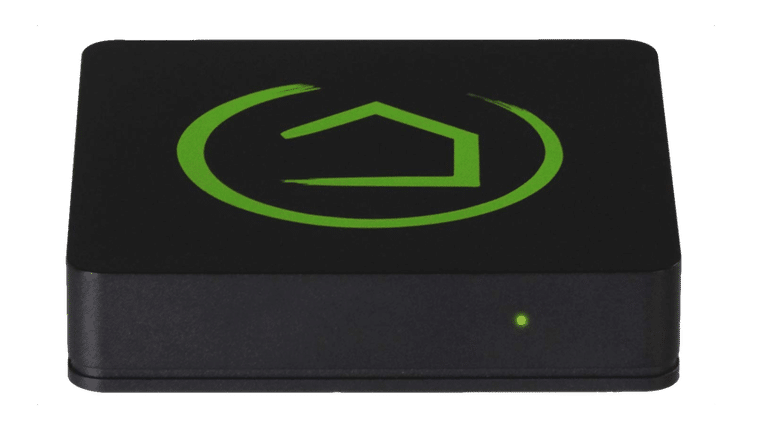
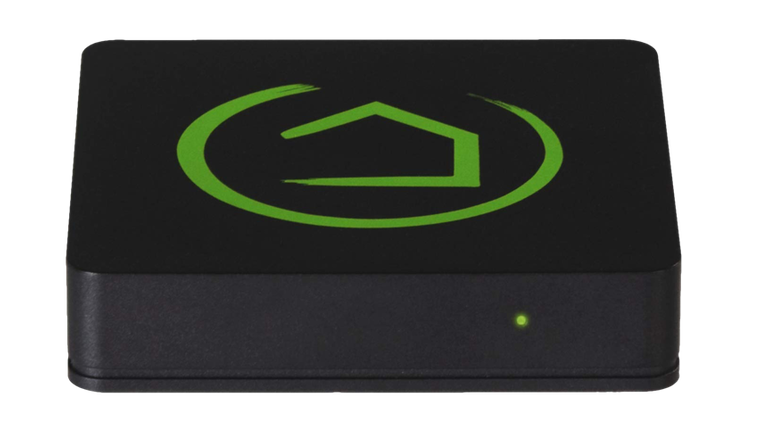
Name | Hubitat Elevation |
|---|
Short Description | Hubitat Elevation is a home automation hub for Z-Wave smart devices, featuring local processing that is reliable, fast, and private. |
|---|
Long Description | Hubitat is changing how people live with smart devices by enabling them to Elevate Their Environment.
By combining the advantages of local automation processing with cloud IoT connectivity, Hubitat's innovative Hubitat Elevation hub ensures personal data privacy and is more reliable and responsive than competitive cloud-based solutions. Hubitat Elevation is compatible with popular home automation devices, comes with a variety of built-in apps, and has an active user community to share ideas, insights and solutions. Remote monitoring and control is available with the Hubitat mobile app for iOS and Android. |
|---|
Brand | Hubitat |
|---|
Product Identifier | C-7 |
|---|
Product Line | Hub |
|---|
OEM Version | HW: 1 FW: 7.13:07.13:02.03 |
|---|
Hardware Platform | EFR32Z |
|---|
Z-Wave Version | 7.13.6 |
|---|
Library Type | CONTROLLER_BRIDGE |
|---|
Device Type | Gateway |
|---|
Role Type | ROLE_TYPE_CONTROLLER_CENTRAL_STATIC |
|---|
Manufacturer ID | 0x0399 |
|---|
Product Type ID | 0x0001 |
|---|
Product ID | 0x0001 |
|---|
User Icon | 0x0500 |
|---|
Installer Icon | 0x0500 |
|---|
Frequency Plans | US: 916.00MHz, 908.40MHz, EU: 869.85MHz, 868.40MHz, ANZ: 919.80MHz, 921.40MHz |
|---|
Categories | All Controllers, Gateway Controller |
|---|
Countries / Regions | Australia, United Arab Emirates, United States of America, European Union |
|---|
Supported Command Classes | Identifier | Name | Key | Version |
|---|
COMMAND_CLASS_NODE_PROVISIONING | Node Provisioning | 0x78 | 1 | COMMAND_CLASS_POWERLEVEL | Powerlevel | 0x73 | 1 | COMMAND_CLASS_INCLUSION_CONTROLLER | Inclusion Controller | 0x74 | 1 | COMMAND_CLASS_ASSOCIATION_V3 | Association V3 | | 0 | COMMAND_CLASS_MULTI_CHANNEL_ASSOCIATION_V4 | Multi-Channel Association V4 | | 0 | COMMAND_CLASS_INDICATOR_V3 | Indicator V3 | 0x87 | 3 | COMMAND_CLASS_TIME | Time | 0x8A | 1 | COMMAND_CLASS_CRC_16_ENCAP | CRC16 Encapsulation | 0x56 | 1 | COMMAND_CLASS_SECURITY | Security S0 | 0x98 | 1 | COMMAND_CLASS_TRANSPORT_SERVICE_V2 | Transport Service V2 | 0x55 | 2 | COMMAND_CLASS_DEVICE_RESET_LOCALLY | Device Reset Locally | 0x5A | 1 | COMMAND_CLASS_ZWAVEPLUS_INFO_V2 | Z-Wave Plus Info V2 | 0x5E | 2 | COMMAND_CLASS_FIRMWARE_UPDATE_MD_V5 | Firmware Update Meta-Data V5 | 0x7A | 5 | COMMAND_CLASS_ASSOCIATION_GRP_INFO_V3 | Association Group Information V3 | 0x59 | 3 | COMMAND_CLASS_NETWORK_MANAGEMENT_PROXY_V2 | Network Management Proxy V2 | 0x52 | 2 | COMMAND_CLASS_SECURITY_2 | Security S2 | 0x9F | 1 | COMMAND_CLASS_NETWORK_MANAGEMENT_BASIC_V2 | Network Management Basic V2 | 0x4D | 2 | COMMAND_CLASS_VERSION_V3 | Version V3 | 0x86 | 3 | COMMAND_CLASS_SUPERVISION | Supervision | 0x6C | 1 | COMMAND_CLASS_MANUFACTURER_SPECIFIC_V2 | Manufacturer Specific V2 | 0x72 | 2 | COMMAND_CLASS_MULTI_CMD | Multi-Command | 0x8F | 1 |
|
|---|
Controlled Command Classes | Identifier | Name | Key | Version |
|---|
COMMAND_CLASS_NODE_PROVISIONING | Node Provisioning | 0x78 | 1 | COMMAND_CLASS_POWERLEVEL | Powerlevel | 0x73 | 1 | COMMAND_CLASS_INCLUSION_CONTROLLER | Inclusion Controller | 0x74 | 1 | COMMAND_CLASS_ZIP_V4 | Z/IP V4 | | 0 | COMMAND_CLASS_ASSOCIATION_V3 | Association V3 | | 0 | COMMAND_CLASS_MULTI_CHANNEL_ASSOCIATION_V4 | Multi-Channel Association V4 | | 0 | COMMAND_CLASS_INDICATOR_V3 | Indicator V3 | 0x87 | 3 | COMMAND_CLASS_TIME | Time | 0x8A | 1 | COMMAND_CLASS_CRC_16_ENCAP | CRC16 Encapsulation | 0x56 | 1 | COMMAND_CLASS_SECURITY | Security S0 | 0x98 | 1 | COMMAND_CLASS_TRANSPORT_SERVICE_V2 | Transport Service V2 | 0x55 | 2 | COMMAND_CLASS_WAKE_UP_V2 | Wake Up V2 | 0x84 | 2 | COMMAND_CLASS_DEVICE_RESET_LOCALLY | Device Reset Locally | 0x5A | 1 | COMMAND_CLASS_ZWAVEPLUS_INFO_V2 | Z-Wave Plus Info V2 | 0x5E | 2 | COMMAND_CLASS_FIRMWARE_UPDATE_MD_V5 | Firmware Update Meta-Data V5 | 0x7A | 5 | COMMAND_CLASS_MULTI_CHANNEL_V4 | Multi-Channel V4 | 0x60 | 4 | COMMAND_CLASS_ASSOCIATION_GRP_INFO_V3 | Association Group Information V3 | 0x59 | 3 | COMMAND_CLASS_NETWORK_MANAGEMENT_INCLUSION_V3 | Network Management Inclusion V3 | 0x34 | 3 | COMMAND_CLASS_NOTIFICATION_V8 | Notification V8 | 0x71 | 8 | COMMAND_CLASS_BASIC_V2 | Basic V2 | 0x20 | 2 | COMMAND_CLASS_SECURITY_2 | Security S2 | 0x9F | 1 | COMMAND_CLASS_METER_V5 | Meter V5 | 0x32 | 5 | COMMAND_CLASS_SENSOR_MULTILEVEL_V11 | Sensor Multilevel V11 | 0x31 | 11 | COMMAND_CLASS_VERSION_V3 | Version V3 | 0x86 | 3 | COMMAND_CLASS_CENTRAL_SCENE_V3 | Central Scene V3 | 0x5B | 3 | COMMAND_CLASS_SUPERVISION | Supervision | 0x6C | 1 | COMMAND_CLASS_MANUFACTURER_SPECIFIC_V2 | Manufacturer Specific V2 | 0x72 | 2 | COMMAND_CLASS_MULTI_CMD | Multi-Command | 0x8F | 1 |
|
|---|
S2 Classes | S2_UNAUTHENTICATED, S2_AUTHENTICATED, S2_ACCESS_CONTROL |
|---|
Documents | Category | Description | File |
|---|
Manual_Primary_Lang | Product Manual | |
|
|---|
Features | |
|---|
Association Groups | Group Number | Maximum Nodes Supported | End Point ID | Group Name | Profile | Description |
|---|
1 | 1 | 1 | Lifeline | 0x0001 | Z-Wave Plus Lifeline |
|
|---|
Texts | ID | Description | Value |
|---|
24 | Controller Classic Exclusion | 1. Choose the Z-Wave Details button from your Hubitat Web Interface home page, or from the kabob menu at the top right.
2. Select the Z-Wave Exclude button.
3. Press the Start Z-Wave Exclusion button.
4. Hubitat Elevation will enter Z-Wave Exclude mode for 30 seconds. A green banner at the top of the page will indicate that exclusion mode has been initiated.
5. Place your device into Z-Wave Exclusion mode.
6. Upon successful exclusion, the Hubitat Elevation hub will display the message “Unknown Z-Wave device successfully excluded”. | 3 | Controller Learn Mode | 1. Start by enabling Z-Wave Inclusion to add devices to the network of the Z-Wave primary controller.
2. Using the Hubitat Elevation mobile app, navigate to Settings and press the Z-Wave Options button.
3. Tap the Learn Mode button, then Start Learn Mode.
4. The primary controller should indicate a device has joined its Z-Wave network.
5. When successfully added, network information from the primary controller will be replicated on the Hubitat Elevation hub. | 8 | Where to find S2 DSK on product | The DSK is available in the Hubitat Mobile app. | 11 | Controller SmartStart Inclusion | 1. Using the Hubitat Elevation mobile app, navigate to Settings and press the Z-Wave Options button.
2. Tap the SmartStart button.
3. Tap the + icon.
4. Scan the device QR code.
5. Pull the battery tab, or remove and replace the device battery to initiate automatic joining to the Hubitat Elevation hub. Within 10 minutes, the device will be automatically added to the hub. | 23 | Controller Classic Inclusion | 1. Choose the Discover Devices button on your Hubitat Web Interface home page, or from the kabob menu at the top right.
2. Select the Z-Wave button.
3. Press the Start Z-Wave Inclusion button.
4. Place your device into Z-Wave Inclusion mode. | 10 | Controller Replication | 1. Choose the Discover Devices button on your Hubitat Web Interface home page, or from the kabob menu at the top right.
2. Select the Z-Wave button.
3. Press the Start Z-Wave Inclusion button.
4. Enable Learn Mode on the hub that will be the Z-Wave secondary controller.
5. When successfully added, network information from the Hubitat Elevation hub will be replicated on the secondary controller. | 5 | Factory Reset Procedure | 1. Navigate to http://[Your hub IP address]:8081 (i.e. http://192.168.1.10:8081)
2. Select the Full Reset button.
3. Type the words "full reset" into the box just above the Full Reset button, then press the Full Reset button.
4. After the Full Reset, the hub will automatically shutdown.
Warning!
Resetting the Hubitat Elevation® hub to factory default values will delete all installed device connections, apps and user code from the hub. All devices connected to your hub will have to be reset or excluded before they can be re- connected. If this controller is the primary Z-Wave controller for your network, resetting it will result in the nodes in your network being orphaned and it will be necessary after the reset to exclude and re-include all of the nodes in the network. If this controller is being used as a secondary Z-Wave controller in the network, use this procedure to reset this controller only in the event that
the network primary controller is missing or otherwise inoperable. | 9 | Capability Rediscovery | 1. Choose the Z-Wave Details button from your Hubitat Web Interface home page, or from the kabob menu at the top right.
2. If the device is marked FAILED in the Device ID column of the Radilo Details page, a Replace button will be available. Selecting this button will initiate Inclusion Mode so the user may add a new device or the previously joined device. It will be joined to the Hubitat Elevation® hub with the same nodeId as the failed device. | 25 | Controller Provisioning List | 1. Using the Hubitat Elevation mobile app, navigate to Settings and press the Z-Wave Options button.
2. Tap the SmartStart button.
3. Tap the + icon.
4. Scan the device QR code.
5. Continue adding additional S2 smartStart devices. Each device's unique Security Key (DSK) will be stored in the hub, but will not be included in the Z-Wave network until they are powered on. The Hubitat Elevation® app will indicate the device status in the Z-Wave network.
The device DSK is crossreferenced against the provisioning list and the device is included if authenticated. Within 10 minutes, the device will be automatically added to the hub.
6. Tap the trashcan icon to remove a device from the provisioning list. Removing an item from the SmartStart provisioning list does not remove it from the hub. You must also follow the manufacturer instructions to manually exclude the device or factory reset it, so it will no longer be part of the Z-Wave network.
Keeping devices in the provisioning list allows them to be factory reset or excluded, and they will automatically be included in the Z-Wave network again, as long as they have power.
NOTE: Any device that has been removed from the provisioning list, but has not been factory reset or excluded from the Z-Wave network, will be automatically included again if it has power, and it will repopulate the provisioning list showing the Included status. |
|
|---|
Supported / Controlled Meter Types | Meter Type | Rate Type | Description |
|---|
Electric meter | Import | Electric Meter Consumption | Electric meter | Export | Electric Meter Production | Gas meter | Import | Gas Meter Consumption | Gas meter | Export | Gas Meter Production | Water meter | Import | Water Meter Consumption | Water meter | Export | Water Meter Production | Heating meter | Import | Heating Meter Consumption | Heating meter | Export | Heating Meter Production | Cooling meter | Import | Cooling Meter Consumption | Cooling meter | Export | Cooling Meter Production |
|
|---|
Supports NWI | Yes |
|---|
Supports Explorer Frames | Yes |
|---|
Supports SmartStart | Yes |
|---|
Radio Range Z-Wave (m) | 40 |
|---|