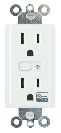
Product Recognition | |
|---|
Certification Number | ZC10-16125345 |
|---|
Name | In-Wall Smart Outlet |
|---|
Short Description | Transform any home into a smart home with the GE Z-Wave In-Wall Smart Outlet. |
|---|
Long Description | Transform any home into a smart home with the GE Z-Wave In-Wall Smart Outlet. The GE Z-Wave Smart Outlet enables wireless control of on/off functions from the Z-Wave controlled outlet, and is compatible with incandescent, LED, Xenon, Halogen, fluorescent and compact fluorescent bulbs. The duplex receptacle includes a blue LED indicator light to easily locate the receptacle in a dark room. The receptacle replaces your current electrical outlet, uses your existing wiring and provides a Z-Wave enabled outlet for the lamp or appliance that you would like to control and a standard pass-through AC outlet for other electrical appliances. The receptacle requires in-wall installation with hardwired connections. Take control of your home lighting with GE Z-Wave Smart Lighting Controls! |
|---|
Brand | GE |
|---|
Product Identifier | 14286/ZW1001 |
|---|
OEM Version | HW: 255 FW: 5.20 |
|---|
Hardware Platform | ZM5202 |
|---|
Z-Wave Version | 6.51.06 |
|---|
Library Type | SLAVE_ENHANCED_232 |
|---|
Device Type | On/Off Power Switch |
|---|
Role Type | ROLE_TYPE_SLAVE_ALWAYS_ON |
|---|
Manufacturer ID | 0x0063 |
|---|
Product Type ID | 0x4952 |
|---|
Product ID | 0x3035 |
|---|
User Icon | 0x0700 |
|---|
Installer Icon | 0x0700 |
|---|
Frequency Plans | US: 916.00MHz, 908.40MHz |
|---|
Categories | All Lighting Devices, On/Off Switches/Devices |
|---|
Countries / Regions | United States of America |
|---|
Supported Command Classes | Identifier | Name | Key | Version |
|---|
COMMAND_CLASS_SCENE_ACTUATOR_CONF | Scene Actuator Conf | 0x2C | 1 | COMMAND_CLASS_POWERLEVEL | Powerlevel | 0x73 | 1 | COMMAND_CLASS_SWITCH_ALL | Switch All | 0x27 | 1 | COMMAND_CLASS_SWITCH_BINARY | Switch Binary | 0x25 | 1 | COMMAND_CLASS_BASIC | Basic | 0x20 | 1 | COMMAND_CLASS_CONFIGURATION | Configuration | 0x70 | 1 | COMMAND_CLASS_CRC_16_ENCAP | CRC16 Encapsulation | 0x56 | 1 | COMMAND_CLASS_VERSION_V2 | Version V2 | 0x86 | 2 | COMMAND_CLASS_DEVICE_RESET_LOCALLY | Device Reset Locally | 0x5A | 1 | COMMAND_CLASS_ZWAVEPLUS_INFO_V2 | Z-Wave Plus Info V2 | 0x5E | 2 | COMMAND_CLASS_ASSOCIATION_V2 | Association V2 | 0x85 | 2 | COMMAND_CLASS_ASSOCIATION_GRP_INFO | Association Group Info | 0x59 | 1 | COMMAND_CLASS_MANUFACTURER_SPECIFIC | Manufacturer Specific | 0x72 | 1 | COMMAND_CLASS_SCENE_ACTIVATION | Scene Activation | 0x2B | 1 | COMMAND_CLASS_FIRMWARE_UPDATE_MD_V2 | Firmware Update Meta-Data V2 | 0x7A | 2 |
|
|---|
Controlled Command Classes | Identifier | Name | Key | Version |
|---|
COMMAND_CLASS_BASIC | Basic | 0x20 | 1 |
|
|---|
Documents | Category | Description | File |
|---|
Manual_Primary_Lang | Product or Owner's Manual | |
|
|---|
Association Groups | Group Number | Maximum Nodes Supported | End Point ID | Description |
|---|
1 | 5 | 0 | Z-Wave Plus Lifeline, Binary Switch Report | 2 | 5 | 0 | Supports Basic Set and is controlled with the local load | 3 | 5 | 0 | Supports Basic Set and is controlled by pressing the on or off button |
|
|---|
Configuration Parameters | Parameter Number | Name | Description | Format | Size | Min Value | Max Value | Default Value | Parameter Values |
|---|
3 | LED Light | 0 Default 1 LED light on when Z‐Wave turned on 2 LED always off | 0 | 1 | 0 | 0 | 1 | From | To | Description |
|---|
0 | 0 | Default | 1 | 1 | LED light on when Z-Wave turned on | 2 | 2 | LED always off |
|
|
|---|
Texts | ID | Description | Value |
|---|
1 | Inclusion | 1. Follow the instructions for your Z-Wave certified
controller to add a device to the Z-Wave network.
2. Once the controller is ready to add your device, press and
release the Program Button to add it in the network. | 2 | Exclusion | 1. Follow the instructions for your Z-Wave certified controller to
remove a device from the Z-Wave network.
2. Once the controller is ready to remove your device, press and
release the manual/program button on the smart dimmer to
remove it from the network. | 5 | Factory Reset | 1. Press and hold the button for at least 3 seconds. The LED light
will blink 5 times to confirm.
NOTE: This should only be used in the event your network’s primary
controller is missing or otherwise inoperable. |
|
|---|
Supports NWI | Yes |
|---|
Supports Explorer Frames | Yes |
|---|
Radio Range Z-Wave (m) | 40 |
|---|