
Product Recognition | |
|---|---|
Certification Number | ZC10-15060021 |
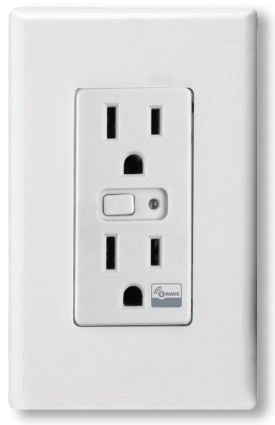
Name | In-Wall Smart Outlet |
Short Description | Transform any home into a smart home with the GE Z-Wave Smart Lighting Control Smart Outlet. |
Long Description | Transform any home into a smart home with the GE Z-Wave Smart Lighting Control Smart Outlet. The GE Z-Wave Smart Outlet enables wireless control of on/off functions from the Z-Wave controlled outlet, and is compatible with incandescent, LED, Xenon, Halogen, fluorescent and compact fluorescent bulbs. The duplex receptacle includes a blue LED indicator light to easily locate the receptacle in a dark room. The receptacle replaces your current electrical outlet, uses your existing wiring and provides a Z-Wave enabled outlet for the lamp or appliance that you would like to control and a standard pass-through AC outlet for other electrical appliances. The receptacle requires in-wall installation with hardwired connections. Take control of your home lighting with GE Z-Wave Smart Lighting Controls!
Z-Wave is the world’s largest ecosystem of interoperable smart home products. Z-Wave lighting controls provide an easy-to-install and affordable system to control lighting and small appliances in your home. Add GE Z-Wave lighting controls to a Z-Wave certified gateway to access and control your home from anywhere in the world using your smartphone, tablet or computer as a home automation command center. Never worry if you accidentally left the lights on because you can turn them off remotely or program your lights to go on/off at specific times. Create customized lighting scenes for any occasion such as a “go to sleep” scene or a “movie night” scene. Give the illusion that someone is home by programming the lights to turn on/off while you are away—perfect for deterring crime and adding additional security! |
Brand | Jasco Products Company |
Product Identifier | 14313/ZW1001 |
OEM Version | HW: 255 |
Hardware Platform | ZM5202 |
Z-Wave Version | 6.51.06 |
Library Type | SLAVE_ENHANCED_232 |
Device Type | On/Off Power Switch |
Role Type | ROLE_TYPE_SLAVE_ALWAYS_ON |
Manufacturer ID | 0x0063 |
Product Type ID | 0x4952 |
Product ID | 0x3039 |
Frequency Plans | US: 916.00MHz, 908.40MHz |
Categories | All Lighting Devices, On/Off Switches/Devices |
Countries / Regions | United States of America |
Documents | |
Association Groups | |
Configuration Parameters | |
Texts | |
Supports NWI | Yes |
Supports Explorer Frames | Yes |
Radio Range Z-Wave (m) | 40 |