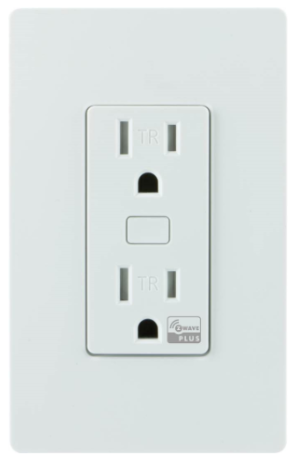
Product Recognition | |
|---|
Certification Number | ZC10-20046903 |
|---|
Name | In-Wall Tamper Resistant Outlet |
|---|
Short Description | Transform any home into a smart home with the Resideo Z-Wave Tamper Resistant Outlet. |
|---|
Long Description | Transform any home into a smart home with the Resideo Z-Wave Tamper Resistant Outlet. The Tamper Resistant Outlet enables wireless control of on/off functions from the Z-Wave controlled outlet, and is compatible with incandescent, LED, Xenon, Halogen, fluorescent and compact fluorescent bulbs. The tamper resistant duplex receptacle includes a blue LED indicator light to easily locate the receptacle in a dark room. The receptacle replaces your current electrical outlet, uses your existing wiring and provides a Z-Wave enabled outlet for the lamp or appliance that you would like to control and a standard pass-through AC outlet for other electrical appliances. Take control of your home lighting with Resideo Z-Wave Smart Controls! |
|---|
Brand | Resideo |
|---|
Product Identifier | 39456 / ZW1002 |
|---|
Product Line | Smart Control |
|---|
OEM Version | HW: 255 FW: 5.25 |
|---|
Hardware Platform | ZM5202 |
|---|
Z-Wave Version | 6.51.09 |
|---|
Library Type | SLAVE_ENHANCED_232 |
|---|
Device Type | On/Off Power Switch |
|---|
Role Type | ROLE_TYPE_SLAVE_ALWAYS_ON |
|---|
Manufacturer ID | 0x041B |
|---|
Product Type ID | 0x4952 |
|---|
Product ID | 0x3133 |
|---|
User Icon | 0x0700 |
|---|
Installer Icon | 0x0700 |
|---|
Frequency Plans | US: 916.00MHz, 908.40MHz |
|---|
Categories | All Lighting Devices, On/Off Switches/Devices |
|---|
Countries / Regions | United States of America |
|---|
Supported Command Classes | Identifier | Name | Key | Version |
|---|
COMMAND_CLASS_SCENE_ACTUATOR_CONF | Scene Actuator Conf | 0x2C | 1 | COMMAND_CLASS_POWERLEVEL | Powerlevel | 0x73 | 1 | COMMAND_CLASS_SWITCH_ALL | Switch All | 0x27 | 1 | COMMAND_CLASS_SWITCH_BINARY | Switch Binary | 0x25 | 1 | COMMAND_CLASS_BASIC | Basic | 0x20 | 1 | COMMAND_CLASS_CONFIGURATION | Configuration | 0x70 | 1 | COMMAND_CLASS_CRC_16_ENCAP | CRC16 Encapsulation | 0x56 | 1 | COMMAND_CLASS_VERSION_V2 | Version V2 | 0x86 | 2 | COMMAND_CLASS_DEVICE_RESET_LOCALLY | Device Reset Locally | 0x5A | 1 | COMMAND_CLASS_ZWAVEPLUS_INFO_V2 | Z-Wave Plus Info V2 | 0x5E | 2 | COMMAND_CLASS_ASSOCIATION_V2 | Association V2 | 0x85 | 2 | COMMAND_CLASS_ASSOCIATION_GRP_INFO | Association Group Info | 0x59 | 1 | COMMAND_CLASS_SCENE_ACTIVATION | Scene Activation | 0x2B | 1 | COMMAND_CLASS_FIRMWARE_UPDATE_MD_V2 | Firmware Update Meta-Data V2 | 0x7A | 2 | COMMAND_CLASS_MANUFACTURER_SPECIFIC_V2 | Manufacturer Specific V2 | 0x72 | 2 |
|
|---|
Controlled Command Classes | Identifier | Name | Key | Version |
|---|
COMMAND_CLASS_BASIC | Basic | 0x20 | 1 |
|
|---|
Documents | Category | Description | File |
|---|
Manual_Primary_Lang | Product Manual | |
|
|---|
Features | Feature | Values |
|---|
Firmware Updatable | Value |
|---|
Updatable by Consumer by RF |
|
|
|---|
Association Groups | Group Number | Maximum Nodes Supported | End Point ID | Group Name | Description |
|---|
2 | 5 | 0 | Single Press | Association Group 2 supports Basic Set and is controlled by single pressing the button. | 3 | 5 | 0 | Double Press | Association Group 3 supports Basic Set and is controlled by double pressing the button. | 1 | 5 | 0 | Lifeline | Supports Device Reset Locally and receives unsolicited status updates. |
|
|---|
Configuration Parameters | Parameter Number | Name | Description | Format | Size | Min Value | Max Value | Default Value | Parameter Values |
|---|
3 | Parameter 3 | Invert/Disable LED (Adjusts when the indicator LED is turned ON, OFF, or disabled) | 1 | 1 | 0 | 2 | 1 | From | To | Description |
|---|
0 | 0 | LED ON/Device OFF | 1 | 1 | LED ON/Device ON | 2 | 2 | Disable LED |
|
|
|---|
Texts | ID | Description | Value |
|---|
1 | Classic Inclusion | CONNECTING YOUR DEVICE TO A Z-WAVE NETWORK
1. Follow the instructions for your Z-Wave certified controller to add a
device to the Z-Wave network.
2. Once the controller is ready to add your device, press and release the
program button. Repeat as necessary to add the smart outlet to
the network.
You have complete control | 2 | Classic Exclusion | REMOVING AND RESETTING THE DEVICE
1. Follow the instructions for your Z-Wave certified controller to remove a
device from the Z-Wave network.
2. Once the controller is ready to remove your device, press and release the
manual/program button. | 5 | Factory Reset Procedure | RETURNING SWITCH TO FACTORY DEFAULTS
Quickly press the button three times. Then, press the button for at least three
seconds. The LED will blink five times to confirm.
Note: This should only be used in the event your network’s primary controller
is missing or otherwise inoperable. |
|
|---|
Supports NWI | Yes |
|---|
Supports Explorer Frames | Yes |
|---|
Radio Range Z-Wave (m) | 40 |
|---|