Product Recognition | |
|---|
Certification Number | ZC10-18086208 |
|---|
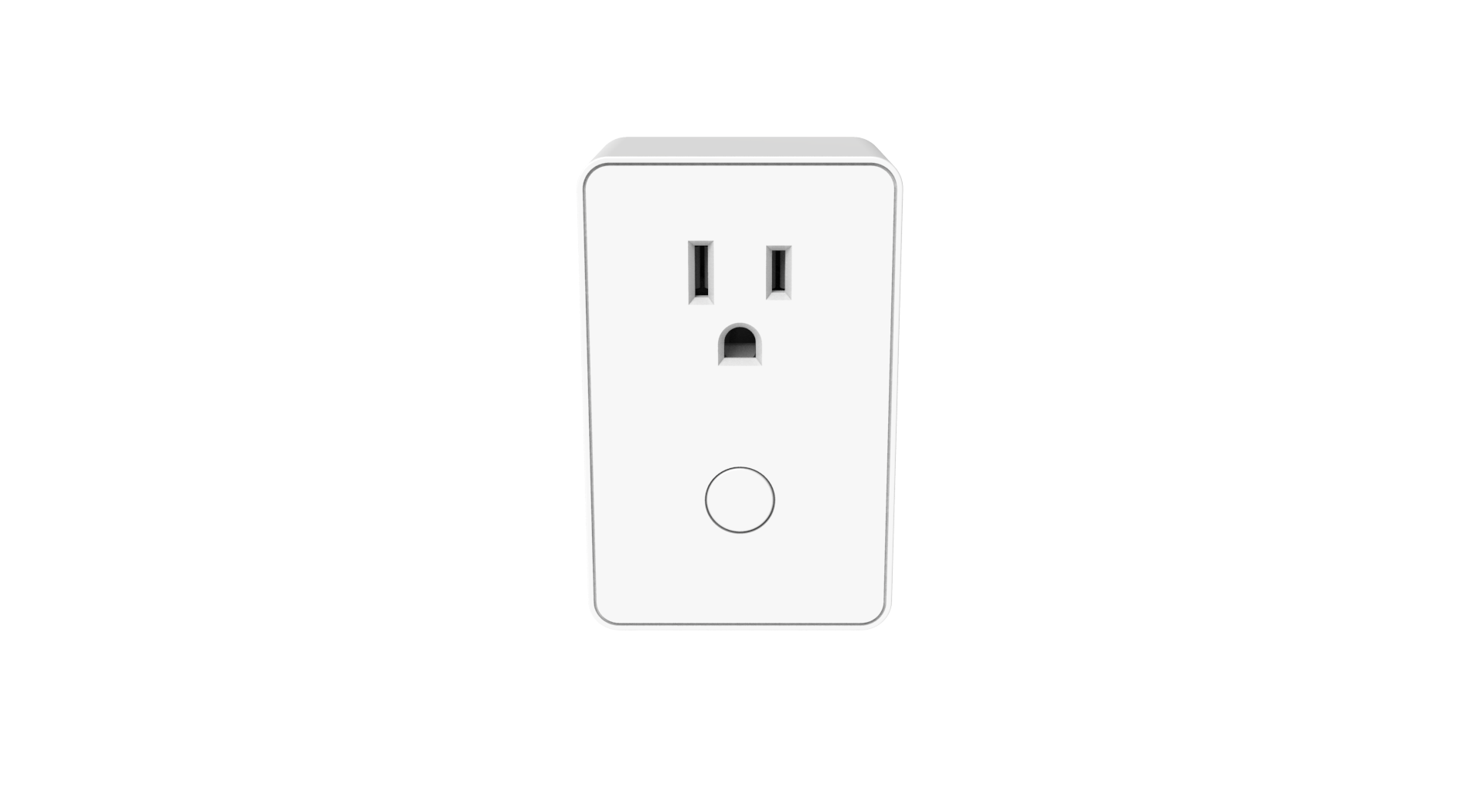
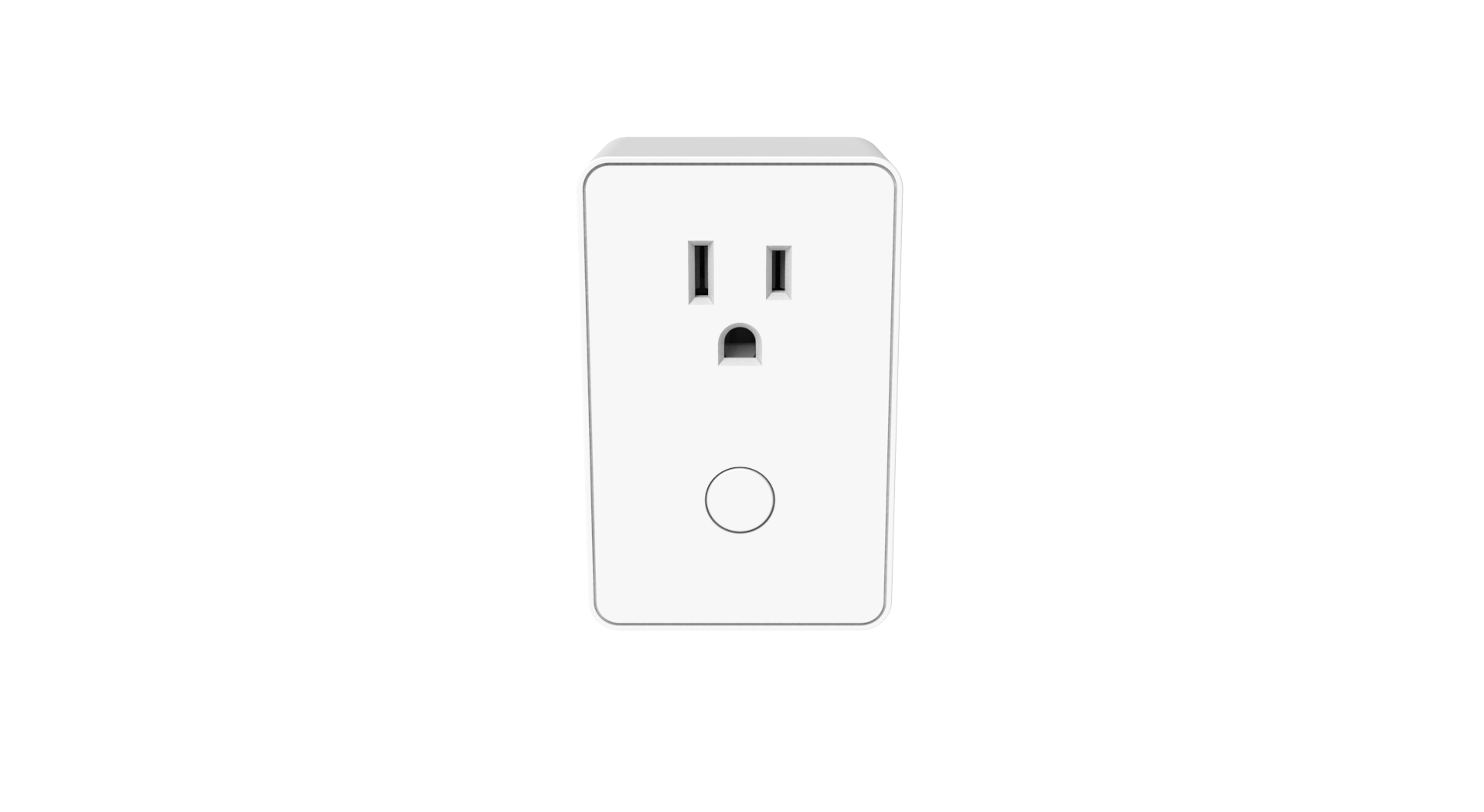
Name | IQ Outlet Plug-In On/Off Switch |
|---|
Short Description | Qolsys' IQ Outlet is a Z-Wave plug-In switch which can be used to turn On or Off lamps or AC operated appliances. |
|---|
Long Description | Qolsys' IQ Outlet is a Z-Wave Plus certified device with S2 security and SmartStart. The IQ Outlet can be used to turn On or Off lamps or AC operated appliances. Each Z-Wave device also serves as a node to repeat the signal in the network, thus, extending the overall Z-Wave mesh wireless network range.
Additional Features:
• Works with incandescent, CFL & LED lights & appliances
• Plugs into Standard AC outlet
• Remotely or manually turns ON or OFF lights
• LED backlit On/Off button
• Control lights or appliances via schedule or remotely
• Second wall AC outlet remains free
• Works with any gateway supporting Z-Wave |
|---|
Brand | Qolsys Inc. |
|---|
Product Identifier | QZ2130-840 |
|---|
OEM Version | HW: 255 FW: 50.03 |
|---|
Hardware Platform | ZM5202 |
|---|
Z-Wave Version | 6.81.00 |
|---|
Library Type | SLAVE_ENHANCED_232 |
|---|
Device Type | On/Off Power Switch |
|---|
Role Type | ROLE_TYPE_SLAVE_ALWAYS_ON |
|---|
Manufacturer ID | 0x012A |
|---|
Product Type ID | 0x4447 |
|---|
Product ID | 0x3031 |
|---|
User Icon | 0x0700 |
|---|
Installer Icon | 0x0700 |
|---|
Frequency Plans | US: 916.00MHz, 908.40MHz |
|---|
Categories | All Lighting Devices, On/Off Switches/Devices |
|---|
Countries / Regions | United States of America |
|---|
Supported Command Classes | Identifier | Name | Key | Version |
|---|
COMMAND_CLASS_FIRMWARE_UPDATE_MD_V4 | Firmware Update Meta-Data V4 | 0x7A | 4 | COMMAND_CLASS_SCENE_ACTUATOR_CONF | Scene Actuator Conf | 0x2C | 1 | COMMAND_CLASS_POWERLEVEL | Powerlevel | 0x73 | 1 | COMMAND_CLASS_SWITCH_BINARY | Switch Binary | 0x25 | 1 | COMMAND_CLASS_BASIC | Basic | 0x20 | 1 | COMMAND_CLASS_TRANSPORT_SERVICE_V2 | Transport Service V2 | 0x55 | 2 | COMMAND_CLASS_DEVICE_RESET_LOCALLY | Device Reset Locally | 0x5A | 1 | COMMAND_CLASS_ZWAVEPLUS_INFO_V2 | Z-Wave Plus Info V2 | 0x5E | 2 | COMMAND_CLASS_ASSOCIATION_V2 | Association V2 | 0x85 | 2 | COMMAND_CLASS_ASSOCIATION_GRP_INFO | Association Group Info | 0x59 | 1 | COMMAND_CLASS_CONFIGURATION_V3 | Configuration V3 | 0x70 | 3 | COMMAND_CLASS_SECURITY_2 | Security S2 | 0x9F | 1 | COMMAND_CLASS_VERSION_V3 | Version V3 | 0x86 | 3 | COMMAND_CLASS_SUPERVISION | Supervision | 0x6C | 1 | COMMAND_CLASS_SCENE_ACTIVATION | Scene Activation | 0x2B | 1 | COMMAND_CLASS_MANUFACTURER_SPECIFIC_V2 | Manufacturer Specific V2 | 0x72 | 2 |
|
|---|
Controlled Command Classes | Identifier | Name | Key | Version |
|---|
COMMAND_CLASS_SUPERVISION | Supervision | 0x6C | 1 |
|
|---|
S2 Classes | S2_UNAUTHENTICATED, S2_AUTHENTICATED |
|---|
Documents | Category | Description | File |
|---|
Manual_Primary_Lang | Product or Owner's Manual | |
|
|---|
Features | Feature | Values |
|---|
Outdoor Use | | Switch Type | Value |
|---|
Push Button Illuminated |
| Electric Load Type | Value |
|---|
Incandescent | Fluorescent | LED |
| Firmware Updatable | Value |
|---|
Updatable by Consumer by RF |
| Switch Load Capacity Current | | Switch Load Capacity Volt-Ampere | | Switch Load Capacity Watts | Value |
|---|
1800W resistive load |
| Color | |
|
|---|
Association Groups | Group Number | Maximum Nodes Supported | End Point ID | Description |
|---|
1 | 1 | 0 | 1. Z-Wave Plus Lifeline
2. Device Reset Locally Notification |
|
|---|
Configuration Parameters | Parameter Number | Name | Description | Format | Size | Min Value | Max Value | Default Value | Parameter Values |
|---|
3 | Night Light | The LED indicator will be OFF when the connected light is ON and vice versa. When value =0 the LED indicator will be OFF when the the connected light is ON, and the LED will be ON when the connected light is OFF. If value =1 the LED indicator will be ON when the connected light is ON, and the LED indicator will be OFF when the connected light is OFF. If value =2 the LED indicator will always be OFF regardless of the load status | 0 | 1 | 0 | 0 | 0 | From | To | Description |
|---|
0 | 2 | When value =0 the LED indicator will be OFF when the the connected light is ON, and the LED will be ON when the connected light is OFF. If value =1 the LED indicator will be ON when the connected light is ON, and the LED indicator will be OFF when the connected light is OFF. If value =2 the LED indicator will always be OFF regardless of the load status |
|
|
|---|
Texts | ID | Description | Value |
|---|
5 | Factory Reset | 1. Unplug the IQ Outlet from the AC outlet and also unplug the power plugs of the lighting from the module (if plugged in)
2. Press and hold the button on the IQ Outlet
3. Plug the IQ Outlet back into the AC outlet with the button pressed
After 3 seconds, release the button. If you see the button blink, that means that IQ Outlet has been reset successfully.
Please use this procedure only when the network primary controller is missing or otherwise inoperable. | 6 | Additional Special Features | The QR code label with DSK can be found on the bottom of the device | 2 | Exclusion | Exclusion: Remove the device into your network by a Z-Wave certified controller. The IQ Outlet supports the latest S2 security and SmartStart offered by Z-Wave certified controllers. If your controller supports S2 or SmartStart, please refer to the user guide of the controller for detailed instructions on removing devices to the network. In addition, the device can be removed using the traditional method for Z-Wave as follows:
1. Place your network controller into Exclusion mode by following the controller manufacturer's instructions.
2. When the controller is ready, single click the button on the front of the IQ Outlet. The controller should indicate that the new device was removed successfully.
If the controller shows it failed, repeat the procedure. | 1 | Inclusion | Inclusion: Add the device into your network by a Z-Wave certified controller. The IQ Outlet supports the latest S2 security and SmartStart offered by Z-Wave certified controllers. If your controller supports S2 or SmartStart, please refer to the user guide of the controller for detailed instructions on adding devices to the network. You should be able to add the IQ Outlet into your network using the unique QR code or the DSK 5 digit pin located on the product or packaging. In addition, the device can be added using the traditional method for Z-Wave as follows:
1. Place your network controller into inclusion mode by following the controller manufacturer's instructions.
2. When the controller is ready, single click the button on the front of the IQ Outlet. The controller should indicate that the new device was added successfully.
3. Once the IQ Outlet has been successfully added to your home network, you can move it to the preferred location in the home.
If the controller shows it failed, repeat the procedure. |
|
|---|
Supports NWI | Yes |
|---|
Supports Explorer Frames | Yes |
|---|
Supports SmartStart | Yes |
|---|
Radio Range Z-Wave (m) | 40 |
|---|