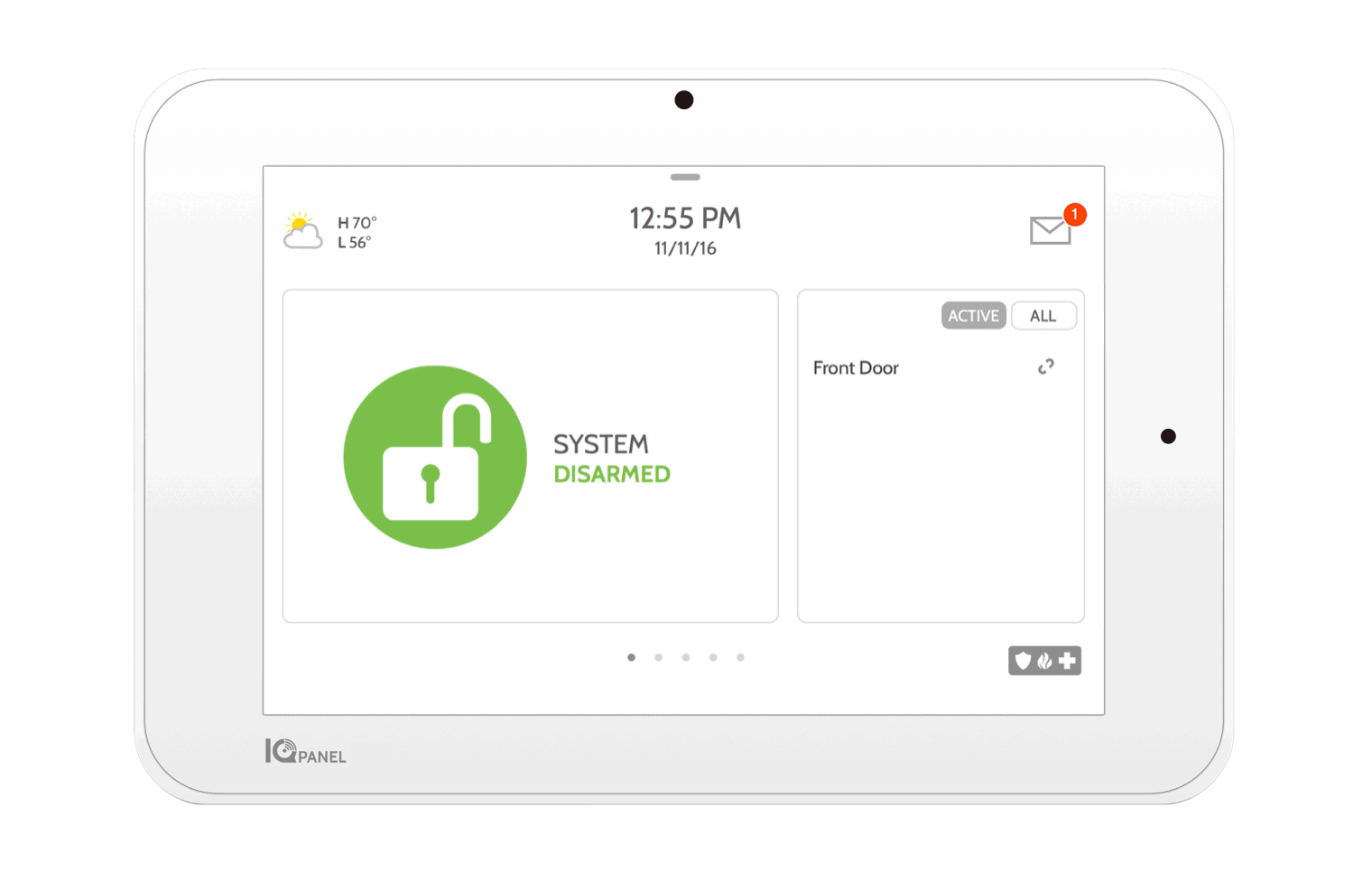
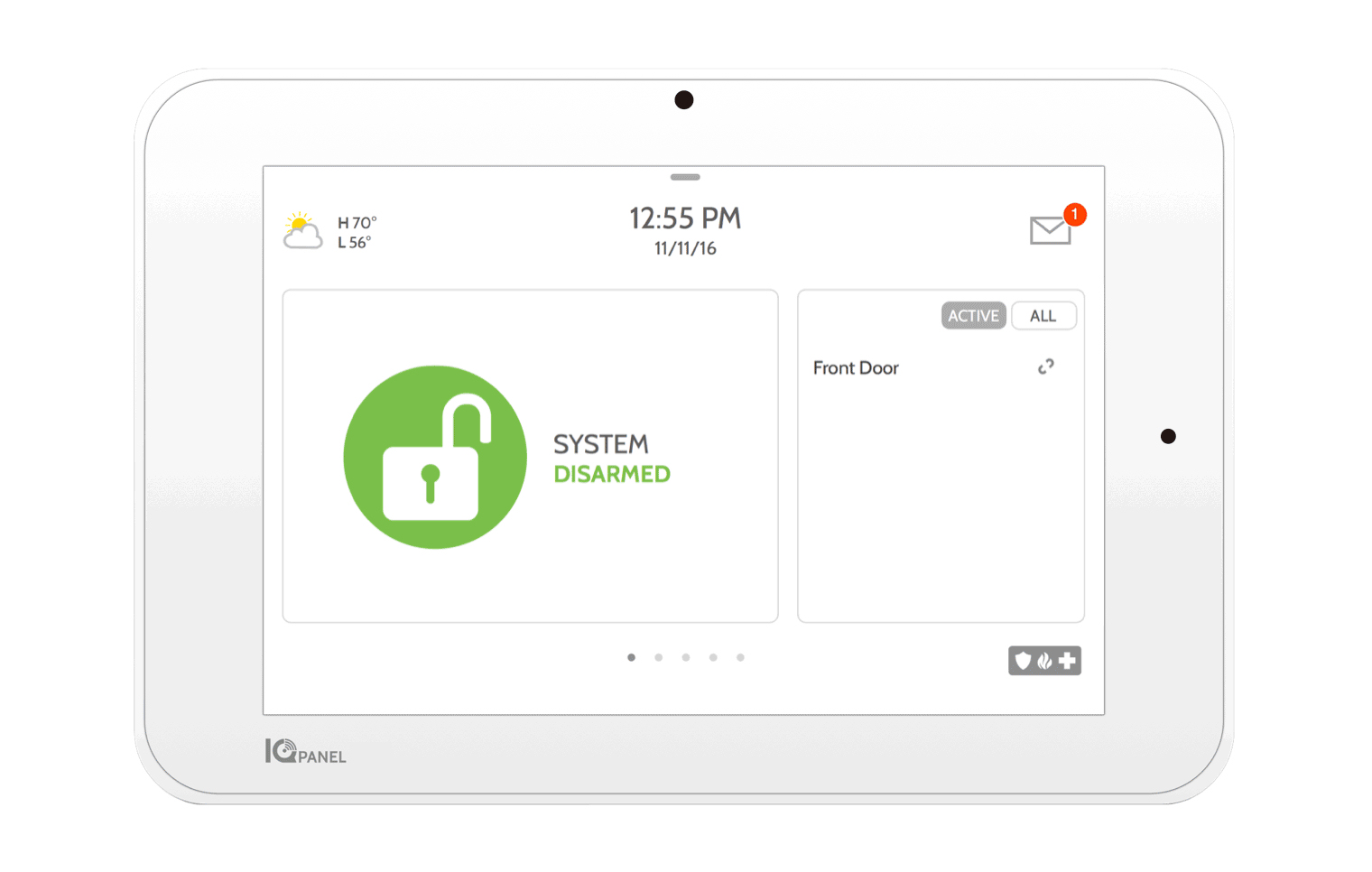
1 | Inclusion | Swipe down to access “Settings” < Touch “Advanced Settings” < Enter code < Touch “Installation” < Touch “Devices” < Touch “Z-Wave Devices” < Touch “Add Device” < Touch “Pair” < Press pair or learn button on device < Adjust device name as needed < Select “Automation” < Click “Add” to save |
2 | Exclusion | Swipe down to access “Settings” < Touch “Advanced Settings” < Enter code < Touch “Installation” < Touch “Devices” < Touch “Z-Wave Devices” < Touch “Delete failed device from panel” < Check boxes next to devices you want to delete < Touch “Delete” |
6 | Other Special Features | 7” HD Touchscreen
5MP Panel Camera sends disarm photos to your phone
Bluetooth Touchless Disarming
S-Line encrypted sensor technology with support for up to 128 security and life safety devices
LTE and Wi-Fi Dual Path Connectivity
Built-in Glassbreak
Built-in Router creates secure private network for IP devices
Z-Wave Plus Radio with support for up to 128 Z-Wave devices
Software updates over the air |
8 | Where to find S2 DSK on product | 1. On home menu, swipe down from the top of the screen. A pulldown menu should appear.
2. Press the SETTINGS icon.
3. Press the ADVANCED SETTINGS icon.
4. Enter in installer code.
5. Press the INSTALLATION icon.
6. Press the DEVICES icon.
7. Press the Z-WAVE DEVICES icon.
8. Press the ADD/REMOVE CONTROLLER icon. The IQ Panel 2+ DSK will now be displayed. If the icon isn’t present, the secondary controller functionalities needs to be enabled. Please refer to the “Enabling secondary controller functionalities” section. |
11 | Controller SmartStart Inclusion | 1. On home menu, swipe down from the top of the screen. A pulldown menu should appear.
2. Press the SETTINGS icon.
3. Press the ADVANCED SETTINGS icon.
4. Enter in installer code.
5. Press the INSTALLATION icon.
6. Press the DEVICES icon.
7. Press the Z-WAVE DEVICES icon.
8. Press the SMART START icon.
9. A QR code scanner will appear from the IQ Panel 2+’s camera. Scan in the QR code included on the Smart Start enabled device’s documentation, physical device and/or packaging.
10. Press the Add button. This adds the Smart Start enabled device into the Provision List.
11. Power on the Smart Start enabled device. The device will attempt to securely include the device in the background, and the IQ Panel 2+ UI will be updated to reflect changes once inclusion completes. |
23 | Controller Classic Inclusion | 1. On home menu, swipe down from the top of the screen. A pulldown menu should appear.
2. Press the SETTINGS icon.
3. Press the ADVANCED SETTINGS icon.
4. Enter in installer code.
5. Press the INSTALLATION icon.
6. Press the DEVICES icon.
7. Press the Z-WAVE DEVICES icon.
8. Press the ADD DEVICE icon.
9. Press the Include button to enter in the Inclusion-Mode.
10. Press the Z-Wave button on the product being added in the network.
11. IQ Panel 2+ will detect the product, and you will be shown a configuration screen for the product.
12. Press the Add Icon.
13. Repeat steps 10 through 13 for all the products being added in. |
24 | Controller Classic Exclusion | 1. On home menu, swipe down from the top of the screen. A pulldown menu should appear.
2. Press the SETTINGS icon.
3. Press the ADVANCED SETTINGS icon.
4. Enter in installer code.
5. Press the INSTALLATION icon.
6. Press the DEVICES icon.
7. Press the Z-WAVE DEVICES icon.
8. Press the CLEAR DEVICE Icon to begin Exclusion-Mode.
9. Press the Z-Wave button on the product being excluded.
10. Popup dialog should appear indicating a successful exclusion.
11. Repeats steps 9 thru 11 for each device being excluded. |
3 | Controller Learn Mode | 1. On home menu, swipe down from the top of the screen. A pulldown menu should appear.
2. Press the SETTINGS icon.
3. Press the ADVANCED SETTINGS icon.
4. Enter in installer code.
5. Press the INSTALLATION icon.
6. Press the DEVICES icon.
7. Press the Z-WAVE DEVICES icon.
8. Press the ADD/REMOVE CONTROLLER icon. The IQ Panel 2+ DSK will now be displayed. If the icon isn’t present, the secondary controller functionalities needs to be enabled. Please refer to the “Enabling secondary controller functionalities” section. |
10 | Controller Replication | - When IQ Panel 2+ includes a controller, network details are automatically shared with the included controller.
- Network relevant information are transferred from the main controller to the secondary controller. In order to initiate this process, start the Add Mode on the main controller and start the Learn Mode on the secondary controller to receive the updated information |
25 | Controller Provisioning List | 1. On home menu, swipe down from the top of the screen. A pulldown menu should appear.
2. Press the SETTINGS icon.
3. Press the ADVANCED SETTINGS icon.
4. Enter in installer code.
5. Press the INSTALLATION icon.
6. Press the DEVICES icon.
7. Press the Z-WAVE DEVICES icon.
8. Press the PROVISIONING LIST icon
9. Press either the Edit icon to edit or the Trash Bin icon to delete devices from the Provisioning List |
5 | Factory Reset Procedure | 1. On home menu, swipe down from the top of the screen. A pulldown menu should appear.
2. Press the SETTINGS icon.
3. Press the ADVANCED SETTINGS icon.
4. Enter in installer code.
5. Press the INSTALLATION icon.
6. Press the DEVICES icon.
7. Press the Z-WAVE DEVICES icon.
8. Press the REMOVE ALL DEVICES icon.
9. Press YES on the confirmation dialog to perform a reset. |