Product Recognition | |
|---|
Certification Number | ZC14-23020196 |
|---|
Name | IQ Panel 4 |
|---|
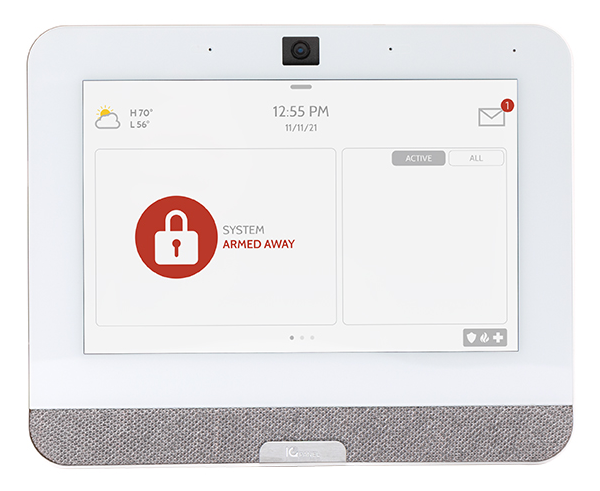
Short Description | IQ Panel 4 enjoys extensive integration with interactive services from Alarm.com to provide residential, multifamily, commercial, wellness, builder and support in a single panel and app. |
|---|
Long Description | The elegant, all-in-one 7-inch HD touchscreen has an upgraded 8-megapixel panel camera with Flex-Tilt to adjust camera angle for disarm photos, peek-in, and alarm videos. The new QuadSound speaker system allows music streaming over Bluetooth, and the SmartMount installation system provides easy wall or table stand mounting options, including the new IQ Base Table Stand Subwoofer. Dual SRF featuring PowerG provides long-range, secure encrypted wireless with compatibility for legacy security wireless already installed in the home or building. |
|---|
Brand | Qolsys |
|---|
Product Identifier | IQP4016 |
|---|
Product Line | Panels |
|---|
OEM Version | HW: 01 FW: 07.17:07.15 |
|---|
Hardware Platform | EFR32ZG23A |
|---|
Z-Wave Version | 7.17.2 |
|---|
Library Type | CONTROLLER_BRIDGE |
|---|
Device Type | Gateway DT |
|---|
Role Type | ROLE_TYPE_CONTROLLER_CENTRAL_STATIC |
|---|
Manufacturer ID | 0x012A |
|---|
Product Type ID | 0x0001 |
|---|
Product ID | 0x0006 |
|---|
User Icon | 0x0200 |
|---|
Installer Icon | 0x0200 |
|---|
Frequency Plans | US: 916.00MHz, 908.40MHz |
|---|
Categories | Gateway Controller, All Controllers, Security Systems |
|---|
Countries / Regions | Canada, United States of America |
|---|
Supported Command Classes | Identifier | Name | Key | Version |
|---|
COMMAND_CLASS_ASSOCIATION_V2 | Association V2 | 0x85 | 2 | COMMAND_CLASS_ASSOCIATION_GRP_INFO_V3 | Association Group Information (AGI) V3 | 0x59 | 3 | COMMAND_CLASS_DEVICE_RESET_LOCALLY | Device Reset Locally | 0x5A | 1 | COMMAND_CLASS_FIRMWARE_UPDATE_MD_V5 | Firmware Update Meta Data V5 | 0x7A | 5 | COMMAND_CLASS_INDICATOR_V3 | Indicator V3 | 0x87 | 3 | COMMAND_CLASS_MANUFACTURER_SPECIFIC_V2 | Manufacturer Specific V2 | 0x72 | 2 | COMMAND_CLASS_MULTI_CHANNEL_ASSOCIATION_V3 | Multi Channel Association V3 | 0x8E | 3 | COMMAND_CLASS_VERSION_V3 | Version V3 | 0x86 | 3 | COMMAND_CLASS_ZWAVEPLUS_INFO_V2 | Z-Wave Plus Info V2 | 0x5E | 2 | COMMAND_CLASS_SECURITY_2 | Security 2 | 0x9F | 1 | COMMAND_CLASS_SUPERVISION | Supervision | 0x6C | 1 | COMMAND_CLASS_TRANSPORT_SERVICE_V2 | Transport Service V2 | 0x55 | 2 | COMMAND_CLASS_POWERLEVEL | Powerlevel | 0x73 | 1 | COMMAND_CLASS_CRC_16_ENCAP | CRC-16 Encapsulation | 0x56 | 1 | COMMAND_CLASS_INCLUSION_CONTROLLER | Inclusion Controller | 0x74 | 1 | COMMAND_CLASS_MULTI_CMD | Multi Command | 0x8F | 1 | COMMAND_CLASS_SECURITY | Security 0 | 0x98 | 1 | COMMAND_CLASS_TIME | Time | 0x8A | 1 | COMMAND_CLASS_NODE_PROVISIONING | Node Provisioning | 0x78 | 1 | COMMAND_CLASS_APPLICATION_STATUS | Application Status | 0x22 | 1 | COMMAND_CLASS_NETWORK_MANAGEMENT_PROXY_V4 | Network Management Proxy V4 | 0x52 | 4 | COMMAND_CLASS_NETWORK_MANAGEMENT_BASIC_V2 | Network Management Basic Node V2 | 0x4D | 2 | COMMAND_CLASS_NETWORK_MANAGEMENT_INCLUSION_V4 | Network Management Inclusion V4 | 0x34 | 4 | COMMAND_CLASS_NETWORK_MANAGEMENT_INSTALLATION_MAINTENANCE_V4 | Network Management Installation and Maintenance V4 | 0x67 | 4 |
|
|---|
Controlled Command Classes | Identifier | Name | Key | Version |
|---|
COMMAND_CLASS_ASSOCIATION_V2 | Association V2 | 0x85 | 2 | COMMAND_CLASS_ASSOCIATION_GRP_INFO_V3 | Association Group Information (AGI) V3 | 0x59 | 3 | COMMAND_CLASS_FIRMWARE_UPDATE_MD_V5 | Firmware Update Meta Data V5 | 0x7A | 5 | COMMAND_CLASS_INDICATOR_V3 | Indicator V3 | 0x87 | 3 | COMMAND_CLASS_MANUFACTURER_SPECIFIC_V2 | Manufacturer Specific V2 | 0x72 | 2 | COMMAND_CLASS_MULTI_CHANNEL_ASSOCIATION_V3 | Multi Channel Association V3 | 0x8E | 3 | COMMAND_CLASS_VERSION_V3 | Version V3 | 0x86 | 3 | COMMAND_CLASS_SECURITY_2 | Security 2 | 0x9F | 1 | COMMAND_CLASS_CRC_16_ENCAP | CRC-16 Encapsulation | 0x56 | 1 | COMMAND_CLASS_SECURITY | Security 0 | 0x98 | 1 | COMMAND_CLASS_BASIC_V2 | Basic V2 | 0x20 | 2 | COMMAND_CLASS_CENTRAL_SCENE_V3 | Central Scene V3 | 0x5B | 3 | COMMAND_CLASS_METER_V5 | Meter V5 | 0x32 | 5 | COMMAND_CLASS_MULTI_CHANNEL_V4 | Multi Channel V4 | 0x60 | 4 | COMMAND_CLASS_SENSOR_MULTILEVEL_V11 | Multilevel Sensor V11 | 0x31 | 11 | COMMAND_CLASS_NOTIFICATION_V8 | Notification V8 | 0x71 | 8 | COMMAND_CLASS_WAKE_UP_V2 | Wake Up V2 | 0x84 | 2 | COMMAND_CLASS_BARRIER_OPERATOR | Barrier Operator | 0x66 | 1 | COMMAND_CLASS_DOOR_LOCK_V4 | Door Lock V4 | 0x62 | 4 | COMMAND_CLASS_SWITCH_MULTILEVEL_V4 | Multilevel Switch V4 | 0x26 | 4 | COMMAND_CLASS_THERMOSTAT_MODE_V3 | Thermostat Mode V3 | 0x40 | 3 | COMMAND_CLASS_THERMOSTAT_SETPOINT | Thermostat Setpoint | 0x43 | 1 | COMMAND_CLASS_SWITCH_BINARY_V2 | Binary Switch V2 | 0x25 | 2 |
|
|---|
S2 Classes | S2_ACCESS_CONTROL, S2_AUTHENTICATED, S2_UNAUTHENTICATED |
|---|
Documents | Category | File |
|---|
Adv_Manual | | Manual_English | | Installer_Guide | |
|
|---|
Features | Feature | Values |
|---|
Battery Type | | Firmware Updatable | Value |
|---|
Updatable by Professional/Technician |
|
|
|---|
Association Groups | Group Number | Maximum Nodes Supported | End Point ID | Group Name | Profile |
|---|
1 | 5 | 0 | Lifeline | 0x0001 |
|
|---|
Texts | ID | Description | Value |
|---|
8 | Where to find S2 DSK on product | Advanced Manual: Page 2 | 23 | Controller Classic Inclusion | Inclusion Mode: Add Z-Wave™ Devices to the Network
1. On home menu, swipe down from the top of the screen. A pulldown menu should appear.
2. Press the SETTINGS icon.
3. Press the ADVANCED SETTINGS icon.
4. Enter in installer code.
5. Press the INSTALLATION icon.
6. Press the DEVICES icon.
7. Press the Z-WAVE DEVICES icon.
8. Press the ADD DEVICE icon.
9. Press the Include button to enter in the Inclusion-Mode.
10. Press the Z-Wave button on the product being added in the network.
11. IQ Panel 4 will detect the product, and you will be shown a configuration screen for the product.
12. Press the Add Icon.
13. Repeat steps 10 through 12 for all the products being added in. | 24 | Controller Classic Exclusion | 1. On home menu, swipe down from the top of the screen. A pulldown menu should appear.
2. Press the SETTINGS icon.
3. Press the ADVANCED SETTINGS icon.
4. Enter in installer code.
5. Press the INSTALLATION icon.
6. Press the DEVICES icon.
7. Press the Z-WAVE DEVICES icon.
8. Press the CLEAR DEVICE Icon to begin Exclusion-Mode.
9. Press the Z-Wave button on the product being excluded.
10. Popup dialog should appear indicating a successful exclusion.
11. Repeats steps 9 thru 11 for each device being excluded. | 11 | Controller SmartStart Inclusion | SmartStart enabled devices can be securely included into the IQ Panel 4’s Z-Wave network by scanning the Z-Wave QR Code present on the product. No further action is required and the SmartStart product will be added automatically within 10 minutes of being switched on in the network vicinity.
1. On home menu, swipe down from the top of the screen. A pulldown menu should appear.
2. Press the SETTINGS icon.
3. Press the ADVANCED SETTINGS icon.
4. Enter in installer code.
5. Press the INSTALLATION icon.
6. Press the DEVICES icon.
7. Press the Z-WAVE DEVICES icon.
8. Press the SMARTSTART icon.
9. A QR code scanner will appear from the IQ Panel 4’s camera. Scan in the QR code included on the SmartStart enabled device’s documentation, physical device and/or packaging.
10. Press the Add button. This adds the SmartStart enabled device into the Provision List.
11. Power on the SmartStart enabled device. The device will attempt to securely include the device in the background, and the IQ Panel 4 UI will be updated to reflect changes once inclusion completes. | 25 | Controller Provisioning List | A user may edit and/or remove devices from the SmartStart Provisioning List
1. On home menu, swipe down from the top of the screen. A pulldown menu should appear.
2. Press the SETTINGS icon.
3. Press the ADVANCED SETTINGS icon.
4. Enter in installer code.
5. Press the INSTALLATION icon.
6. Press the DEVICES icon.
7. Press the Z-WAVE DEVICES icon.
8. Press the PROVISIONING LIST icon
9. Press either the Edit icon to edit or the Trash Bin icon to delete devices from the Provisioning List
Note: Devices that are already included into the Z-Wave network must be excluded to remove their Provisioning List entry. The exclusion process will delete the entry from the Provisioning List. | 3 | Controller Learn Mode | 1. On home menu, swipe down from the top of the screen. A pulldown menu should appear.
2. Press the SETTINGS icon.
3. Press the ADVANCED SETTINGS icon.
4. Enter in installer code.
5. Press the INSTALLATION icon.
6. Press the DEVICES icon.
7. Press the Z-WAVE DEVICES icon.
8. Press the ADD/REMOVE CONTROLLER icon. The IQ Panel 4 DSK will now be displayed. If the icon isn’t present, the secondary controller functionalities needs to be enabled. Please refer to the “Enabling Secondary Controller Functionalities” section.
9. Press the Include button on the other Z-Wave controller.
10. Popup dialog with “Operation Successful” should appear indicating a success. | 10 | Controller Replication | - When IQ Panel 4 includes a controller, network details are automatically shared with the included controller.
- Network relevant information is transferred from the main controller to the secondary controller. To initiate this process, start the Add Mode on the main controller and start the Learn Mode on the secondary controller to receive the updated information | 5 | Factory Reset Procedure | 1. On home menu, swipe down from the top of the screen. A pull-down menu should appear.
2. Press the SETTINGS icon.
3. Press the ADVANCED SETTINGS icon.
4. Enter in installer code.
5. Press the INSTALLATION icon.
6. Press the DEVICES icon.
7. Press the Z-WAVE DEVICES icon.
8. Press the REMOVE ALL DEVICES icon.
9. Press YES on the confirmation dialog to perform a reset. |
|
|---|
Supports NWI | Yes |
|---|
Supports Explorer Frames | Yes |
|---|
Supports SmartStart | Yes |
|---|
Radio Range Z-Wave (m) | 40 |
|---|