Product Recognition | |
|---|
Certification Number | ZC10-17065640 |
|---|
Name | IQPanel2 |
|---|
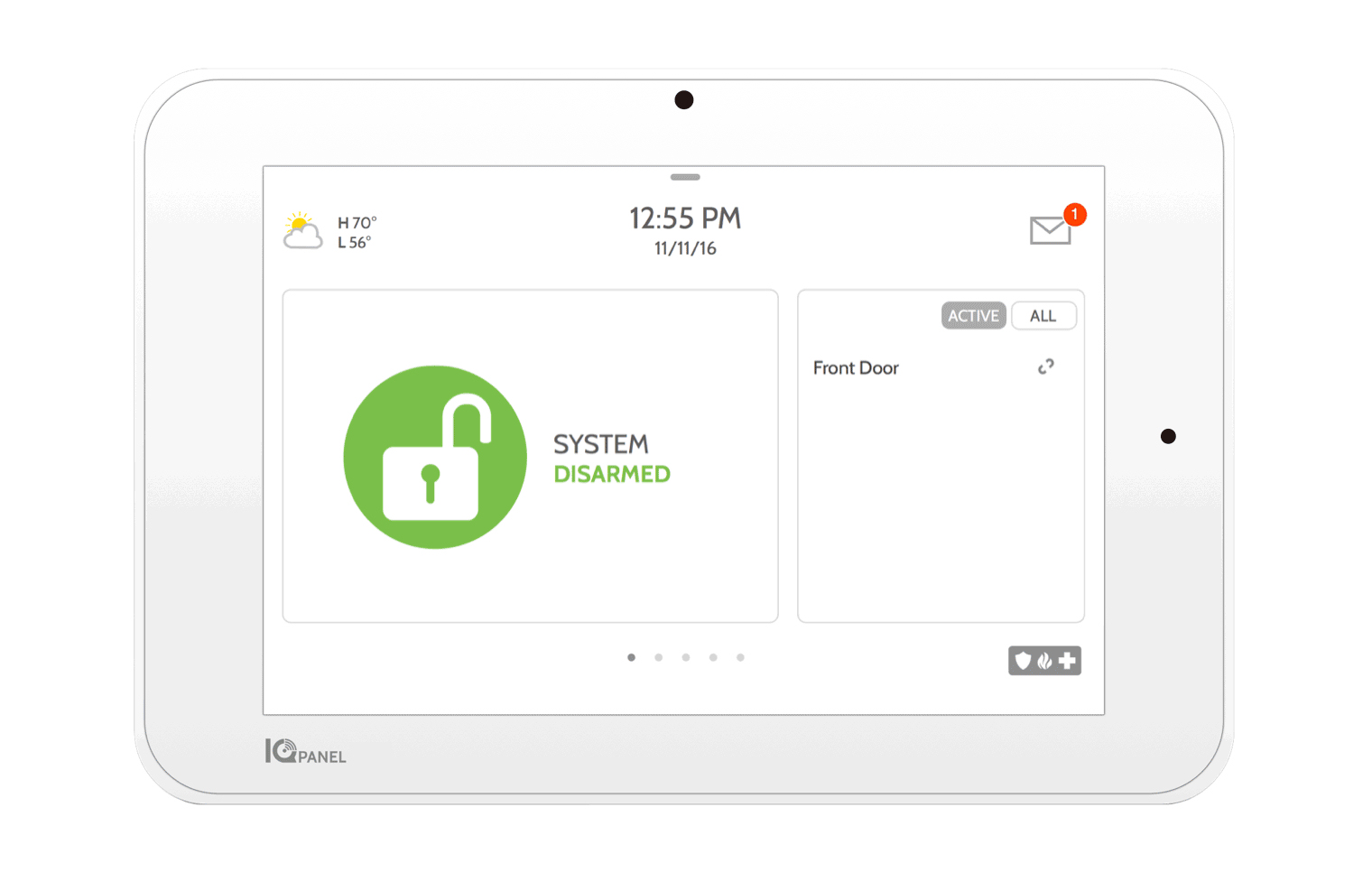
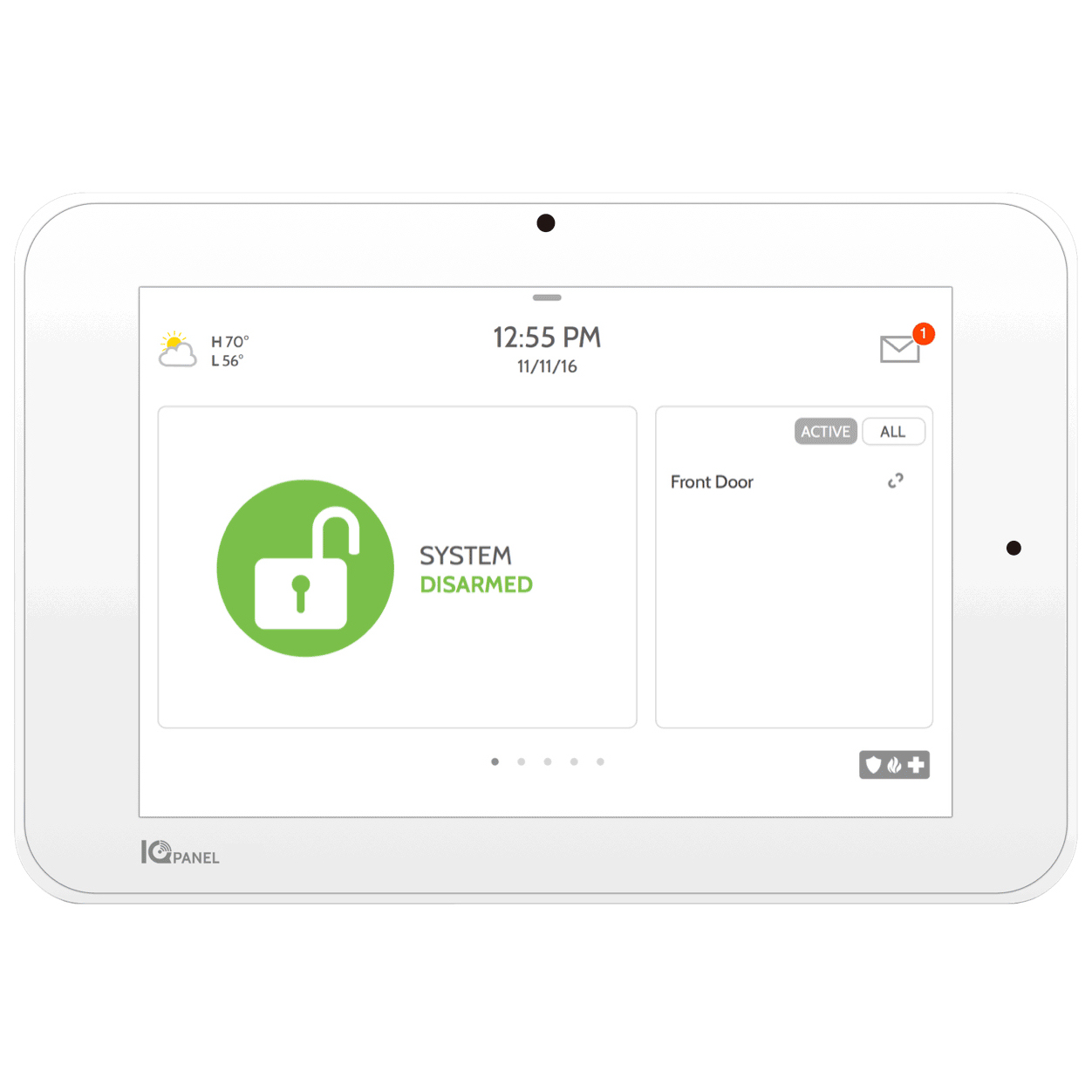
Short Description | The IQ Panel 2 is a 7” HD touchscreen designed for residential security, life safety and smart home control. It includes a built-in 5MP camera and multiple wireless radios including LTE, Wi-Fi ac, Z-Wave Plus, BLE and S-Line encrypted 319.5 radio. |
|---|
Long Description | The IQ Panel 2 is a 7” HD Touchscreen with built-in 5MP panel camera used for residential and small business security, life safety, and smarthome applications. Behind the ultra-thin bezel with intuitive swipe based user interface lie multiple wireless radios including LTE and WiFi dual-path connectivity, Bluetooth for touchless disarming, S-Line encrypted 319.5 for secure security and life safety communication and Z-Wave Plus for the fastest, most reliable smarthome automation experience possible. At only 7.5” wide by 5” tall and 1” deep the IQ Panel looks amazing on the wall and also includes a table stand for mounting on counters, tables or other surfaces. The IQ Panel leverages the powerful Alarm.com interactive service platform including the AirFX remote tool kit which provides full access to every setting and system function from the cloud, allowing you to retire the truck, reduce service requests, and improve the overall customer experience. Learn more at Qolsys.com. |
|---|
Brand | Qolsys Inc. |
|---|
Product Identifier | QS9201-1230-840 |
|---|
OEM Version | 1.4.18.2.0 |
|---|
Hardware Platform | ZM5202 |
|---|
Z-Wave Version | 6.51.07 |
|---|
Library Type | CONTROLLER_STATIC |
|---|
Device Type | Central Controller |
|---|
Role Type | ROLE_TYPE_CONTROLLER_CENTRAL_STATIC |
|---|
Manufacturer ID | 0x012A |
|---|
Product Type ID | 0x0001 |
|---|
Product ID | 0x0002 |
|---|
User Icon | 0x0100 |
|---|
Installer Icon | 0x0100 |
|---|
Frequency Plans | US: 916.00MHz, 908.40MHz |
|---|
Categories | Security Systems |
|---|
Countries / Regions | United States of America |
|---|
Controlled Command Classes | Identifier | Name | Key | Version |
|---|
COMMAND_CLASS_ASSOCIATION_GROUP_INFORMATION_V2 | Association Group Information V2 | 0x59 | 0 | COMMAND_CLASS_SENSOR_MULTILEVEL_V5 | Sensor Multilevel V5 | 0x31 | 5 | COMMAND_CLASS_DOOR_LOCK | Door Lock | 0x62 | 1 | COMMAND_CLASS_POWERLEVEL | Powerlevel | 0x73 | 1 | COMMAND_CLASS_THERMOSTAT_FAN_MODE | Thermostat Fan Mode | 0x44 | 1 | COMMAND_CLASS_ALARM_V2 | Alarm V2 | 0x71 | 2 | COMMAND_CLASS_MULTI_CHANNEL_ASSOCIATION_V3 | Multi-Channel Association V3 | 0x8E | 3 | COMMAND_CLASS_BATTERY | Battery | 0x80 | 1 | COMMAND_CLASS_SWITCH_BINARY | Switch Binary | 0x25 | 1 | COMMAND_CLASS_BASIC | Basic | 0x20 | 1 | COMMAND_CLASS_CRC_16_ENCAP | CRC16 Encapsulation | 0x56 | 1 | COMMAND_CLASS_SECURITY | Security S0 | 0x98 | 1 | COMMAND_CLASS_THERMOSTAT_MODE_V2 | Thermostat Mode V2 | 0x40 | 2 | COMMAND_CLASS_THERMOSTAT_SETPOINT_V2 | Thermostat Setpoint V2 | 0x43 | 2 | COMMAND_CLASS_VERSION_V2 | Version V2 | 0x86 | 2 | COMMAND_CLASS_WAKE_UP_V2 | Wake Up V2 | 0x84 | 2 | COMMAND_CLASS_DEVICE_RESET_LOCALLY | Device Reset Locally | 0x5A | 1 | COMMAND_CLASS_ZWAVEPLUS_INFO_V2 | Z-Wave Plus Info V2 | 0x5E | 2 | COMMAND_CLASS_SWITCH_MULTILEVEL_V3 | Switch Multilevel V3 | 0x26 | 3 | COMMAND_CLASS_ASSOCIATION_V2 | Association V2 | 0x85 | 2 | COMMAND_CLASS_METER_V3 | Meter V3 | 0x32 | 3 | COMMAND_CLASS_MULTI_CHANNEL_V4 | Multi-Channel V4 | 0x60 | 4 | COMMAND_CLASS_MANUFACTURER_SPECIFIC | Manufacturer Specific | 0x72 | 1 |
|
|---|
Documents | Category | Description | File |
|---|
Manual_Primary_Lang | Product or Owner's Manual | |
|
|---|
Features | Feature | Values |
|---|
Battery Type | | Communications Connections | Value |
|---|
Ethernet (Wireless/WiFi) | Bluetooth |
|
|
|---|
Association Groups | Group Number | Maximum Nodes Supported | End Point ID | Description |
|---|
1 | 5 | 0 | Z-Wave Plus Lifeline |
|
|---|
Texts | ID | Description | Value |
|---|
3 | Learn Mode (adding another controller) | Swipe down to access “Settings” < Touch “Advanced Settings” < Enter code < Touch “Installation” < Touch “Devices” < Touch “Z-Wave Devices” < Touch “Add/Remove Controller”
Please use this procedure only when the network primary controller is missing or otherwise inoperable. | 1 | Inclusion | Swipe down to access “Settings” < Touch “Advanced Settings” < Enter code < Touch “Installation” < Touch “Devices” < Touch “Z-Wave Devices” < Touch “Add Device” < Touch “Pair” < Press pair or learn button on device < Adjust device name as needed < Select “Automation” < Click “Add” to save | 2 | Exclusion | Swipe down to access “Settings” < Touch “Advanced Settings” < Enter code < Touch “Installation” < Touch “Devices” < Touch “Z-Wave Devices” < Touch “Delete failed device from panel” < Check boxes next to devices you want to delete < Touch “Delete” | 6 | Additional Special Features | 7” HD Touchscreen
5MP Panel Camera sends disarm photos to your phone
Bluetooth Touchless Disarming
S-Line encrypted sensor technology with support for up to 128 security and life safety devices
LTE and Wi-Fi Dual Path Connectivity
Built-in Glassbreak
Built-in Router creates secure private network for IP devices
Z-Wave Plus Radio with support for up to 128 Z-Wave devices
Software updates over the air | 5 | Factory Reset | Swipe down to access “Settings” < Touch “Advanced Settings” < Enter code < Touch “Installation” < Touch “Devices” < Touch “Z-Wave Devices” < Touch “Remove All Devices” |
|
|---|
Supports NWI | Yes |
|---|
Supports Explorer Frames | Yes |
|---|