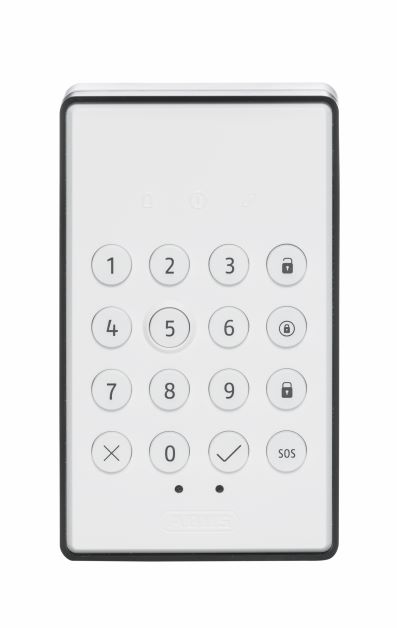
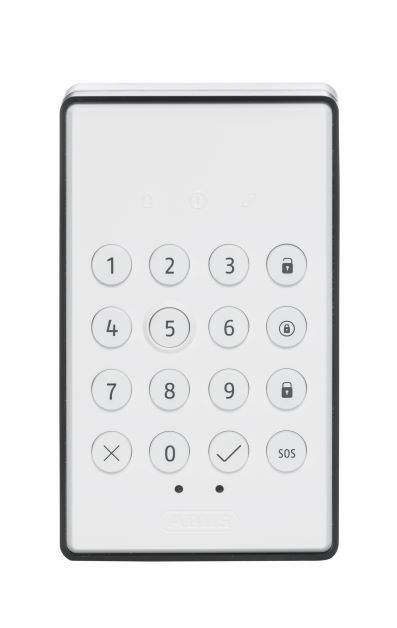
Product Recognition | |
|---|
Certification Number | ZC12-20050055 |
|---|
Name | Keypad |
|---|
Short Description | Wireless indoor keypad with 2-way communication to control the ABUS Nexello security system (activation, internal activation, deactivation, panic alarm) |
|---|
Long Description | The hotkey function simplifies everyday life, e.g. by controlling lighting, heating, etc.
Users receive direct feedback via LEDs and/or loudspeakers on various actions
Faults (battery, inevitability, reception) can be quickly verified by 3 LEDs
Keypad wakes up automatically when approaching (< 20cm)
Easy to install on walls, incl. mounting bracket
Sabotage protection, push message e.g. when battery is low
Updates Over-the-Air (OTA), AES-128-bit encrypted, Z-Wave compatible |
|---|
Brand | ABUS |
|---|
Product Identifier | PLBE10000 |
|---|
Product Line | Performance Line |
|---|
OEM Version | HW: 1 FW: 1.01 |
|---|
Hardware Platform | ZGM130 |
|---|
Z-Wave Version | 7.12.2 |
|---|
Library Type | SLAVE_ENHANCED_232 |
|---|
Device Type | Entry Control Keypad Device |
|---|
Role Type | ROLE_TYPE_SLAVE_SLEEPING_LISTENING |
|---|
Manufacturer ID | 0x0403 |
|---|
Product Type ID | 0x0004 |
|---|
Product ID | 0x0001 |
|---|
User Icon | 0x2001 |
|---|
Installer Icon | 0x2001 |
|---|
Frequency Plans | EU: 869.85MHz, 868.40MHz |
|---|
Categories | Security Systems |
|---|
Countries / Regions | European Union |
|---|
Supported Command Classes | Identifier | Name | Key | Version |
|---|
COMMAND_CLASS_ENTRY_CONTROL | Entry Control | 0x6F | 1 | COMMAND_CLASS_CONFIGURATION_V4 | Configuration V4 | 0x70 | 4 | COMMAND_CLASS_POWERLEVEL | Powerlevel | 0x73 | 1 | COMMAND_CLASS_MULTI_CHANNEL_ASSOCIATION_V3 | Multi-Channel Association V3 | 0x8E | 3 | COMMAND_CLASS_INDICATOR_V3 | Indicator V3 | 0x87 | 3 | COMMAND_CLASS_BATTERY | Battery | 0x80 | 1 | COMMAND_CLASS_SECURITY | Security S0 | 0x98 | 1 | COMMAND_CLASS_TRANSPORT_SERVICE_V2 | Transport Service V2 | 0x55 | 2 | COMMAND_CLASS_VERSION_V2 | Version V2 | 0x86 | 2 | COMMAND_CLASS_DEVICE_RESET_LOCALLY | Device Reset Locally | 0x5A | 1 | COMMAND_CLASS_ZWAVEPLUS_INFO_V2 | Z-Wave Plus Info V2 | 0x5E | 2 | COMMAND_CLASS_ASSOCIATION_V2 | Association V2 | 0x85 | 2 | COMMAND_CLASS_FIRMWARE_UPDATE_MD_V5 | Firmware Update Meta-Data V5 | 0x7A | 5 | COMMAND_CLASS_ASSOCIATION_GRP_INFO_V3 | Association Group Information V3 | 0x59 | 3 | COMMAND_CLASS_NOTIFICATION_V8 | Notification V8 | 0x71 | 8 | COMMAND_CLASS_SECURITY_2 | Security S2 | 0x9F | 1 | COMMAND_CLASS_SUPERVISION | Supervision | 0x6C | 1 | COMMAND_CLASS_MANUFACTURER_SPECIFIC_V2 | Manufacturer Specific V2 | 0x72 | 2 |
|
|---|
S2 Classes | S2_ACCESS_CONTROL |
|---|
Documents | Category | Description | File |
|---|
Manual_Primary_Lang | Product Manual | |
|
|---|
Association Groups | Group Number | Maximum Nodes Supported | End Point ID | Group Name | Description |
|---|
1 | 5 | 0 | Lifeline | The Lifeline Association is automatically established between the Z-Wave controller and the device at inclusion and defines what information is exchanged between the Z-Wave controller and the device. |
|
|---|
Configuration Parameters | Parameter Number | Name | Description | Format | Flag ReInclude | Size | Min Value | Max Value | Default Value | Parameter Values |
|---|
8 | Key Tones Active / Deactive | Activates / deactivates the button tones. | 2 | Yes | 1 | 0 | 1 | 1 | From | To | Description |
|---|
1 | 1 | Sound is activated | 0 | 0 | Sound is deactivated |
| 9 | Status display Active / Deactive | Enable / disable the status display when the device wakes up. | 2 | Yes | 1 | 0 | 1 | 1 | From | To | Description |
|---|
1 | 1 | Display status is activated | 0 | 0 | Display status is deactivated |
| 3 | Proximity sensor Active / Deactive | Activates / deactivates the proximity sensor | 2 | Yes | 1 | 0 | 1 | 1 | From | To | Description |
|---|
0 | 0 | Sensor is deactivated | 1 | 1 | Sensor is activated |
| 2 | Threshold value battery alarm | The threshold of Low power. Percentage value from when the low battery alarm should be transmitted. | 2 | Yes | 1 | 5 | 50 | 10 | From | To | Description |
|---|
5 | 50 | Adjustable from 5 - 50 in percent |
| 5 | Proximity sensor Sensitivity | Sensitivity value of the proximity sensor. The value 31 is the lowest sensitivity. The value 4 is the highest sensitivity. | 2 | Yes | 1 | 4 | 31 | 9 | From | To | Description |
|---|
4 | 31 | Adjustable from 4 - 31 |
| 6 | Light sensor Active / Deactive | Activate/deactivate the light sensor. | 2 | Yes | 1 | 0 | 1 | 1 | From | To | Description |
|---|
0 | 0 | Sensor is deactivated | 1 | 1 | Sensor is activated |
| 7 | Threshold value for day / night | Threshold value from which LUX value the day or night value is sent. | 2 | Yes | 1 | 0 | 255 | 50 | From | To | Description |
|---|
0 | 255 | Adjustable from 0 - 255 in Lux |
|
|
|---|
Texts | ID | Description | Value |
|---|
8 | Where to find S2 DSK on product | The first 5 digits of the DSK code can be found on the QR Code on the back of the product. | 1 | Classic Inclusion | If your Z-wave controller does not support SmartStart, follow these instructions for Product Classic Inclusion:
Activate the inclusion mode (teach-in mode) on the Z-Wave controller. (for more details, please refer to the Z-Wave controller's user manual)
Or press the "+" button (Include / Add) in your Z-Wave app and follow the instructions to set the Z-Wave controller to include mode.
Keep the device within range of the Z-Wave controller.
Press the Link button 3 times quickly (within 1.5 seconds) to start the inclusion on the device.
The Link LED starts flashing green for up to 60 seconds
Successful inclusion is displayed in the app or on the Z-Wave controller and the link LED on the device lights up green.
Repeat the inclusion process if it was not successful.
If a new attempt fails as well, first carry out a factory reset on the device, see 2.5. | 2 | Classic Exclusion | Activate the exclusion mode (learn mode) on the Z-Wave controller. (for more details, please refer to the Z-Wave controller's user manual)
Or press the "-" button (Remove / Exclusion) in your Z-Wave app and follow the instructions to set the Z-Wave controller to Exclusion mode.
Press the Link button 3 times quickly (within 1.5 seconds) to start the exclusion on the device.
The Link LED starts flashing green for up to 60 seconds
The successful exclusion is displayed in the app or on the Z-Wave controller and the link LED on the device lights up green. | 4 | Wake-Up Procedure | It´s a FLIRS device and hence does not support wake up command class | 5 | Factory Reset Procedure | Press and hold the Link button for at least 5 seconds. The device is now reset to factory settings.
Hint:
Please use this procedure only if the primary network controller is missing or otherwise not functional.
If the device is set to factory default, the status is set to "not included" and the association settings and possible configurations are reset to default. | 17 | Dynamic Capabilities | Not applicable |
|
|---|
Supported Notification Types | Notification Type | Event / State |
|---|
Home Security | (Refer to parameters): State idle | Home Security | Cover status: Tampering, product cover removed | Home Security | Motion sensor status: Motion detection |
|
|---|
Supports NWI | Yes |
|---|
Supports Explorer Frames | Yes |
|---|
Is Flirs | Yes |
|---|
Supports SmartStart | Yes |
|---|
Radio Range Z-Wave (m) | 40 |
|---|