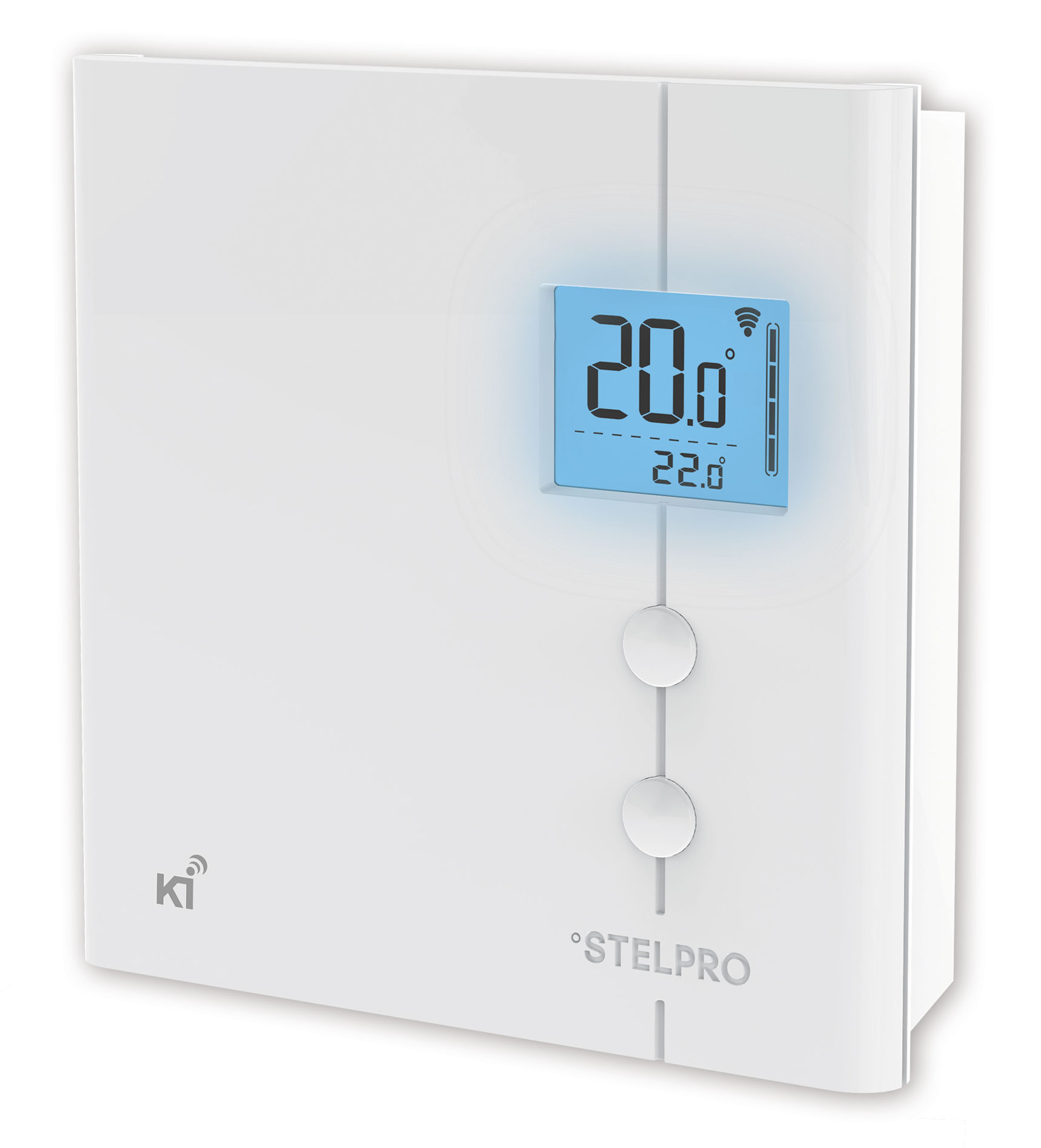
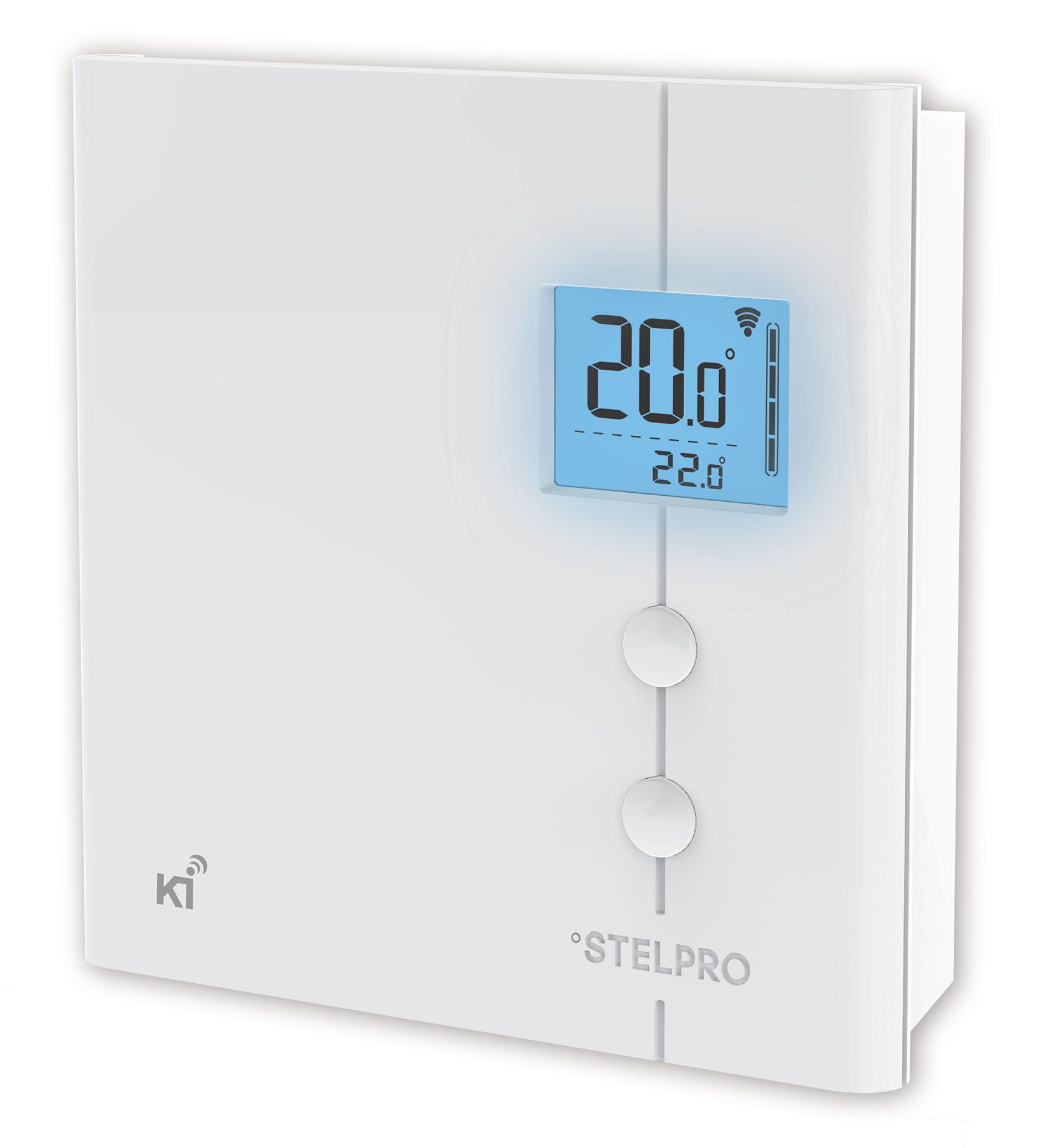
Long Description | Ki, the smart home line-voltage thermostat by Stelpro - STZW402+
• The very first Z-Wave Plus line voltage thermostat in North America
• Supports 120Vac - 240Vac (50/60 Hz) voltages
• Controls baseboard heaters and convectors up to 4000W
• Easy to use 2 button interface
• Made in Canada
• High precision temperature control +/- 0.1 °C
• Z-Wave Plus certified, works with thousands of other Z-Wave devices
• Brings optimal comfort into your smart home
• Can be integrated into smart home automated scenes
• Local keypad lock
• Displays external temperature
• Adjustable backlight intensity
• Comfort and Eco modes
• Celsius or Fahrenheit display
• Quiet TRIAC operation
• Frost-free warning
• Sleek design to harmonize with any decor
• Backed by Stelpro’s 30 years of experience as a leader in the heating market |
|---|
Texts | ID | Description | Value |
|---|
1 | Inclusion | Make sure the Z-Wave hub is in the include mode (Refer to your Z-Wave hub instruction manual).
To add (include) the thermostat to a Z-Wave network, enter the Menu 1 (Z-Wave menu) and select “On”. Then press the UP and DOWN buttons to start the inclusion process. During inclusion, “On” will be blinking and the connectivity icon will be animated in an increasing pattern. When the inclusion process has been completed, On will be displayed solid. If an error occurs, “Err” will be displayed for 3 seconds then the screen will revert to “Off” selection. | 2 | Exclusion | Make sure the Z-Wave hub is in the exclude mode (Refer to your Z-Wave hub instruction manual).
To remove (exclude) the thermostat from a Z-Wave network, enter the Menu1 (Z-Wave menu) and select “Off”. Then press the UP and DOWN buttons to start the exclusion process. During exclusion, “Off” will be blinking and the connectivity icon will be animated in an decreasing pattern. When the exclusion process has been completed, Off will be displayed solid. If an error occurs, “Err” will be displayed for 3 seconds then the screen will revert to “On” selection. | 5 | Factory Reset | The thermostat may be manually reset to its factory state.
When this is performed, all parameters are reset to their default values and the thermostat is removed (excluded) from the Z-Wave network.
To reset the thermostat to its default state:
- Enter the advanced settings
- Enter the °STELPRO menu (menu 6)
- Navigate to the “def” screen using the UP or DOWN buttons.
- Enter the “def” menu by pressing the UP and DOWN buttons for less than 3 seconds
- Select “yes” and confirm the selection by pressing the UP and DOWN buttons for less than 3 seconds.
If the thermostat was added (included) in a Z-wave network, it will send a ‘’device reset locally’’ notification.
The thermostat will then reset itself.
Please use this procedure only when the network primary controller is missing or otherwise inoperable. | 6 | Additional Special Features | Outdoor Temperature
When connected to a Z-Wave network, the thermostat may display the outdoor temperature provided by an external sensor.
When available, the outdoor temperature is displayed instead of the set point, providing that the outdoor temperature display setting is set to on.
If no temperature is received within a 4 hours timeframe, the outdoor temperature will disappear and the set point will be displayed.
In order to display the outdoor temperature, an external sensor needs to be part of the Z-Wave network. It may be a physical sensor or a weather station app.
Refer to your Z-Wave hub controller instructions manual to find how to associate both devices. On some Z-Wave hub controllers, an app may be used to provide the outdoor temperature. |
|
|---|