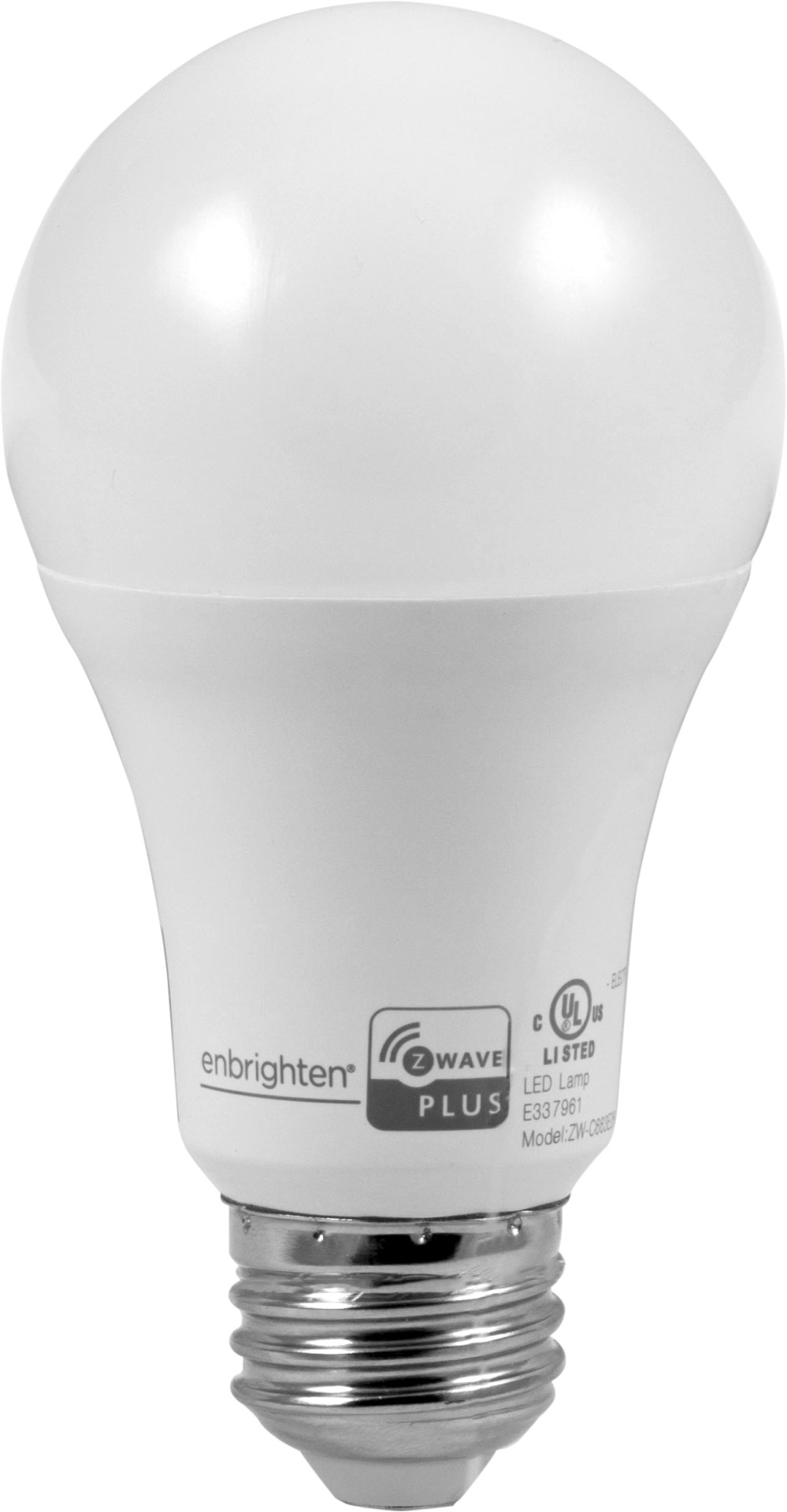
Product Recognition | |
|---|
Certification Number | ZC10-21047018 |
|---|
Name | LED Bulb |
|---|
Short Description | Enbrighten Z-Wave A19 60W Equivalent LED Bulb, 2700K, SmartStart, 500SWB |
|---|
Long Description | Set the scene with the Enbrighten Z-Wave Smart LED Bulb. When paired with a compatible hub, the smart bulb supports ON/OFF/dim commands and programmed settings. Wirelessly operate lamps, sconces, ceiling lights and other fixtures that use standard A19 bulbs for effortless management of your home. Your automation possibilities are seemingly infinite when connected to hubs from Ring, SmartThings, Wink, Vivint, HomeSeer, Honeywell, Fibaro, Trane, Nexia, ADT, Vera, eZLO and more! |
|---|
Brand | Enbrighten |
|---|
Product Identifier | 52190/ZW7105 |
|---|
Product Line | Wireless Lighting Controls |
|---|
OEM Version | HW: 1 FW: 4.15 |
|---|
Hardware Platform | ZM5202 |
|---|
Z-Wave Version | 6.81.06 |
|---|
Library Type | SLAVE_ENHANCED_232 |
|---|
Device Type | Light Dimmer Switch |
|---|
Role Type | ROLE_TYPE_SLAVE_ALWAYS_ON |
|---|
Manufacturer ID | 0x0063 |
|---|
Product Type ID | 0x4C42 |
|---|
Product ID | 0x3035 |
|---|
User Icon | 0x0600 |
|---|
Installer Icon | 0x0600 |
|---|
Frequency Plans | US: 916.00MHz, 908.40MHz |
|---|
Categories | All Lighting Devices, Dimming Lighting Devices, On/Off Switches/Devices, Lighting Accessories |
|---|
Countries / Regions | United States of America |
|---|
Supported Command Classes | Identifier | Name | Key | Version |
|---|
COMMAND_CLASS_SWITCH_MULTILEVEL | Switch Multilevel | 0x26 | 1 | COMMAND_CLASS_FIRMWARE_UPDATE_MD_V4 | Firmware Update Meta-Data V4 | 0x7A | 4 | COMMAND_CLASS_POWERLEVEL | Powerlevel | 0x73 | 1 | COMMAND_CLASS_CONFIGURATION | Configuration | 0x70 | 1 | COMMAND_CLASS_TRANSPORT_SERVICE_V2 | Transport Service V2 | 0x55 | 2 | COMMAND_CLASS_DEVICE_RESET_LOCALLY | Device Reset Locally | 0x5A | 1 | COMMAND_CLASS_ZWAVEPLUS_INFO_V2 | Z-Wave Plus Info V2 | 0x5E | 2 | COMMAND_CLASS_ASSOCIATION_V2 | Association V2 | 0x85 | 2 | COMMAND_CLASS_ASSOCIATION_GRP_INFO | Association Group Info | 0x59 | 1 | COMMAND_CLASS_BASIC_V2 | Basic V2 | 0x20 | 2 | COMMAND_CLASS_SECURITY_2 | Security S2 | 0x9F | 1 | COMMAND_CLASS_VERSION_V3 | Version V3 | 0x86 | 3 | COMMAND_CLASS_SUPERVISION | Supervision | 0x6C | 1 | COMMAND_CLASS_MANUFACTURER_SPECIFIC_V2 | Manufacturer Specific V2 | 0x72 | 2 |
|
|---|
S2 Classes | S2_UNAUTHENTICATED, S2_AUTHENTICATED |
|---|
Documents | Category | Description | File |
|---|
Manual_Primary_Lang | Product Manual | | Manual_English | Product Manual in English | |
|
|---|
Features | Feature | Values |
|---|
Firmware Updatable | Value |
|---|
Updatable by Consumer by RF |
|
|
|---|
Association Groups | Group Number | Maximum Nodes Supported | End Point ID | Group Name | Description |
|---|
1 | 5 | 0 | Lifeline | Z-Wave Plus Lifeline |
|
|---|
Configuration Parameters | Parameter Number | Name | Description | Format | Size | Min Value | Max Value | Default Value | Parameter Values |
|---|
1 | Dim Level | Dim level when light bulb is turned ON | 1 | 1 | 0 | 2 | 0 | From | To | Description |
|---|
0 | 2 | Dim level when light bulb is turned ON |
| 9 | Dim Level | Dim level when light bulb is turned ON | 1 | 1 | 1 | 99 | 1 | From | To | Description |
|---|
1 | 99 | Dim level when light bulb is turned ON |
| 10 | Dimming/Brightening Step Timing | Dim Speed | 1 | 1 | 0 | 10 | 0 | From | To | Description |
|---|
0 | 10 | Adjust Dim Speed |
|
|
|---|
Texts | ID | Description | Value |
|---|
8 | Where to find S2 DSK on product | Base of the bulb | 1 | Classic Inclusion | Adding your device to a Z-Wave network
1. When initially powered, the bulb is in SmartStart inclusion mode. If your hub supports SmartStart, scan the
QR code.
2. To change to classic inclusion mode, turn bulb OFF, then ON three times. The bulb rapidly flashes four
times to indicate classic mode.
3. To change back to SmartStart inclusion mode, turn the bulb OFF, then ON three times. The bulb rapidly
flashes six times to indicate SmartStart mode.
NOTE: The bulb attempts to connect in either inclusion mode for 10 seconds. If not found after 10 seconds,
cycle the bulb OFF/ON to restart the inclusion mode.
4. In either method, the bulb flashes twice to indicate it was added to the network.
NOTE: The bulb remains in the last known inclusion mode when cycled OFF/ON once.
You have complete control to turn your light ON/OFF or set dim levels according to groups, scenes, schedules
and interactive automations programmed by your controller.
If your Z-Wave certified controller features remote access, you can control your lighting from your mobile
devices.
If prompted by the controller to enter the S2 security code, refer to the QR code/security number on the side
of the box or the QR code label on the product (see Figure 1). Enter the 5-digit pin code.
Figure 1.
NOTE: SmartStart enabled products can be added into a Z-Wave network by scanning the QR code on the
product with a controller providing SmartStart inclusion. No further action is required and the SmartStart
product will be added automatically within 10 minutes of being switched on in the network vicinity. | 2 | Classic Exclusion | To remove and reset the device
1. Follow the instructions for your Z-Wave certified controller
to remove a device from the Z-Wave network.
2. Once the controller is ready to remove your device, turn
bulb OFF, then ON three times. The smart bulb flashes
twice when removed from the network. | 5 | Factory Reset Procedure | To return your smart bulb to factory defaults
Starting with the bulb on, cycle the wall switch OFF/ON
four times.
1. Turn the switch off, pause one second, then turn back ON.
2. Repeat three times (four times total).
3. The smart bulb flashes twice when reset.
NOTE: This should only be used in the event your network’s
primary controller is missing or otherwise inoperable. | 6 | Other Special Features | N/A |
|
|---|
Supports NWI | Yes |
|---|
Supports Explorer Frames | Yes |
|---|
Supports SmartStart | Yes |
|---|
Radio Range Z-Wave (m) | 40 |
|---|