Product Recognition | |
|---|
Certification Number | ZC10-17065656 |
|---|
Name | mob.iq [rg3+] |
|---|
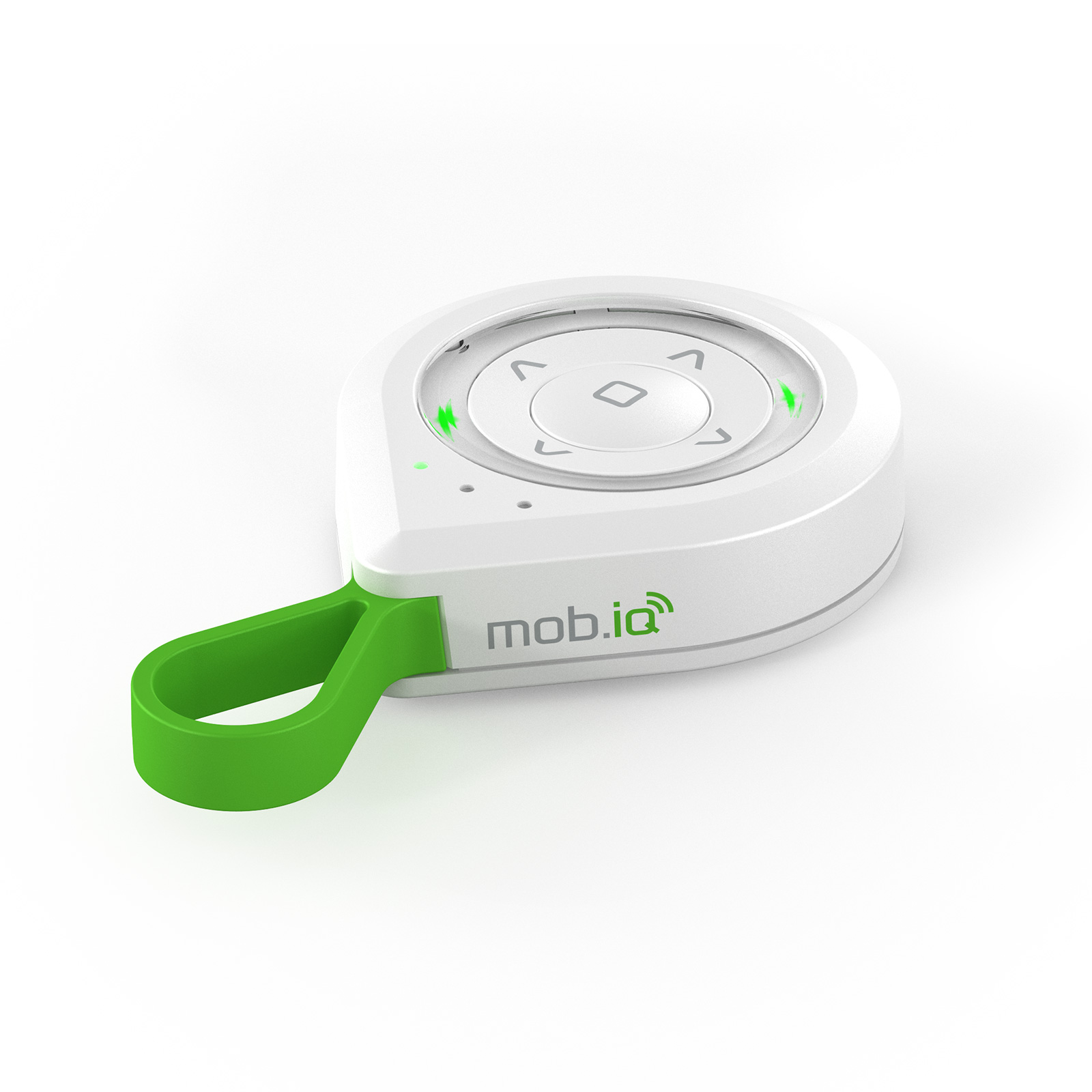
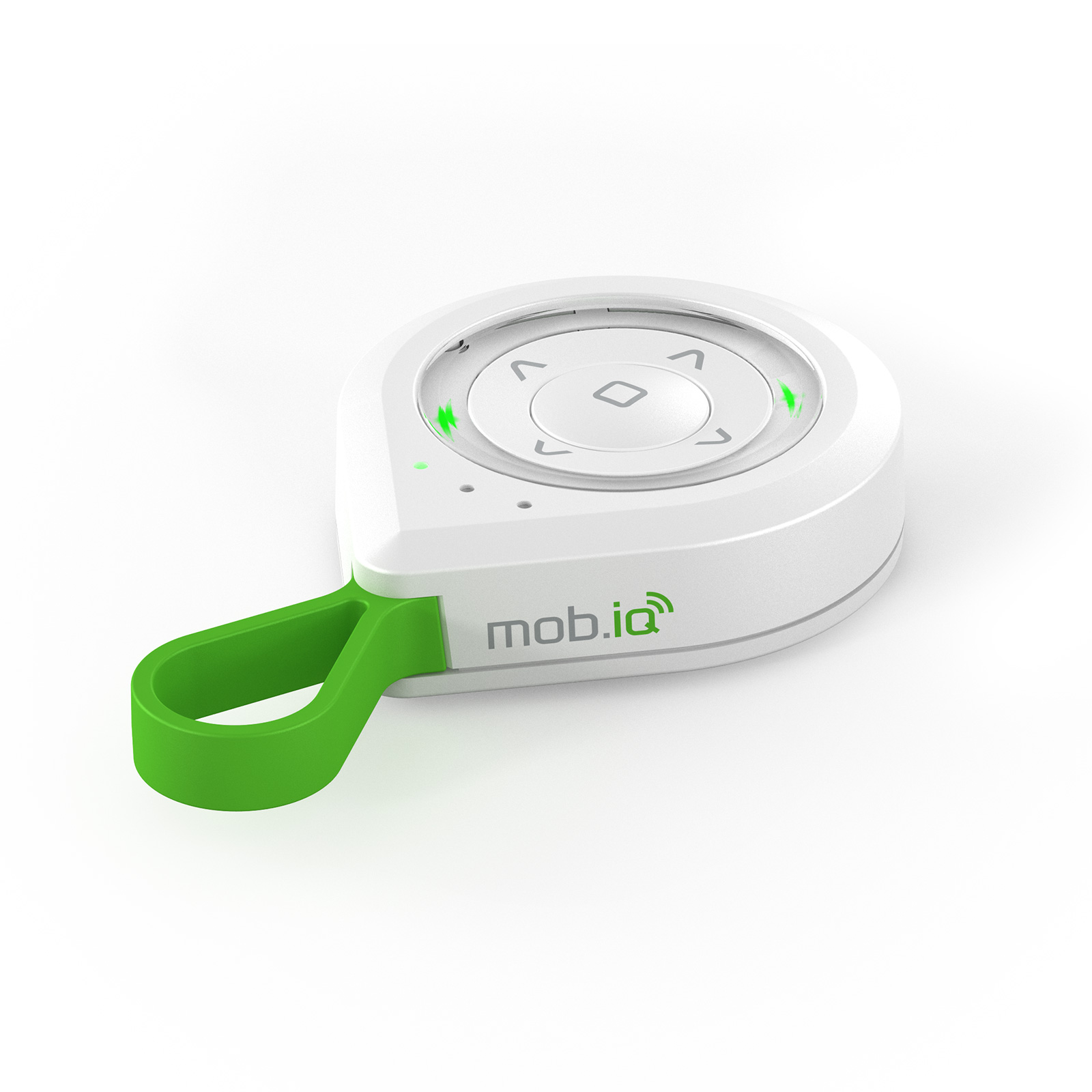
Short Description | Remote control mob.iq [rg3+] combines a contemporary, minimalist form, intuitive operation and advanced control technology. Users can open gates, raise blinds, close awnings, turn on lights, and activate predefined settings of different receivers. |
|---|
Long Description | Remote controller mob.iq [rg3+] enables radio control of MOBILUS MOTOR and other manufacturers electric accessories which are compatible with Z-Wave communication standard. It’s equipped with radio unit which works on frequency dependent on country where the product is used (EU 868,42 MHz).
Remote controller mob.iq [rg3+] combines a contemporary, minimalist form, intuitive operation and advanced control technology. Users can open gates, raise blinds, close awnings, turn on lights, and activate predefined settings of different receivers. The simplicity of the control system provides instant access to individual devices.
Mob.iq [rg3+] is the controller which allows to configure and control every device in Z-Wave network which is up to 231 devices. In order to improve the user experience devices may be gathered into a group and be freely situated in 4 groups. Devices in each group can be controlled simultaneously. Remote controller mob.iq [rg3+] may be a primary, secondary or inclusion. Primary controller allows the integration and configuration of many devices in radio network, secondary fulfils a function of additional controller in already existing network and finally, inclusion controller fulfils a function of additional controller capable to maintain network in already existing network with Z-Wave gateway. Next to the primary control procedure which is: OPEN, STOP, CLOSE remote controller mob.iq [rg3+] also possesses multilevel procedure which allows for example to dim a light smoothly. |
|---|
Brand | MOB.IQ |
|---|
Product Identifier | mob.iq [rg3+] |
|---|
OEM Version | 255.1.0.4.34 |
|---|
Hardware Platform | ZM5202 |
|---|
Library Type | CONTROLLER_PORTABLE |
|---|
Device Type | Remote Control - Multi Purpose |
|---|
Role Type | ROLE_TYPE_CONTROLLER_PORTABLE |
|---|
Manufacturer ID | 0x019D |
|---|
Product Type ID | 0x0003 |
|---|
Product ID | 0x0001 |
|---|
User Icon | 0x0A00 |
|---|
Installer Icon | 0x0A00 |
|---|
Frequency Plans | EU: 869.85MHz, 868.40MHz |
|---|
Categories | All Controllers, Handheld Controller |
|---|
Countries / Regions | European Union |
|---|
Controlled Command Classes | Identifier | Name | Key | Version |
|---|
COMMAND_CLASS_SWITCH_MULTILEVEL | Switch Multilevel | 0x26 | 1 | COMMAND_CLASS_BASIC | Basic | 0x20 | 1 | COMMAND_CLASS_WAKE_UP_V2 | Wake Up V2 | 0x84 | 2 |
|
|---|
Documents | Category | Description | File |
|---|
Manual_Primary_Lang | Product or Owner's Manual | |
|
|---|
Features | Feature | Values |
|---|
Controller Supports Multiple Z-Wave Interfaces | | Battery Quantity | | Battery Type | | Controller Supports Multiple Networks | |
|
|---|
Association Groups | Group Number | Maximum Nodes Supported | End Point ID | Description |
|---|
2 | 5 | 0 | supports BASIC_SET on channel 1
| 3 | 5 | 0 | supports SWITCH_MULTILEVEL_START_LEVEL_CHANGE on channel 1
| 4 | 5 | 0 | supports SWITCH_MULTILEVEL_STOP_LEVEL_CHANGE on channel 1
| 5 | 5 | 0 | supports BASIC_SET on channel 2
| 6 | 5 | 0 | supports SWITCH_MULTILEVEL_START_LEVEL_CHANGE on channel 2
| 7 | 5 | 0 | supports SWITCH_MULTILEVEL_STOP_LEVEL_CHANGE on channel 2
| 8 | 5 | 0 | supports BASIC_SET on channel 3
| 9 | 5 | 0 | supports SWITCH_MULTILEVEL_START_LEVEL_CHANGE on channel 3 | 10 | 5 | 0 | supports SWITCH_MULTILEVEL_STOP_LEVEL_CHANGE on channel 3
| 11 | 5 | 0 | supports BASIC_SET on channel 4 | 1 | 1 | 0 | Z-Wave Plus Lifeline |
|
|---|
Texts | ID | Description | Value |
|---|
5 | Factory Reset | Please use this procedure only when the network primary controller is missing or otherwise inoperable.
Restoring controller to factory settings removes from its memory all data about Z-Wave network, which means it will forget all added devices and return to PRIMARY CONTROLLER state. To reset controller to factory settings, proceed as follows:
1. Simultaneously press and hold STOP and DOWN button until the LEDs light red.
2. Left channel LED flashes green.
3. Using right navigation key , select all channel LED .
4. Confirm the choice with STOP button.
5. All channel LEDs turns on solid and the red LEDs are off.
6. A successfully completed operation will be signaled by controller through single blink of green LEDs . | 3 | Learn Mode (adding another controller) | In one Z-Wave network can be only one PRIMARY CONTROLLER. If the customer wants to have another controller in the same network, it must be added to it by calling learn mode. After this, controller will become SECONDARY or INCLUSION CONTROLLER. In order to call learn mode proceed as follows.
1. Call include mode on controller to which mob.iq [ RG3+] controller is to be added.
2. Simultaneously press and hold STOP and DOWN button until the LEDs light red.
3. Left channel LED flashes green.
4. Confirm the choice with STOP button.
5. Left channel LED turns on solid and the red LEDs are off.
6. A successfully completed operation will be signaled by controller through single blink of green LEDs, if the operation in not successfully completed, the controller will signal it through a triple blink of red LEDs .
Learn mode has a built-in timeout which will abort learn mode if controller does not receive any information in 5 seconds after learn mode started.
If the controller to which mob.iq [ RG3+] controller was added supports controller replication, then mob.iq [ RG3+] controller will transfer all information about added devices and groups to the other controller (then associating devices will not be necessary). | 24 | Controller Exclusion | If you want to remove the device from the Z-Wave network (it can be any Z-Wave network) perform the exclude function. In order to remove the device from network, proceed as follows:
1. Simultaneously press and hold STOP and DOWN button until the LEDs light red.
2. Left channel LED flashes green .
3. Using right navigation key , select the right channel LED.
4. Confirm the choice with STOP button.
5. Right channel LED turns on solid and the red LEDs are off.
6. Press the programming button on the device working in the mob.iq system (for example blind) - device should send NIF.
7. A successfully completed operation will be signaled by controller through single blink of green LEDs, if the operation in not successfully completed, the controller will signal it through a triple blink of red LEDs.
Exclude operation has a built-in timeout which will abort exclusion mode if controller does not receive NIF in 60 seconds after exclusion mode started. | 23 | Controller Inclusion | In order to operate the electrical accessories using mob.iq [ RG3+] controller, the devices working in the mob.iq system must be added to the mob.iq [ RG3+] remote. Quick start operation performs inclusion of device into the network and assigns it into all association groups assigned to current channel. Please proceed as follows.
1. Using navigation keys select the channel on which the Z-Wave device is to be added.
2. Simultaneously press and hold STOP and UP button until the LEDs light green.
3. Left channel LED flashes green (when the middle LED flashes green, it means that controller is SECONDARY CONTROLLER) .
4. Confirm the choice with STOP buton.
5. Left channel LED turns on solid and the green LEDs are off.
6. Press the programming button on the device working in the mob.iq system ( for example blind ) - device should send NIF.
7. A successfully completed operation will be signaled by controller through single blink of green LEDs, if the operation in not successfully completed, the controller will signal it through a triple blink of red LEDs.
Quick start operation has a built-in timeout which will abort inclusion mode if controller does not receive NIF in 60 seconds after inclusion mode started. | 4 | Device Wake-Up | In Z-Wave network it is possible to remotely exchange data with another controller in network. To call this function, proceed as follows:
1. Simultaneously press and hold STOP and UP button until the LEDs light green.
2. Left channel LED flashes green ( when the middle LED flashes green, it means that controller is SECONDARY CONTROLLER).
3. Using right navigation key , select all channel LEDs.
4. Confirm the choice with STOP button.
5. All channel LEDs turn on solid and the green LEDs are alternating in clockwise direction .
6. Controller is in data exchange mode - mode is turned on for 60 seconds and the function is renewed after each data exchange request but it is possible to quit this mode by pressing STOP once. |
|
|---|
Supports NWI | Yes |
|---|
Supports Explorer Frames | Yes |
|---|