| Product Recognition | |
|---|
| Certification Number | ZC10-18066153 |
|---|
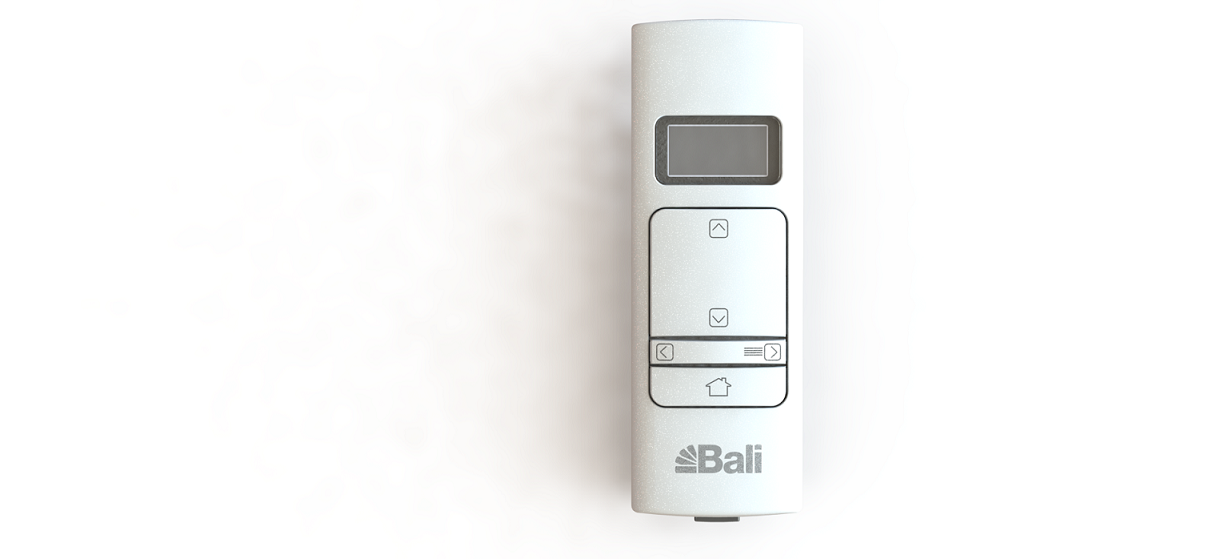
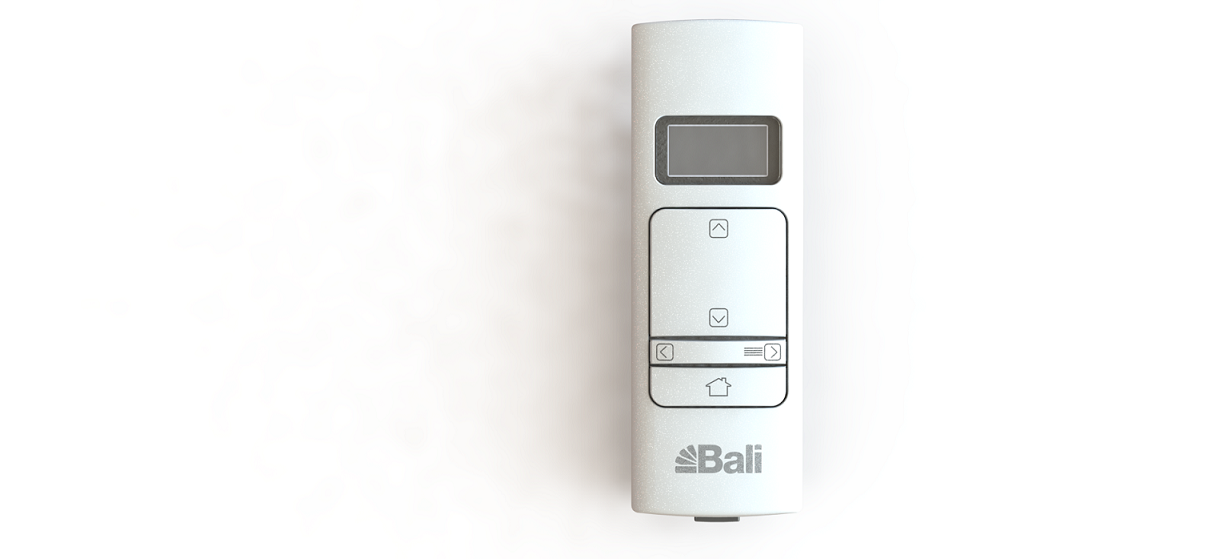
| Name | Multi-Channel Remote Control |
|---|
| Short Description | Automated custom window treatment for simplified, convenient lighting control featuring Z-Wave controlled motorized lift. Multi Channel Remote Control- Z-Wave |
|---|
| Long Description | Enjoy the comfort, convenience and energy efficiency of beautiful custom motorized window treatments featuring Z-Wave protocol for easy integration. Lighting control has never been more simple. Window treatments can be automated using your favorite Z-Wave certified gateway or security system, or controlled by a remote control. Raise or lower the shades to control just the right amount of light, privacy and solar heat. Shades can be fully open, fully closed or anywhere in between, it’s up to you. In addition, some systems will also report back the state of the battery charge on battery operated versions. |
|---|
| Brand | Bali |
|---|
| Product Identifier | MCZ1 |
|---|
| OEM Version | HW: 255 FW: 11.14 |
|---|
| Hardware Platform | ZM5101 |
|---|
| Z-Wave Version | 6.71.01 |
|---|
| Library Type | CONTROLLER_PORTABLE |
|---|
| Device Type | Remote Control - Simple |
|---|
| Role Type | ROLE_TYPE_CONTROLLER_PORTABLE |
|---|
| Manufacturer ID | 0x026e |
|---|
| Product Type ID | 0x4D43 |
|---|
| Product ID | 0x5A31 |
|---|
| User Icon | 0x0A00 |
|---|
| Installer Icon | 0x0A00 |
|---|
| Frequency Plans | US: 916.00MHz, 908.40MHz |
|---|
| Categories | All Controllers, Handheld Controller, Window Covering |
|---|
| Countries / Regions | United States of America |
|---|
| Supported Command Classes | | Identifier | Name | Key | Version |
|---|
| COMMAND_CLASS_POWERLEVEL | Powerlevel | 0x73 | 1 | | COMMAND_CLASS_BATTERY | Battery | 0x80 | 1 | | COMMAND_CLASS_BASIC | Basic | 0x20 | 1 | | COMMAND_CLASS_VERSION_V2 | Version V2 | 0x86 | 2 | | COMMAND_CLASS_WAKE_UP_V2 | Wake Up V2 | 0x84 | 2 | | COMMAND_CLASS_DEVICE_RESET_LOCALLY | Device Reset Locally | 0x5A | 1 | | COMMAND_CLASS_ZWAVEPLUS_INFO_V2 | Z-Wave Plus Info V2 | 0x5E | 2 | | COMMAND_CLASS_ASSOCIATION_V2 | Association V2 | 0x85 | 2 | | COMMAND_CLASS_ASSOCIATION_GRP_INFO | Association Group Info | 0x59 | 1 | | COMMAND_CLASS_CENTRAL_SCENE_V3 | Central Scene V3 | 0x5B | 3 | | COMMAND_CLASS_FIRMWARE_UPDATE_MD_V2 | Firmware Update Meta-Data V2 | 0x7A | 2 | | COMMAND_CLASS_MANUFACTURER_SPECIFIC_V2 | Manufacturer Specific V2 | 0x72 | 2 |
|
|---|
| Controlled Command Classes | | Identifier | Name | Key | Version |
|---|
| COMMAND_CLASS_SWITCH_MULTILEVEL | Switch Multilevel | 0x26 | 1 | | COMMAND_CLASS_CENTRAL_SCENE_V3 | Central Scene V3 | 0x5B | 3 |
|
|---|
| Documents | |
|---|
| Features | | Feature | Values |
|---|
| Firmware Updatable | | | Switch Load Capacity Watts | | | Switch Type | | Value |
|---|
| Push Button with Indicator |
| | Window Covering Control Features | | | Switch Load Capacity Current | | | Z-Wave Scene Type | | | Battery Type | | | Color | | | Battery Quantity | |
|
|---|
| Association Groups | | Group Number | Maximum Nodes Supported | End Point ID | Description |
|---|
| 1 | 1 | 0 | Z-Wave Plus Lifeline (Primary)
Battery Status CC
Device Reset Locally CC
Central Scene CC |
|
|---|
| Texts | | ID | Description | Value |
|---|
| 23 | Controller Inclusion | Adding your shades and remotes to the same “shade network” (a group of shades and remotes that communicate with each
other) or to a home automation system.
1. Press and hold the MENU/RIGHT button
for 2 seconds to enter the menu.
2. Select ZWAVE > INCLUDE.
3. On the shade you want to pair,
press and hold the program button for
3 seconds. When the shade LED flashes
green, release the button.
The remote’s screen will indicate | | 24 | Controller Exclusion | Removing the current pairing between your shades and remotes.
1. On the remote, press and hold the MENU/RIGHT button
for 2 seconds to enter the menu.
2. Select ZWAVE > EXCLUDE.
3. On the shade, press and hold the program button for
3 seconds. When the shade LED flashes green, release
the button.
The remote’s screen will indicate that the shade has been removed from
the remote. The shade will jog. | | 3 | Learn Mode (adding another controller) | Pairs the multi-channel remote with an existing shade network as an additional remote.
On the remote, press and hold the
MENU/RIGHT button to enter the menu.
3. Select ZWAVE > LEARN. | | 5 | Factory Reset | Restores the remote back to a factory
state by removing all memory of shade
and remote pairings from the remote.
1. On the remote, press and hold the
MENU/RIGHT button to enter the menu.
2. Select ZWAVE > RESET.
3. With LIKE NEW? selected, press and
hold the MENU/RIGHT button until the
screen no longer tells you to wait.
Please use this procedure only when the network primary controller is missing or otherwise inoperable. | | 4 | Device Wake-Up | Any button press will wake up the remote. | | 6 | Additional Special Features | Associate: Pair remotes with your shades.
On the remote, press and hold the MENU/RIGHT button for 2 seconds to enter the menu.
2. Select ZWAVE > ASSOCIATE.
On the shade, press and hold the program button for 3 seconds. When the shade LED flashes green, release the button.
The shade will jog.
Find- Locates existing shades in a shade
network and adds the multi-channel
remote as an additional control.
Shift- Pairs the multi-channel remote with an
existing shade network as the primary
remote.
Clear Channels- Clear all your current channel assignments and
start over with assigning shades to channels, follow these steps.
1. On the remote, press and hold the MENU/RIGHT button for
2 seconds to enter the menu.
2. Select SHADE > CLR CHNLS > CONFIRM.
At this point, the shade menu is cleared. This means you can’t select a shade from the remote or assign shades to a channel until you find them again. |
|
|---|
| Supports NWI | Yes |
|---|
| Supports Explorer Frames | Yes |
|---|