| Product Recognition | |
|---|
| Certification Number | ZC10-16085195 |
|---|
| Name | NodOn® Soft Remote |
|---|
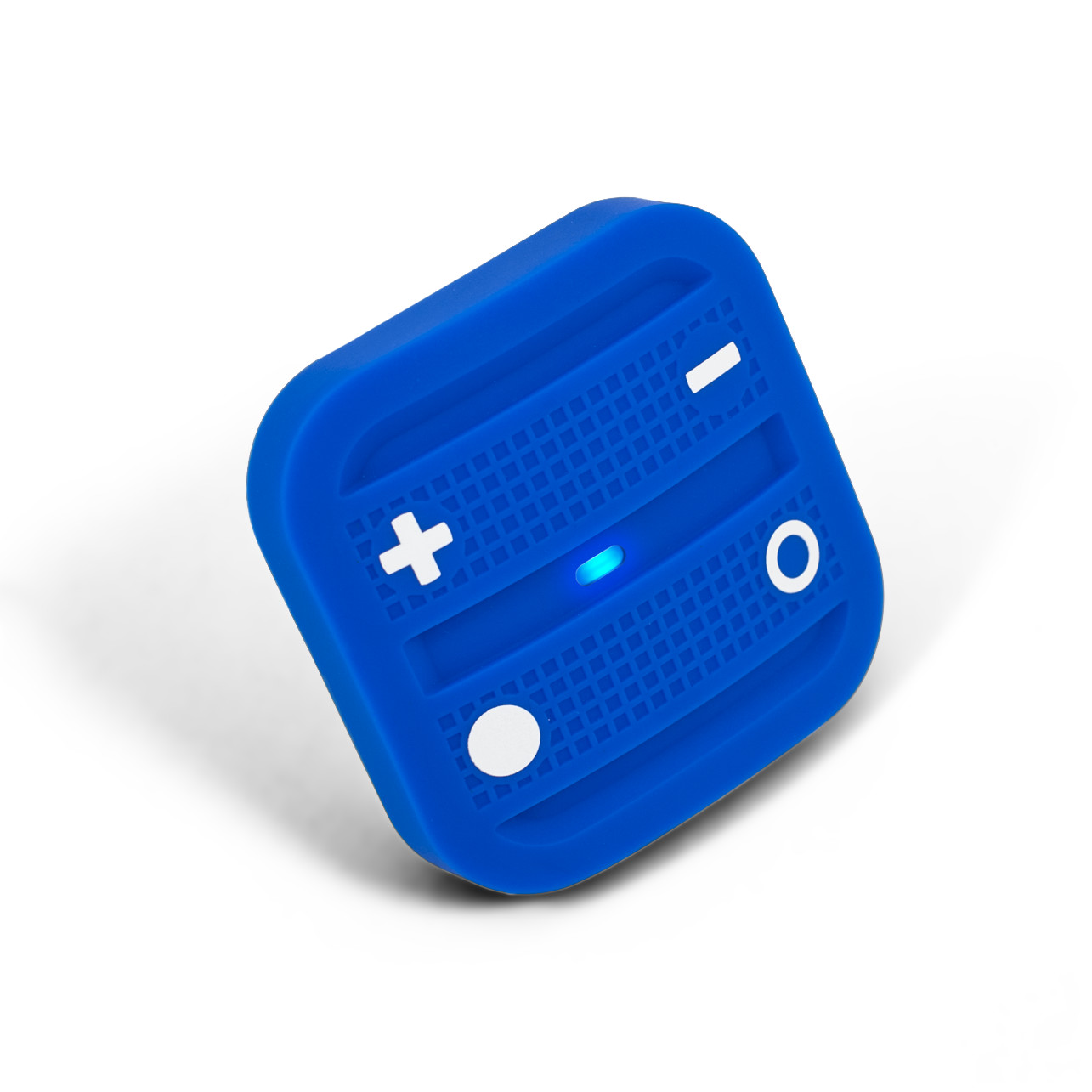
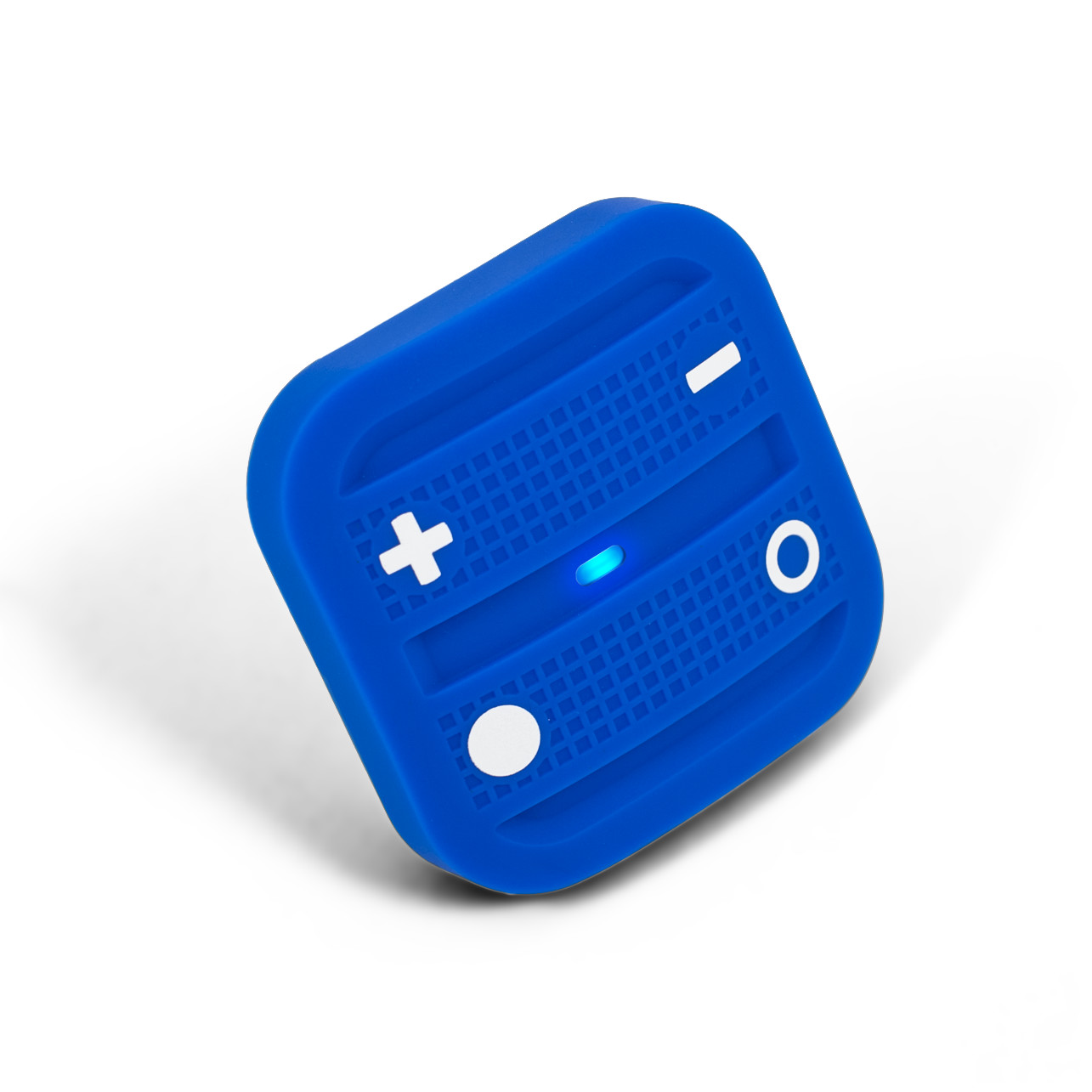
| Short Description | The NodOn® Soft Remote controls any compatible receivers Z-Wave® or Z-Wave Plus®. It can operate on its own (“Standalone” Mode) or as gateway’s assistant (“Gateway” Mode). The product integrates a LED as an intuitive feedback tool. |
|---|
| Long Description | The NodOn® Soft Remote controls any compatible receivers Z-Wave® or Z-Wave Plus®, such as the Smart Plug NodOn®. It can address, directly, up to 4 groups of 8 devices and sent up to 16 different scenes to a Home Automation Gateway. This controller can operate on its own (“Standalone” Mode) or as gateway’s assistant (“Gateway” Mode). The product integrates a LED, which give an intuitive feedback for each operation you perform.
Based on an innovative technology, the NodOn® Soft Remote is only powered with a CR2032 battery, offering 2 years’ autonomy.
The NodOn® Soft Remote is based on brand new 500 series Z-Wave® module from Sigma Designs®, and supports all the new features of Z-Wave Plus® standard:
Longer range (up to 40 meters indoor), lower power consumption, higher data rate transmission, and many more new features. |
|---|
| Brand | NodOn |
|---|
| Product Identifier | CRC-3-6-0X |
|---|
| OEM Version | HW: 1 FW: 3.03:01.05 |
|---|
| Hardware Platform | ZM5202 |
|---|
| Z-Wave Version | 6.51.06 |
|---|
| Library Type | CONTROLLER_PORTABLE |
|---|
| Device Type | Remote Control - Multi Purpose |
|---|
| Role Type | ROLE_TYPE_CONTROLLER_PORTABLE |
|---|
| Manufacturer ID | 0x0165 |
|---|
| Product Type ID | 0x0002 |
|---|
| Product ID | 0x0002 |
|---|
| User Icon | 0x0A00 |
|---|
| Installer Icon | 0x0A00 |
|---|
| Frequency Plans | US: 916.00MHz, 908.40MHz |
|---|
| Categories | All Controllers, Handheld Controller |
|---|
| Countries / Regions | United States of America |
|---|
| Controlled Command Classes | | Identifier | Name | Key | Version |
|---|
| COMMAND_CLASS_SWITCH_ALL | Switch All | 0x27 | 1 | | COMMAND_CLASS_APPLICATION_STATUS | Application Status | 0x22 | 1 | | COMMAND_CLASS_BASIC | Basic | 0x20 | 1 | | COMMAND_CLASS_WAKE_UP_V2 | Wake Up V2 | 0x84 | 2 | | COMMAND_CLASS_ZWAVEPLUS_INFO_V2 | Z-Wave Plus Info V2 | 0x5E | 2 | | COMMAND_CLASS_SWITCH_MULTILEVEL_V3 | Switch Multilevel V3 | 0x26 | 3 | | COMMAND_CLASS_CENTRAL_SCENE_V2 | Central Scene V2 | 0x5B | 2 | | COMMAND_CLASS_SCENE_ACTIVATION | Scene Activation | 0x2B | 1 |
|
|---|
| Documents | |
|---|
| Features | | Feature | Values |
|---|
| Battery Quantity | | | Battery Type | |
|
|---|
| Association Groups | | Group Number | Maximum Nodes Supported | End Point ID | Description |
|---|
| 3 | 8 | 0 | Button 2 – MONO – Controlled nodes • A short press will activate (ON) your associated devices • A second short press will deactivate (OFF) your associated devices. If some of the associated devices have dimming features (light dimmer, roller shutter, etc.): • A long press will dim up your associated devices (light, roller shutter, etc.) until you release the button • A second long press on the same button will dim down your associated devices (light, roller shutter, etc.) until you release the button. | | 4 | 8 | 0 | Button 3 – MONO – Controlled nodes • A short press will activate (ON) your associated devices • A second short press will deactivate (OFF) your associated devices. If some of the associated devices have dimming features (light dimmer, roller shutter, etc.): • A long press will dim up your associated devices (light, roller shutter, etc.) until you release the button • A second long press on the same button will dim down your associated devices (light, roller shutter, etc.) until you release the button. | | 5 | 8 | 0 | Button 4 – MONO – Controlled nodes • A short press will activate (ON) your associated devices • A second short press will deactivate (OFF) your associated devices. If some of the associated devices have dimming features (light dimmer, roller shutter, etc.): • A long press will dim up your associated devices (light, roller shutter, etc.) until you release the button • A second long press on the same button will dim down your associated devices (light, roller shutter, etc.) until you release the button. | | 6 | 8 | 0 | Buttons 1&3 – DUO – Controlled nodes • A short press on button 1 will activate (ON) your associated devices. • A short press on button 3 will deactivate (OFF) your associated devices. If some of the associated devices have dimming features (light dimmer, roller shutter, etc.): • A long press on button 1 will dim up your associated device (light, roller shutter, etc.) until you release the button. • A long press on button 3 will dim down your associated device (light, roller shutter, etc.) until you release the button. | | 7 | 8 | 0 | Buttons 2&4 – DUO – Controlled nodes • A short press on button 2 will activate (ON) your associated devices. • A short press on button 4 will deactivate (OFF) your associated devices. If some of the associated devices have dimming features (light dimmer, roller shutter, etc.): • A long press on button 1 will dim up your associated device (light, roller shutter, etc.) until you release the button. • A long press on button 3 will dim down your associated device (light, roller shutter, etc.) until you release the button. | | 2 | 8 | 0 | Button 1 – MONO – Controlled nodes • A short press will activate (ON) your associated devices • A second short press will deactivate (OFF) your associated devices. If some of the associated devices have dimming features (light dimmer, roller shutter, etc.): • A long press will dim up your associated devices (light, roller shutter, etc.) until you release the button • A second long press on the same button will dim down your associated devices (light, roller shutter, etc.) until you release the button. | | 1 | 1 | 0 | Z-Wave Plus® Lifeline. This group is used to report information of the OCTAN Remote to the Main Controller of the network. |
|
|---|
| Configuration Parameters | | Parameter Number | Name | Description | Format | Size | Min Value | Max Value | Default Value | Parameter Values |
|---|
| 7 | Button 4 Configuration | To set-up the how button 4 behaves, when set in MONO Profie | 0 | 1 | 0 | 0 | 0 | | From | To | Description |
|---|
| 0 | 0 | Single Press sends “Basic Set” Command to associated devices in Group 5. | | 2 | 2 | Single Press sends broadcast “Switch All Off” Command. | | 1 | 1 | Single Press sends broadcast “Switch All On” Command. |
| | 1 | Buttons 1 and 3 Profile | To set-up the profie of buttons 1 & 3 | 0 | 1 | 0 | 0 | 0 | | From | To | Description |
|---|
| 0 | 0 | SCENE. Product sends “Central Scene Notification” Commands or “Scene Activation” Commands. | | 2 | 2 | DUO. Button 1 is paired with button 3. | | 1 | 1 | MONO. Button 1 is not paired with button 3. |
| | 2 | Buttons 2 and 4 Profile | To set-up the profie of buttons 2 & 4 | 0 | 1 | 0 | 0 | 0 | | From | To | Description |
|---|
| 1 | 1 | MONO. Button 1 is not paired with button 3. | | 0 | 0 | SCENE. Product sends “Central Scene Notification” Commands or “Scene Activation” Commands. | | 2 | 2 | DUO. Button 1 is paired with button 3. |
| | 3 | Scene Type | To choose the way of sending Scene to the gateway | 0 | 1 | 0 | 0 | 0 | | From | To | Description |
|---|
| 0 | 0 | Use “CENTRAL SCENE” Commands. | | 1 | 1 | Use “SCENE ACTIVATION” Commands. |
| | 4 | Button 1 Configuration | To set-up the how button 1 behaves, when set in MONO Profie | 0 | 1 | 0 | 0 | 0 | | From | To | Description |
|---|
| 2 | 2 | Single Press sends broadcast “Switch All Off” Command. | | 0 | 0 | Single Press sends “Basic Set” Command to associated devices in Group 2. | | 1 | 1 | Single Press sends broadcast “Switch All On” Command. |
| | 5 | Button 2 Configuration | To set-up the how button 2 behaves, when set in MONO Profie | 0 | 1 | 0 | 0 | 0 | | From | To | Description |
|---|
| 0 | 0 | Single Press sends “Basic Set” Command to associated devices in Group 3. | | 1 | 1 | Single Press sends broadcast “Switch All On” Command. | | 2 | 2 | Single Press sends broadcast “Switch All Off” Command. |
| | 6 | Button 3 Configuration | To set-up the how button 3 behaves, when set in MONO Profie | 0 | 1 | 0 | 0 | 0 | | From | To | Description |
|---|
| 1 | 1 | Single Press sends broadcast “Switch All On” Command. | | 2 | 2 | Single Press sends broadcast “Switch All Off” Command. | | 0 | 0 | Single Press sends “Basic Set” Command to associated devices in Group 4. |
| | 8 | Led Management | How to set up LED behaviour | 0 | 1 | 0 | 0 | 0 | | From | To | Description |
|---|
| 0 | 0 | Led does not acknowledge button action and does not acknowledge result of radio command sent. | | 3 | 3 | Combined behaviors of 0x01 and 0x02 modes. | | 2 | 2 | When the end-user sends a controlled command: “Basic Set” Command or “Central Scene Notification” Command or “Multilevel Switch Stop Level Change” Command. Led blinks GREEN to acknowledge transmission success or blinks RED to acknowledge transmission failed. | | 1 | 1 | When the end-user performs a Single press, Double press or Hold Press on a button, led blinks blue to acknowledge the button action. |
|
|
|---|
| Texts | | ID | Description | Value |
|---|
| 23 | Controller Inclusion | 1- Push 3 times (quickly) on the button 1. The LED blinks in blue.
2- Place the device you want to add in ""Learning"" Mode, within 10 seconds. To do so, please refer to your device's user guide.
3- The LED blinks in green to confirm the inclusion. | | 24 | Controller Exclusion | 1- Push 3 times (quickly) on the button 4. The LED blinks in blue.
2- Place the device you want to remove in ""Learning"" Mode, within 10 seconds. To do so, please refer to your device's user guide.
3- The LED blinks in green to confirm the exclusion. | | 6 | Additional Special Features | Association, in ""Standalone"" mode is performed in 3 steps:
1- Push 3 times (quickly) on the button 1 to activate the ""Association” Mode. The LED glows in blue.
2- Choose which button will control your device.
• A short press on one of the buttons of the Soft Remote (1, 2, 3 or 4) will activate the MONO Profile. The pressed button will then control your device.
• A long press on the button 1 will activate the DUO Profile, combined with the button 3. The button 1 (ON) and button 3 (OFF) will then control your device.
• A long press on the button 2 will activate the DUO Profile, combined with the button 3. The button 2 (ON) and button 4 (OFF) will then control your device.
The LED blinks in blue to confirm your choice.
3-Place the device you want to associate in “Learning” Mode. To do so, please refer to your device’s user guide. The LED of the Soft Remote blinks green to confirm the association process
Careful: In case of a too long association process or others problems during the process, the LED will blink red (Timeout). Please restart the procedure.
Once the association is validated, your Soft Remote is able to control your device. Different actions are possible. | | 3 | Learn Mode (adding another controller) | 1- Place your home automation gateway into “Inclusion” Mode. To do so, please refer to your gateway’s user guide.
2- Simultaneously push on buttons 1 and 2, during 1 second. The LED glows in pink to confirm the selection.
3- Push on button 1. The LED blinks in pink to confirm your choice.
4- The LED blinks in green to confirm the procedure | | 5 | Factory Reset | Simultaneously push on buttons 3 and 4, during 1 second. The LED will blink red and green to validate the factory reset.
A factory reset will completely delete the memory of the Soft Remote and restore all parameters to default value.
In ""Standalone"" Mode, make sure to remove all the devices added or associated in the Soft Remote's network before performing a factory reset.
In ""Gateway"" Mode, use the factory reset procedure only when the primary controller (i.e the Gateway) is missing or defective. Reset the Soft Remote does not mean that it has been removed from the primary controller memory. Remove the Soft Remote (through the primary controller) before performing a factory reset. | | 4 | Device Wake-Up | When the product in ""Gateway"" mode, any action on button will send a wake up notification to the gateway. |
|
|---|
| Supports NWI | Yes |
|---|
| Supports Explorer Frames | Yes |
|---|