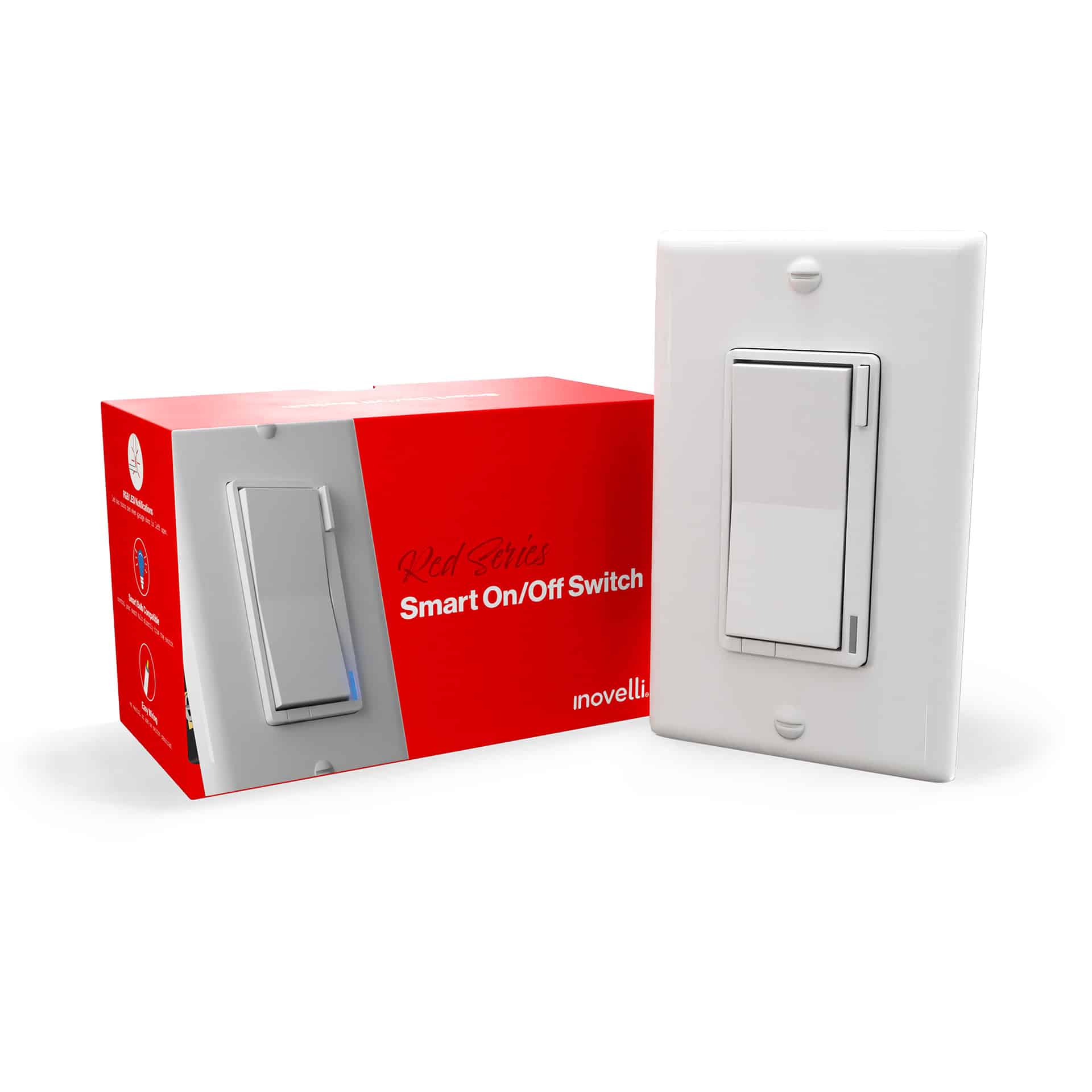
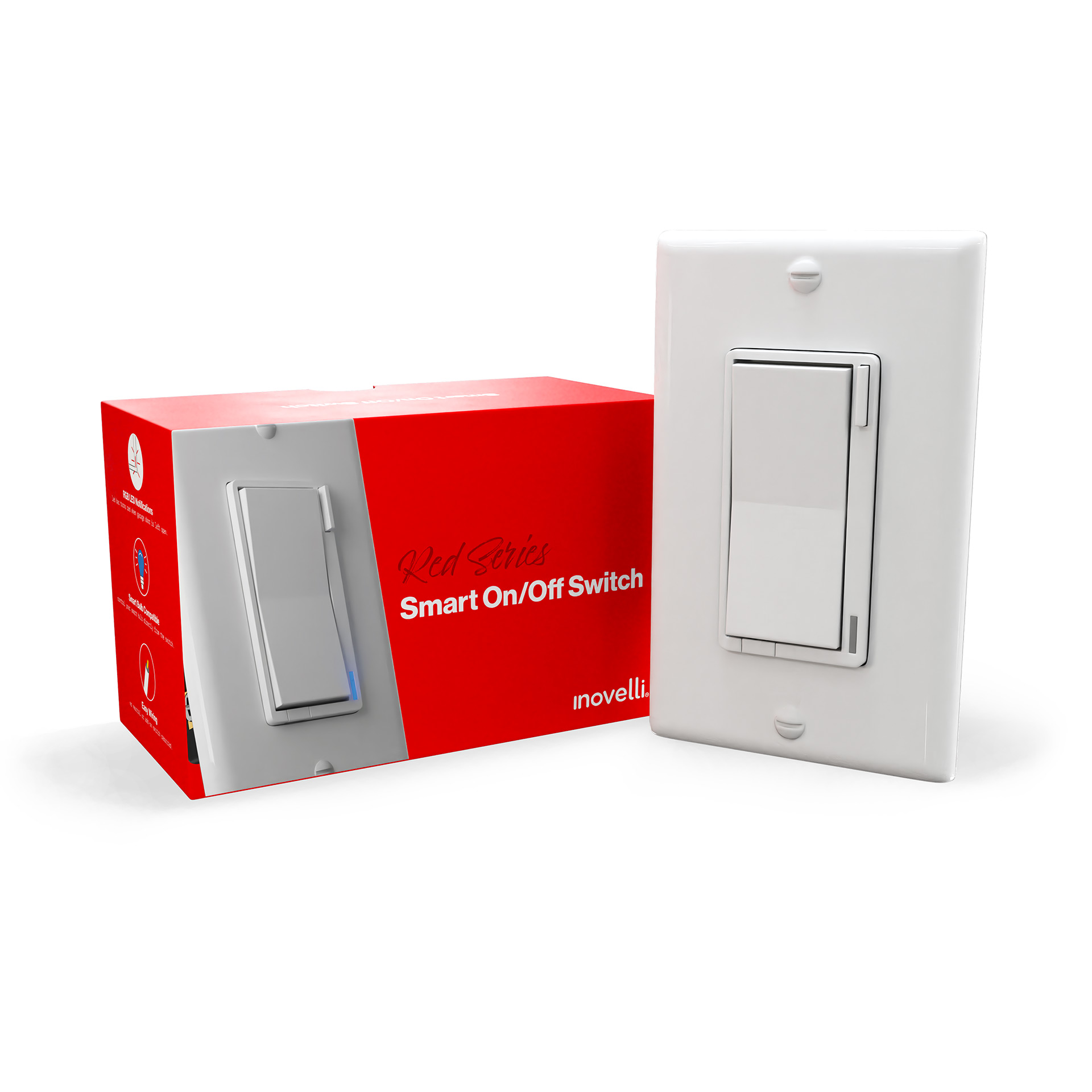
Product Recognition | |
|---|
Certification Number | ZC10-21067042 |
|---|
Name | On/Off Switch (Red Series) |
|---|
Short Description | The Inovelli Red Series On/Off is our most advanced switch to date, which provides energy monitoring, scene control, LED Bar Notifications and much more. |
|---|
Long Description | The Inovelli Red Series On/Off is a Z-Wave™ in-wall switch that controls attached LED, CFL, & Incandescent lighting which can be highly customized to your liking at the switch itself with our unique config button and advanced firmware. In addition, the Red Series comes with advanced features such as scene support, power monitoring, notifications, local protection, etc. |
|---|
Brand | Inovelli |
|---|
Product Identifier | LZW30-SN |
|---|
Product Line | In-Wall Switches |
|---|
OEM Version | HW: 1 FW: 1.21 |
|---|
Hardware Platform | ZM5101 |
|---|
Z-Wave Version | 6.81.03 |
|---|
Library Type | SLAVE_ENHANCED_232 |
|---|
Device Type | On/Off Power Switch |
|---|
Role Type | ROLE_TYPE_SLAVE_ALWAYS_ON |
|---|
Manufacturer ID | 0x031E |
|---|
Product Type ID | 0x0002 |
|---|
Product ID | 0x0001 |
|---|
User Icon | 0x0701 |
|---|
Installer Icon | 0x0701 |
|---|
Frequency Plans | US: 916.00MHz, 908.40MHz |
|---|
Categories | All Lighting Devices, On/Off Switches/Devices |
|---|
Countries / Regions | United States of America |
|---|
Supported Command Classes | Identifier | Name | Key | Version |
|---|
COMMAND_CLASS_FIRMWARE_UPDATE_MD_V4 | Firmware Update Meta-Data V4 | 0x7A | 4 | COMMAND_CLASS_POWERLEVEL | Powerlevel | 0x73 | 1 | COMMAND_CLASS_PROTECTION_V2 | Protection V2 | 0x75 | 2 | COMMAND_CLASS_APPLICATION_STATUS | Application Status | 0x22 | 1 | COMMAND_CLASS_SWITCH_BINARY | Switch Binary | 0x25 | 1 | COMMAND_CLASS_BASIC | Basic | 0x20 | 1 | COMMAND_CLASS_CONFIGURATION | Configuration | 0x70 | 1 | COMMAND_CLASS_SECURITY | Security S0 | 0x98 | 1 | COMMAND_CLASS_TRANSPORT_SERVICE_V2 | Transport Service V2 | 0x55 | 2 | COMMAND_CLASS_VERSION_V2 | Version V2 | 0x86 | 2 | COMMAND_CLASS_DEVICE_RESET_LOCALLY | Device Reset Locally | 0x5A | 1 | COMMAND_CLASS_ZWAVEPLUS_INFO_V2 | Z-Wave Plus Info V2 | 0x5E | 2 | COMMAND_CLASS_ASSOCIATION_V2 | Association V2 | 0x85 | 2 | COMMAND_CLASS_METER_V3 | Meter V3 | 0x32 | 3 | COMMAND_CLASS_ASSOCIATION_GRP_INFO | Association Group Info | 0x59 | 1 | COMMAND_CLASS_SECURITY_2 | Security S2 | 0x9F | 1 | COMMAND_CLASS_CENTRAL_SCENE_V3 | Central Scene V3 | 0x5B | 3 | COMMAND_CLASS_SUPERVISION | Supervision | 0x6C | 1 | COMMAND_CLASS_MANUFACTURER_SPECIFIC_V2 | Manufacturer Specific V2 | 0x72 | 2 |
|
|---|
Controlled Command Classes | Identifier | Name | Key | Version |
|---|
COMMAND_CLASS_BASIC | Basic | 0x20 | 1 |
|
|---|
S2 Classes | S2_UNAUTHENTICATED, S2_AUTHENTICATED |
|---|
Documents | Category | Description | File |
|---|
Manual_Primary_Lang | Product Manual | |
|
|---|
Association Groups | Group Number | Maximum Nodes Supported | End Point ID | Group Name | Profile | Description |
|---|
2 | 5 | 0 | Basic Set | 0x0005 | 1. Single press up button sends BasicSet (0xFF) and 2. Single press down sends BasicSet (0x00). | 1 | 5 | 0 | Lifeline | 0x0005 | Members of this group will receive unsolicited messages related to the status of the switch. |
|
|---|
Configuration Parameters | Parameter Number | Name | Description | Format | Size | Min Value | Max Value | Default Value | Parameter Values |
|---|
8 | LED Strip Effect | This will allow you to add some sweet effects to your LED bar (ie: pulse, chase, solid, etc). Example of how the values work: Byte 1 = Choose Color, Byte 2 = Choose Brightness Level, Byte 3 = Choose Effect, Byte 4 = Duration. Please see website for further instructions on how to set this up as the possible values are a matrix. You start with Byte 1 to select the color, then move to Byte 2 to select the Brightness Level, then move to Byte 3 to choose the Effect, and finally move to Byte 4 to choose the Duration. | 0 | 4 | 0 | 0 | 0 | From | To | Description |
|---|
0 | 0 | Please see website for matrix - https://nathanfiscus.github.io/inovelli-notification-calc/ |
| 10 | Active Power Alerts | The power level change that will result in a new power report being sent (% of previous report). Example of how the values work: 0 = Disabled, 10 = 10% of previous report, 100 = 100% of previous report. | 0 | 1 | 0 | 100 | 10 | From | To | Description |
|---|
1 | 100 | Percentage of previous report | 0 | 0 | Disabled |
| 11 | Periodic Power + Energy Reports | Time period between consecutive power and energy reports being sent (in seconds). Example of how the values work: 0 = 0 seconds, 1 = 1 second, 32767 = 32767 seconds. The timer resets after every report is sent. | 0 | 2 | 0 | 32767 | 3600 | From | To | Description |
|---|
0 | 32767 | Seconds |
| 51 | Disable 700ms Delay | Disables the 700ms delay. Note, if you disable the delay, it will also disable scene control except for Button 1 (ie: tap up 1x or tap down 1x) and button 7 (config button). All other buttons (2-6) will be disabled. | 1 | 1 | 0 | 1 | 1 | From | To | Description |
|---|
1 | 1 | 700ms Delay Enabled | 0 | 0 | 700ms Delay Disabled |
| 1 | Power On State | When power is restored, the switch reverts to either On, Off, or Last Level. | 0 | 1 | 0 | 2 | 0 | From | To | Description |
|---|
1 | 1 | When Power is restored, switch turns ON | 0 | 0 | When Power is restored, switch returns to state prior to power outage | 2 | 2 | When Power is restored, switch is OFF |
| 2 | Invert Switch | Inverts the switch (Tap Down = On, Tap Up = Off). Example of how the values work: 0 = Disabled, 1 = Enabled. This parameter can be set without a HUB from the Configuration Button. | 0 | 1 | 0 | 1 | 0 | From | To | Description |
|---|
0 | 0 | Disabled | 1 | 1 | Enabled |
| 3 | Auto Off Timer | Automatically turns the switch off after x amount of seconds. Example of how the values work: 0 = Disabled, 1 = 1 second, 32767 = 32767 seconds. | 0 | 2 | 0 | 32767 | 0 | From | To | Description |
|---|
0 | 0 | Disabled | 1 | 32767 | Seconds |
| 5 | LED Indicator Color | This will set the default color of the LED Bar. This is calculated by using a hue color circle (Value / 255 * 360). See website for more info. This parameter can be set without a HUB from the Configuration Button. | 0 | 2 | 0 | 255 | 170 | From | To | Description |
|---|
170 | 170 | Blue | 0 | 255 | Hue Color Circle |
| 6 | LED Indicator Intensity | This will set the intensity of the LED bar (ie: how bright it is). Example of how the values work: 0 = Off, 1 = Low, 5 = Medium, 10 = High. This parameter can be set without a HUB from the Configuration Button. | 0 | 1 | 0 | 10 | 5 | From | To | Description |
|---|
1 | 3 | Low Intensity | 4 | 7 | Medium Intensity | 8 | 10 | High Intensity | 0 | 0 | Off |
| 7 | LED Indicator Intensity (When Off) | This is the intensity of the LED bar when the switch is off. Example of how the values work: 0 = Off, 1 = Low, 5 = Medium, 10 = High. This parameter can be set without a HUB from the Configuration Button. | 0 | 1 | 0 | 10 | 1 | From | To | Description |
|---|
1 | 3 | Low Intensity | 4 | 7 | Medium Intensity | 8 | 10 | High Intensity | 0 | 0 | Off |
|
|
|---|
Texts | ID | Description | Value |
|---|
2 | Classic Exclusion | To Exclude your switch, put your HUB in exclusion mode and press the Configuration Button three (3) times. | 5 | Factory Reset Procedure | You may factory reset the switch by holding down the Config Button for twenty (20) or more seconds. The LED Bar will turn Red and blink three (3) times to confirm.
However, we recommend using a certified Z-Wave controller to remove the device from your network for factory resetting the switch.
Only use either of these procedures in the event that the network primary controller is missing or otherwise inoperable. | 8 | Where to find S2 DSK on product | The DSK can be found on the front of the switch (metal plate) and inside the box. | 1 | Classic Inclusion | To include your on/off switch start the inclusion process on your HUB and tap the Configuration Button three (3) times.
Please Note: If this doesn't work, you can check to see if your switch is within Z-Wave Range by holding down the Configuration Button for 5-10 seconds (if it's not within range, the LED Bar will indicate Red and if it is within Range, the LED Bar will indicate Green). If your switch indicates Red, please move the switch closer to the HUB. If your switch indicates Green, please try running an Exclusion to reset your switch. | 6 | Other Special Features | Configuration/Favorites Button: This switch allows for ultimate customization via the Configuration Button (rather than via a Z-Wave HUB) such as the power on state, LED Indicator Color, LED Indicator Intensity, and LED Indicator Intensity (When Off). In addition, the config button doubles as a favorites button allowing you to create your favorite scene (Z-Wave Central Scene) and press the config/favorite button to activate it.
LED Bar Notifications: The LED Bar will alert you when an action has taken place (ie: Door is unlocked after 10pm, your switch will light up Red or your alarm panel is armed, it can flash green, etc).
Central Scene Control: Allows up to 13 different scenes to be added to your switch (12x on the Paddles, 1x on the Config/Favorites Button). A use-case would be: Double Tap down on the switch to activate a bedtime scene that turns off all smart lights, locks the doors, and sets the temperature to 68.
Smart Bulb Compatible: The internal relay can be disabled allowing for full control of Smart Bulbs (Z-Wave bulbs preferred for maximum control). This fixes the issue of when someone flips a switch and turns off power to your smart bulb (causing it to go offline). Now, you can disable the internal relay and send a scene command to turn on/off your bulb. Or directly associate the switch to the bulb to dim up/down and send a scene command to change the colors.
OTA (Over-the-Air) Enabled: As with all our devices, the switch allows you to receive our latest firmware updates (NOTE: Please make sure your HUB supports this). |
|
|---|
Supported / Controlled Meter Types | Meter Type | Rate Type | Description |
|---|
Electric meter | Import | Electric Meter Consumption |
|
|---|
Supports NWI | Yes |
|---|
Supports Explorer Frames | Yes |
|---|
Supports SmartStart | Yes |
|---|
Radio Range Z-Wave (m) | 40 |
|---|