| Product Recognition | |
|---|
| Certification Number | ZC10-15070015 |
|---|
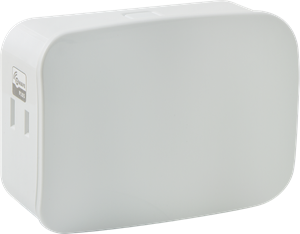
| Name | Plug-in Smart Dimmer, Dual Outlet with Simultaneous Control |
|---|
| Short Description | Transform any home into a smart home with the Jasco Z-Wave Smart Dimmer. The In-Wall Smart Dimmer can easily replace any standard in-wall switch and remotely controls a light in your home. |
|---|
| Long Description | Transform any home into a smart home with the Jasco Z-Wave Smart Lighting Control Lamp Module with Dimmer Control. The lamp module enables wireless control of on/off and dim functions for standard incandescent table and floor lamps, as well as dimmable fluorescent, LED and CFL fixtures and more! Use the dimmer control to customize the lighting output and create the perfect ambiance for any room. The space-saving horizontal module plugs into a standard wall receptacle without blocking the second outlet or obstructing placement of furniture. The Dimmer provides one Z-Wave enabled outlet for the lamp you would like to control. Take control of your home lighting with Jasco Z-Wave Smart Lighting Controls! |
|---|
| Brand | Jasco Products Company |
|---|
| Product Identifier | 14307 |
|---|
| OEM Version | HW: 255 |
|---|
| Hardware Platform | ZM5202 |
|---|
| Z-Wave Version | 6.51.06 |
|---|
| Library Type | SLAVE_ENHANCED_232 |
|---|
| Device Type | Light Dimmer Switch |
|---|
| Role Type | ROLE_TYPE_SLAVE_ALWAYS_ON |
|---|
| Manufacturer ID | 0x0063 |
|---|
| Product Type ID | 0x5044 |
|---|
| Product ID | 0x3035 |
|---|
| Frequency Plans | US: 916.00MHz, 908.40MHz |
|---|
| Categories | All Lighting Devices, Dimming Lighting Devices |
|---|
| Countries / Regions | United States of America |
|---|
| Documents | | Category | Description | File |
|---|
| Manual_Primary_Lang | Product or Owner's Manual | 14307 QSG.pdf |
|
|---|
| Association Groups | | Group Number | Maximum Nodes Supported | End Point ID | Description |
|---|
| 1 | 1 | 0 | Z-Wave Plus Lifeline |
|
|---|
| Configuration Parameters | | Parameter Number | Name | Description | Format | Size | Min Value | Max Value | Default Value | Parameter Values |
|---|
| 7 | Dim Rate Adjustments (From Z-Wave Controller) | number of steps or levels | 0 | 1 | 0 | 0 | 1 | | From | To | Description |
|---|
| 0 | 0 | | | 1 | 99 | number of steps or levels |
| | 10 | Dim Rate Adjustments (When manually controlled) | timing of the steps | 0 | 2 | 0 | 0 | 3 | | From | To | Description |
|---|
| 1 | 255 | timing of the steps | | 0 | 0 | |
| | 8 | Dim Rate Adjustments (From Z-Wave Controller) | timing of the steps | 0 | 2 | 0 | 0 | 3 | | From | To | Description |
|---|
| 1 | 255 | timing of the steps | | 0 | 0 | |
| | 11 | Dim Rate Adjustments (When receiving All-On/All-Off command) | number of steps or levels | 0 | 1 | 0 | 0 | 1 | | From | To | Description |
|---|
| 1 | 99 | number of steps or levels | | 0 | 0 | |
| | 3 | LED Light | To make the LED turn ON when the light is turned ON, change parameter 3’s value to “1”. | 0 | 1 | 0 | 0 | 0 | | From | To | Description |
|---|
| 1 | 1 | To make the LED turn ON when the light is turned ON, change parameter 3’s value to “1”. | | 2 | 2 | To turn the LED OFF at all times, change parameter 3’s value to 2 |
| | 9 | Dim Rate Adjustments (When manually Controlled) | number of steps or levels | 0 | 1 | 0 | 0 | 1 | | From | To | Description |
|---|
| 0 | 0 | | | 1 | 99 | number of steps or levels |
|
|
|---|
| Texts | | ID | Description | Value |
|---|
| 5 | Factory Reset | 1. If plugged in, unplug the Switch from the receptacle.
2. Press and hold the top button for at least 3 seconds while you plug the switch into a receptacle.
Note: This should only be used in the event your network’s primary controller is missing or otherwise inoperable. | | 1 | Inclusion | 1. Follow the instructions for your Z-wave certified controller to include the device to the Z-wave network.
2. Once the controller is ready to include your smart switch, single press and release the manual/program button on the smart dimmer to include it in the network.
3. Once your controller has confirmed that the smart switch has been included, refresh the Z-wave network to optimize performance. | | 2 | Exclusion | 1. Follow the instructions for your Z-wave certified controller to exclude a device from the Z-wave network.
2. Once the controller is ready to Exclude your device, press and release the manual/program button on the smart switch to exclude it from the network. |
|
|---|
| Supports NWI | Yes |
|---|
| Supports Explorer Frames | Yes |
|---|