Product Recognition | |
|---|
Certification Number | ZC10-20076953 |
|---|
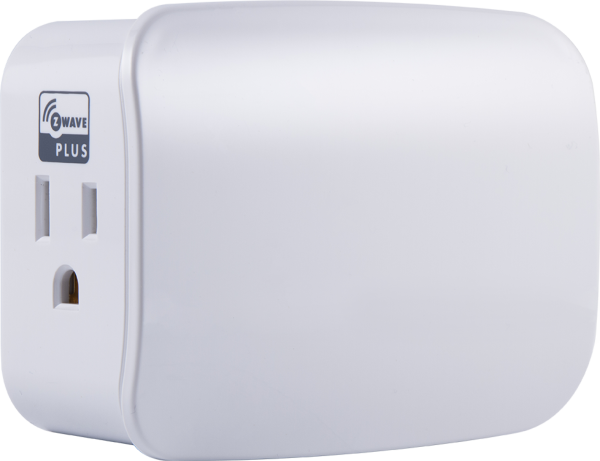
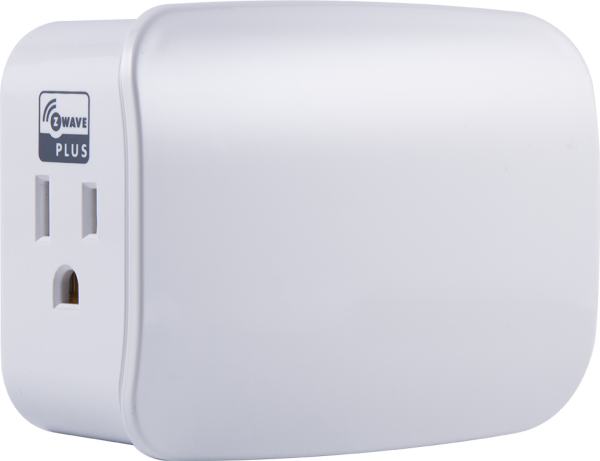
Name | Plug-in Smart Switch (Dual Plug with Simultaneous Control) |
|---|
Short Description | The lighting control enables wireless control of on/off functions for standard table and floor lamps and is compatible with incandescent, LED, Xenon, Halogen, fluorescent and compact fluorescent bulbs. |
|---|
Long Description | Transform any home into a smart home with the Enbrighten Z-Wave Smart Lighting Control and Appliance Module. The lighting control enables wireless control of on/off functions for standard table and floor lamps and is compatible with incandescent, LED, Xenon, Halogen, fluorescent and compact fluorescent bulbs. Easily controlled by your mobile device or computer using any Z-Wave certified gateway, the space-saving horizontal module plugs into a standard wall receptacle without blocking the second outlet or obstructing placement of furniture. It provides dual Z-Wave enabled outlets for the lamp or appliance that you would like to control and a regular pass-through AC outlet for other electrical appliances. Perfect for plug-in fans, heaters, lamps and more! Take control of your home lighting with Enbrighten Z-Wave Smart Lighting Controls! |
|---|
Brand | Enbrighten |
|---|
Product Identifier | 55249/ZW4106 |
|---|
Product Line | Wireless Lighting Controls |
|---|
OEM Version | HW: 255 FW: 5.51 |
|---|
Hardware Platform | ZM5202 |
|---|
Z-Wave Version | 6.82.00 |
|---|
Library Type | SLAVE_ENHANCED_232 |
|---|
Device Type | On/Off Power Switch |
|---|
Role Type | ROLE_TYPE_SLAVE_ALWAYS_ON |
|---|
Manufacturer ID | 0x0063 |
|---|
Product Type ID | 0x5052 |
|---|
Product ID | 0x3133 |
|---|
User Icon | 0x0700 |
|---|
Installer Icon | 0x0701 |
|---|
Frequency Plans | US: 916.00MHz, 908.40MHz |
|---|
Categories | Hospitality, All Lighting Devices, On/Off Switches/Devices, Lighting Accessories |
|---|
Countries / Regions | United States of America |
|---|
Supported Command Classes | Identifier | Name | Key | Version |
|---|
COMMAND_CLASS_CONFIGURATION_V4 | Configuration V4 | 0x70 | 4 | COMMAND_CLASS_FIRMWARE_UPDATE_MD_V4 | Firmware Update Meta-Data V4 | 0x7A | 4 | COMMAND_CLASS_SCENE_ACTUATOR_CONF | Scene Actuator Conf | 0x2C | 1 | COMMAND_CLASS_SWITCH_BINARY_V2 | Switch Binary V2 | 0x25 | 2 | COMMAND_CLASS_POWERLEVEL | Powerlevel | 0x73 | 1 | COMMAND_CLASS_APPLICATION_STATUS | Application Status | 0x22 | 1 | COMMAND_CLASS_TRANSPORT_SERVICE_V2 | Transport Service V2 | 0x55 | 2 | COMMAND_CLASS_DEVICE_RESET_LOCALLY | Device Reset Locally | 0x5A | 1 | COMMAND_CLASS_ZWAVEPLUS_INFO_V2 | Z-Wave Plus Info V2 | 0x5E | 2 | COMMAND_CLASS_ASSOCIATION_V2 | Association V2 | 0x85 | 2 | COMMAND_CLASS_ASSOCIATION_GRP_INFO | Association Group Info | 0x59 | 1 | COMMAND_CLASS_BASIC_V2 | Basic V2 | 0x20 | 2 | COMMAND_CLASS_SECURITY_2 | Security S2 | 0x9F | 1 | COMMAND_CLASS_VERSION_V3 | Version V3 | 0x86 | 3 | COMMAND_CLASS_CENTRAL_SCENE_V3 | Central Scene V3 | 0x5B | 3 | COMMAND_CLASS_SUPERVISION | Supervision | 0x6C | 1 | COMMAND_CLASS_SCENE_ACTIVATION | Scene Activation | 0x2B | 1 | COMMAND_CLASS_MANUFACTURER_SPECIFIC_V2 | Manufacturer Specific V2 | 0x72 | 2 |
|
|---|
Controlled Command Classes | Identifier | Name | Key | Version |
|---|
COMMAND_CLASS_BASIC_V2 | Basic V2 | 0x20 | 2 |
|
|---|
S2 Classes | S2_UNAUTHENTICATED, S2_AUTHENTICATED |
|---|
Documents | Category | Description | File |
|---|
Manual_Primary_Lang | Product Manual | |
|
|---|
Features | Feature | Values |
|---|
Switch Type | Value |
|---|
Push Button Illuminated |
| Switch Load Capacity Watts | | Firmware Updatable | Value |
|---|
Updatable by Consumer by RF |
|
|
|---|
Association Groups | Group Number | Maximum Nodes Supported | End Point ID | Group Name | Description |
|---|
1 | 5 | 0 | Lifeline | Z-Wave Plus Lifeline | 2 | 5 | 0 | Single Press | Basic Set is controlled by the local load | 3 | 5 | 0 | Double Press | Basic Set is controlled by double pressing the On/Off button |
|
|---|
Configuration Parameters | Parameter Number | Name | Description | Format | Size | Min Value | Max Value | Default Value | Parameter Values |
|---|
3 | LED Light | LED Indicator light | 1 | 1 | 0 | 3 | 0 | From | To | Description |
|---|
0 | 0 | LED ON/device ON (Default) | 1 | 1 | LED On when load is On, LED Off when load is Off | 2 | 2 | LED always ON | 3 | 3 | LED always off |
|
|
|---|
Texts | ID | Description | Value |
|---|
8 | Where to find S2 DSK on product | If prompted by the controller to enter the S2 security code, refer to the QR
code/security number on the back of the box, or the QR code label on the product (see Figure 3). | 2 | Classic Exclusion | To remove the sensor from the Z-Wave network
1. Follow the instructions for your Z-Wave certified controller to remove the sensor from the Z-Wave network.
2. Once the controller is ready to remove your sensor, press and release the programming button on the sensor
1 time to remove it from the network (see Figure 4).
3. The red LED will blink 5 times to indicate it has been removed. | 5 | Factory Reset Procedure | 1. Press the programming button 10 times within 6 seconds (interval between presses of the button cannot be
longer than 1 second).
2. The red LED will activate for 2 seconds, followed by 3 quick flashes. | 1 | Classic Inclusion | 1. Follow the instructions for your Z-Wave certified controller to add the sensor in the Z-Wave network.
2. Once the controller is ready to add your sensor, ensure battery is installed with the correct polarity in the sensor and the battery tab has
been removed.
3. Press and release the programming button (see Figure 2). This starts the manual add process. The red LED (see Figure 2) will begin to
flash quickly as it begins the add process.
4. The red LED will activate for 3 seconds to confirm the sensor has been added in the network.
5. The controller’s app will indicate if it has discovered the sensor. If prompted by the controller to enter the S2 security code, refer to the QR
code/security number on the back of the box, or the QR code label on the product (see Figure 3). Enter the 5-digit code.
Note: Your controller may need to be within 10ft. of the sensor to be added.
Using the controller, you can activate interactive automations when the sensor detects when a door or window is opened or closed.
Functions may vary depending on gateway or controller. |
|
|---|
Supports NWI | Yes |
|---|
Supports Explorer Frames | Yes |
|---|
Supports SmartStart | Yes |
|---|
Radio Range Z-Wave (m) | 40 |
|---|