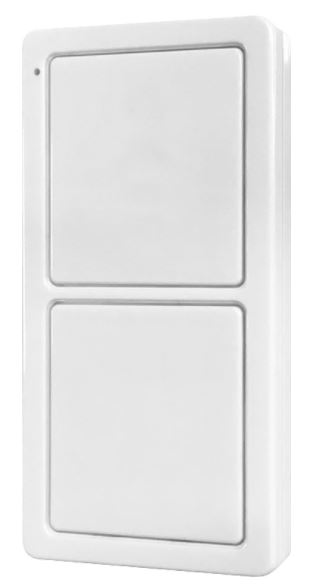
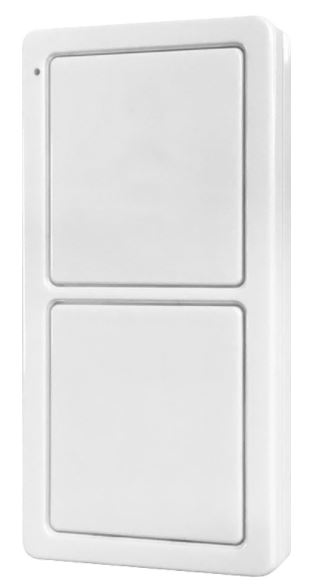
Product Recognition | |
|---|
Certification Number | ZC12-20090119 |
|---|
Name | Portable Remote, Simple Controller, 2 Button |
|---|
Short Description | Custom lighting control is at your fingertips with the Jasco Z-Wave 2-Button Portable Hub Remote. |
|---|
Long Description | Custom lighting control is at your fingertips with the Jasco Z-Wave 2-Button Portable Hub Remote. This versatile remote communicates with your hub to activate up to 6 unique, lighting scenes. Once the remote is connected to your existing network, you can begin programming the lights to personalize your indoor space. The wireless lighting control has an overall signal range of up to 150 feet and is compatible with any device that works with your hub.
Enjoy a variety of placement options for your lighting control – utilize the included hardware and magnetic bracket for wall mounting, detach the remote for instant portability or pair the remote with a separate stand for convenient tabletop use. The hub remote also functions on a scalable system, giving you the freedom to start with one remote and add as many as you need. Take control of your lights with the Z-Wave 2 Button Portable Hub Remote. |
|---|
Brand | Jasco |
|---|
Product Identifier | 53829/ZW5313 |
|---|
Product Line | Z-Wave Remotes |
|---|
OEM Version | HW: 1 FW: 7.04 |
|---|
Hardware Platform | ZGM130 |
|---|
Z-Wave Version | 7.13.6 |
|---|
Library Type | SLAVE_ENHANCED_232 |
|---|
Device Type | Central Scene Device |
|---|
Role Type | ROLE_TYPE_SLAVE_SLEEPING_REPORTING |
|---|
Manufacturer ID | 0x0063 |
|---|
Product Type ID | 0x4843 |
|---|
Product ID | 0x3136 |
|---|
User Icon | 0x1600 |
|---|
Installer Icon | 0x1600 |
|---|
Frequency Plans | US: 916.00MHz, 908.40MHz |
|---|
Categories | All Controllers, Handheld Controller |
|---|
Countries / Regions | United States of America |
|---|
Supported Command Classes | Identifier | Name | Key | Version |
|---|
COMMAND_CLASS_CONFIGURATION_V4 | Configuration V4 | 0x70 | 4 | COMMAND_CLASS_POWERLEVEL | Powerlevel | 0x73 | 1 | COMMAND_CLASS_MULTI_CHANNEL_ASSOCIATION_V3 | Multi-Channel Association V3 | 0x8E | 3 | COMMAND_CLASS_INDICATOR_V3 | Indicator V3 | 0x87 | 3 | COMMAND_CLASS_BATTERY | Battery | 0x80 | 1 | COMMAND_CLASS_APPLICATION_STATUS | Application Status | 0x22 | 1 | COMMAND_CLASS_SECURITY | Security S0 | 0x98 | 1 | COMMAND_CLASS_TRANSPORT_SERVICE_V2 | Transport Service V2 | 0x55 | 2 | COMMAND_CLASS_WAKE_UP_V2 | Wake Up V2 | 0x84 | 2 | COMMAND_CLASS_DEVICE_RESET_LOCALLY | Device Reset Locally | 0x5A | 1 | COMMAND_CLASS_ZWAVEPLUS_INFO_V2 | Z-Wave Plus Info V2 | 0x5E | 2 | COMMAND_CLASS_ASSOCIATION_V2 | Association V2 | 0x85 | 2 | COMMAND_CLASS_FIRMWARE_UPDATE_MD_V5 | Firmware Update Meta-Data V5 | 0x7A | 5 | COMMAND_CLASS_ASSOCIATION_GRP_INFO_V3 | Association Group Information V3 | 0x59 | 3 | COMMAND_CLASS_SECURITY_2 | Security S2 | 0x9F | 1 | COMMAND_CLASS_VERSION_V3 | Version V3 | 0x86 | 3 | COMMAND_CLASS_CENTRAL_SCENE_V3 | Central Scene V3 | 0x5B | 3 | COMMAND_CLASS_SUPERVISION | Supervision | 0x6C | 1 | COMMAND_CLASS_MANUFACTURER_SPECIFIC_V2 | Manufacturer Specific V2 | 0x72 | 2 |
|
|---|
S2 Classes | S2_UNAUTHENTICATED, S2_AUTHENTICATED |
|---|
Documents | Category | Description | File |
|---|
Manual_Primary_Lang | Product Manual | |
|
|---|
Features | Feature | Values |
|---|
Battery Type | | Battery Quantity | | Firmware Updatable | Value |
|---|
Updatable by Consumer by RF |
| Z-Wave Scene Type | |
|
|---|
Association Groups | Group Number | Maximum Nodes Supported | End Point ID | Group Name | Description |
|---|
2 | 5 | 0 | Single Press | Association Group 2 supports Basic Set and is controlled by pressing the UP or Down
button once. | 1 | 5 | 0 | Lifeline | Association Group 1 supports Lifeline, Battery Reports, Device Reset Locally Notification, Central Scene, Indicator Report | 3 | 5 | 0 | Double Press | Association Group 3 supports Basic Set and is controlled by double pressing the UP or Down button twice. |
|
|---|
Configuration Parameters | Parameter Number | Name | Description | Format | Size | Min Value | Max Value | Default Value | Parameter Values |
|---|
2 | Controller Work Mode | Enable/ Disable Group 2 and 3 | 0 | 1 | 0 | 1 | 1 | From | To | Description |
|---|
0 | 0 | Enabled- Normal Operation | 1 | 1 | Disabled Groups 2 and 3 |
|
|
|---|
Texts | ID | Description | Value |
|---|
8 | Where to find S2 DSK on product | When prompted, scan the QR code on the back of the remote or type the 5-digit pin code located on the back of the remote. If prompted by the controller to enter the S2 security code, refer to the QR code/security number on the side of the box or the QR code label on the product (see Figure 1). Enter the 5-digit PIN code. | 1 | Classic Inclusion | 1. Follow the instructions for your Z-Wave certified hub to add a device to the Z-Wave network.
2. Once the hub is ready to add your device, press and hold either button for three seconds.
3. The LED will flash two times when the remote sends add notification (NIF).
4. The LED will keep lighting up for one minute if inclusion is successful.5. Following the instructions for your Z-Wave certified hub, assign actions for each button press. An action can be many combinations of scenes, groups
or events, and is greatly dependent on the hub capabilities. | 2 | Classic Exclusion | 1. Follow the instructions for your Z-Wave certified hub to remove a device from the Z-Wave network.
2. Once the hub is ready to remove your device, press and hold either button for three seconds.
3. The LED will flash two times when the remote sends remove notification (NIF). | 23 | Controller Inclusion | Adding your remote to a Z-Wave network
1. Follow the instructions for your Z-Wave certified hub to add a device to the Z-Wave network.
2. Once the hub is ready to add your device, press and hold Button 1 for 3 seconds.
3. The LED will flash two (2) times when the remote sends add notification (NIF).
NOTE: Some Hubs will require an additional step for secure inclusion, when prompted scan the QR code on the back of the remote, or type in the 5-digit pin code located on the back of the remote. | 24 | Controller Exclusion | Removing your remote from a Z-Wave network
1. Follow the instructions for your Z-Wave certified hub to remove a device from the Z-Wave network.
2. Once the hub is ready to remove your device, press and hold Button 1 for 3 seconds.
3. The LED will flash two (2) times when the remote sends remove notification (NIF). | 4 | Wake-Up Procedure | 1. Press and hold Button 1 for 3 seconds.
2. The LED will flash two (2) times. | 5 | Factory Reset Procedure | 1. Press and release Button 1 ten times quickly. All button presses must be within 6 seconds.
2. The LED will flash five (5) times when completed successfully. |
|
|---|
Supports NWI | Yes |
|---|
Supports Explorer Frames | Yes |
|---|
Supports SmartStart | Yes |
|---|
Radio Range Z-Wave (m) | 40 |
|---|