Product Recognition | |
|---|
Certification Number | ZC10-20016845 |
|---|
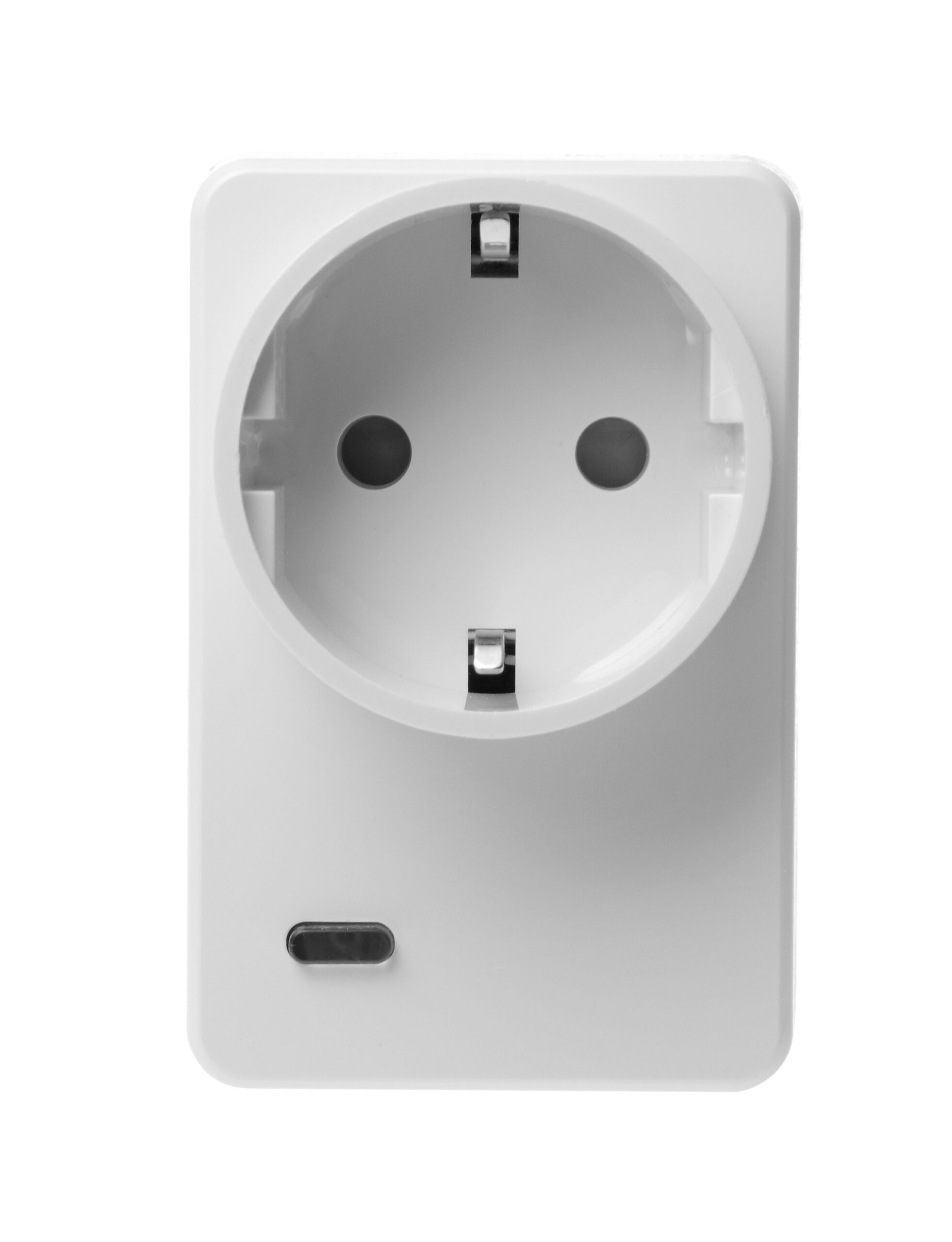
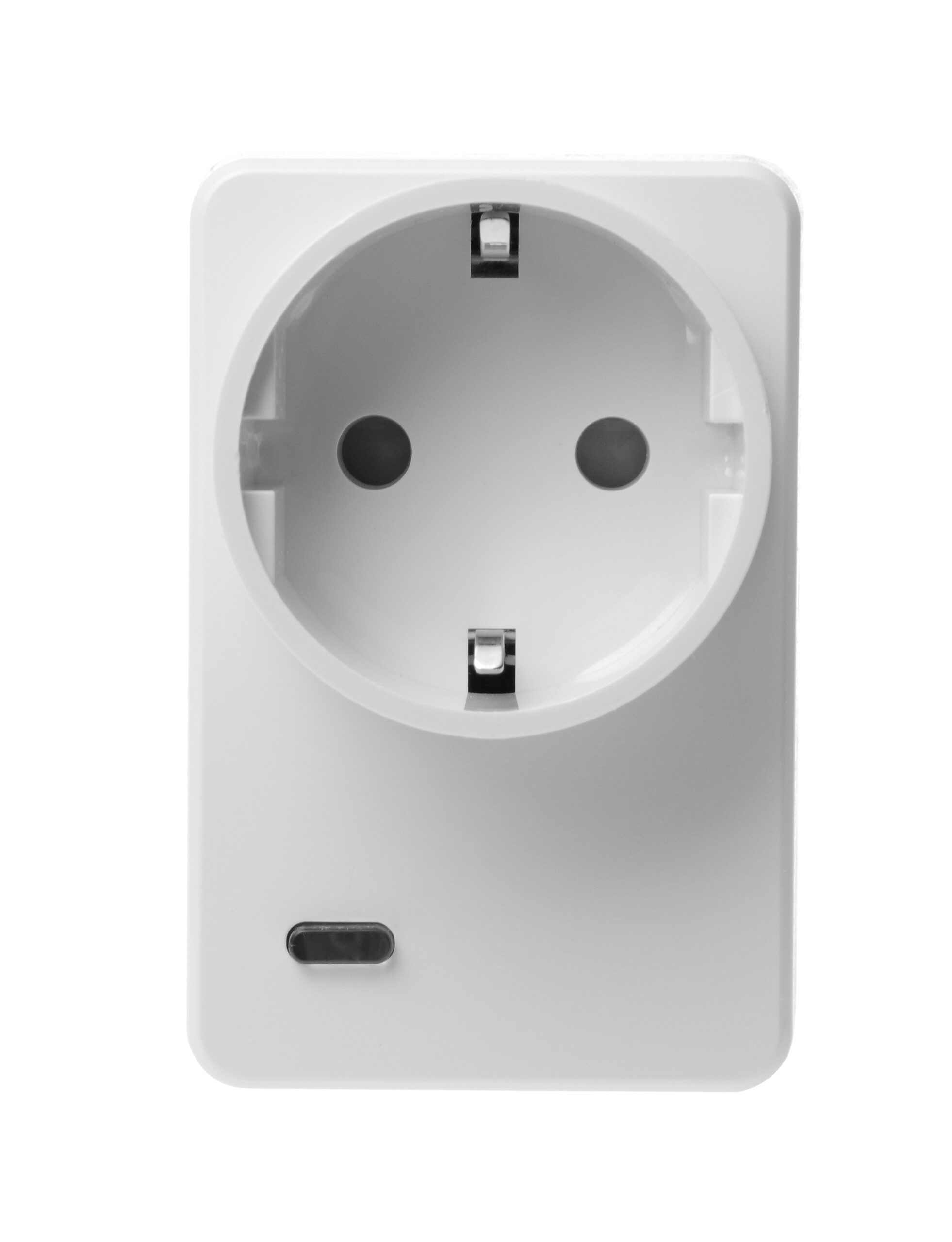
Name | Power Switch Series |
|---|
Short Description | The Z-Wave-enabled Power Switches are capable of receiving wireless signals from the coordinator in the Z-Wave network to toggle On/Off of appliances that are attached to it. |
|---|
Long Description | The Power Switch also serves as a router in the Z-Wave network. After being included in the Z-Wave network, it allows other Z-Wave device to join the network through the Power Switch.
The Z-Wave Power Switches allow access to the “S2 Unauthenticated” class and support Z-Wave SmartStart inclusion as well as classic inclusion. |
|---|
Brand | Climax Technology |
|---|
Product Identifier | PSS-29ZW |
|---|
Product Line | Z-Wave Accessories |
|---|
OEM Version | HW: 255 FW: 4.01 |
|---|
Hardware Platform | ZM5202 |
|---|
Z-Wave Version | 6.81.06 |
|---|
Library Type | SLAVE_ENHANCED_232 |
|---|
Device Type | On/Off Power Switch |
|---|
Role Type | ROLE_TYPE_SLAVE_ALWAYS_ON |
|---|
Manufacturer ID | 0x018E |
|---|
Product Type ID | 0x0004 |
|---|
Product ID | 0x0001 |
|---|
User Icon | 0x0700 |
|---|
Installer Icon | 0x0700 |
|---|
Frequency Plans | EU: 869.85MHz, 868.40MHz |
|---|
Categories | All Lighting Devices, On/Off Switches/Devices |
|---|
Countries / Regions | European Union |
|---|
Supported Command Classes | Identifier | Name | Key | Version |
|---|
COMMAND_CLASS_FIRMWARE_UPDATE_MD_V4 | Firmware Update Meta-Data V4 | 0x7A | 4 | COMMAND_CLASS_POWERLEVEL | Powerlevel | 0x73 | 1 | COMMAND_CLASS_MULTI_CHANNEL_ASSOCIATION_V3 | Multi-Channel Association V3 | 0x8E | 3 | COMMAND_CLASS_SWITCH_BINARY | Switch Binary | 0x25 | 1 | COMMAND_CLASS_BASIC | Basic | 0x20 | 1 | COMMAND_CLASS_TRANSPORT_SERVICE_V2 | Transport Service V2 | 0x55 | 2 | COMMAND_CLASS_DEVICE_RESET_LOCALLY | Device Reset Locally | 0x5A | 1 | COMMAND_CLASS_ZWAVEPLUS_INFO_V2 | Z-Wave Plus Info V2 | 0x5E | 2 | COMMAND_CLASS_ASSOCIATION_V2 | Association V2 | 0x85 | 2 | COMMAND_CLASS_ASSOCIATION_GRP_INFO | Association Group Info | 0x59 | 1 | COMMAND_CLASS_SECURITY_2 | Security S2 | 0x9F | 1 | COMMAND_CLASS_VERSION_V3 | Version V3 | 0x86 | 3 | COMMAND_CLASS_SUPERVISION | Supervision | 0x6C | 1 | COMMAND_CLASS_MANUFACTURER_SPECIFIC_V2 | Manufacturer Specific V2 | 0x72 | 2 |
|
|---|
S2 Classes | S2_UNAUTHENTICATED |
|---|
Documents | Category | Description | File |
|---|
Manual_Primary_Lang | Product Manual | |
|
|---|
Features | Feature | Values |
|---|
Firmware Updatable | Value |
|---|
Updatable by Consumer by RF |
|
|
|---|
Association Groups | Group Number | Maximum Nodes Supported | End Point ID | Group Name | Profile | Description |
|---|
1 | 5 | 0 | Lifeline | 0x0000 | Grouping 1 for “LifeLine”: (max node: 5)
Switch Binary CC (COMMAND_CLASS_SWITCH_BINARY)
Device Reset Locally CC (COMMAND_CLASS_DEVICE_RESET_LOCALLY)
When toggling between On/Off, it will send Binary Switch Report to the nodes of Grouping 1. |
|
|---|
Texts | ID | Description | Value |
|---|
8 | Where to find S2 DSK on product | The DSK information is stored in the QR code format that is printed on a label and adhered to the front side of the device, as example shown on the right hand side. | 1 | Classic Inclusion | Classic Inclusion
1. Plug the Power Switch into a power outlet.
2. Put the Z-Wave Gateway or Control Panel into Inclusion mode (please refer to the Z-Wave Gateway or Control Panel manual).
3. Within 1.5 seconds, press the Function Button 3 times.
4. Refer to the operation manual of the Z-Wave Gateway or Control Panel to complete the adding process.
5. If the device has already been added (included) into another Z-Wave Gateway/Control Panel, or if the device is unable to be added into the current Z-Wave Gateway/Control Panel, please exclude it first (see Removing Device) before attempting to include it into the current Z-Wave Gateway/Control Panel. | 2 | Classic Exclusion | The device must be removed from existing Z-Wave network before being included into another. There are two methods available to exclude a device.
Exclusion Mode
1. Put the Z-Wave Gateway or Control Panel into Exclusion mode (please refer to the Z-Wave Gateway or Control Panel manual).
2. Within 1.5 seconds, press the Function Button 3 times and the device will be removed from the Z-Wave network. | 5 | Factory Reset Procedure | Factory Reset
(Only use factory reset when network Control Panel/Gateway is missing or inoperable).
#. Press and hold the Function Button of the device for 10 seconds to factory reset. |
|
|---|
Supports NWI | Yes |
|---|
Supports Explorer Frames | Yes |
|---|
Supports SmartStart | Yes |
|---|
Radio Range Z-Wave (m) | 40 |
|---|