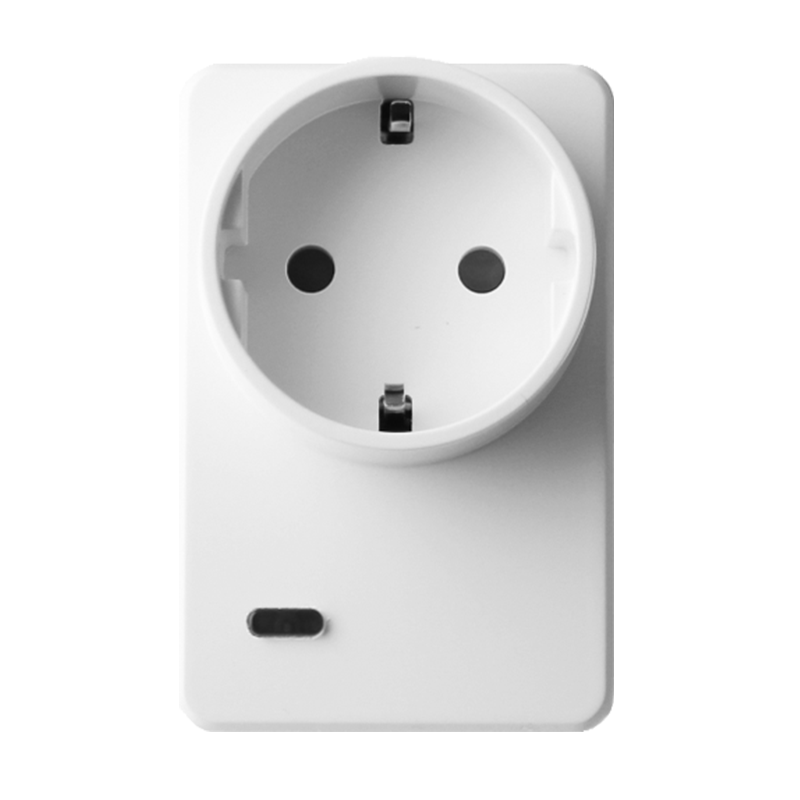
| Product Recognition | |
|---|
| Certification Number | ZC10-15020008 |
|---|
| Name | PSM-29ZW |
|---|
| Short Description | The PSM-29ZW is a power meter switches measure and report individual appliances’ electricity consumption. |
|---|
| Long Description | The slim-sized PSM-29ZW power meter switches measure and report individual appliances’ electricity consumption to control panels for energy management purposes. Their energy consumption reports are viewable online and help you form effective strategies to reduce electricity bills.
The PSM-29ZW can be programmed to automatically run home appliances. They enable you to turn on/off appliances from a smartphone or tablet anytime, anywhere. |
|---|
| Brand | Climax Technology |
|---|
| Product Identifier | PSM-29ZW |
|---|
| OEM Version | HW: 255 |
|---|
| Hardware Platform | ZM5202 |
|---|
| Z-Wave Version | 6.51.02 |
|---|
| Library Type | SLAVE_ENHANCED_232 |
|---|
| Device Type | On/Off Power Switch |
|---|
| Role Type | ROLE_TYPE_SLAVE_ALWAYS_ON |
|---|
| Manufacturer ID | 0x018E |
|---|
| Product Type ID | 0x0004 |
|---|
| Product ID | 0x0002 |
|---|
| Frequency Plans | EU: 869.85MHz, 868.40MHz |
|---|
| Categories | Energy Meters, All Lighting Devices, On/Off Switches/Devices |
|---|
| Countries / Regions | European Union |
|---|
| Documents | |
|---|
| Association Groups | | Group Number | Maximum Nodes Supported | End Point ID | Description |
|---|
| 1 | 5 | 0 | Z-Wave Plus Lifeline |
|
|---|
| Texts | | ID | Description | Value |
|---|
| 1 | Inclusion | 1. Plug the Power Switch into a power outlet.
2. Put the Z-wave gateway or control panel into Inclusion or Learning mode (please refer to the Z-wave gateway or control panel manual).
3. Within 1.5 seconds, press the Switch Button 3 times.
4. Refer to the operation manual of the Z-wave gateway or control panel to complete the learn-in process.
5. If the device has already been included (learnt) into another Z-wave Gateway/Control Panel, or if the device is unable to be learnt into the current Z-wave Gateway/Control Panel, please exclude it first (see Exclusion) before attempting to include it into the current Z-wave Gateway/Control Panel. | | 2 | Exclusion | 1. Put the Z-wave gateway or control panel into Exclusion mode (please refer to the Z-wave gateway or control panel manual).
2. Within 1.5 seconds, press the Switch Button 3 times and the device will be removed from the Z-wave network. | | 4 | Device Wake-Up | Always on | | 6 | Additional Special Features | Metering | | 5 | Factory Reset | Please use this procedure only in the event that the primary network controller is missing or otherwise inoperable.
1. Press and hold the Switch Button of the device for 12 seconds to factory reset.
2. Factory resetting the device will restore it to factory default settings (excluded from the Z-wave network). The Z-wave gateway or control panel will still keep its Z-wave settings. Please refer to the gateway or control panel manual on how to remove the device’s Z-wave settings.
3. Factory resetting the device will also clear all accumulated power data. | | 3 | Learn Mode (adding another controller) | 1. Plug the Power Switch into a power outlet.
2. Put the Z-wave gateway or control panel into Inclusion or Learning mode (please refer to the Z-wave gateway or control panel manual).
3. Within 1.5 seconds, press the Switch Button 3 times.
4. Refer to the operation manual of the Z-wave gateway or control panel to complete the learn-in process.
5. If the device has already been included (learnt) into another Z-wave Gateway/Control Panel, or if the device is unable to be learnt into the current Z-wave Gateway/Control Panel, please exclude it first (see Exclusion) before attempting to include it into the current Z-wave Gateway/Control Panel. |
|
|---|
| Supports NWI | Yes |
|---|
| Supports Explorer Frames | Yes |
|---|