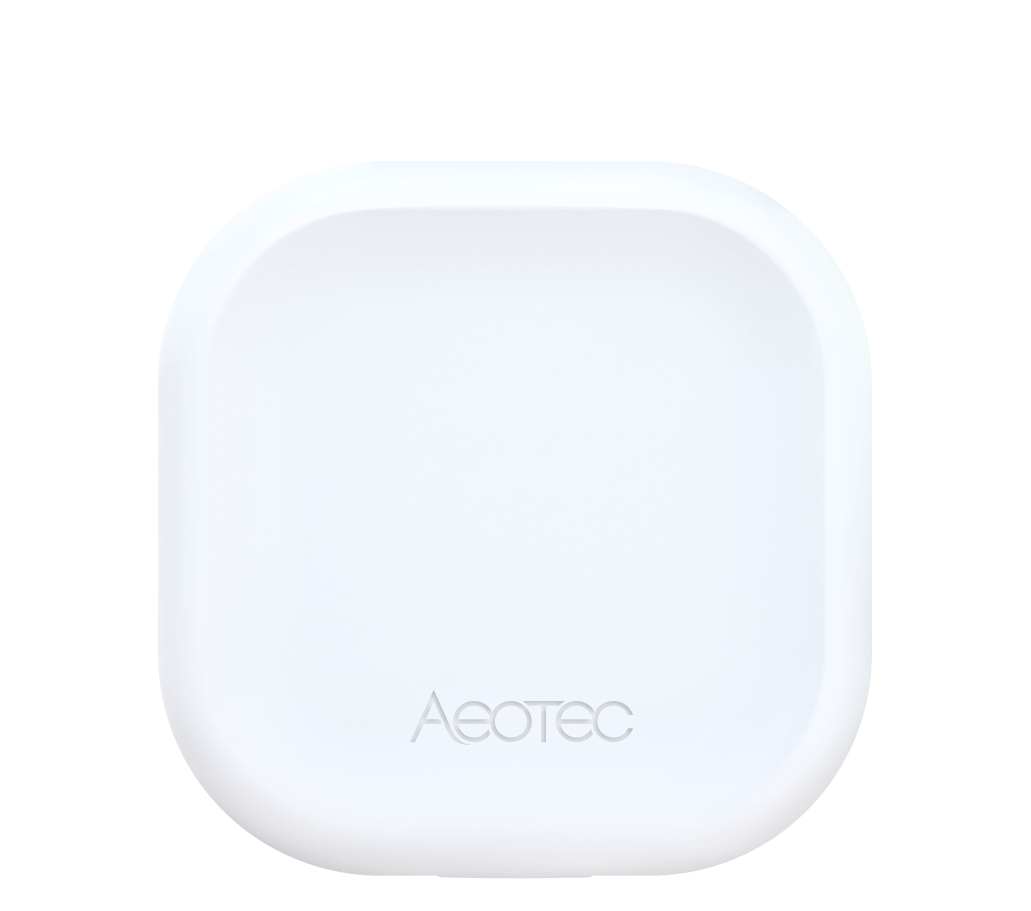
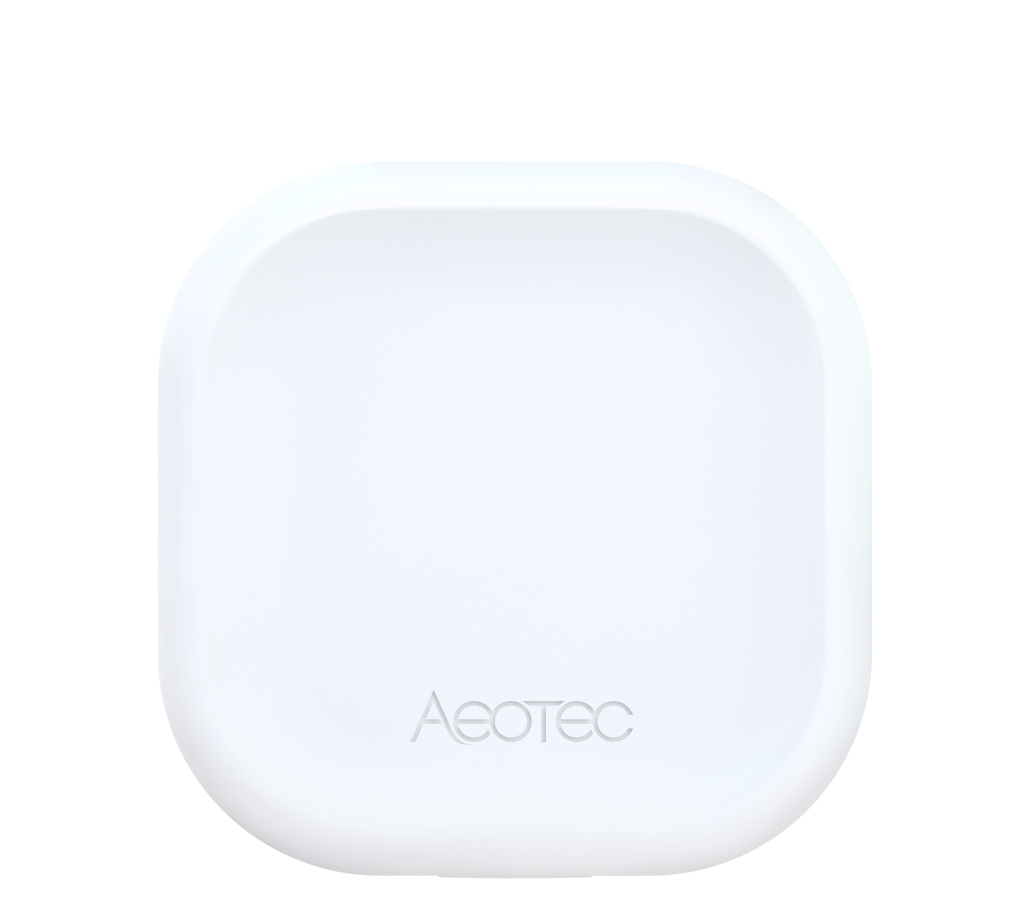
Product Recognition | |
|---|
Certification Number | ZC12-19110019 |
|---|
Name | Range Extender 7 |
|---|
Short Description | Range Extender 7 is a new generation Z-Wave Plus v2 Product. Supports Security 2 and SmartStart function. |
|---|
Long Description | Range Extender 7 is a new generation Z-Wave Plus v2 Product with #700 development platform.
1. Support Security 2 and SmartStart function.
2. Support "Over the Air Firmware Updating"
3. Determine the installation location and Range Extender 7 will automatically perform its signal repeating and application function. |
|---|
Brand | Aeotec |
|---|
Product Identifier | ZW189-C15 |
|---|
Product Line | Z-Wave Plus v2 Line |
|---|
OEM Version | HW: 189 FW: 1.01 |
|---|
Hardware Platform | ZGM130 |
|---|
Z-Wave Version | 7.11.00 |
|---|
Library Type | SLAVE_ENHANCED_232 |
|---|
Device Type | Repeater |
|---|
Role Type | ROLE_TYPE_SLAVE_ALWAYS_ON |
|---|
Manufacturer ID | 0x0371 |
|---|
Product Type ID | 0x0004 |
|---|
Product ID | 0x00BD |
|---|
User Icon | 0x1B00 |
|---|
Installer Icon | 0x1B00 |
|---|
Frequency Plans | EU: 869.85MHz, 868.40MHz |
|---|
Categories | Network Devices |
|---|
Countries / Regions | European Union |
|---|
Supported Command Classes | Identifier | Name | Key | Version |
|---|
COMMAND_CLASS_POWERLEVEL | Powerlevel | 0x73 | 1 | COMMAND_CLASS_MULTI_CHANNEL_ASSOCIATION_V3 | Multi-Channel Association V3 | 0x8E | 3 | COMMAND_CLASS_INDICATOR_V3 | Indicator V3 | 0x87 | 3 | COMMAND_CLASS_TRANSPORT_SERVICE_V2 | Transport Service V2 | 0x55 | 2 | COMMAND_CLASS_DEVICE_RESET_LOCALLY | Device Reset Locally | 0x5A | 1 | COMMAND_CLASS_ZWAVEPLUS_INFO_V2 | Z-Wave Plus Info V2 | 0x5E | 2 | COMMAND_CLASS_ASSOCIATION_V2 | Association V2 | 0x85 | 2 | COMMAND_CLASS_FIRMWARE_UPDATE_MD_V5 | Firmware Update Meta-Data V5 | 0x7A | 5 | COMMAND_CLASS_ASSOCIATION_GRP_INFO_V3 | Association Group Information V3 | 0x59 | 3 | COMMAND_CLASS_SECURITY_2 | Security S2 | 0x9F | 1 | COMMAND_CLASS_VERSION_V3 | Version V3 | 0x86 | 3 | COMMAND_CLASS_SUPERVISION | Supervision | 0x6C | 1 | COMMAND_CLASS_MANUFACTURER_SPECIFIC_V2 | Manufacturer Specific V2 | 0x72 | 2 |
|
|---|
S2 Classes | S2_UNAUTHENTICATED, S2_AUTHENTICATED |
|---|
Documents | Category | Description | File |
|---|
Manual_Primary_Lang | Product Manual | | Manual_English | Product Manual in English | | Adv_Manual | Advanced Information Product Manual | |
|
|---|
Features | Feature | Values |
|---|
Firmware Updatable | Value |
|---|
Updatable by Consumer by RF |
| Color | |
|
|---|
Association Groups | Group Number | Maximum Nodes Supported | End Point ID | Group Name | Profile | Description |
|---|
1 | 5 | 0 | Lifeline | 0x0001 | Lifeline group. Issue Device Reset Locally Notification when Factory Reset is performed. |
|
|---|
Texts | ID | Description | Value |
|---|
5 | Factory Reset Procedure | If the primary controller is missing or inoperable, you may need to reset the device to factory settings.
Make sure the product is powered. To complete the reset process manually, press and hold the Action Button for at least 20s, and Factory Reset is performed when released. The LED will become slow fade-in fade-out white color, which indicates the reset operation is successful. Otherwise, please try again. Contact us for further support if needed.
Note:
1. This procedure should only be used when the primary controller is missing or inoperable.
2. Factory Reset will:
(a) Remove the product from Z-Wave network;
(b) Delete the Association setting; | 8 | Where to find S2 DSK on product | The QR and PIN is on the bottom of the product. | 1 | Classic Inclusion | 1. Set your Z-Wave Controller into its 'Add Device' mode in order to add the product into your Z-Wave system. Refer to the Controller's manual if you are unsure of how to perform this step.
2. Make sure the product is powered. If not, plug it into a wall socket and power on; its LED will be slow fade-in fade-out white color all the time.
3. Single-click Action Button; LED starts fast blinking white color for 30s, which indicates entering inclusion mode.
4. If your Z-Wave Controller supports S2 encryption, enter the first 5 digits of DSK into your Controller's interface if /when requested. The DSK can be found on the packaging.
5. If inclusion is successful, LED will become a solid white color for 2 seconds and stay on by default. Now, this product is a part of your Z-Wave home control system. You can configure it and its automations via your Z-Wave system; please refer to your software's user guide for precise instructions.
6. Should its LED go back to slow fade-in fade-out white color, it indicates inclusion is unsuccessful. Contact us for further support if needed. | 2 | Classic Exclusion | 1. Set your Z-Wave Controller into its 'Remove Device' mode in order to remove the product from your Z-Wave system. Refer to the Controller's manual if you are unsure of how to perform this step.
2. Make sure the product is powered. If not, plug it into a wall socket and power on.
3. Single-click Action Button; LED will become a flashing white color for 2 seconds, which indicates entering exclusion mode.
4. If the exclusion is successful, LED will change to the default unpaired state which is slow fade-in fade-out white color.
5. Should its LED stay ON or OFF (depending if LED is enabled or disabled), it indicates the exclusion is unsuccessful. Contact us for further support if needed. |
|
|---|
Supports NWI | Yes |
|---|
Supports Explorer Frames | Yes |
|---|
Supports SmartStart | Yes |
|---|
Radio Range Z-Wave (m) | 40 |
|---|