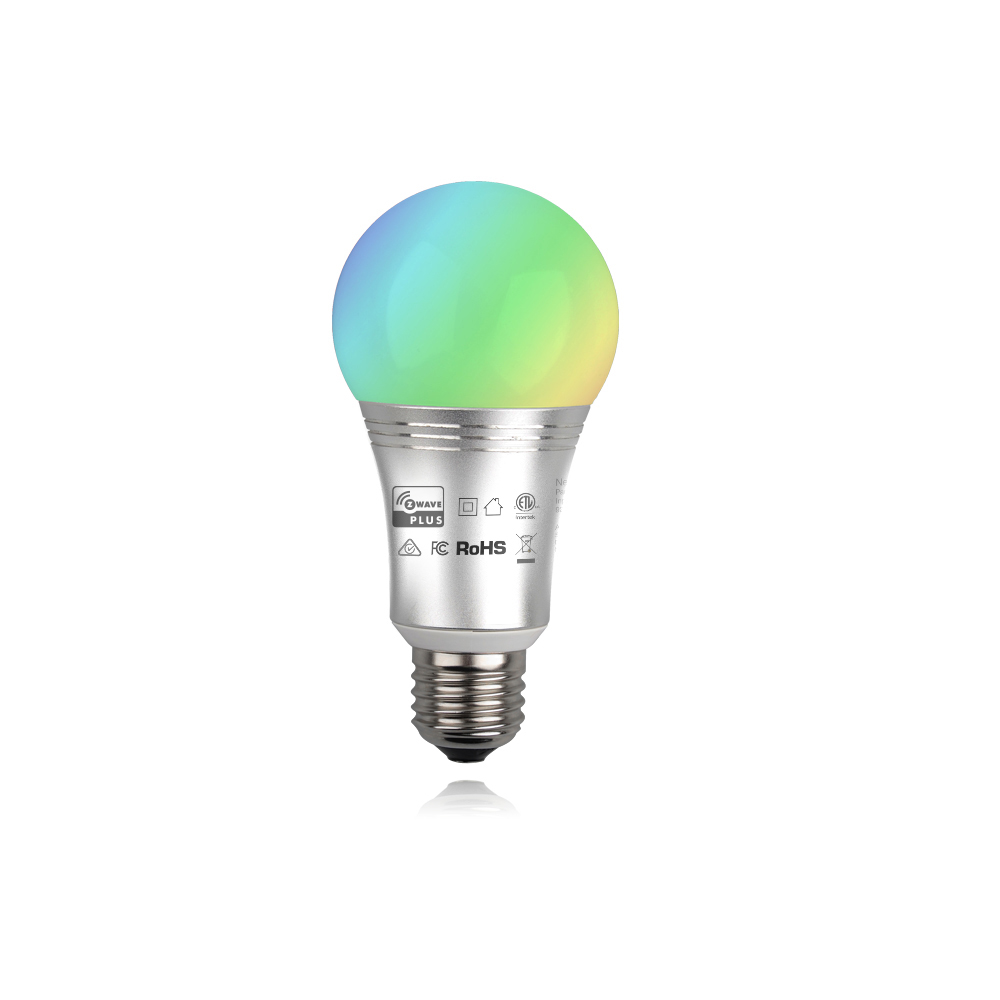
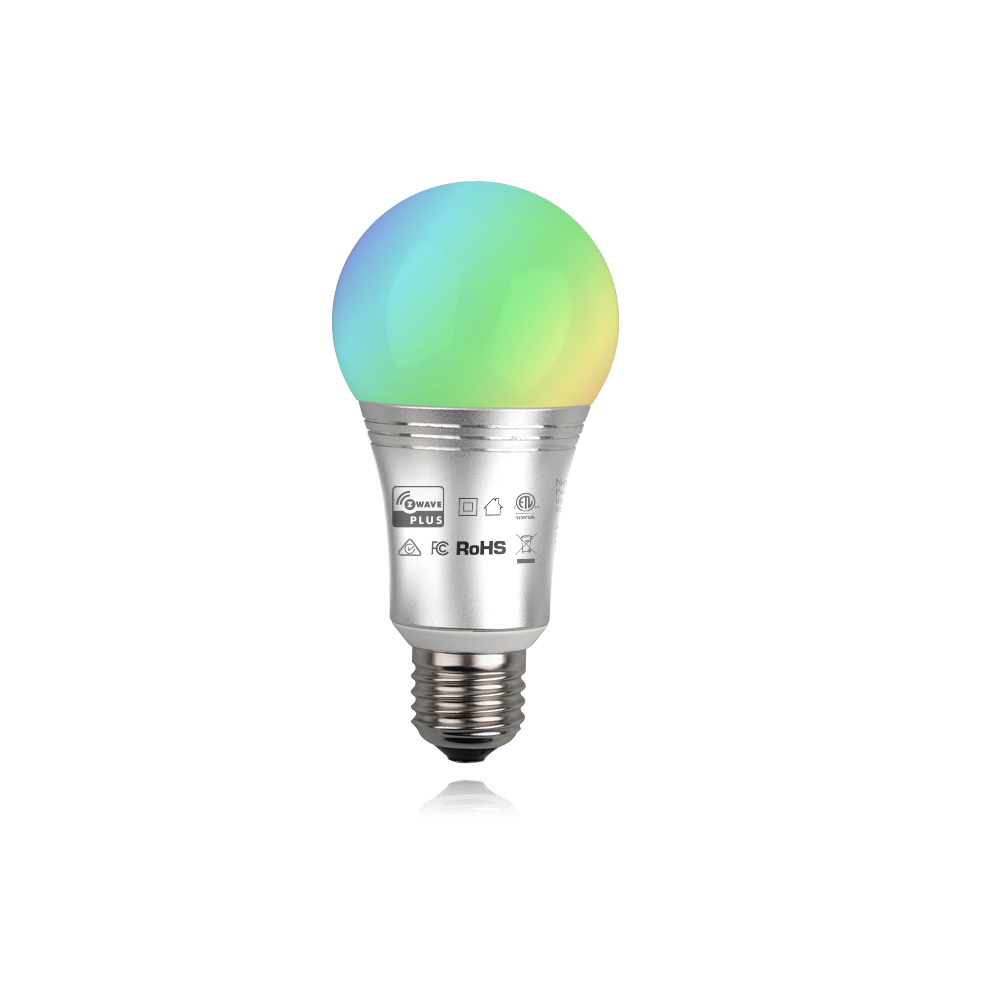
Product Recognition | |
|---|
Certification Number | ZC10-20117000 |
|---|
Name | RGB Bulb |
|---|
Short Description | RGB Bulb is a smart bulb enables Z-Wave remote command and control (on/off/dim). It has over 16,000,000 colors, you can choose its color according to your favour. |
|---|
Long Description | RGB Bulb is a smart bulb enables Z-Wave remote command and control (on/off/dim). It has over 16,000,000 colors, you can choose its color according to your favour. |
|---|
Brand | Ness |
|---|
Product Identifier | ZA-212001 |
|---|
Product Line | 5P |
|---|
OEM Version | HW: 1 FW: 1.01 |
|---|
Hardware Platform | ZM5101 |
|---|
Z-Wave Version | 6.51.08 |
|---|
Library Type | SLAVE_ENHANCED_232 |
|---|
Device Type | Light Dimmer Switch |
|---|
Role Type | ROLE_TYPE_SLAVE_ALWAYS_ON |
|---|
Manufacturer ID | 0x0208 |
|---|
Product Type ID | 0x0102 |
|---|
Product ID | 0x0004 |
|---|
User Icon | 0x0600 |
|---|
Installer Icon | 0x0600 |
|---|
Frequency Plans | ANZ: 919.80MHz, 921.40MHz |
|---|
Categories | All Lighting Devices, Dimming Lighting Devices |
|---|
Countries / Regions | Australia |
|---|
Supported Command Classes | Identifier | Name | Key | Version |
|---|
COMMAND_CLASS_SCENE_ACTUATOR_CONF | Scene Actuator Conf | 0x2C | 1 | COMMAND_CLASS_POWERLEVEL | Powerlevel | 0x73 | 1 | COMMAND_CLASS_SWITCH_ALL | Switch All | 0x27 | 1 | COMMAND_CLASS_BASIC | Basic | 0x20 | 1 | COMMAND_CLASS_CONFIGURATION | Configuration | 0x70 | 1 | COMMAND_CLASS_SECURITY | Security S0 | 0x98 | 1 | COMMAND_CLASS_SWITCH_MULTILEVEL_V2 | Switch Multilevel V2 | 0x26 | 2 | COMMAND_CLASS_VERSION_V2 | Version V2 | 0x86 | 2 | COMMAND_CLASS_DEVICE_RESET_LOCALLY | Device Reset Locally | 0x5A | 1 | COMMAND_CLASS_ZWAVEPLUS_INFO_V2 | Z-Wave Plus Info V2 | 0x5E | 2 | COMMAND_CLASS_ASSOCIATION_V2 | Association V2 | 0x85 | 2 | COMMAND_CLASS_ASSOCIATION_GRP_INFO | Association Group Info | 0x59 | 1 | COMMAND_CLASS_SWITCH_COLOR | Switch Color | 0x33 | 1 | COMMAND_CLASS_SCENE_ACTIVATION | Scene Activation | 0x2B | 1 | COMMAND_CLASS_FIRMWARE_UPDATE_MD_V2 | Firmware Update Meta-Data V2 | 0x7A | 2 | COMMAND_CLASS_MANUFACTURER_SPECIFIC_V2 | Manufacturer Specific V2 | 0x72 | 2 |
|
|---|
Documents | Category | Description | File |
|---|
Manual_Primary_Lang | Product Manual | |
|
|---|
Features | Feature | Values |
|---|
Switch Load Capacity Watts | | Switch Load Capacity Current | | Firmware Updatable | Value |
|---|
Updatable by Consumer by RF |
| Switch Load Capacity Volt-Ampere | |
|
|---|
Association Groups | Group Number | Maximum Nodes Supported | End Point ID | Group Name | Description |
|---|
1 | 5 | 0 | Lifeline | Z-Wave Plus Lifeline
RGB BULB supports only one association groupings:
RGB BULB will send the follow notification to the associated nodes when
the status of the RGB BULB is changed.
1. Set Configuration parameter 24 to 0: Reserved
2. Set Configuration parameter 24 to 1: Send Basic Report
3. Set Configuration parameter 24 to 2: Send Basic Report only when the
status of the RGB BULB is not changed by Z-WAVE Command. |
|
|---|
Configuration Parameters | Parameter Number | Name | Description | Format | Size | Min Value | Max Value | Default Value | Parameter Values |
|---|
24 | Notification when Load status change | RGB BULB can send notifications to associated device (Group Lifeline) when the status of the RGB BULB is changed. | 0 | 1 | 0 | 2 | 1 | From | To | Description |
|---|
1 | 1 | Send Basic report | 2 | 2 | Send BASIC REPORT only when the status of the RGB BULB is not changed by Z-WAVE command. | 0 | 0 | The function is disabled |
| 255 | Reset to factory default | RGB BULB will exclude from the Z-Wave network with this particular command. | 0 | 4 | 1431655765 | 1431655765 | 1431655765 | From | To | Description |
|---|
1431655765 | 1431655765 | Resetting to the factory default. |
|
|
|---|
Texts | ID | Description | Value |
|---|
5 | Factory Reset Procedure | There are two ways to reset the RGB BULB. One is that removing
RGB BULB from the Z-Wave network, the other is that using the
configuration command class.Please use this procedure only when
the network primary controller is missing or otherwise inoperable | 1 | Classic Inclusion | To include RGB BULB into a Z-Wave network as a non-security device:
(1) Make sure the power supply is disconnected and the RGB BULB is
located within a direct Z-Wave network's main controller
communication range.
(2) Set the Z-Wave network main controller into learning mode
(see Z-Wave network controller operating manual).
(3) Insert the RGB BULB into a lamp-socket and then power on.
(4) Auto-inclusion will be activated. If the inclusion is successful, the
RGB BULB will blink fast in blue for less than 5 seconds and then
keep on for 3 seconds. RGB BULB will keep on in the color before it
is included into the Z-Wave network after the inclusion procedure
is finished.
To include RGB BULB into a Z-Wave network as a security device:
(1) Screw in the RGB BULB.
(2) Set the Z-Wave network main controller into learning mode
(see Z-Wave network controller operating manual).
(3) Toggle the wall switch off and on 3 times quickly (within 3 seconds
and the final ending position of the wall switch must be on).
(4) If the inclusion is successful, the RGB BULB will blink fast in green
for less than 5 seconds and then keep on 3 seconds. RGB BULB will
keep on in the color before it is included into the Z-Wave network
after the inclusion procedure is finished. | 2 | Classic Exclusion | To remove the RGB BULB from the Z-Wave network:
(1) Screw in the RGB BULB.
(2) Set the Z-Wave network main controller into excluding mode
(see Z-Wave controller operating manual).
(3) Toggle the wall switch off and on 3 times quickly(within 3
and the final ending position of the wall switch must be on),
if the exclusion is successful, the RGB BULB will blink fast in
orange for less than 5 seconds and then keep on for 3 seconds.
RGB BULB will keep on warm white after the exclusion procedure
is finished. |
|
|---|
Supports NWI | Yes |
|---|
Supports Explorer Frames | Yes |
|---|
Radio Range Z-Wave (m) | 40 |
|---|