Product Recognition | |
|---|
Certification Number | ZC10-18066145 |
|---|
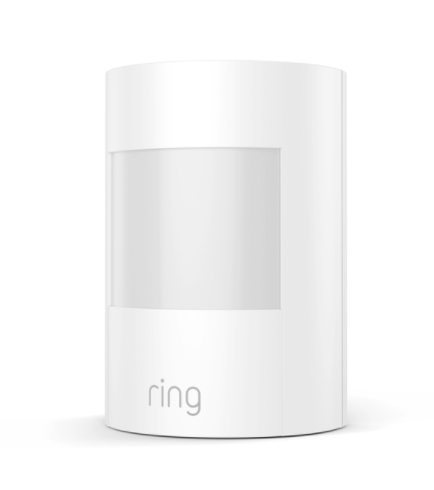
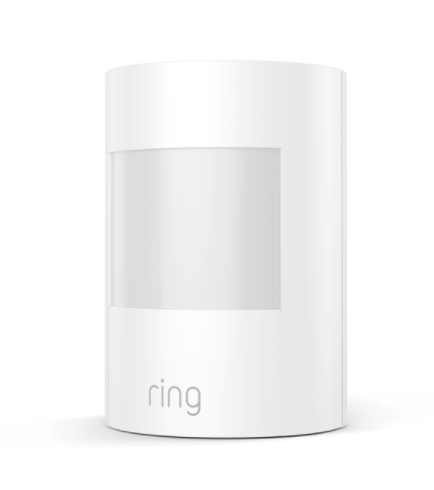
Name | Ring Motion Sensor |
|---|
Short Description | Ring Motion sensor is a Z-Wave passive infrared (PIR) motion detector which will be used as a primary intrusion detection unit in the system. |
|---|
Long Description | The Ring Protect security system is Ring’s entry into the DIY security solution space intended to provide customers with a Ring-branded, unique and simplified home security system. Ring Protect features a Z-Wave passive infrared (PIR) motion detector which will be used as a primary intrusion detection unit in the system. The motion sensor will feature best-in-class width and depth of field detection, pet immunity and adjustable sensitivity. The motion sensor will be included in the professionally monitored alarm system. Additionally, the sensor’s functionality will be extended to the automation features of the Ring Protect solution. |
|---|
Brand | Ring |
|---|
Product Identifier | RING-PIR-SS |
|---|
OEM Version | HW: 1 FW: 10.07 |
|---|
Hardware Platform | ZM5202 |
|---|
Z-Wave Version | 6.80.00 |
|---|
Library Type | SLAVE_ENHANCED_232 |
|---|
Device Type | Notification Sensor |
|---|
Role Type | ROLE_TYPE_SLAVE_SLEEPING_REPORTING |
|---|
Manufacturer ID | 0x0346 |
|---|
Product Type ID | 0x0301 |
|---|
Product ID | 0x0201 |
|---|
User Icon | 0x0C07 |
|---|
Installer Icon | 0x0C07 |
|---|
Frequency Plans | US: 916.00MHz, 908.40MHz |
|---|
Categories | Sensors |
|---|
Countries / Regions | United States of America |
|---|
Supported Command Classes | Identifier | Name | Key | Version |
|---|
COMMAND_CLASS_FIRMWARE_UPDATE_MD_V4 | Firmware Update Meta-Data V4 | 0x7A | 4 | COMMAND_CLASS_POWERLEVEL | Powerlevel | 0x73 | 1 | COMMAND_CLASS_BATTERY | Battery | 0x80 | 1 | COMMAND_CLASS_BASIC | Basic | 0x20 | 1 | COMMAND_CLASS_CONFIGURATION | Configuration | 0x70 | 1 | COMMAND_CLASS_TRANSPORT_SERVICE_V2 | Transport Service V2 | 0x55 | 2 | COMMAND_CLASS_VERSION_V2 | Version V2 | 0x86 | 2 | COMMAND_CLASS_WAKE_UP_V2 | Wake Up V2 | 0x84 | 2 | COMMAND_CLASS_DEVICE_RESET_LOCALLY | Device Reset Locally | 0x5A | 1 | COMMAND_CLASS_ZWAVEPLUS_INFO_V2 | Z-Wave Plus Info V2 | 0x5E | 2 | COMMAND_CLASS_ASSOCIATION_V2 | Association V2 | 0x85 | 2 | COMMAND_CLASS_ASSOCIATION_GRP_INFO | Association Group Info | 0x59 | 1 | COMMAND_CLASS_NOTIFICATION_V8 | Notification V8 | 0x71 | 8 | COMMAND_CLASS_SECURITY_2 | Security S2 | 0x9F | 1 | COMMAND_CLASS_SUPERVISION | Supervision | 0x6C | 1 | COMMAND_CLASS_MANUFACTURER_SPECIFIC_V2 | Manufacturer Specific V2 | 0x72 | 2 |
|
|---|
S2 Classes | S2_UNAUTHENTICATED, S2_AUTHENTICATED |
|---|
Documents | Category | Description | File |
|---|
Manual_Primary_Lang | Product or Owner's Manual | |
|
|---|
Features | Feature | Values |
|---|
Battery Type | | Supported Notification Types | | Firmware Updatable | Value |
|---|
Updatable by Manufacturer |
| Color | |
|
|---|
Association Groups | Group Number | Maximum Nodes Supported | End Point ID | Description |
|---|
1 | 1 | 0 | Z-Wave Plus Lifeline group
- Notification and Battery reports to associated nodes
| 2 | 1 | 0 | Z-Wave Basic Group
- will send a basic report of either 0xFF for “motion” or 0x00 for “no motion.” |
|
|---|
Configuration Parameters | Parameter Number | Name | Description | Format | Size | Min Value | Max Value | Default Value | Parameter Values |
|---|
4 | Walk Test | Parameter 4 is used to activate a “walk test” mode to test the PIR motion detection coverage after being installed. This mode is active for 15 minutes only after which the sensor returns to normal operation. 0: Normal operation 0xFF: Activate Walk Test for 15 minutes | 0 | 1 | 0 | 0 | 0 | From | To | Description |
|---|
255 | 255 | Activate Walk Test for 15 minutes | 0 | 0 | Normal operation |
| 1 | unsolicited Report TIme | Configures how often the sensor should send an unsolicited Battery Report to the Lifeline 255 to 4200 seconds in 255 second increments that the sensor should wait between sending unsolicited battery reports. | 0 | 2 | 0 | 0 | 0 | From | To | Description |
|---|
255 | 4200 | 255 to 4200 seconds |
| 2 | Dwell Time | Configures the “dwell” window or how long the sensor should not be detecting motion before sending the “no motion detected” message. 1 to 9 minutes. | 0 | 1 | 0 | 0 | 3 | From | To | Description |
|---|
1 | 9 | 1 to 9 minutes. |
| 3 | Pet Immunity | Configures the “Pet Immunity,” or sensitivity of the motion detection used mostly so only human motion is detected. 0 to 2 sensitivity. 0: No pet immunity 1: 15kg (33lb) 2:25kg (55lb) | 0 | 1 | 0 | 0 | 2 | From | To | Description |
|---|
1 | 1 | 15kg (33lb) | 2 | 2 | 25kg (55lb) | 0 | 0 | No pet immunity |
|
|
|---|
Texts | ID | Description | Value |
|---|
2 | Exclusion | Exclusion Instructions:
1. Initiate remove sensor flow in the Ring Alarm mobile application – Select the settings icon from device details page and choose “Remove Device”
2. Open motion sensor’s cover
3. Remove and replace battery quickly | 4 | Device Wake-Up | Removing the top cover will put the sensor in tamper mode and will keep the sensor awake | 1 | Inclusion | Ring Motion Sensor can be added via SmartStart or via classic inclusion mode –
SmartStart Inclusion Steps:
1. Initiate add sensor flow in the Ring Alarm mobile application – Follow the guided add flow instructions provided in the application
2. Scan the QR code found on the package of the sensor or the QR code found on the back of the sensor
3. Pull the battery tab on the sensor
4. When the inclusion process in complete, the LED on the sensor will be solid blue, then go out.
5. Test the sensor. Place the sensor in an unoccupied room. Leave the room for at least four minutes. Return to the room and
pass in front of the sensor – LED will flash if motion is detected.
Classic Inclusion Steps:
1. Initiate add sensor flow in the Ring Alarm mobile application – Follow the guided add flow instructions provided in the application
2. Select add manually and enter the 5 digit DSK pin found on the package of the sensor or the QR code found on the back of the sensor
3. Pull the battery tab on the sensor
4. When the inclusion process in complete, the LED on the sensor will be solid blue, then go out.
5. Test the sensor. Place the sensor in an unoccupied room. Leave the room for at least four minutes. Return to the room and
pass in front of the sensor – LED will flash if motion is detected. | 5 | Factory Reset | Factory Default Instructions
1. Using a pointed end of a paperclip, press and hold the reset button via the reset pin hole found at the back of the sensor
2. Blue LED will start to blink rapidly
3. Wait for the blue LED to stop blinking
Use this procedure only in the event that the network primary controller is missing or otherwise inoperable. |
|
|---|
Supported Notification Types | Notification Type | Event / State |
|---|
Home Security | (Refer to parameters): State idle |
|
|---|
Supports NWI | Yes |
|---|
Supports Explorer Frames | Yes |
|---|
Supports SmartStart | Yes |
|---|