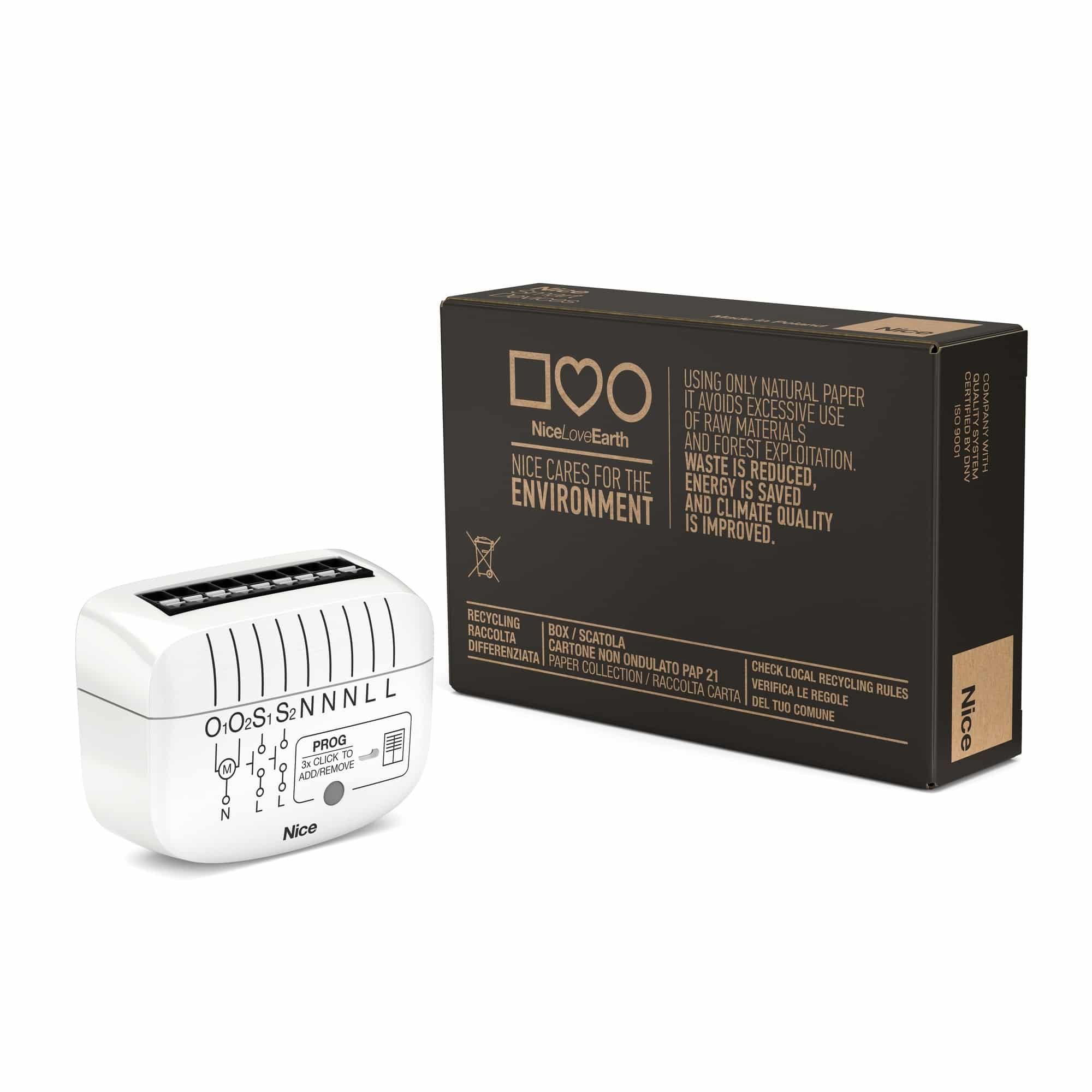
Product Recognition | |
|---|
Certification Number | ZC14-24010382 |
|---|
Name | Roll-Control2 |
|---|
Short Description | The NICE Roll-Control2 is a device designed to control roller blinds, awnings, venetian blinds, curtains and pergolas. |
|---|
Long Description | THE NICE Roll-Control2 allows precise positioning of roller blinds or venetian blind slats.
The device is equipped with energy monitoring.
It allows to control connected devices either via the Z-Wave® network or via a switch connected directly to it. |
|---|
Brand | Nice |
|---|
Brand Owner | Nice |
|---|
Product Identifier | NICE Roll-Control2 |
|---|
Product Line | Roller Shuter |
|---|
OEM Version | HW: 04 FW: 08.01 |
|---|
Hardware Platform | EFR32ZG23B |
|---|
Z-Wave Version | 7.18.8 |
|---|
Library Type | END_NODE_ENHANCED_232 |
|---|
Device Type | Window Covering DT |
|---|
Role Type | ROLE_TYPE_END_NODE_ALWAYS_ON |
|---|
Manufacturer ID | 0x010F |
|---|
Product Type ID | 0x0304 |
|---|
Product ID | 0x1000 |
|---|
User Icon | 0x1900 |
|---|
Installer Icon | 0x1900 |
|---|
Frequency Plans | EU: 869.85MHz, 868.40MHz |
|---|
Categories | Window Covering |
|---|
Countries / Regions | European Union |
|---|
Supported Command Classes | Identifier | Name | Key | Version |
|---|
COMMAND_CLASS_BASIC_V2 | Basic V2 | 0x20 | 2 | COMMAND_CLASS_CENTRAL_SCENE_V3 | Central Scene V3 | 0x5B | 3 | COMMAND_CLASS_CONFIGURATION_V4 | Configuration V4 | 0x70 | 4 | COMMAND_CLASS_METER_V3 | Meter V3 | 0x32 | 3 | COMMAND_CLASS_SWITCH_MULTILEVEL_V4 | Multilevel Switch V4 | 0x26 | 4 | COMMAND_CLASS_NOTIFICATION_V8 | Notification V8 | 0x71 | 8 | COMMAND_CLASS_PROTECTION_V2 | Protection V2 | 0x75 | 2 | COMMAND_CLASS_WINDOW_COVERING | Window Covering | 0x6A | 1 | COMMAND_CLASS_APPLICATION_STATUS | Application Status | 0x22 | 1 | COMMAND_CLASS_ASSOCIATION_V2 | Association V2 | 0x85 | 2 | COMMAND_CLASS_ASSOCIATION_GRP_INFO_V3 | Association Group Information (AGI) V3 | 0x59 | 3 | COMMAND_CLASS_DEVICE_RESET_LOCALLY | Device Reset Locally | 0x5A | 1 | COMMAND_CLASS_FIRMWARE_UPDATE_MD_V5 | Firmware Update Meta Data V5 | 0x7A | 5 | COMMAND_CLASS_INDICATOR_V3 | Indicator V3 | 0x87 | 3 | COMMAND_CLASS_MANUFACTURER_SPECIFIC_V2 | Manufacturer Specific V2 | 0x72 | 2 | COMMAND_CLASS_MULTI_CHANNEL_ASSOCIATION_V3 | Multi Channel Association V3 | 0x8E | 3 | COMMAND_CLASS_VERSION_V3 | Version V3 | 0x86 | 3 | COMMAND_CLASS_ZWAVEPLUS_INFO_V2 | Z-Wave Plus Info V2 | 0x5E | 2 | COMMAND_CLASS_SECURITY | Security 0 | 0x98 | 1 | COMMAND_CLASS_SECURITY_2 | Security 2 | 0x9F | 1 | COMMAND_CLASS_SUPERVISION | Supervision | 0x6C | 1 | COMMAND_CLASS_TRANSPORT_SERVICE_V2 | Transport Service V2 | 0x55 | 2 | COMMAND_CLASS_POWERLEVEL | Powerlevel | 0x73 | 1 |
|
|---|
S2 Classes | S2_AUTHENTICATED, S2_UNAUTHENTICATED |
|---|
Documents | Category | File |
|---|
Manual_English | |
|
|---|
Association Groups | Group Number | Maximum Nodes Supported | End Point ID | Group Name | Profile |
|---|
1 | 1 | 0 | Lifeline | 0x0001 | 2 | 5 | 0 | Window Covering | 0x2001 |
|
|---|
Configuration Parameters | Parameter Number | Name | Description | Format | Size | Min Value | Max Value | Default Value | Flag ReInclude |
|---|
24 | Buttons orientation | "" | 1 | 1 | 0 | 0 | 0x00 | | 25 | Outputs orientation | "" | 1 | 1 | 0 | 0 | 0x00 | | 41 | Second button - scenes sent | "" | 1 | 1 | 0 | 0 | 0x0f | | 150 | Force calibration | "" | 1 | 1 | 0 | 0 | 0x00 | Yes | 151 | Operating mode | "" | 1 | 1 | 0 | 0 | 0x00 | Yes | 152 | Time of full turn of the slats | "" | 1 | 2 | 0 | 0 | 0x000F | | 156 | Time of up movement | "" | 1 | 2 | 0 | 0 | 0x0258 | | 157 | Time of down movement | "" | 1 | 2 | 0 | 0 | 0x0258 | | 158 | Virtual limit switch | "" | 1 | 1 | 0 | 0 | 0x00 | | 159 | Favorite roller blind position | "" | 1 | 1 | 0 | 0 | 0x32 | | 160 | Favorite slats position | "" | 1 | 1 | 0 | 0 | 0x32 | |
|
|---|
Texts | ID | Description | Value |
|---|
8 | Where to find S2 DSK on product | If you are adding in Security S2 Authenticated, input the PIN Code (label on the device, also underlined part of the DSK on the label
on the bottom of the box). | 1 | Classic Inclusion | Adding (Inclusion) - Z-Wave device learning mode, allowing to
add the device to existing Z-Wave network.
To add the device to the Z-Wave network manually:
1. Power the device.
2. Identify the PROG button or the S1/S2 switches.
3 .Set the main controller in (Security/non-Security Mode) add
mode (see the controller’s manual).
4. Quickly, click PROG button three times. Optionally, click S1 or S2
three times.
If you are adding in Security S2 Authenticated, input the PIN Code
(label on the device, also underlined part of the DSK on the label
on the bottom of the box).
5. Wait for the LED indicator to blink yellow.
6. Successful adding will be confirmed by the Z-Wave controller’s
message and the device’s LED indicator:
•Green – successful (non-secure, S0, S2 non-authenticated)
•Magenta – successful (Security S2 Authenticated)
•Red – not successful | 2 | Classic Exclusion | Removing (Exclusion) – Z-Wave device learning mode, allowing to
remove the device from existing Z-Wave network.
To remove the device from the Z-Wave network:
1. Make sure the device is powered.
2. Identify the PROG button or the S1/S2 switches.
3. Set the main controller in remove mode (see the controller’s
manual).
4. Quickly, click PROG button three times. Optionally, click S1 or S2
three times within 10 minutes of powering up the device.
5. Wait for the removing process to end.
6. Successful removing will be confirmed by the Z-Wave controller’s
message and the device’s LED indicator - Red.
7. Removing the device from the Z-Wave network doesn’t cause
factory reset. | 5 | Factory Reset Procedure | Reset procedure allows to restore the device back to its factory
settings, which means all information about the Z-Wave controller
and user configuration will be deleted.
1. Switch off the mains voltage (disable the fuse).
2. Remove the device from the wall switch box.
3. Switch on the mains voltage.
4. Press and hold the PROG button to enter the menu.
5. Wait for the LED indicator to glow yellow.
6. Quickly release and click the PROG button again.
7. During the factory reset, the LED indicator will blink yellow.
8. After few seconds the device will be restarted, which is signal led
with the red LED indicator colour. |
|
|---|
Supported / Controlled Meter Types | Meter Type | Rate Type |
|---|
Electric meter | Import (consumed) |
|
|---|
Supported Notification Types | Notification Type | Event / State |
|---|
Power Management | Over-current status: Over-current detected | Power Management | (Refer to parameters): State idle | System | HW status: System hardware failure (manufacturer proprietary failure code provided) | System | (Refer to parameters): State idle |
|
|---|
Supports NWI | Yes |
|---|
Supports Explorer Frames | Yes |
|---|
Supports SmartStart | Yes |
|---|
Radio Range Z-Wave (m) | 40 |
|---|