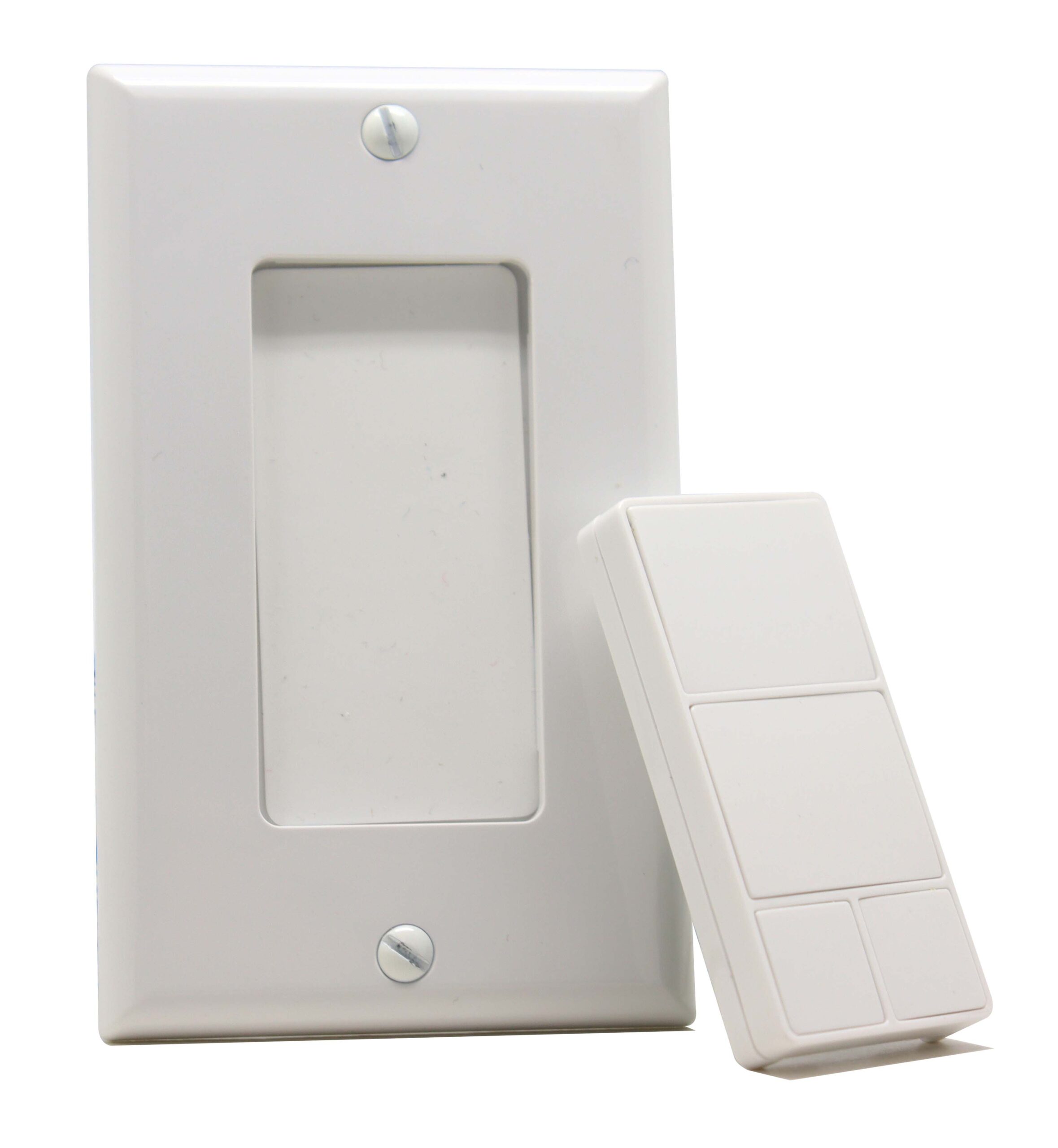
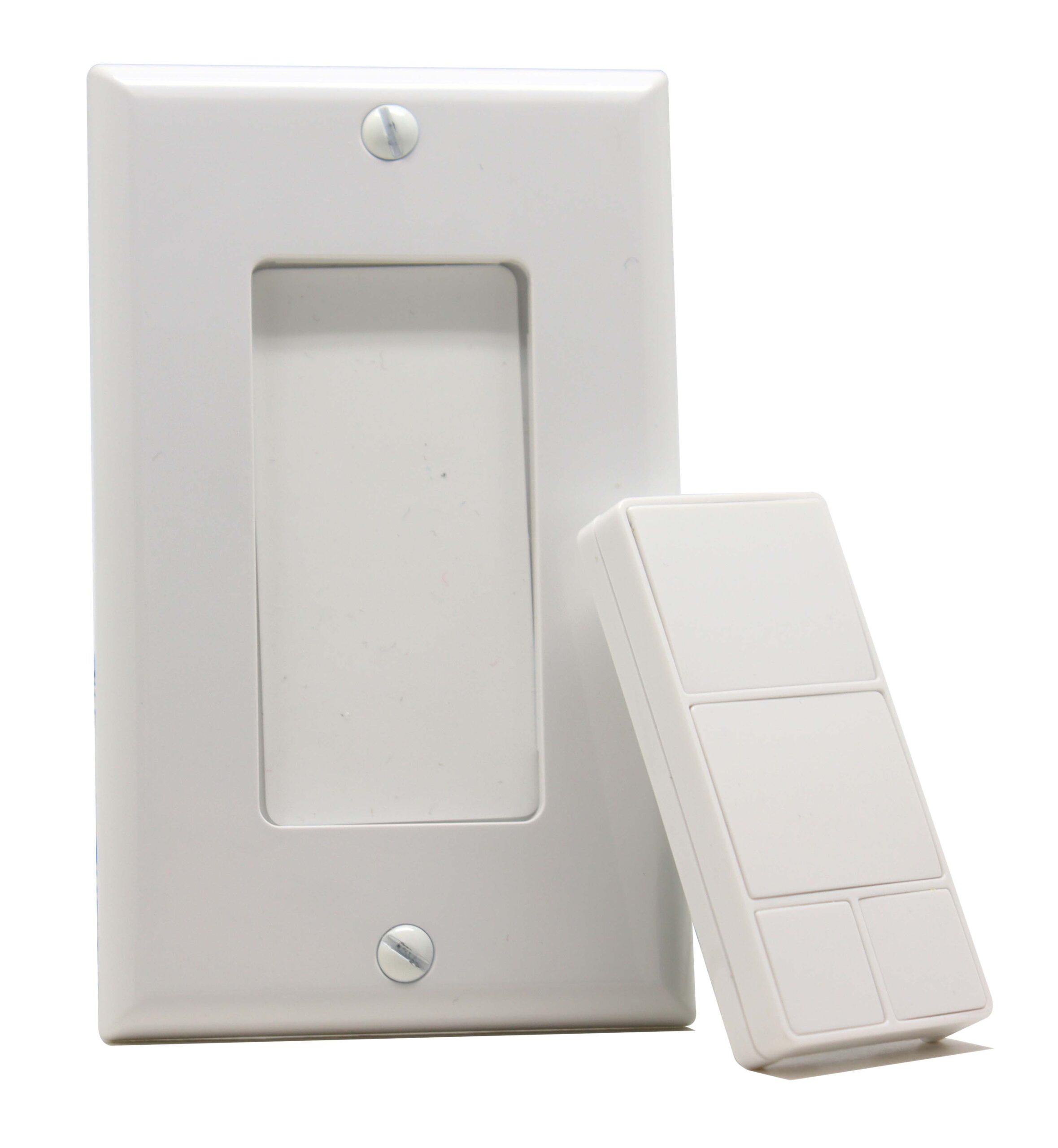
Product Recognition | |
|---|
Certification Number | ZC12-21070256 |
|---|
Name | S2 Remote Control Switch |
|---|
Short Description | Custom lighting control is at your fingertips with the Z-Wave™ 4-Button Portable Hub Remote. This versatile remote communicates with your hub to activate up to 6 unique, lighting scenes. Once the remote is connected to your existing network, you can begin programming the lights to personalize your indoor space. |
|---|
Long Description | Custom lighting control is at your fingertips with the Z-Wave™ 4-Button Portable Hub Remote. This versatile remote communicates with your hub to activate up to 6 unique, lighting scenes. Once the remote is connected to your existing network, you can begin programming the lights to personalize your indoor space. The wireless lighting control has an overall signal range of up to 150 feet and is compatible with any device that works with your hub. |
|---|
Brand | Minoston |
|---|
Product Identifier | MR40Z |
|---|
Product Line | Line A |
|---|
OEM Version | HW: 1 FW: 1.00 |
|---|
Hardware Platform | ZGM130 |
|---|
Z-Wave Version | 7.13.6 |
|---|
Library Type | SLAVE_ENHANCED_232 |
|---|
Device Type | Central Scene Device |
|---|
Role Type | ROLE_TYPE_SLAVE_SLEEPING_REPORTING |
|---|
Manufacturer ID | 0x0312 |
|---|
Product Type ID | 0x0924 |
|---|
Product ID | 0xD001 |
|---|
User Icon | 0x0A00 |
|---|
Installer Icon | 0x0A00 |
|---|
Frequency Plans | US: 916.00MHz, 908.40MHz |
|---|
Categories | All Controllers, Handheld Controller |
|---|
Countries / Regions | United States of America |
|---|
Supported Command Classes | Identifier | Name | Key | Version |
|---|
COMMAND_CLASS_CONFIGURATION_V4 | Configuration V4 | 0x70 | 4 | COMMAND_CLASS_POWERLEVEL | Powerlevel | 0x73 | 1 | COMMAND_CLASS_ASSOCIATION_V3 | Association V3 | | 0 | COMMAND_CLASS_MULTI_CHANNEL_ASSOCIATION_V4 | Multi-Channel Association V4 | | 0 | COMMAND_CLASS_INDICATOR_V3 | Indicator V3 | 0x87 | 3 | COMMAND_CLASS_BATTERY | Battery | 0x80 | 1 | COMMAND_CLASS_TRANSPORT_SERVICE_V2 | Transport Service V2 | 0x55 | 2 | COMMAND_CLASS_WAKE_UP_V2 | Wake Up V2 | 0x84 | 2 | COMMAND_CLASS_DEVICE_RESET_LOCALLY | Device Reset Locally | 0x5A | 1 | COMMAND_CLASS_ZWAVEPLUS_INFO_V2 | Z-Wave Plus Info V2 | 0x5E | 2 | COMMAND_CLASS_FIRMWARE_UPDATE_MD_V5 | Firmware Update Meta-Data V5 | 0x7A | 5 | COMMAND_CLASS_ASSOCIATION_GRP_INFO_V3 | Association Group Information V3 | 0x59 | 3 | COMMAND_CLASS_SECURITY_2 | Security S2 | 0x9F | 1 | COMMAND_CLASS_VERSION_V3 | Version V3 | 0x86 | 3 | COMMAND_CLASS_CENTRAL_SCENE_V3 | Central Scene V3 | 0x5B | 3 | COMMAND_CLASS_SUPERVISION | Supervision | 0x6C | 1 | COMMAND_CLASS_MANUFACTURER_SPECIFIC_V2 | Manufacturer Specific V2 | 0x72 | 2 |
|
|---|
S2 Classes | S2_UNAUTHENTICATED, S2_AUTHENTICATED |
|---|
Documents | Category | Description | File |
|---|
Manual_Primary_Lang | Product Manual | |
|
|---|
Features | Feature | Values |
|---|
Color | | Firmware Updatable | Value |
|---|
Updatable by Consumer by RF |
| Switch Load Capacity Watts | | Switch Type | |
|
|---|
Association Groups | Group Number | Maximum Nodes Supported | End Point ID | Group Name | Description |
|---|
1 | 3 | 0 | Lifeline | Z-Wave Lifeline | 2 | 5 | 0 | BASIC SET | BASIC SET COMMAND | 3 | 5 | 0 | SWITCH MULTILEVEL | SWITCH_MULTILEVEL_CHANGE |
|
|---|
Configuration Parameters | Parameter Number | Name | Description | Format | Size | Min Value | Max Value | Default Value | Parameter Values |
|---|
1 | LED Indicator Mode | Indicator inverse, follow, always on or always off. | 2 | 1 | 0 | 3 | 1 | From | To | Description |
|---|
0 | 0 | LED always off | 1 | 1 | LED normal mode | 2 | 2 | LED always on in color specified in Parameter 2 | 3 | 3 | LED always on in color specified in Parameter 3 |
| 2 | LED Indicator Color for Upper paddle remote cont | Setting inidcator led's color: white, blue, red, magenta, yellow or cyan for upper paddle remote control.
| 2 | 1 | 0 | 6 | 1 | From | To | Description |
|---|
2 | 2 | Green | 5 | 5 | Yellow | 0 | 0 | White | 6 | 6 | Cyan | 1 | 1 | Blue | 3 | 3 | Red | 4 | 4 | Magenta |
| 3 | LED Indicator Color for Lower paddle remote cont | Setting inidcator led's color: white, blue, red, magenta, yellow or cyan for upper paddle remote control.
| 2 | 1 | 0 | 6 | 0 | From | To | Description |
|---|
6 | 6 | Cyan | 5 | 5 | Yellow | 4 | 4 | Magenta | 3 | 3 | Red | 2 | 2 | Green | 1 | 1 | Blue | 0 | 0 | White |
|
|
|---|
Texts | ID | Description | Value |
|---|
1 | Classic Inclusion | Adding Your Device To A Hub
The device support two methods of inclusion,When using a Z-Wave Plus™ certified controller choose Network Wide Inclusion or SmartStart,
Network Wide Inclusion To A Z-Wave™ Network
1,Refer to your primary controller instructions to process the inclusion / exclusion setup procedure.
2,When prompted by your primary controller, click the Up or Down button six times in one second. | 2 | Classic Exclusion | Adding Your Device To A Hub
The device support two methods of inclusion,When using a Z-Wave Plus™ certified controller choose Network Wide Inclusion or SmartStart,
Network Wide Inclusion To A Z-Wave™ Network
1,Refer to your primary controller instructions to process the inclusion / exclusion setup procedure.
2,When prompted by your primary controller, click the Up or Down button six times in one second. | 4 | Wake-Up Procedure | quickly press 7x upper paddle: Wake up
Function 4: tap-tap-tap’and’hold to reset, LED indicator | 5 | Factory Reset Procedure | tap-tap-tap’and’hold to reset, LED indicator will blink red 5 times to confirm successful reset
(Node:Please use this procedure only when the network primary controller is missing or otherwise inoperable.) | 8 | Where to find S2 DSK on product | The device is compatible with SmartStart
SmartStart enabled products can be added into a Z-Wave™ network by scanning the Z-Wave™ QR Code found on the top of the outlet or the back of
the box with a controller providing SmartStart inclusion.No further action is required and the SmartStart product will be added automatically within
10 minutes of being switched on and in the network vicinity.
QR CODE
the QR code are sticked to the side of the case,DSK is included in the QR code.
DSK
The DSK code can be found on the DSK label which is attached on the packaging box. |
|
|---|
Supports NWI | Yes |
|---|
Supports Explorer Frames | Yes |
|---|
Supports SmartStart | Yes |
|---|
Radio Range Z-Wave (m) | 40 |
|---|